주요 콘텐츠로 건너뛰기

ASUS MeMO Pad 7 (ME572C) Speakers Replacement

필요한 것

  1. ASUS MeMO Pad 7 (ME572C) Speakers Replacement, Rear Panel: 1 단계, 이미지 2개 중 1개 ASUS MeMO Pad 7 (ME572C) Speakers Replacement, Rear Panel: 1 단계, 이미지 2개 중 2개
    • Make sure your device is turned off. Then with a plastic opening tool, carefully remove the back panel by carefully working your way around the perimeter.

    • The panel will be glued on and requires pressure to open.

  2. ASUS MeMO Pad 7 (ME572C) Speakers Replacement: 2 단계, 이미지 3개 중 1개 ASUS MeMO Pad 7 (ME572C) Speakers Replacement: 2 단계, 이미지 3개 중 2개 ASUS MeMO Pad 7 (ME572C) Speakers Replacement: 2 단계, 이미지 3개 중 3개
    • After removing the rear panel, use a plastic openning tool to remove the frame of the tablet.

    • Start in the middle of the top side and insert a plastic opening tool between the screen and the frame.

    • Carefully run the plastic opening tool along all the edges of the tablet.

  3. ASUS MeMO Pad 7 (ME572C) Speakers Replacement: 3 단계, 이미지 1개 중 1개
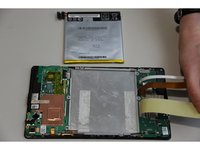
    • When you take the rear panel and the frame out, place the rear panel and the frame away from the device.

  4. ASUS MeMO Pad 7 (ME572C) Speakers Replacement, Battery: 4 단계, 이미지 3개 중 1개 ASUS MeMO Pad 7 (ME572C) Speakers Replacement, Battery: 4 단계, 이미지 3개 중 2개 ASUS MeMO Pad 7 (ME572C) Speakers Replacement, Battery: 4 단계, 이미지 3개 중 3개
    이 단계에 사용된 도구:
    Tweezers
    $4.99
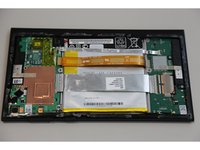
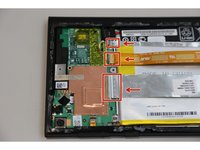
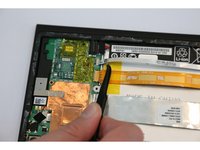
    • Disconnect the ZIF connectors to release the data cables holding the battery in. Use tweezers to do this.

    • You can also use your hand to remove ZIF connectors.

    • ZIF connectors are delicate so be careful when you are removing them.

  5. ASUS MeMO Pad 7 (ME572C) Speakers Replacement: 5 단계, 이미지 1개 중 1개
    • Find the place where the battery connector is. Disconnect the battery connectors by carefully pulling up on them using a spudger or plastic opening tool.

  6. ASUS MeMO Pad 7 (ME572C) Speakers Replacement: 6 단계, 이미지 3개 중 1개 ASUS MeMO Pad 7 (ME572C) Speakers Replacement: 6 단계, 이미지 3개 중 2개 ASUS MeMO Pad 7 (ME572C) Speakers Replacement: 6 단계, 이미지 3개 중 3개
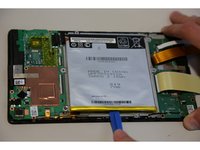
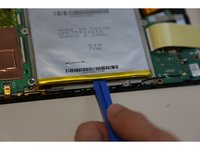
    • Using a plastic opening tool carefully pry the battery loose. The battery is glued to the pad; slight pressure will be needed to remove the battery.

    • The casing of the battery is soft and can easily tear. Tearing can lead to the chemicals in the battery to leak out.

  7. ASUS MeMO Pad 7 (ME572C) Speakers Replacement, Motherboard: 7 단계, 이미지 2개 중 1개 ASUS MeMO Pad 7 (ME572C) Speakers Replacement, Motherboard: 7 단계, 이미지 2개 중 2개
    이 단계에 사용된 도구:
    Tweezers
    $4.99
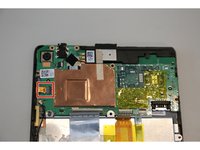
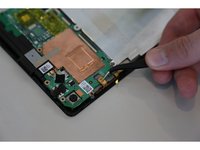
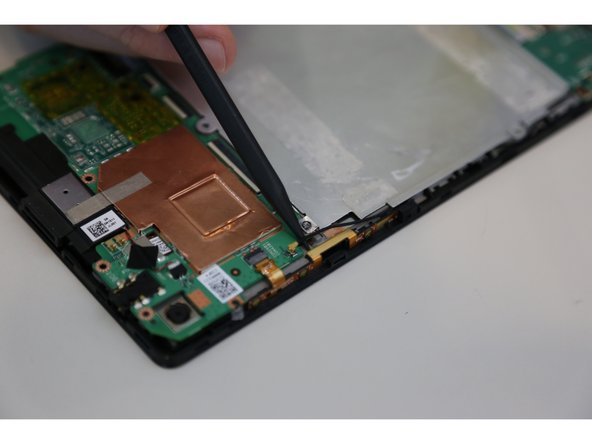
    • After removing the battery from the device, locate the volume connectors on the side of the device.

    • Using tweezers, carefully remove the volume connectors and place it to the side.

  8. ASUS MeMO Pad 7 (ME572C) Speakers Replacement: 8 단계, 이미지 2개 중 1개 ASUS MeMO Pad 7 (ME572C) Speakers Replacement: 8 단계, 이미지 2개 중 2개
    • Locate the GPS antenna. Pry off the GPS antenna cable with a spudger.

  9. ASUS MeMO Pad 7 (ME572C) Speakers Replacement: 9 단계, 이미지 2개 중 1개 ASUS MeMO Pad 7 (ME572C) Speakers Replacement: 9 단계, 이미지 2개 중 2개
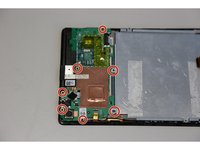
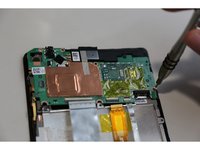
    • Locate seven 2mm Phillips #0 screws attaching the motherboard to the pad. Remove the screws with a Phillips #000 screwdriver.

    • Place your screws somewhere you will remember they are at.

  10. ASUS MeMO Pad 7 (ME572C) Speakers Replacement: 10 단계, 이미지 1개 중 1개
    • Once all the screws are taken out, you can remove the motherboard. Carefully, take the motherboard out with a plastic opening tool.

  11. ASUS MeMO Pad 7 (ME572C) Speakers Replacement, Speakers: 11 단계, 이미지 3개 중 1개 ASUS MeMO Pad 7 (ME572C) Speakers Replacement, Speakers: 11 단계, 이미지 3개 중 2개 ASUS MeMO Pad 7 (ME572C) Speakers Replacement, Speakers: 11 단계, 이미지 3개 중 3개
    이 단계에 사용된 도구:
    Tweezers
    $4.99
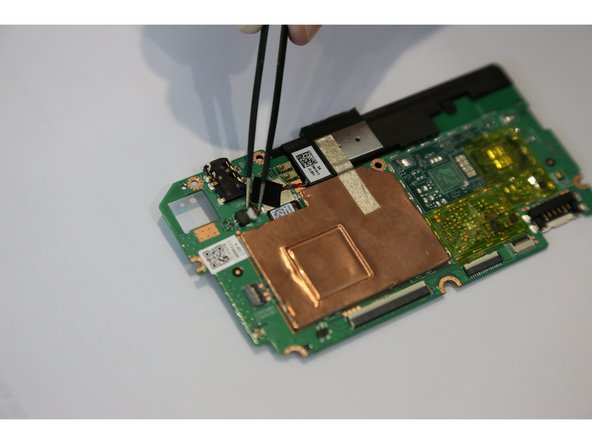
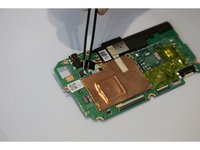
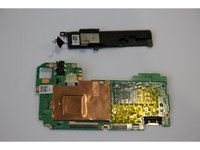
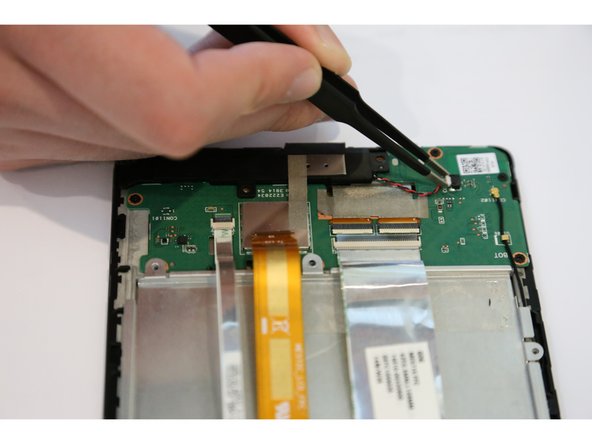
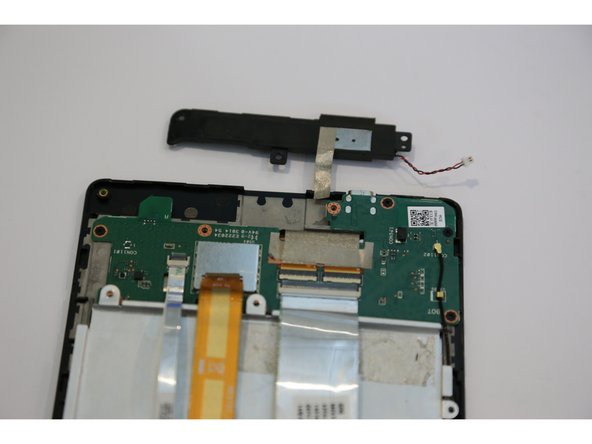
    • Locate the speaker connector on the motherboard.

    • Using tweezers, carefully remove the speaker connector.

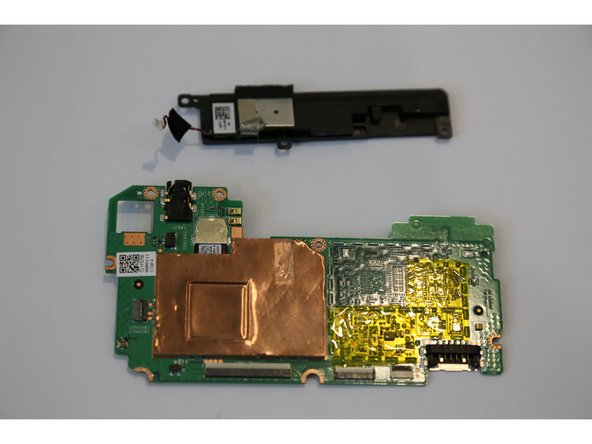
    • After removing the speaker connector, you can easily take the speaker out.

    • Because the speaker is on the motherboard, be careful not to damage any other parts.

    • There are two speakers on the tablet

  12. ASUS MeMO Pad 7 (ME572C) Speakers Replacement: 12 단계, 이미지 3개 중 1개 ASUS MeMO Pad 7 (ME572C) Speakers Replacement: 12 단계, 이미지 3개 중 2개 ASUS MeMO Pad 7 (ME572C) Speakers Replacement: 12 단계, 이미지 3개 중 3개
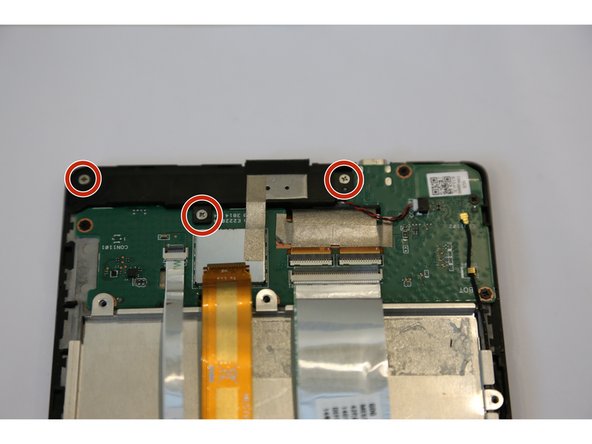
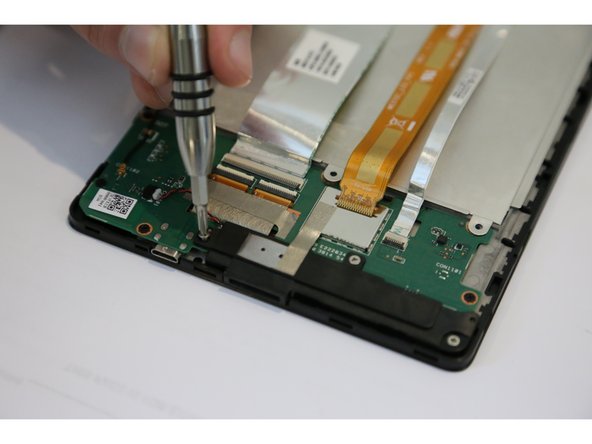
    • Locate the second speaker on the left side of the tablet.

    • Locate three 2mm Phillips #0 screws attaching the speaker to the pad. Remove screws with a Phillips #000 screwdriver.

    • While you are removing the screws, do not put pressure on the tablet. You may damage the touch screen.

    • Place your screws somewhere you will remember they are at.

  13. ASUS MeMO Pad 7 (ME572C) Speakers Replacement: 13 단계, 이미지 3개 중 1개 ASUS MeMO Pad 7 (ME572C) Speakers Replacement: 13 단계, 이미지 3개 중 2개 ASUS MeMO Pad 7 (ME572C) Speakers Replacement: 13 단계, 이미지 3개 중 3개
    • Locate the speaker connector on the side of the device.

    • Using tweezers, carefully remove the speaker connector.

    • After removing the speaker connector, you can easily take the left speaker out.

결론

To reassemble your device, follow these instructions in reverse order.

작성자

4다른 기여자 명과 함께

Efe Guldogan

회원 가입일: 08/26/15

860 평판

안내서 4개를 작성함

USF Tampa, Team 14-23, Meier Fall 2015 USF Tampa, Team 14-23, Meier Fall 2015 회원

USFT-MEIER-F15S14G23

4 회원들

안내서 14개를 작성함

0가이드 댓글

댓글 쓰기

조회 통계:

지난 24시간: 0

지난 7일: 1

지난 30일: 12

전체 시간: 1,196