주요 콘텐츠로 건너뛰기
수리 커뮤니티 가입 - 계정 만들기

ASUS X552LAV-BBI5N08 Fan Replacement

필요한 것

  1. ASUS X552LAV-BBI5N08 Fan Replacement, Battery: 1 단계, 이미지 1개 중 1개
    • Battery is not showed in pictures.

    • Flip the laptop face down.

  2. ASUS X552LAV-BBI5N08 Fan Replacement: 2 단계, 이미지 3개 중 1개 ASUS X552LAV-BBI5N08 Fan Replacement: 2 단계, 이미지 3개 중 2개 ASUS X552LAV-BBI5N08 Fan Replacement: 2 단계, 이미지 3개 중 3개
    • Slide the right button to the left.

    • Hold the left button to the right.

    • While you hold the left button in position, slide the battery out by pushing it away from you.

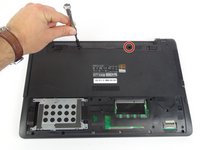
  3. ASUS X552LAV-BBI5N08 Fan Replacement, Fan: 3 단계, 이미지 1개 중 1개
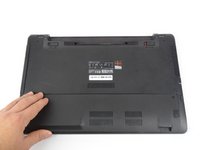
    • Locate the bottom panel. It is at the opposite end of the battery.

    • Remove the two 12mm screws at the bottom panel with a Tri-wing Y1 screwdriver.

  4. ASUS X552LAV-BBI5N08 Fan Replacement: 4 단계, 이미지 3개 중 1개 ASUS X552LAV-BBI5N08 Fan Replacement: 4 단계, 이미지 3개 중 2개 ASUS X552LAV-BBI5N08 Fan Replacement: 4 단계, 이미지 3개 중 3개
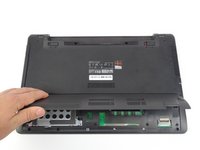
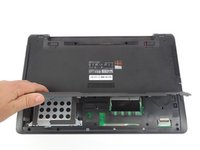
    • Remove bottom panel by lifting it up.

  5. ASUS X552LAV-BBI5N08 Fan Replacement: 5 단계, 이미지 3개 중 1개 ASUS X552LAV-BBI5N08 Fan Replacement: 5 단계, 이미지 3개 중 2개 ASUS X552LAV-BBI5N08 Fan Replacement: 5 단계, 이미지 3개 중 3개
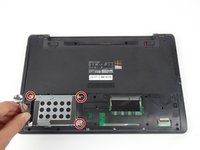
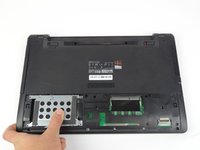
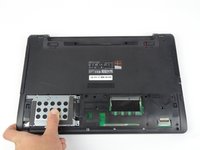
    • Remove the four 5.5mm screws located on the hard drive case using a Tri-wing Y1 screwdriver.

    • Slide the hard drive out to the left.

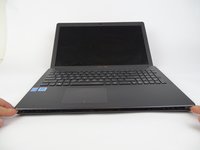
  6. ASUS X552LAV-BBI5N08 Fan Replacement: 6 단계, 이미지 3개 중 1개 ASUS X552LAV-BBI5N08 Fan Replacement: 6 단계, 이미지 3개 중 2개 ASUS X552LAV-BBI5N08 Fan Replacement: 6 단계, 이미지 3개 중 3개
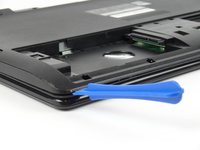
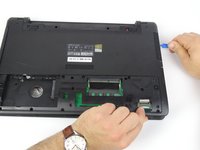
    • Use opening tool to split keyboard from base of the laptop.

    • Make sure to start from one end and go around the edges.

    • Use Tri-wing Y1 screwdriver to remove two 12mm screws from battery area.

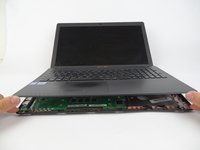
  7. ASUS X552LAV-BBI5N08 Fan Replacement: 7 단계, 이미지 3개 중 1개 ASUS X552LAV-BBI5N08 Fan Replacement: 7 단계, 이미지 3개 중 2개 ASUS X552LAV-BBI5N08 Fan Replacement: 7 단계, 이미지 3개 중 3개
    • Flip laptop to sit on its bottom.

    • Lift keyboard up by the front edge

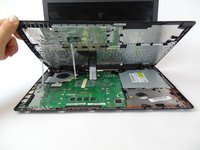
  8. ASUS X552LAV-BBI5N08 Fan Replacement: 8 단계, 이미지 3개 중 1개 ASUS X552LAV-BBI5N08 Fan Replacement: 8 단계, 이미지 3개 중 2개 ASUS X552LAV-BBI5N08 Fan Replacement: 8 단계, 이미지 3개 중 3개
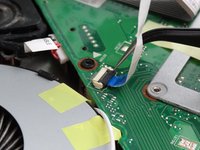
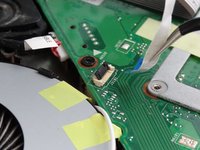
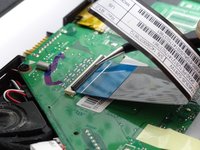
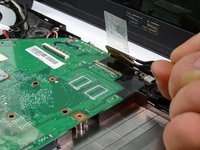
    • Flip up the small locking flap for the two ZIF connectors.

    • Unplug connectors that are keeping keyboard connected

  9. ASUS X552LAV-BBI5N08 Fan Replacement: 9 단계, 이미지 3개 중 1개 ASUS X552LAV-BBI5N08 Fan Replacement: 9 단계, 이미지 3개 중 2개 ASUS X552LAV-BBI5N08 Fan Replacement: 9 단계, 이미지 3개 중 3개
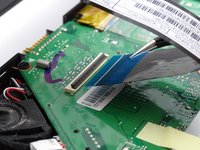
    • Flip up the locking flap for the ZIF connector.

    • Unplug the connector that is keeping the keyboard connected.

  10. ASUS X552LAV-BBI5N08 Fan Replacement: 10 단계, 이미지 3개 중 1개 ASUS X552LAV-BBI5N08 Fan Replacement: 10 단계, 이미지 3개 중 2개 ASUS X552LAV-BBI5N08 Fan Replacement: 10 단계, 이미지 3개 중 3개
    • Remove keyboard from laptop.

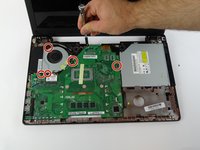
    • Remove the five 4mm screws (with a Tri-wing Y1 screwdriver) that are both connecting the fan and motherboard.

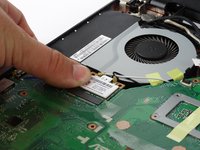
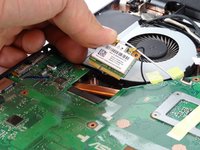
    • Pull out WiFi from below the cooling fan by lifting the edge nearest to the fan and sliding it towards the fan.

  11. ASUS X552LAV-BBI5N08 Fan Replacement: 11 단계, 이미지 3개 중 1개 ASUS X552LAV-BBI5N08 Fan Replacement: 11 단계, 이미지 3개 중 2개 ASUS X552LAV-BBI5N08 Fan Replacement: 11 단계, 이미지 3개 중 3개
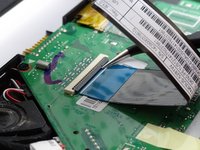
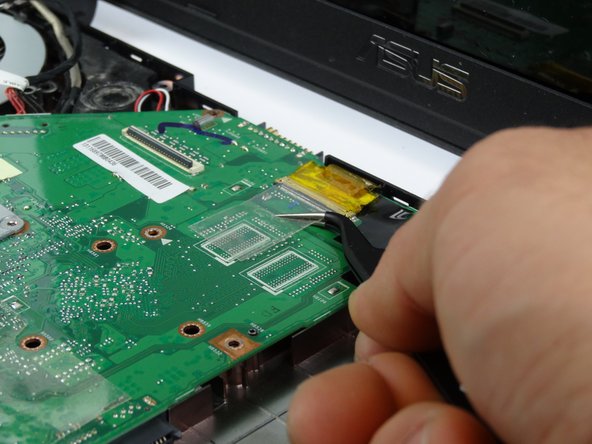
    • Lift yellow ZIF connector from the top of the motherboard to remove the connector.

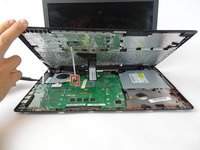
    • Lift up motherboard from bottom edge towards the screen.

  12. ASUS X552LAV-BBI5N08 Fan Replacement: 12 단계, 이미지 2개 중 1개 ASUS X552LAV-BBI5N08 Fan Replacement: 12 단계, 이미지 2개 중 2개
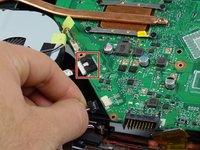
    • Unplug the two bundled cable connector from pin sockets below the fan.

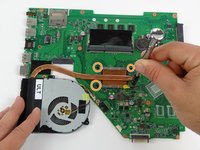
    • Remove the motherboard and place on a flat surface.

    • Remove four 4mm screws with a Tri-wing Y1 screwdriver from the CPU.

  13. ASUS X552LAV-BBI5N08 Fan Replacement: 13 단계, 이미지 2개 중 1개 ASUS X552LAV-BBI5N08 Fan Replacement: 13 단계, 이미지 2개 중 2개
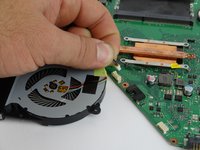
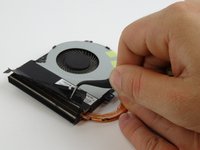
    • Disconnect bundled cable connector from the motherboard

    • Remove fan part from the motherboard.

  14. ASUS X552LAV-BBI5N08 Fan Replacement: 14 단계, 이미지 3개 중 1개 ASUS X552LAV-BBI5N08 Fan Replacement: 14 단계, 이미지 3개 중 2개 ASUS X552LAV-BBI5N08 Fan Replacement: 14 단계, 이미지 3개 중 3개
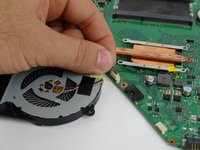
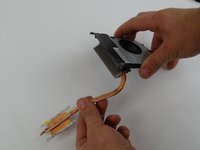
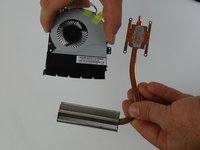
    • Remove the black tape from the top of the fan radiator.

    • Remove radiator by tilting it down and pulling it out from the fan.

결론

To reassemble your device, follow these instructions in reverse order.

작성자

2다른 기여자 명과 함께

Jason Vo

회원 가입일: 02/15/18

891 평판

안내서 5개를 작성함

USF Tampa, Team S17-G1, Boczar Spring 2018 USF Tampa, Team S17-G1, Boczar Spring 2018 회원

USFT-BOCZAR-S18S17G1

4 회원들

안내서 5개를 작성함

0가이드 댓글

댓글 쓰기

조회 통계:

지난 24시간: 5

지난 7일: 18

지난 30일: 48

전체 시간: 804