주요 콘텐츠로 건너뛰기
수리 커뮤니티 가입 - 계정 만들기

Accessing LCD Screen

필요한 것

  1. Accessing LCD Screen, Front and Back Cover: 1 단계, 이미지 2개 중 1개 Accessing LCD Screen, Front and Back Cover: 1 단계, 이미지 2개 중 2개
    • Remove the following screws:

    • Two silver 3.15mm Phillips #00 screws on the right side of the camera

    • Two silver 2.08mm Phillips #00 screws on the left side of the camera

    댓글 쓰기

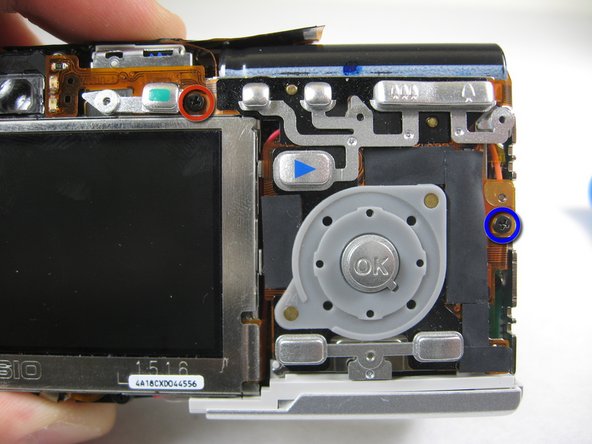
  2. Accessing LCD Screen: 2 단계, 이미지 1개 중 1개
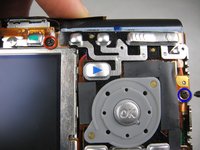
    • Remove the two indicated screws on the bottom of the camera:

    • The screw circled in red is a longer silver 3.15mm Phillips #00 screw

    • The screw circled in blue is a shorter silver 2.25mm Phillips #00 screw

    댓글 쓰기

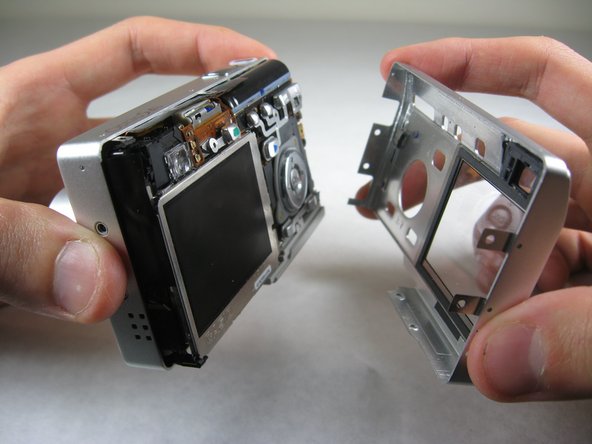
  3. Accessing LCD Screen: 3 단계, 이미지 2개 중 1개 Accessing LCD Screen: 3 단계, 이미지 2개 중 2개
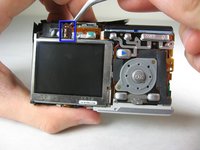
    • Carefully pull the back of casing away from the front.

    댓글 쓰기

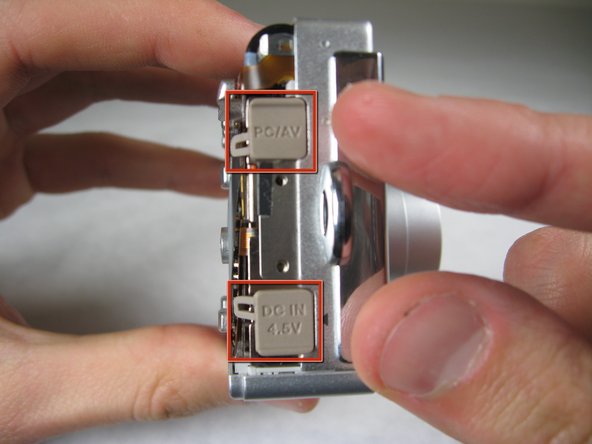
  4. Accessing LCD Screen: 4 단계, 이미지 3개 중 1개 Accessing LCD Screen: 4 단계, 이미지 3개 중 2개 Accessing LCD Screen: 4 단계, 이미지 3개 중 3개
    • After removing the back cover, several things must be removed.

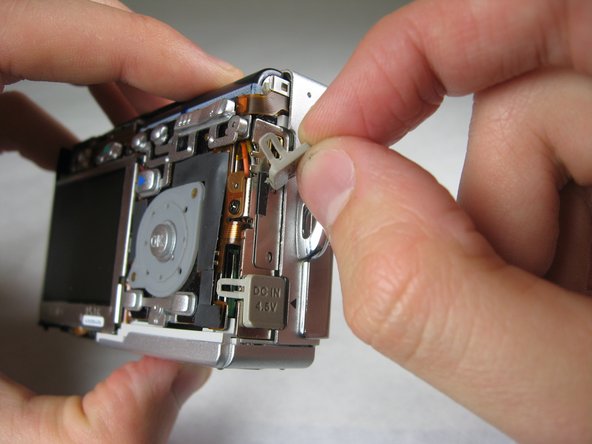
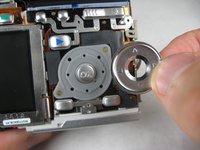
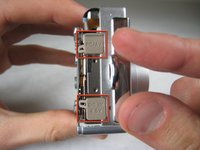
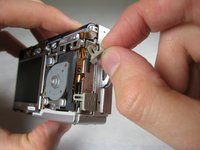
    • Silver donut-shaped button will fall off. Place separately. Remove the plug covers on the right side of camera, labeled “PC/AV” and “DC IN 4.5V”.

    댓글 쓰기

  5. Accessing LCD Screen: 5 단계, 이미지 2개 중 1개 Accessing LCD Screen: 5 단계, 이미지 2개 중 2개
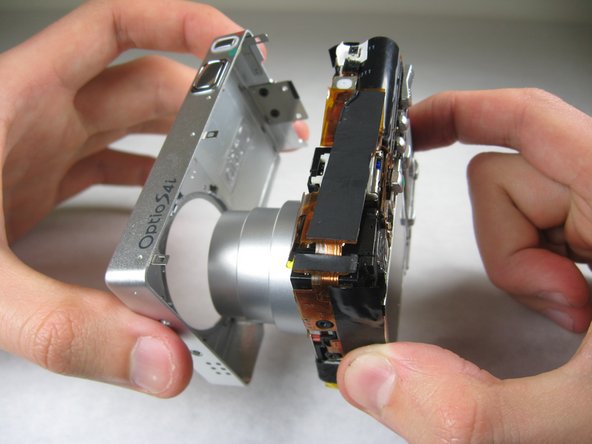
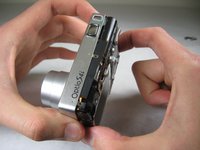
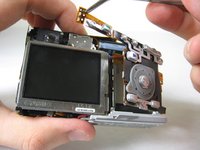
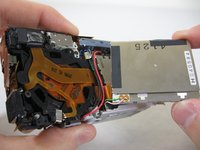
    • To remove the front cover, gently hold the inside structure of the camera and slowly pull the front cover off.

    댓글 쓰기

  6. Accessing LCD Screen, LCD: 6 단계, 이미지 2개 중 1개 Accessing LCD Screen, LCD: 6 단계, 이미지 2개 중 2개
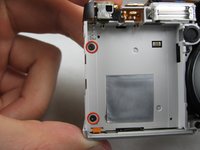
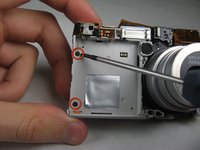
    • On the front of the camera, in battery case, remove screws indicated:

    • Two black 2.05mm Phillips #00 screws

    댓글 쓰기

  7. Accessing LCD Screen: 7 단계, 이미지 2개 중 1개 Accessing LCD Screen: 7 단계, 이미지 2개 중 2개
    • Flip the camera over to the backside and remove screws indicated:

    • The screw circled in red is a longer black 3.00mm Phillips #00 screw

    • The screw circled in red is a shorter black 2.00mm Phillips #00 screw

    댓글 쓰기

  8. Accessing LCD Screen: 8 단계, 이미지 1개 중 1개
    • Pull the cover plate off for the two power cord jacks.

    댓글 쓰기

  9. Accessing LCD Screen: 9 단계, 이미지 3개 중 1개 Accessing LCD Screen: 9 단계, 이미지 3개 중 2개 Accessing LCD Screen: 9 단계, 이미지 3개 중 3개
    • Cautiously and gently pull up the control board at the upper left corner, next to the viewfinder.

    댓글 쓰기

  10. Accessing LCD Screen: 10 단계, 이미지 1개 중 1개
    • Remove the orange tape on top of the SD cardholder.

    댓글 쓰기

  11. Accessing LCD Screen: 11 단계, 이미지 3개 중 1개 Accessing LCD Screen: 11 단계, 이미지 3개 중 2개 Accessing LCD Screen: 11 단계, 이미지 3개 중 3개
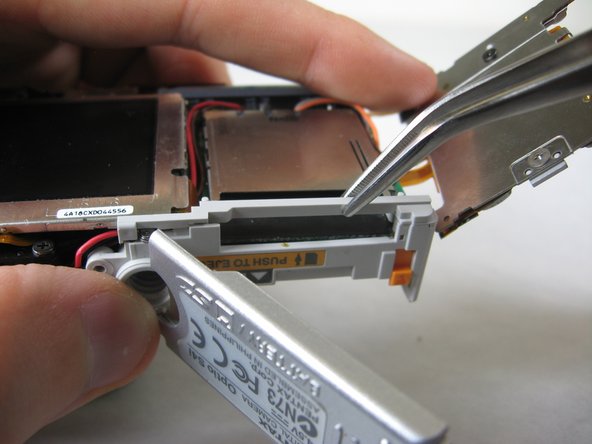
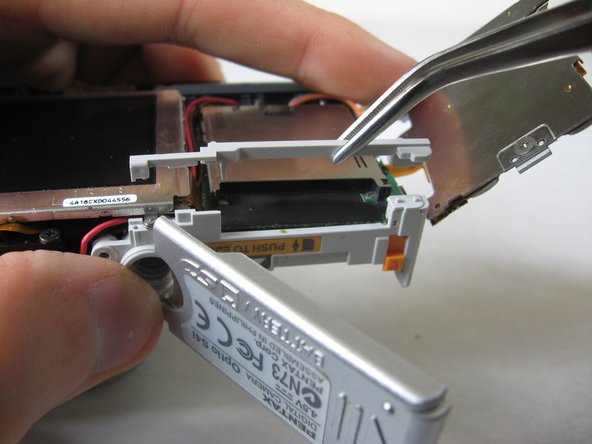
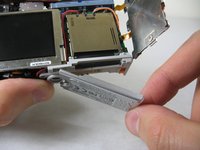
    • Open the battery cover and lift plastic piece off.

    댓글 쓰기

  12. Accessing LCD Screen: 12 단계, 이미지 1개 중 1개
    • Remove tape on left side of camera.

    댓글 쓰기

  13. Accessing LCD Screen: 13 단계, 이미지 1개 중 1개
    • Remove the indicated 2.40mm Phillips #00 screw to release top left LCD bracket.

    댓글 쓰기

  14. Accessing LCD Screen: 14 단계, 이미지 1개 중 1개
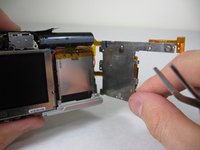
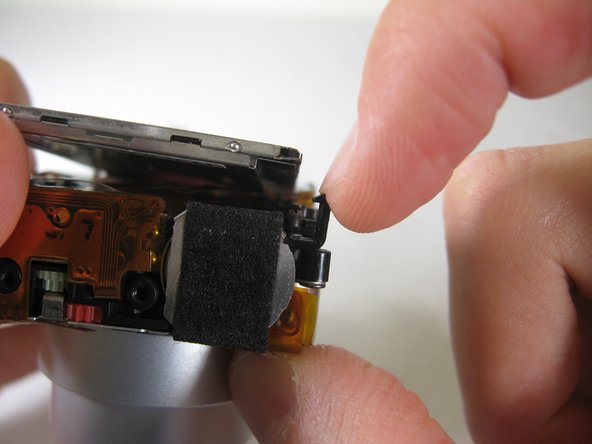
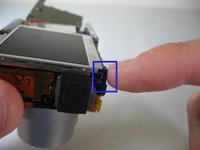
    • Remove top left LCD bracket.

    • This is a small piece, be careful not to lose it.

    댓글 쓰기

  15. Accessing LCD Screen: 15 단계, 이미지 2개 중 1개 Accessing LCD Screen: 15 단계, 이미지 2개 중 2개
    • Push down bottom left LCD bracket to release the LCD from grip.

    댓글 쓰기

  16. Accessing LCD Screen: 16 단계, 이미지 1개 중 1개
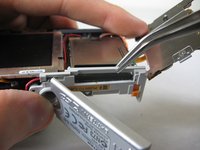
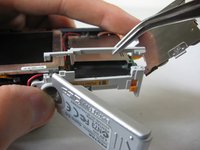
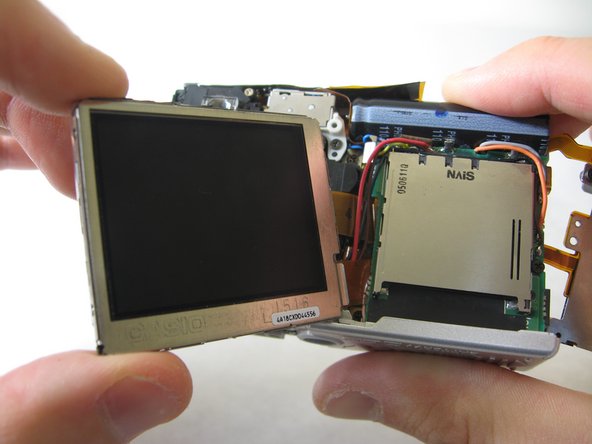
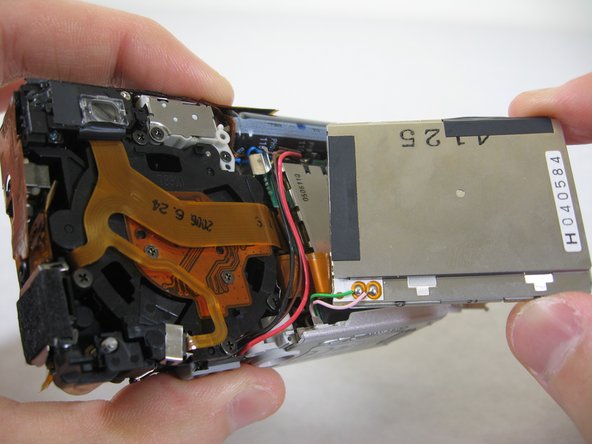
    • Gently lift up LCD screen.

    댓글 쓰기

  17. Accessing LCD Screen: 17 단계, 이미지 3개 중 1개 Accessing LCD Screen: 17 단계, 이미지 3개 중 2개 Accessing LCD Screen: 17 단계, 이미지 3개 중 3개
    • Slowly pull LCD screen to the left to remove it from the other grips.

    • BEWARE: The LCD screen is attached to the logic board by two wires at the bottom.

    댓글 쓰기

결론

To reassemble your device, follow these instructions in reverse order.

취소: 해당 안내서를 완성하지 않았습니다.

작성자

5다른 기여자 명과 함께

Bassem Tossoun

회원 가입일: 01/21/11

201 평판

안내서 2개를 작성함

Cal Poly, Team 4-29, Regan Winter 2011 Cal Poly, Team 4-29, Regan Winter 2011 회원

CPSU-REGAN-W11S4G29

3 회원들

안내서 10개를 작성함

0가이드 댓글

댓글 쓰기

조회 통계:

지난 24시간: 1

지난 7일: 5

지난 30일: 49

전체 시간: 1,505