주요 콘텐츠로 건너뛰기

Acer Chromebook C740-C4PE LCD Screen Replacement

필요한 것

  1. Acer Chromebook C740-C4PE LCD Screen Replacement, LCD Screen: 1 단계, 이미지 1개 중 1개
    • Turn off the Acer Chromebook, remove it from the charger, and disconnect the battery adapter.

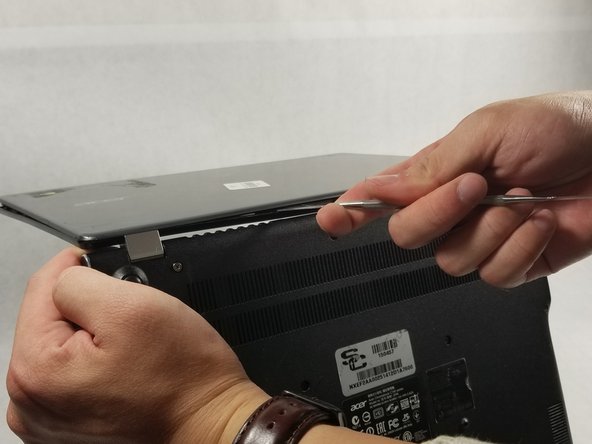
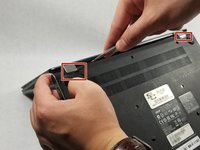
  2. Acer Chromebook C740-C4PE LCD Screen Replacement: 2 단계, 이미지 2개 중 1개 Acer Chromebook C740-C4PE LCD Screen Replacement: 2 단계, 이미지 2개 중 2개
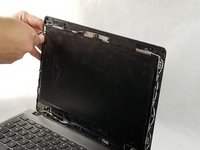
    • Remove the black frame off the screen by using a spudger.

    • It is recommended to start removing the frame from the top corner.

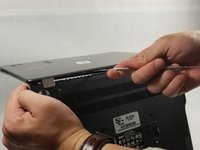
  3. Acer Chromebook C740-C4PE LCD Screen Replacement: 3 단계, 이미지 2개 중 1개 Acer Chromebook C740-C4PE LCD Screen Replacement: 3 단계, 이미지 2개 중 2개
    • Use the spudger to open the two hinges that connect the screen frame to the bottom of the Chromebook.

    • Move the spudger along the bottom of the screen frame until you can pull the frame out entirely.

  4. Acer Chromebook C740-C4PE LCD Screen Replacement: 4 단계, 이미지 2개 중 1개 Acer Chromebook C740-C4PE LCD Screen Replacement: 4 단계, 이미지 2개 중 2개
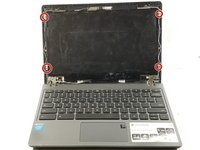
    • Remove the four 3.4 mm screws by using the Phillips #0 screwdriver.

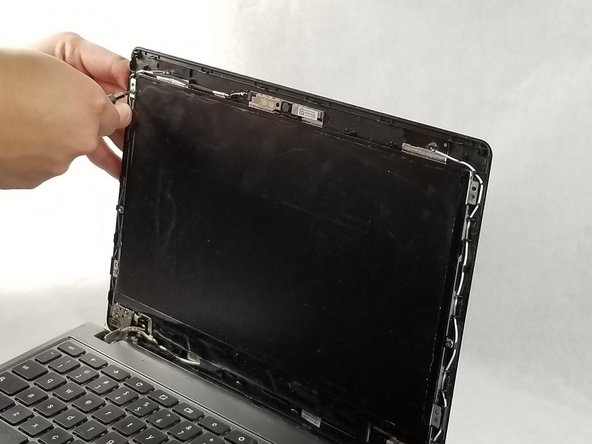
  5. Acer Chromebook C740-C4PE LCD Screen Replacement: 5 단계, 이미지 3개 중 1개 Acer Chromebook C740-C4PE LCD Screen Replacement: 5 단계, 이미지 3개 중 2개 Acer Chromebook C740-C4PE LCD Screen Replacement: 5 단계, 이미지 3개 중 3개
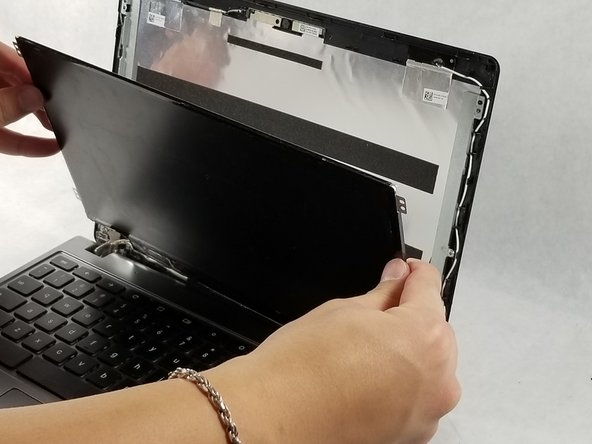
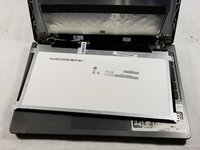
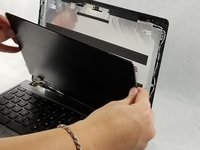
    • Place the LCD screen on top of the keyboard.

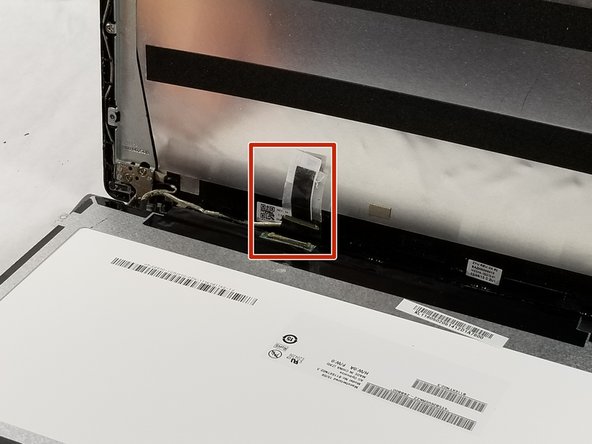
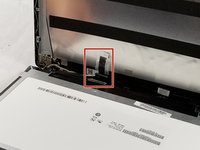
    • Lift the tape that holds the back of the LCD screen to the connector, and unplug the connector.

    • Remove the LCD screen and replace it with the new one.

결론

To reassemble your device, follow these instructions in reverse order.

다른 3명이 해당 안내서를 완성하였습니다.

작성자

9다른 기여자 명과 함께

Sang Huynh

회원 가입일: 03/08/17

252 평판

안내서 2개를 작성함

UMass Dartmouth, Team S6-G4, Rockett Fall 2017 UMass Dartmouth, Team S6-G4, Rockett Fall 2017 회원

UMASSD-ROCKETT-F17S6G4

3 회원들

안내서 12개를 작성함

0가이드 댓글

댓글 쓰기

조회 통계:

지난 24시간: 0

지난 7일: 3

지난 30일: 4

전체 시간: 753