주요 콘텐츠로 건너뛰기

Asus Chromebook C300MA-EDU Battery Replacement

필요한 것

  1. Asus Chromebook C300MA-EDU Battery Replacement, Keyboard: 1 단계, 이미지 2개 중 1개 Asus Chromebook C300MA-EDU Battery Replacement, Keyboard: 1 단계, 이미지 2개 중 2개
    • Flip the Chromebook onto its back, where there are eleven screws.

    • There are two variations of screws on the back panel:

    • Six 8.7mm screws.

    • Five 6.4mm screws.

    • Using your screwdriver with the J00 Phillips Head tip, remove the screws by turning them counter clockwise.

  2. Asus Chromebook C300MA-EDU Battery Replacement: 2 단계, 이미지 2개 중 1개 Asus Chromebook C300MA-EDU Battery Replacement: 2 단계, 이미지 2개 중 2개
    • Once the screws are removed, flip the Chromebook back over.

    • Gently remove the keyboard by starting to lift up on one corner with a plastic opening tool.

    • Follow around the brim of the keyboard until it pops off.

  3. Asus Chromebook C300MA-EDU Battery Replacement: 3 단계, 이미지 3개 중 1개 Asus Chromebook C300MA-EDU Battery Replacement: 3 단계, 이미지 3개 중 2개 Asus Chromebook C300MA-EDU Battery Replacement: 3 단계, 이미지 3개 중 3개
    • Once you remove the keyboard, it will be connected to the CPU with two tabbed connections.

    • Release the connections from the tabs gently by flipping the white flaps up until disconnected.

    • You can now pull the ribbons out from the board and remove the keyboard.

  4. Asus Chromebook C300MA-EDU Battery Replacement, Battery: 4 단계, 이미지 3개 중 1개 Asus Chromebook C300MA-EDU Battery Replacement, Battery: 4 단계, 이미지 3개 중 2개 Asus Chromebook C300MA-EDU Battery Replacement, Battery: 4 단계, 이미지 3개 중 3개
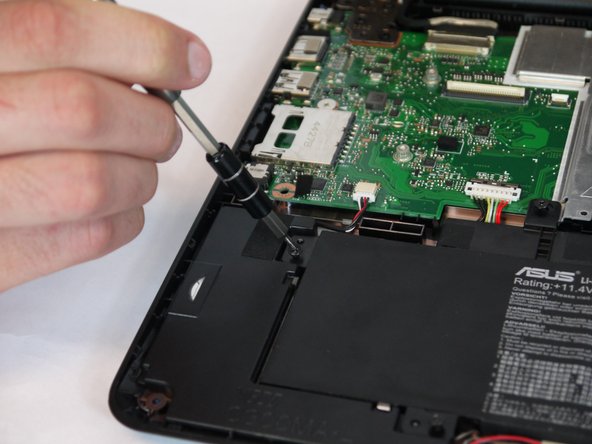
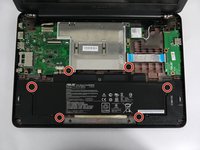
    • Once the keyboard is removed, the battery is located on the bottom portion of the shell.

    • The battery is held in with six 6.5mm screws on opposing sides.

  5. Asus Chromebook C300MA-EDU Battery Replacement: 5 단계, 이미지 2개 중 1개 Asus Chromebook C300MA-EDU Battery Replacement: 5 단계, 이미지 2개 중 2개
    • The battery is now held in with a tabbed connection to the CPU on the left side of the board. On the tabbed connection, there is a silver plate.

    • Gently push on the silver plate towards the screen until the plastic connection is free.

    • The tabbed connection should now slide out backwards.

  6. Asus Chromebook C300MA-EDU Battery Replacement: 6 단계, 이미지 2개 중 1개 Asus Chromebook C300MA-EDU Battery Replacement: 6 단계, 이미지 2개 중 2개
    • At this point, using the plastic removal tool, lift the battery out of the shell.

결론

To reassemble your device, follow these instructions in reverse order.

작성자

3다른 기여자 명과 함께

Christopher Hart

회원 가입일: 09/28/17

501 평판

안내서 5개를 작성함

USF Tampa, Team S2-G3, Nance Fall 2017 USF Tampa, Team S2-G3, Nance Fall 2017 회원

USFT-NANCE-F17S2G3

4 회원들

안내서 10개를 작성함

0가이드 댓글

댓글 쓰기

조회 통계:

지난 24시간: 1

지난 7일: 2

지난 30일: 12

전체 시간: 565