주요 콘텐츠로 건너뛰기
수리 커뮤니티 가입 - 계정 만들기
Battery Disconnect

단지 전제 조건
이 가이드는 전제 조건 전용 가이드입니다! 이 가이드는 다른 절차의 일부이며 단독으로 사용할 수 없습니다.

필요한 것

  1. Battery Disconnect, Prepare your laptop for disassembly: 1 단계, 이미지 2개 중 1개 Battery Disconnect, Prepare your laptop for disassembly: 1 단계, 이미지 2개 중 2개
    • Allow your laptop's battery to drain below 25% before starting this repair—a charged battery may catch fire if damaged.

    • Unplug all cables and fully shut down your laptop.

  2. Battery Disconnect, Unfasten the back cover: 2 단계, 이미지 2개 중 1개 Battery Disconnect, Unfasten the back cover: 2 단계, 이미지 2개 중 2개
    • Use a Phillips screwdriver to remove the ten screws securing the back cover:

    • Six 7.6 mm-long screws

    • Four 4.7 mm-long screws

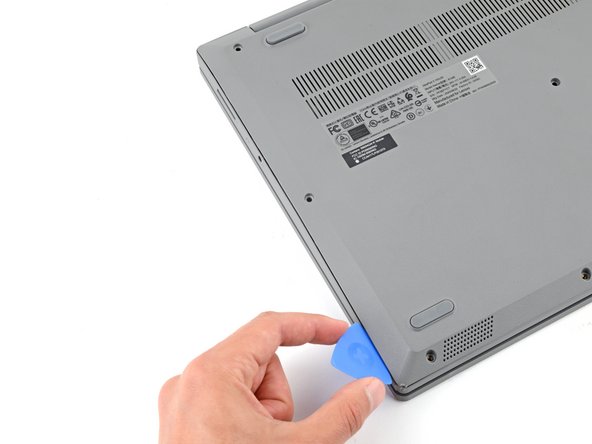
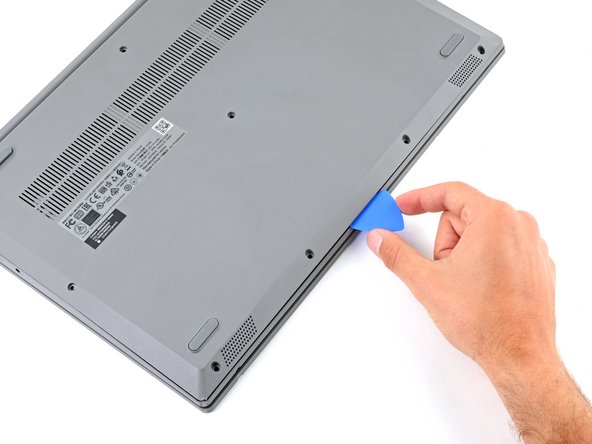
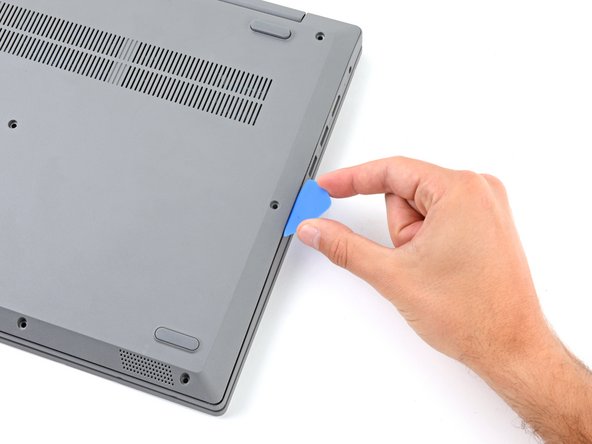
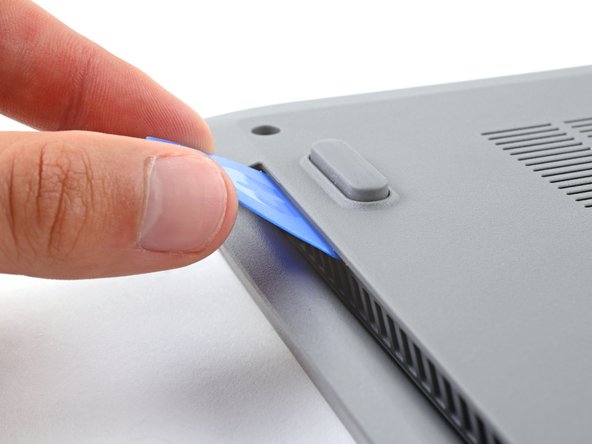
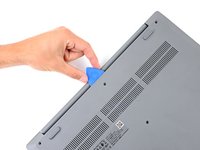
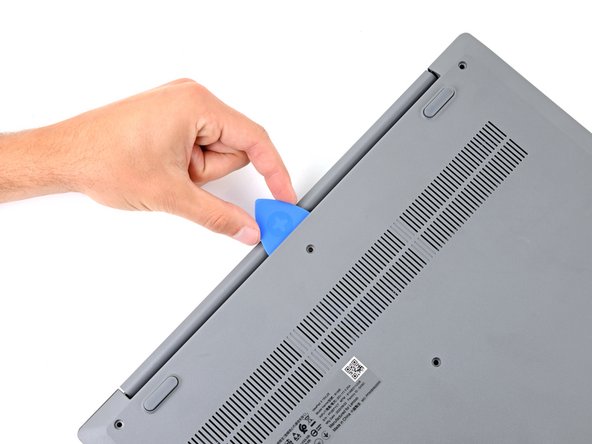
  3. Battery Disconnect, Insert an opening pick: 3 단계, 이미지 3개 중 1개 Battery Disconnect, Insert an opening pick: 3 단계, 이미지 3개 중 2개 Battery Disconnect, Insert an opening pick: 3 단계, 이미지 3개 중 3개
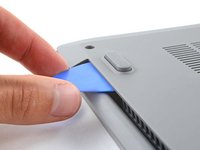
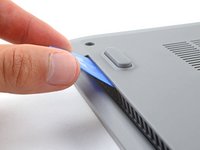
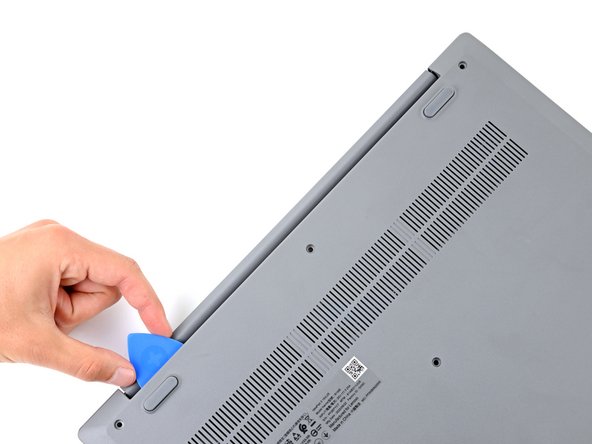
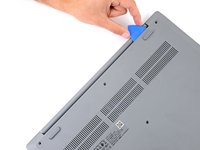
    • Plastic clips secure the back cover to the frame. You'll hear and feel the clips release.

    • Insert the flat side of an opening pick between the top left corner of the back cover and frame.

    • Angle the pick down to about 45 degrees.

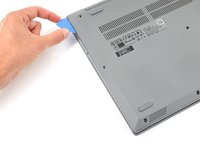
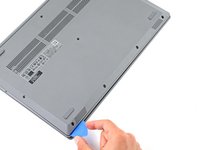
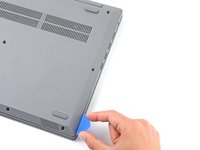
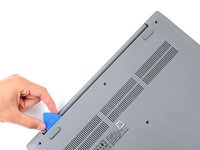
  4. Battery Disconnect, Release the left clips: 4 단계, 이미지 3개 중 1개 Battery Disconnect, Release the left clips: 4 단계, 이미지 3개 중 2개 Battery Disconnect, Release the left clips: 4 단계, 이미지 3개 중 3개
    • Keep the opening pick angled down at about 45 degrees while sliding it along the front and side edges to help release the clips.

    • Slide the pick to the bottom left corner of the laptop to release the left clips.

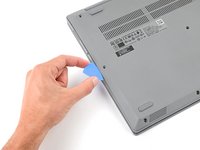
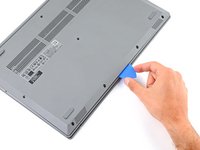
  5. Battery Disconnect, Release the bottom clips: 5 단계, 이미지 3개 중 1개 Battery Disconnect, Release the bottom clips: 5 단계, 이미지 3개 중 2개 Battery Disconnect, Release the bottom clips: 5 단계, 이미지 3개 중 3개
    • Slide the opening pick to the bottom right corner to release the bottom clips.

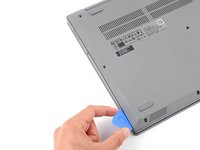
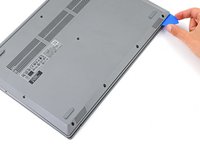
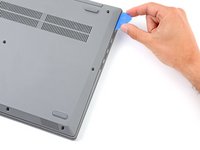
  6. Battery Disconnect, Release the right clips: 6 단계, 이미지 3개 중 1개 Battery Disconnect, Release the right clips: 6 단계, 이미지 3개 중 2개 Battery Disconnect, Release the right clips: 6 단계, 이미지 3개 중 3개
    • Slide the opening pick to the top right corner to release the right clips.

  7. Battery Disconnect, Insert an opening pick: 7 단계, 이미지 2개 중 1개 Battery Disconnect, Insert an opening pick: 7 단계, 이미지 2개 중 2개
    • Insert the flat end of an opening pick between the back cover and frame, to the left of the right hinge.

    • Pry the back cover up with the pick to release the top right clips.

    • Leave the pick inserted next to the right hinge.

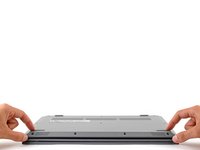
  8. Battery Disconnect, Release the top clips: 8 단계, 이미지 3개 중 1개 Battery Disconnect, Release the top clips: 8 단계, 이미지 3개 중 2개 Battery Disconnect, Release the top clips: 8 단계, 이미지 3개 중 3개
    • Angle the pick up to about 45 degrees.

    • Slide the opening pick to the top left corner to release the remaining clips.

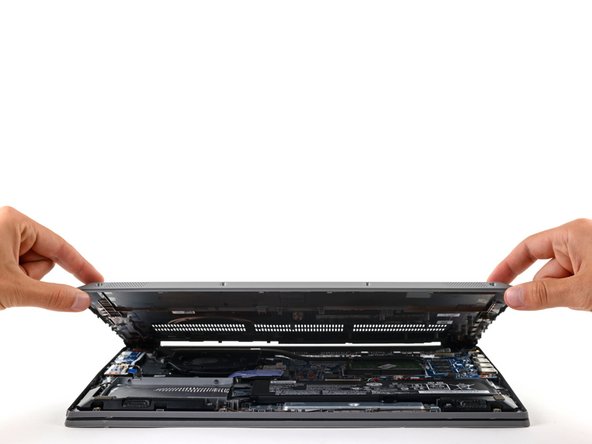
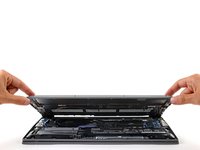
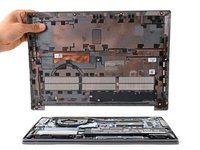
  9. Battery Disconnect, Remove the back cover: 9 단계, 이미지 3개 중 1개 Battery Disconnect, Remove the back cover: 9 단계, 이미지 3개 중 2개 Battery Disconnect, Remove the back cover: 9 단계, 이미지 3개 중 3개
    • Remove the back cover.

    • During reassembly, lay the back cover on the frame and press firmly around the perimeter to engage all the clips.

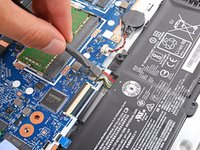
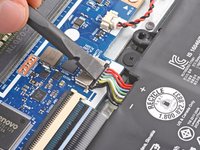
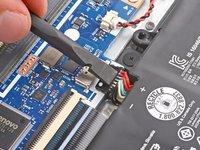
  10. Battery Disconnect, Disconnect the battery: 10 단계, 이미지 3개 중 1개 Battery Disconnect, Disconnect the battery: 10 단계, 이미지 3개 중 2개 Battery Disconnect, Disconnect the battery: 10 단계, 이미지 3개 중 3개
    • Use the flat end of a spudger to gently push the battery connector out of its socket on the motherboard.

결론

To reassemble your device, follow these instructions in reverse order.

Spencer Day

회원 가입일: 09/14/22

158,552 평판

안내서 1,043개를 작성함

iFixit iFixit 회원

Staff

123 회원들

안내서 23,899개를 작성함

0가이드 댓글

댓글 쓰기

조회 통계:

지난 24시간: 0

지난 7일: 0

지난 30일: 0

전체 시간: 26