주요 콘텐츠로 건너뛰기

Canon ImageCLASS MF4350d Remove Right Side Paneling

필요한 것

  1. Canon ImageCLASS MF4350d Remove Right Side Paneling, Front Paneling: 1 단계, 이미지 1개 중 1개
    • Lift the printer lid up as shown in the photo.

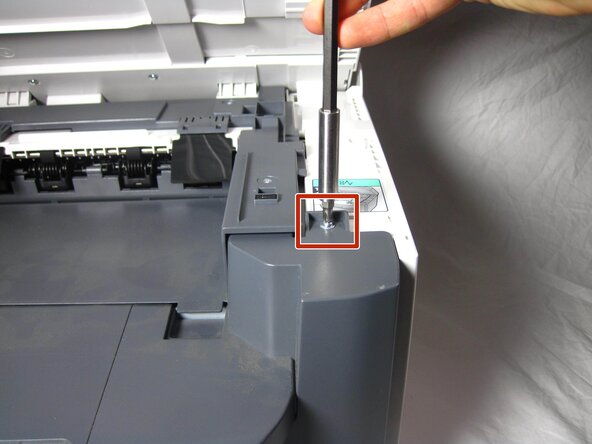
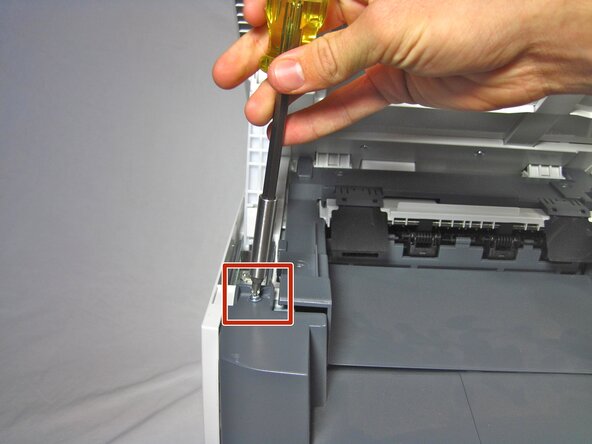
  2. Canon ImageCLASS MF4350d Remove Right Side Paneling: 2 단계, 이미지 2개 중 1개 Canon ImageCLASS MF4350d Remove Right Side Paneling: 2 단계, 이미지 2개 중 2개
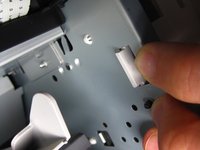
    • Locate and remove the two 10mm side screws. There is one on each side.

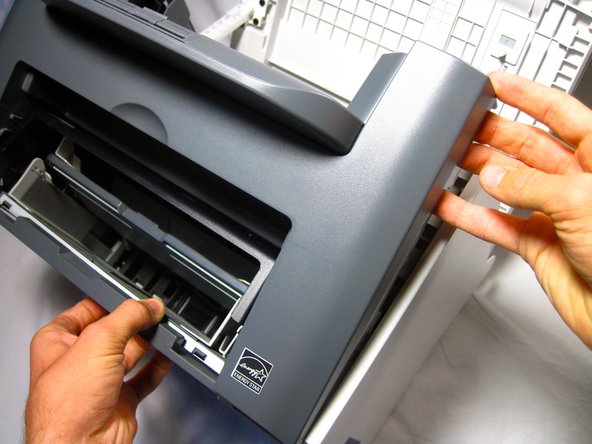
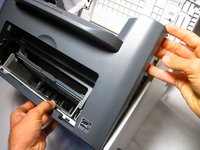
  3. Canon ImageCLASS MF4350d Remove Right Side Paneling: 3 단계, 이미지 2개 중 1개 Canon ImageCLASS MF4350d Remove Right Side Paneling: 3 단계, 이미지 2개 중 2개
    • Unhook the plastic panel from the printer starting from the top.

    • You may need to wiggle the panel a bit to loosen it.

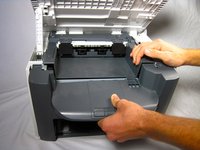
    • To remove the bottom part of the paneling gently lay the printer on its back.

    • The scanner lid needs to be supported when moving the printer

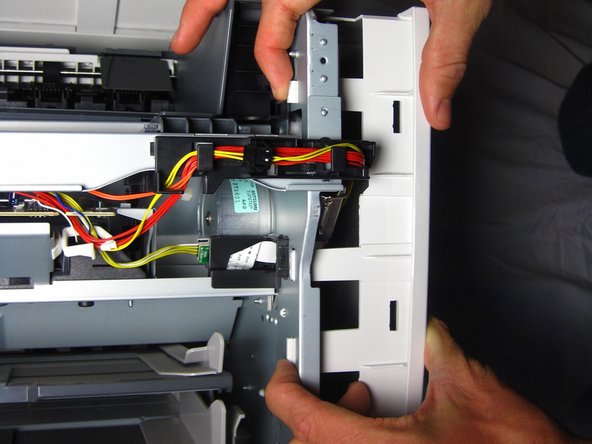
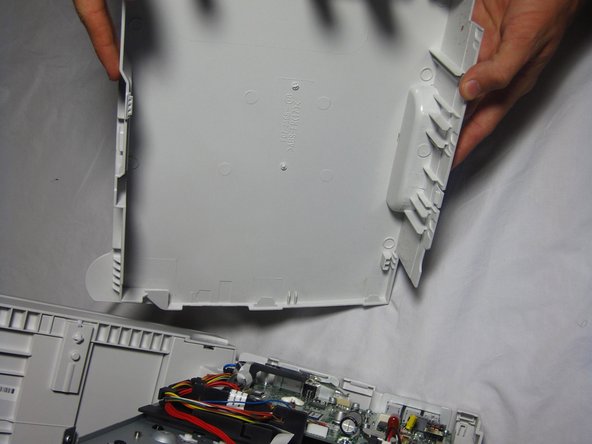
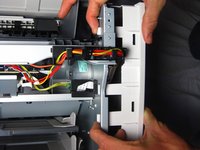
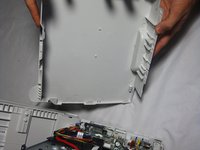
  4. Canon ImageCLASS MF4350d Remove Right Side Paneling, Right Side Paneling: 4 단계, 이미지 3개 중 1개 Canon ImageCLASS MF4350d Remove Right Side Paneling, Right Side Paneling: 4 단계, 이미지 3개 중 2개 Canon ImageCLASS MF4350d Remove Right Side Paneling, Right Side Paneling: 4 단계, 이미지 3개 중 3개
    • Gently unhook the right side paneling (as looking at the printer's front face) from the printer.

    • Use a gentle back and forth motion to wiggle the hooks out.

결론

To reassemble your device, follow these instructions in reverse order.

다른 3명이 해당 안내서를 완성하였습니다.

작성자

6다른 기여자 명과 함께

Helena Yanez

회원 가입일: 09/29/13

461 평판

안내서 4개를 작성함

Cal Poly, Team 13-1, Forte Fall 2013 Cal Poly, Team 13-1, Forte Fall 2013 회원

CPSU-FORTE-F13S13G1

5 회원들

안내서 16개를 작성함

1가이드 댓글

Tore paper when removing jamed paper. A small piece of paper must still be in machine.

Louis Pike McCasland - 답글

댓글 쓰기

조회 통계:

지난 24시간: 0

지난 7일: 5

지난 30일: 18

전체 시간: 4,627