주요 콘텐츠로 건너뛰기
수리 커뮤니티 가입 - 계정 만들기

Canon PowerShot S500 LCD Replacement

필요한 것

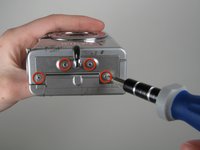
  1. Canon PowerShot S500 LCD Replacement, Front and Rear Casing : 1 단계, 이미지 2개 중 1개 Canon PowerShot S500 LCD Replacement, Front and Rear Casing : 1 단계, 이미지 2개 중 2개
    • Unscrew five Phillips screws using a #0 Phillips screwdriver.

    • One screw is on upper right corner of the back panel.

    • The other four screws are on the bottom of the camera.

  2. Canon PowerShot S500 LCD Replacement: 2 단계, 이미지 1개 중 1개
    • Open the memory card cover by moving the slide switch toward the top end of of the camera.

    • Remove the memory card from the slot.

  3. Canon PowerShot S500 LCD Replacement: 3 단계, 이미지 1개 중 1개
    • Remove the rear cover from the rest of the camera.

    • This may require gentle rocking of the case to free it.

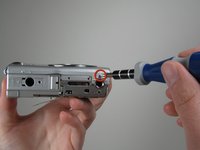
  4. Canon PowerShot S500 LCD Replacement: 4 단계, 이미지 2개 중 1개 Canon PowerShot S500 LCD Replacement: 4 단계, 이미지 2개 중 2개
    • Unscrew the four Phillips screws from the side of the casing and one screw from the bottom using a #0 Phillips screwdriver.

  5. Canon PowerShot S500 LCD Replacement: 5 단계, 이미지 1개 중 1개
    • Free the front cover from the rest of the camera.

    • The cover may require gentle rocking to remove.

  6. Canon PowerShot S500 LCD Replacement, LCD: 6 단계, 이미지 1개 중 1개
    • Unscrew two Phillips screws above the LCD using a #0 Phillips screwdriver.

  7. Canon PowerShot S500 LCD Replacement: 7 단계, 이미지 1개 중 1개
    • Gently separate the top of LCD from the rest of the camera using your thumb.

    • Be careful not pull the LCD too far because of the ribbon cable connection.

    • Place the Spudger in the hole of the electrical ribbon.

    • Gently pull the ribbon down using the Spudger until it is free from the camera but still connected to the LCD.

    • The LCD will still be connected to the rest of the camera

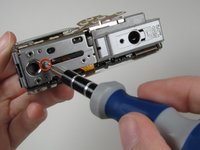
  8. Canon PowerShot S500 LCD Replacement: 8 단계, 이미지 2개 중 1개 Canon PowerShot S500 LCD Replacement: 8 단계, 이미지 2개 중 2개
    • Unscrew single Phillips screw with a #0 Phillips screwdriver.

    • Free the bottom panel and attached ribbon from the rest of the camera.

    • Be careful not to damage the ribbon.

  9. Canon PowerShot S500 LCD Replacement: 9 단계, 이미지 1개 중 1개
    • Turn over the camera.

    • Lift the clear plastic from the face of the camera, peeling the adhesive just below the zoom lens.

    • The plastic will still be connected on the left side.

  10. Canon PowerShot S500 LCD Replacement: 10 단계, 이미지 1개 중 1개
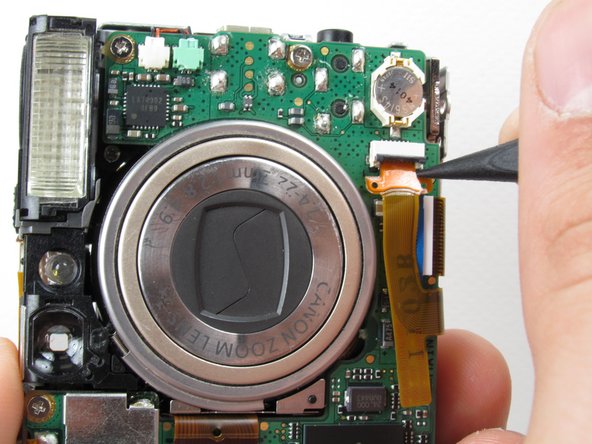
    • Place the Spudger between the orange ribbon and the black ribbon gate.

    • Lift the ribbon gate using the Spudger.

  11. Canon PowerShot S500 LCD Replacement: 11 단계, 이미지 1개 중 1개
    • Place the Spudger in the corner of the ribbon above the hole.

    • Remove the ribbon from the ribbon gate by pulling the Spudger away from the gate.

  12. Canon PowerShot S500 LCD Replacement: 12 단계, 이미지 1개 중 1개
    • Free this ribbon and the bottom panel from the rest of the camera.

    • Be careful not to damage the ribbon.

  13. Canon PowerShot S500 LCD Replacement: 13 단계, 이미지 1개 중 1개
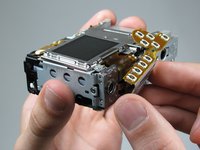
    • Turn the camera over so you can see the LCD.

    • Remove single Phillips screw below the LCD using a #0 Phillips screwdriver.

  14. Canon PowerShot S500 LCD Replacement: 14 단계, 이미지 1개 중 1개
    • Lift the blue ribbon gate using the Spudger.

  15. Canon PowerShot S500 LCD Replacement: 15 단계, 이미지 1개 중 1개
    • Insert the Spudger into the hole of the ribbon.

    • Move the Spudger away from the gate to fully remove ribbon.

    • Be careful not to damage the ribbon.

  16. Canon PowerShot S500 LCD Replacement: 16 단계, 이미지 1개 중 1개
    • Lift the LCD away from the rest of the camera.

결론

To reassemble your device, follow these instructions in reverse order.

작성자

6다른 기여자 명과 함께

Nathan Balcom

회원 가입일: 01/21/10

102 평판

안내서 8개를 작성함

Cal Poly, Team 16-28, Maness Winter 2010 Cal Poly, Team 16-28, Maness Winter 2010 회원

CPSU-MANESS-W10S16G28

4 회원들

안내서 9개를 작성함

0가이드 댓글

댓글 쓰기

조회 통계:

지난 24시간: 3

지난 7일: 15

지난 30일: 47

전체 시간: 3,380