주요 콘텐츠로 건너뛰기

Casio fx-300ES Plus 2nd Edition Battery Replacement

필요한 것

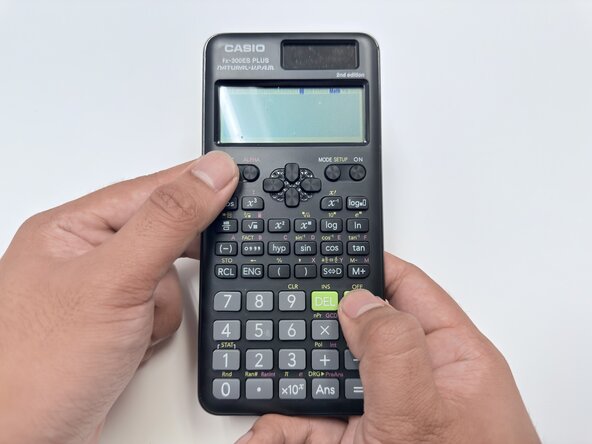
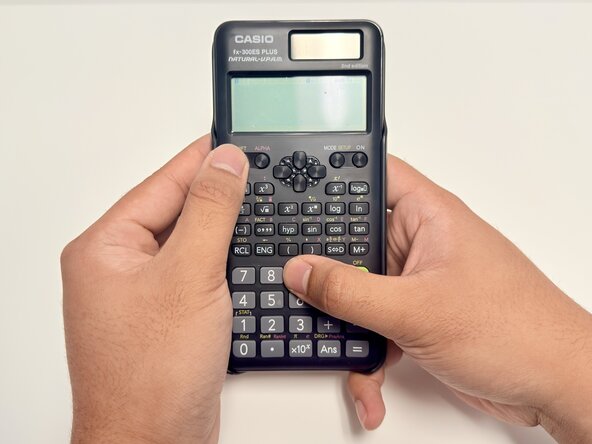
  1. Casio fx-300ES Plus 2nd Edition Battery Replacement, Battery Replacement: 1 단계, 이미지 1개 중 1개
    • Press (Shift + AC) to turn off the calculator.

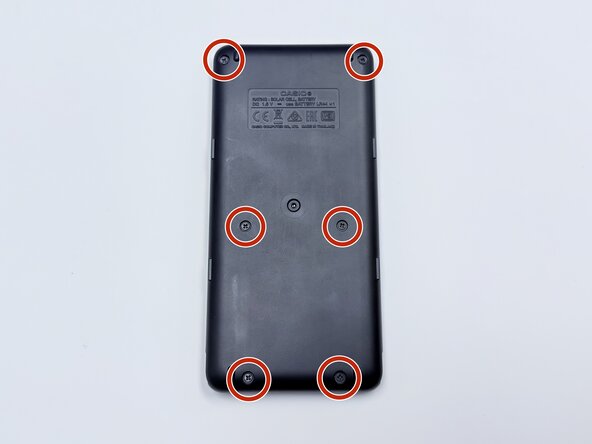
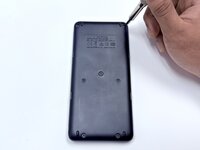
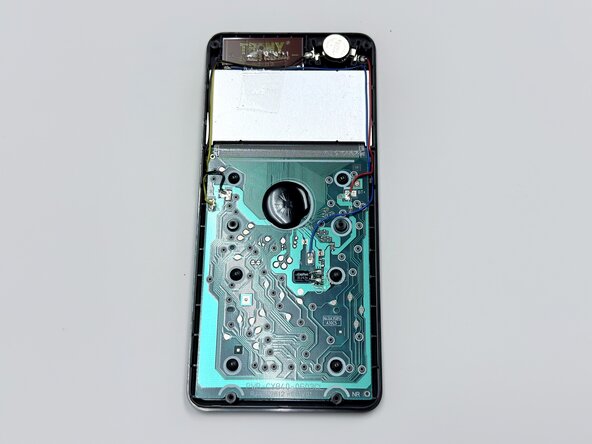
  2. Casio fx-300ES Plus 2nd Edition Battery Replacement: 2 단계, 이미지 3개 중 1개 Casio fx-300ES Plus 2nd Edition Battery Replacement: 2 단계, 이미지 3개 중 2개 Casio fx-300ES Plus 2nd Edition Battery Replacement: 2 단계, 이미지 3개 중 3개
    • Use a Phillips #00 screwdriver to remove the six 7.5 mm screws from the back panel.

    • Insert an opening pick in the seam between the top and bottom casing.

    • Slide it around the perimeter of the calculator to release the clips that connect the front and back panels.

    • Carefully separate the front and back halves of the calculator casing.

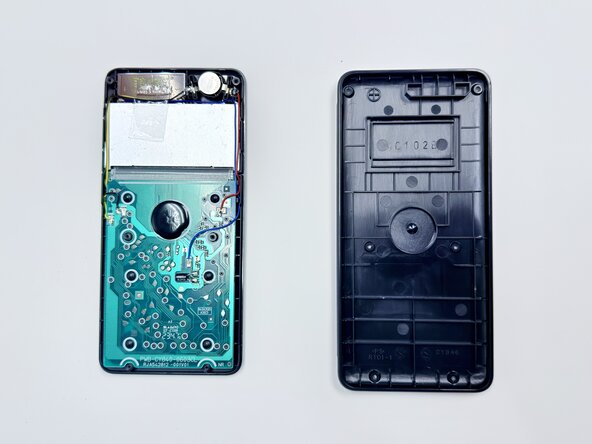
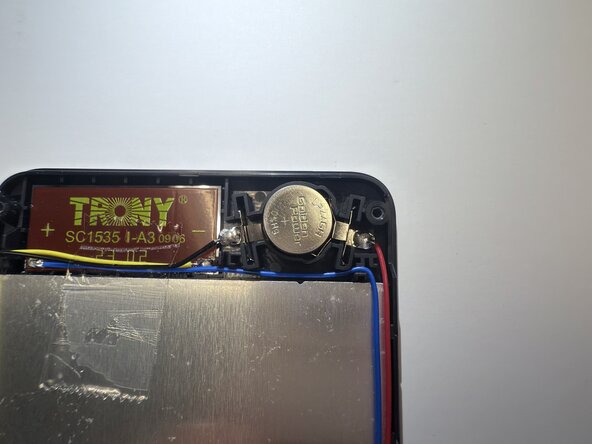
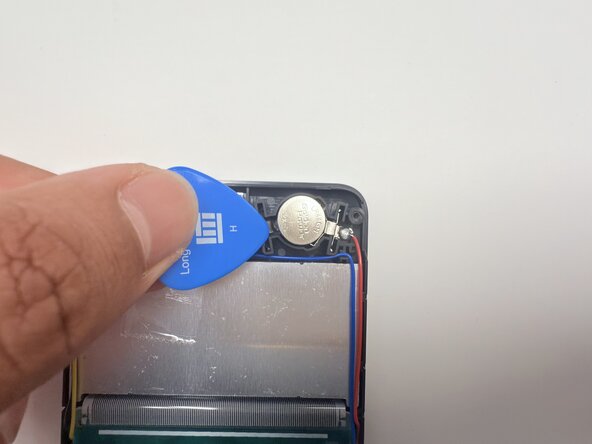
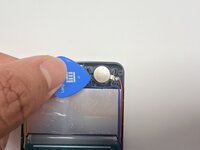
  3. Casio fx-300ES Plus 2nd Edition Battery Replacement: 3 단계, 이미지 3개 중 1개 Casio fx-300ES Plus 2nd Edition Battery Replacement: 3 단계, 이미지 3개 중 2개 Casio fx-300ES Plus 2nd Edition Battery Replacement: 3 단계, 이미지 3개 중 3개
    • Use a plastic spudger or opening pick to remove the old battery.

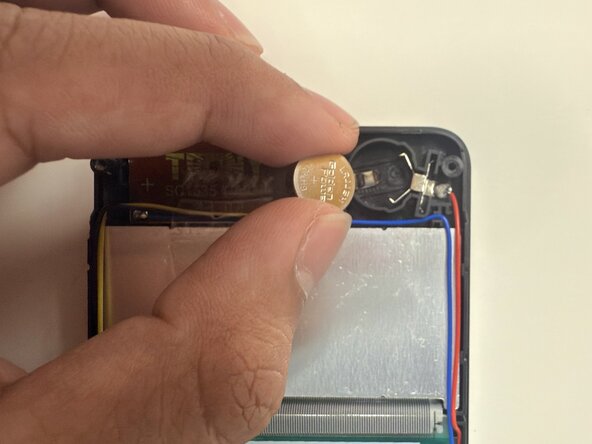
  4. Casio fx-300ES Plus 2nd Edition Battery Replacement: 4 단계, 이미지 1개 중 1개
    • Insert the new LR44 battery into the compartment with the positive (+) side facing up.

  5. Casio fx-300ES Plus 2nd Edition Battery Replacement: 5 단계, 이미지 2개 중 1개 Casio fx-300ES Plus 2nd Edition Battery Replacement: 5 단계, 이미지 2개 중 2개
    • Replace the panel on the back of the calculator and use a Phillips #00 screwdriver to secure the six 7.5 mm Philips #00 screws.

  6. Casio fx-300ES Plus 2nd Edition Battery Replacement: 6 단계, 이미지 2개 중 1개 Casio fx-300ES Plus 2nd Edition Battery Replacement: 6 단계, 이미지 2개 중 2개
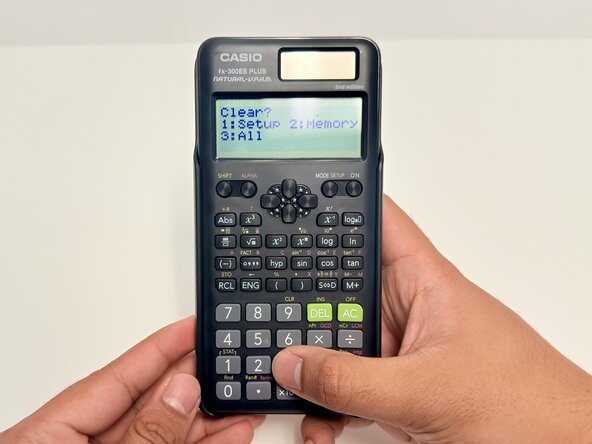
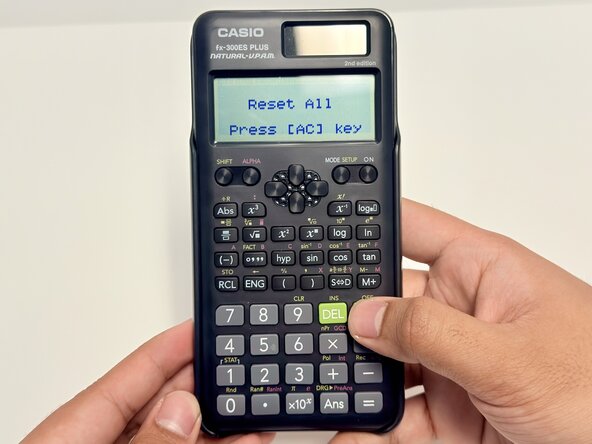
    • Power on the calculator, then bring up the 'clear' menu by pressing (SHIFT + 9).

  7. Casio fx-300ES Plus 2nd Edition Battery Replacement: 7 단계, 이미지 3개 중 1개 Casio fx-300ES Plus 2nd Edition Battery Replacement: 7 단계, 이미지 3개 중 2개 Casio fx-300ES Plus 2nd Edition Battery Replacement: 7 단계, 이미지 3개 중 3개
    • Perform a restoration of the calculator's default settings.

    • The order to press is (SHIFT, 9, 1, =).

결론

You've done it! ;)

다른 한 분이 해당 안내서를 완성하였습니다.

작성자

2다른 기여자 명과 함께

Andrei John Tabanao

회원 가입일: 01/07/25

163 평판

안내서 1개를 작성함

0가이드 댓글

댓글 쓰기

조회 통계:

지난 24시간: 0

지난 7일: 4

지난 30일: 31

전체 시간: 259