주요 콘텐츠로 건너뛰기

Dell Chromebook 13-7310 Network Card Replacement

필요한 것

  1. Dell Chromebook 13-7310 Network Card Replacement, Back Cover: 1 단계, 이미지 2개 중 1개 Dell Chromebook 13-7310 Network Card Replacement, Back Cover: 1 단계, 이미지 2개 중 2개
    • Remove the eleven 3mm Phillips #1 screws.

  2. Dell Chromebook 13-7310 Network Card Replacement: 2 단계, 이미지 1개 중 1개
    • Use a plastic opening tool to gently remove the back panel.

    • It can be easier to pry open near a corner.

  3. Dell Chromebook 13-7310 Network Card Replacement, Battery: 3 단계, 이미지 1개 중 1개
    • Use your fingers to remove the connecting cable to the battery unit. Firmly grab the cord closest to the motherboard connection and pull straight back.

  4. Dell Chromebook 13-7310 Network Card Replacement: 4 단계, 이미지 1개 중 1개
    • Remove the four 2mm screws on the sides of the battery.

  5. Dell Chromebook 13-7310 Network Card Replacement: 5 단계, 이미지 1개 중 1개
    • To remove the battery, lift up on one side to get your fingers underneath and lift away.

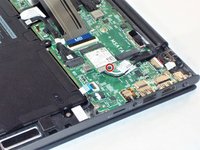
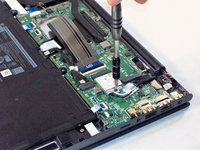
  6. Dell Chromebook 13-7310 Network Card Replacement, Network Card: 6 단계, 이미지 2개 중 1개 Dell Chromebook 13-7310 Network Card Replacement, Network Card: 6 단계, 이미지 2개 중 2개
    • Use #1 Phillips screwdriver to remove the 1mm screw in the network card.

  7. Dell Chromebook 13-7310 Network Card Replacement: 7 단계, 이미지 1개 중 1개
    • Disconnect the network card from motherboard socket.

  8. Dell Chromebook 13-7310 Network Card Replacement: 8 단계, 이미지 1개 중 1개
    • Disconnect 2 cable connectors from network card.

    • If the cables are stuck, continue to gently wiggle them until they disconnect.

결론

To reassemble your device, follow these instructions in reverse order.

작성자

3다른 기여자 명과 함께

Brett Raymond

회원 가입일: 11/01/18

469 평판

안내서 3개를 작성함

UMass Dartmouth, Team S5-G1, Gulbrandsen Fall 2018 UMass Dartmouth, Team S5-G1, Gulbrandsen Fall 2018 회원

UMASSD-GULBRANDSEN-F18S5G1

3 회원들

안내서 5개를 작성함

0가이드 댓글

댓글 쓰기

조회 통계:

지난 24시간: 0

지난 7일: 1

지난 30일: 8

전체 시간: 660