주요 콘텐츠로 건너뛰기
수리 커뮤니티 가입 - 계정 만들기

Dell Inspiron 15-7567 RAM Replacement

필요한 것

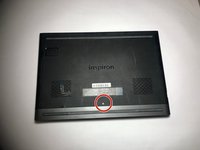
  1. Dell Inspiron 15-7567 RAM Replacement, Battery: 1 단계, 이미지 1개 중 1개
    • Turn off laptop before beginning.

    • Place the laptop upside down on a flat, stable surface.

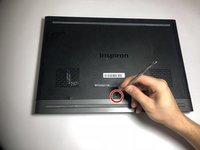
  2. Dell Inspiron 15-7567 RAM Replacement: 2 단계, 이미지 2개 중 1개 Dell Inspiron 15-7567 RAM Replacement: 2 단계, 이미지 2개 중 2개
    • Remove the 3mm screw in the location shown, using a Phillips #1 screwdriver.

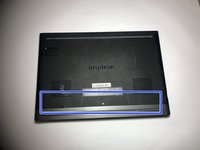
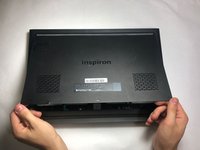
  3. Dell Inspiron 15-7567 RAM Replacement: 3 단계, 이미지 1개 중 1개
    • Remove the panel from the sides and pull it out at an angle towards you.

  4. Dell Inspiron 15-7567 RAM Replacement: 4 단계, 이미지 2개 중 1개 Dell Inspiron 15-7567 RAM Replacement: 4 단계, 이미지 2개 중 2개
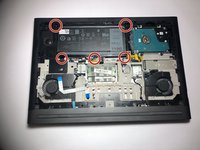
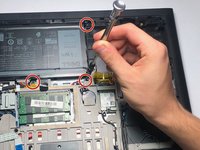
    • Remove the five 3mm screws on the battery with a Torx (T8) screwdriver in the locations shown.

  5. Dell Inspiron 15-7567 RAM Replacement: 5 단계, 이미지 2개 중 1개 Dell Inspiron 15-7567 RAM Replacement: 5 단계, 이미지 2개 중 2개
    이 단계에 사용된 도구:
    Tweezers
    $4.99
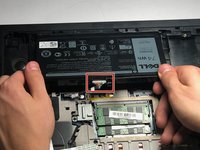
    • Disconnect the power cord from the battery by using a pair of tweezers, your fingers, or the opening tools from the iFixit pro tech tool kit.

    • Pinch the clips on the left and right side while pulling on the cord at the same time.

  6. Dell Inspiron 15-7567 RAM Replacement: 6 단계, 이미지 1개 중 1개
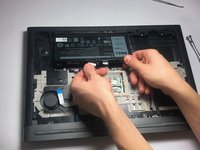
    • Pull the battery towards you.

    • Make sure to pull at an upward angle.

  7. Dell Inspiron 15-7567 RAM Replacement, RAM: 7 단계, 이미지 2개 중 1개 Dell Inspiron 15-7567 RAM Replacement, RAM: 7 단계, 이미지 2개 중 2개
    • Remove the 3mm screw on the back using a Phillips #1 screwdriver.

  8. Dell Inspiron 15-7567 RAM Replacement: 8 단계, 이미지 2개 중 1개 Dell Inspiron 15-7567 RAM Replacement: 8 단계, 이미지 2개 중 2개
    • Remove the panel by lifting up the side towards you

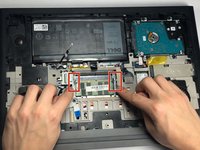
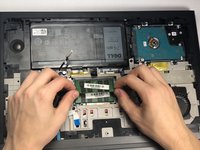
  9. Dell Inspiron 15-7567 RAM Replacement: 9 단계, 이미지 2개 중 1개 Dell Inspiron 15-7567 RAM Replacement: 9 단계, 이미지 2개 중 2개
    • Release the two clips on the left and right side, by pushing outward on the side towards you.

    • The RAM strip will extend out. Pull towards you at a slight angle.

결론

To reassemble your device, follow these instructions in reverse order.

작성자

3다른 기여자 명과 함께

James Bedortha

회원 가입일: 09/28/18

97 평판

안내서 1개를 작성함

0가이드 댓글

댓글 쓰기

조회 통계:

지난 24시간: 2

지난 7일: 14

지난 30일: 49

전체 시간: 1,021