주요 콘텐츠로 건너뛰기

Dell Inspiron Mini 10 Keyboard Replacement

필요한 것

  1. Dell Inspiron Mini 10 Keyboard Replacement, Battery: 1 단계, 이미지 1개 중 1개
    • To prevent injury and loss of data, ensure the device is turned off.

    • Slide the release latches out toward the edges to unlock the battery.

  2. Dell Inspiron Mini 10 Keyboard Replacement: 2 단계, 이미지 1개 중 1개
    • Remove the battery by pulling it up and out.

  3. Dell Inspiron Mini 10 Keyboard Replacement, Keyboard: 3 단계, 이미지 1개 중 1개
    • Remove the three 8mm Philips 0 screws securing the keyboard.

  4. Dell Inspiron Mini 10 Keyboard Replacement: 4 단계, 이미지 1개 중 1개
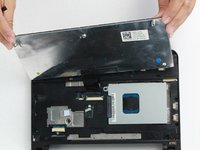
    • Turn over the device and open the display.

    • Gently pry open the keyboard with the plastic opening tool, working under the edges to release the clips.

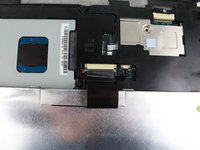
  5. Dell Inspiron Mini 10 Keyboard Replacement: 5 단계, 이미지 2개 중 1개 Dell Inspiron Mini 10 Keyboard Replacement: 5 단계, 이미지 2개 중 2개
    • Lift the keyboard off of the support bracket carefully since it is still connected by a ribbon cable.

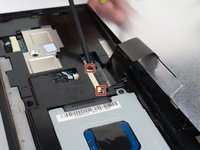
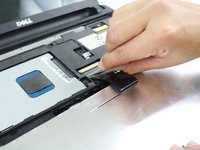
  6. Dell Inspiron Mini 10 Keyboard Replacement: 6 단계, 이미지 2개 중 1개 Dell Inspiron Mini 10 Keyboard Replacement: 6 단계, 이미지 2개 중 2개
    • Push the clips out on either side of the ribbon cable to release it.

    • Gently disconnect the ribbon cable by pulling on the clear tab.

    • Remove the keyboard.

결론

To reassemble your device, follow these instructions in reverse order.

작성자

3다른 기여자 명과 함께

Danielle Jarecki

회원 가입일: 10/21/16

334 평판

안내서 5개를 작성함

UW Tacoma, Team 1-4, Rose Fall 2016 UW Tacoma, Team 1-4, Rose Fall 2016 회원

UWT-ROSE-F16S1G4

4 회원들

안내서 10개를 작성함

0가이드 댓글

댓글 쓰기

조회 통계:

지난 24시간: 0

지난 7일: 2

지난 30일: 14

전체 시간: 1,495