주요 콘텐츠로 건너뛰기

HP Chromebook 11 G4 LCD Replacement

필요한 것
  1. HP Chromebook 11 G4 LCD Replacement, LCD: 1 단계, 이미지 3개 중 1개 HP Chromebook 11 G4 LCD Replacement, LCD: 1 단계, 이미지 3개 중 2개 HP Chromebook 11 G4 LCD Replacement, LCD: 1 단계, 이미지 3개 중 3개
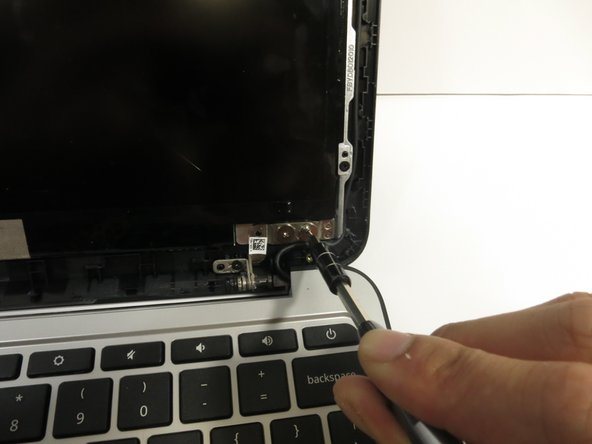
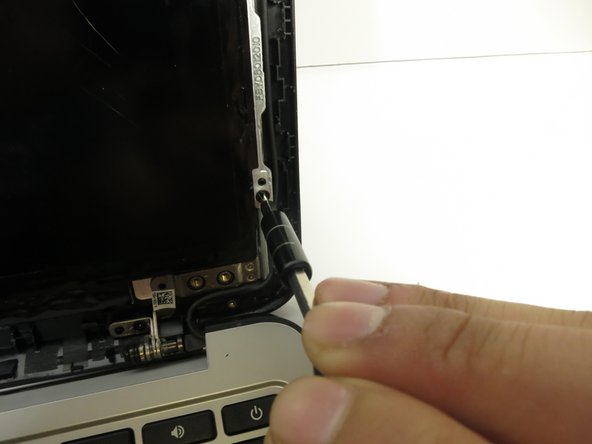
    • Open the laptop.

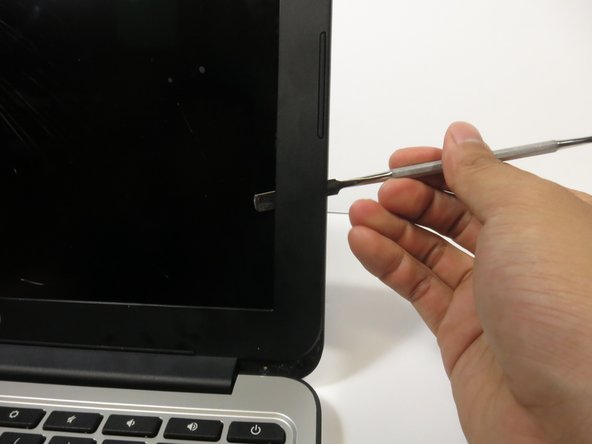
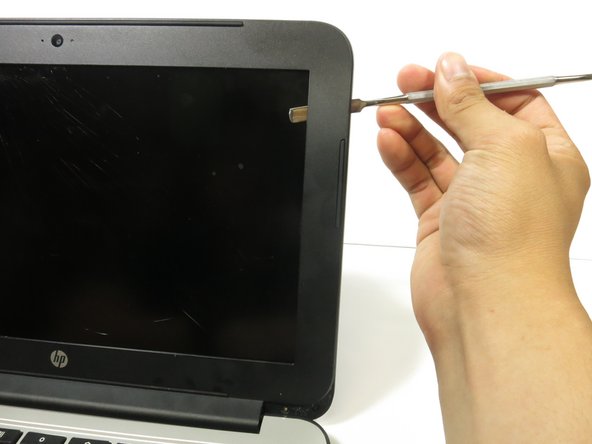
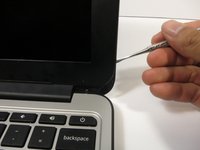
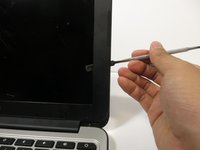
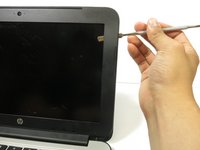
    • With the plastic spudger or your fingers, gently peel off the two thin adhesive layers at the left and right bottom edges of the screen.

    • Do not pry up the plastic bezel (monitor frame), just the adhesive layer.

    • If the adhesive layer isn't coming off, use a metal spudger.

  2. HP Chromebook 11 G4 LCD Replacement: 2 단계, 이미지 2개 중 1개 HP Chromebook 11 G4 LCD Replacement: 2 단계, 이미지 2개 중 2개
    • Remove the two 3 mm Phillips #00 screws located underneath the adhesive layers that were removed in the previous step

  3. HP Chromebook 11 G4 LCD Replacement: 3 단계, 이미지 3개 중 1개 HP Chromebook 11 G4 LCD Replacement: 3 단계, 이미지 3개 중 2개 HP Chromebook 11 G4 LCD Replacement: 3 단계, 이미지 3개 중 3개
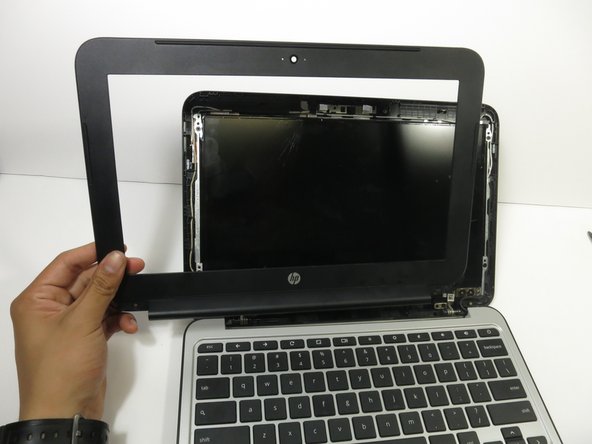
    • Gently pry up the plastic bezel with the small, narrow end of the metal spudger.

    • Insert the long, flat end of the metal spudger into the gap.

    • Slide the metal spudger along the edge to disconnect the bezel from the laptop

    • You should hear popping sounds as you slide the spudger along the edge.

    • If the spudger gets stuck while sliding, it's okay to use more force.

  4. HP Chromebook 11 G4 LCD Replacement: 4 단계, 이미지 2개 중 1개 HP Chromebook 11 G4 LCD Replacement: 4 단계, 이미지 2개 중 2개
    • Tilt the laptop screen as far back as possible

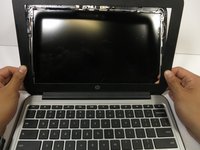
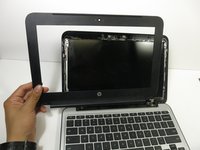
    • Hold the bezel with both hands, then pull the bezel towards you to disconnect the bottom edge of the bezel from the laptop.

    • You may have to use extra force for this step

  5. HP Chromebook 11 G4 LCD Replacement: 5 단계, 이미지 3개 중 1개 HP Chromebook 11 G4 LCD Replacement: 5 단계, 이미지 3개 중 2개 HP Chromebook 11 G4 LCD Replacement: 5 단계, 이미지 3개 중 3개
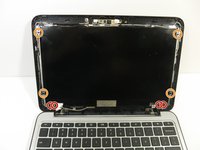
    • Remove the four silver 4 mm Phillips #0 screws at the bottom of the LCD.

    • Remove the four black 3 mm Phillips #00 screws along the perimeter of the LCD.

  6. HP Chromebook 11 G4 LCD Replacement: 6 단계, 이미지 2개 중 1개 HP Chromebook 11 G4 LCD Replacement: 6 단계, 이미지 2개 중 2개
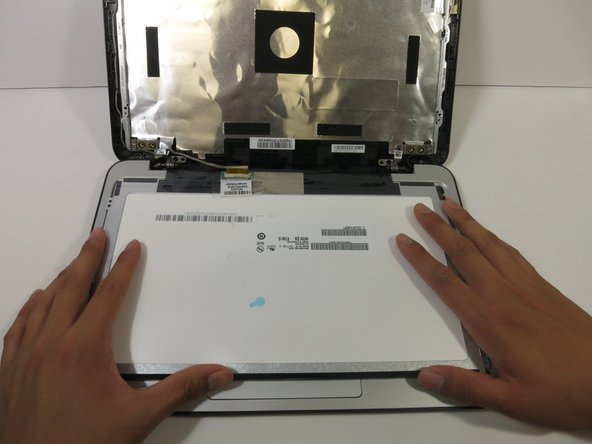
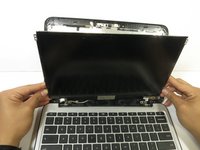
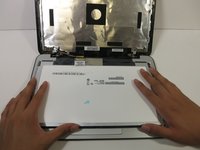
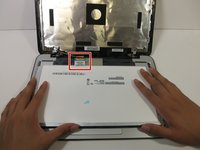
    • Lift the LCD off its mount and gently lay it facedown on the keyboard.

  7. HP Chromebook 11 G4 LCD Replacement: 7 단계, 이미지 3개 중 1개 HP Chromebook 11 G4 LCD Replacement: 7 단계, 이미지 3개 중 2개 HP Chromebook 11 G4 LCD Replacement: 7 단계, 이미지 3개 중 3개
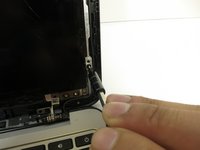
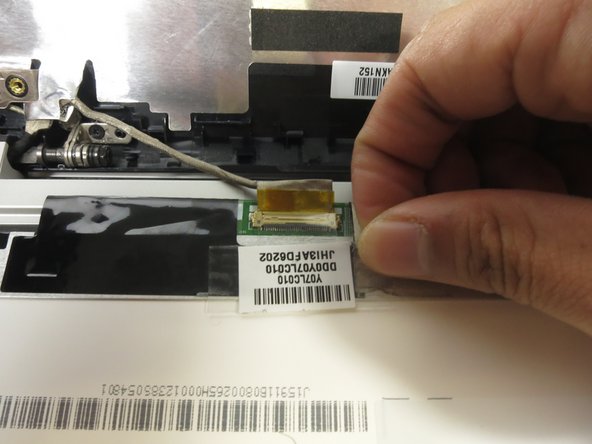
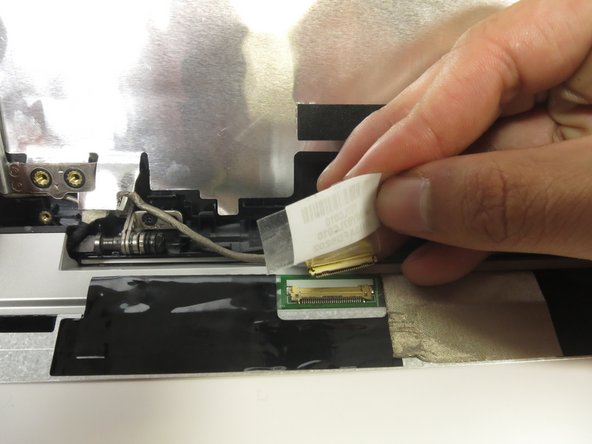
    • Peel off the clear sticker covering the display cable at the base of the LCD.

    • Gently pull the display cable from the connector.

결론

To reassemble your device, follow these instructions in reverse order.

다른 14명이 해당 안내서를 완성하였습니다.

작성자

8다른 기여자 명과 함께

Jonah Silva

회원 가입일: 04/26/17

815 평판

안내서 1개를 작성함

Cal Poly, Team S23-G5, Livingston Spring 2017 Cal Poly, Team S23-G5, Livingston Spring 2017 회원

CPSU-LIVINGSTON-S17S23G5

3 회원들

안내서 6개를 작성함

3가이드 댓글

Thanks for the great guidance. Easy as pie!

lcowsert - 답글

i need to replace the top cover of this Laptop HP Chromebook 11-2201NA Can you help

grahamcoles - 답글

I did it! Thank you for terrific instructions.

Krenee - 답글

댓글 쓰기

조회 통계:

지난 24시간: 1

지난 7일: 7

지난 30일: 40

전체 시간: 8,289