주요 콘텐츠로 건너뛰기

HP Chromebook 14-x013dx Camera Replacement

필요한 것

  1. HP Chromebook 14-x013dx Camera Replacement, Keyboard, Touchpad: 1 단계, 이미지 2개 중 1개 HP Chromebook 14-x013dx Camera Replacement, Keyboard, Touchpad: 1 단계, 이미지 2개 중 2개
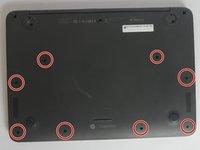
    • Using the plastic spudger, gently lift the 5 rubber pads away from their seating.

  2. HP Chromebook 14-x013dx Camera Replacement: 2 단계, 이미지 1개 중 1개
    • Remove the five 6mm screws located under the removed pads using Phillips #00 screwdriver.

  3. HP Chromebook 14-x013dx Camera Replacement: 3 단계, 이미지 2개 중 1개 HP Chromebook 14-x013dx Camera Replacement: 3 단계, 이미지 2개 중 2개
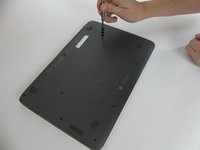
    • With the Phillips #00 screwdriver, remove the remaining eight 6mm screws. You will now have thirteen 6mm screws removed from the case.

  4. HP Chromebook 14-x013dx Camera Replacement: 4 단계, 이미지 2개 중 1개 HP Chromebook 14-x013dx Camera Replacement: 4 단계, 이미지 2개 중 2개
    • To continue removing the back cover, turn the laptop over as displayed.

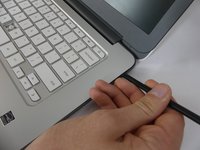
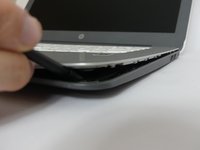
    • Use the plastic spudger to gently pry around the base of the laptop from the back cover. Continue prying around the entire base of the laptop.

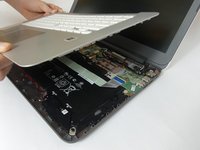
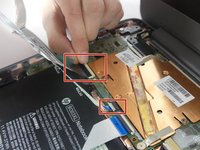
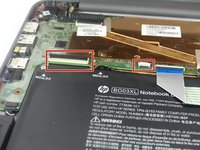
  5. HP Chromebook 14-x013dx Camera Replacement: 5 단계, 이미지 3개 중 1개 HP Chromebook 14-x013dx Camera Replacement: 5 단계, 이미지 3개 중 2개 HP Chromebook 14-x013dx Camera Replacement: 5 단계, 이미지 3개 중 3개
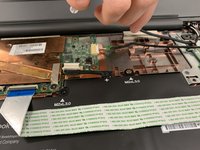
    • Gently lift the silver base of the laptop from the bottom, but do not remove it.

    • To remove the ribbon cables, lift the latch holding the ribbon cables in place and then pull them free.

    • Remove the keyboard panel from the laptop.

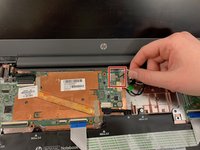
  6. HP Chromebook 14-x013dx Camera Replacement, Camera: 6 단계, 이미지 2개 중 1개 HP Chromebook 14-x013dx Camera Replacement, Camera: 6 단계, 이미지 2개 중 2개
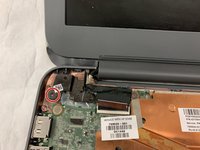
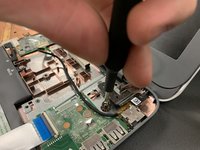
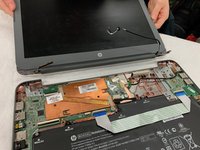
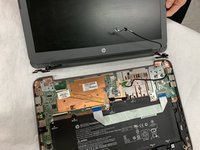
    • Disconnect the black and white wires connected to the Wi-Fi module.

    • Remove the wire from the casing.

  7. HP Chromebook 14-x013dx Camera Replacement: 7 단계, 이미지 1개 중 1개
    • Pull the ribbon cable out of socket.

  8. HP Chromebook 14-x013dx Camera Replacement: 8 단계, 이미지 3개 중 1개 HP Chromebook 14-x013dx Camera Replacement: 8 단계, 이미지 3개 중 2개 HP Chromebook 14-x013dx Camera Replacement: 8 단계, 이미지 3개 중 3개
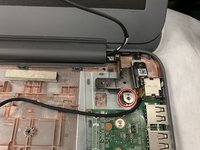
    • Use a Phillips #00 screwdriver to remove the two 6mm screws located at the upper left and right corners.

  9. HP Chromebook 14-x013dx Camera Replacement: 9 단계, 이미지 2개 중 1개 HP Chromebook 14-x013dx Camera Replacement: 9 단계, 이미지 2개 중 2개
    • Remove the lid out of the laptop.

    • It is helpful to rotate the lid to a 90-degree angle.

  10. HP Chromebook 14-x013dx Camera Replacement: 10 단계, 이미지 1개 중 1개
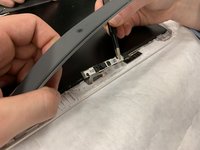
    • Using the plastic opening tool, pry the left and right side of the top of the lid.

    • It is not necessary to remove the entire frame, only pry the top to expose the camera.

  11. HP Chromebook 14-x013dx Camera Replacement: 11 단계, 이미지 1개 중 1개
    이 단계에 사용된 도구:
    Tweezers
    $4.99
    • Using tweezers, gently remove the connection hold the camera in place.

  12. HP Chromebook 14-x013dx Camera Replacement: 12 단계, 이미지 2개 중 1개 HP Chromebook 14-x013dx Camera Replacement: 12 단계, 이미지 2개 중 2개
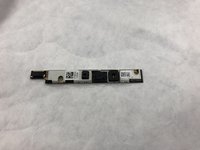
    • Gently pry the camera mount out of the lid.

    • Lift the camera mount out of the lid.

결론

To reassemble your device, follow these instructions in reverse order.

다른 한 분이 해당 안내서를 완성하였습니다.

작성자

3다른 기여자 명과 함께

Eile Woeltje

회원 가입일: 11/06/19

304 평판

안내서 2개를 작성함

IUPUI, Team S1-G3, Stella Fall 2019 IUPUI, Team S1-G3, Stella Fall 2019 회원

IUPUI-STELLA-F19S1G3

3 회원들

안내서 2개를 작성함

1가이드 댓글

Thank you, very helpful. You could also just start at Step 10 without removing the display

Douglas Walker - 답글

댓글 쓰기

조회 통계:

지난 24시간: 0

지난 7일: 3

지난 30일: 18

전체 시간: 973