주요 콘텐츠로 건너뛰기

HP Pavilion Sleekbook 14-b013cl Keyboard Replacement

필요한 것

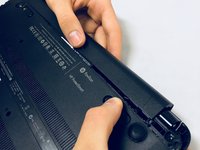
  1. HP Pavilion Sleekbook 14-b013cl Keyboard Replacement, Battery: 1 단계, 이미지 2개 중 1개 HP Pavilion Sleekbook 14-b013cl Keyboard Replacement, Battery: 1 단계, 이미지 2개 중 2개
    • Flip the computer over and move the battery lock switch to the "unlocked" position (marked by an orange lock icon).

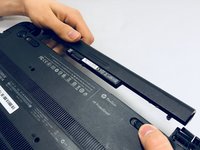
  2. HP Pavilion Sleekbook 14-b013cl Keyboard Replacement: 2 단계, 이미지 2개 중 1개 HP Pavilion Sleekbook 14-b013cl Keyboard Replacement: 2 단계, 이미지 2개 중 2개
    • Press the switch on the right-hand side of the back of the device towards the center until the gray battery icon is no longer visible. This will eject the battery.

  3. HP Pavilion Sleekbook 14-b013cl Keyboard Replacement: 3 단계, 이미지 2개 중 1개 HP Pavilion Sleekbook 14-b013cl Keyboard Replacement: 3 단계, 이미지 2개 중 2개
    • Carefully pull the battery away from the device.

  4. HP Pavilion Sleekbook 14-b013cl Keyboard Replacement, Keyboard: 4 단계, 이미지 1개 중 1개
    • Using the Phillips #0 screwdriver, remove the two screws.

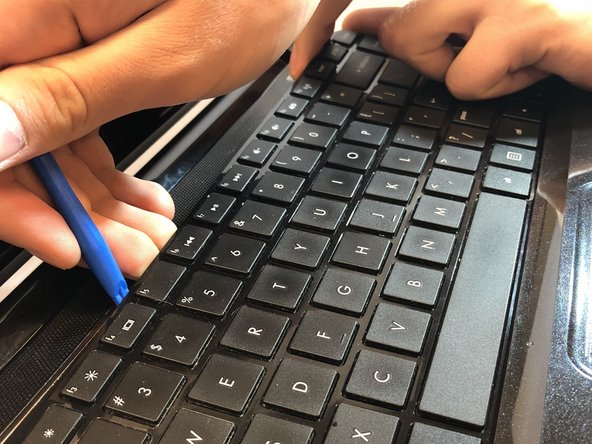
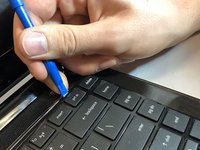
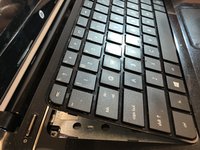
  5. HP Pavilion Sleekbook 14-b013cl Keyboard Replacement: 5 단계, 이미지 3개 중 1개 HP Pavilion Sleekbook 14-b013cl Keyboard Replacement: 5 단계, 이미지 3개 중 2개 HP Pavilion Sleekbook 14-b013cl Keyboard Replacement: 5 단계, 이미지 3개 중 3개
    • Use a plastic opening tool to pry up one of the upper counters on the keyboard

    • Run the tool along the upper edge of the keyboard and towards the opposite corner to release the latches.

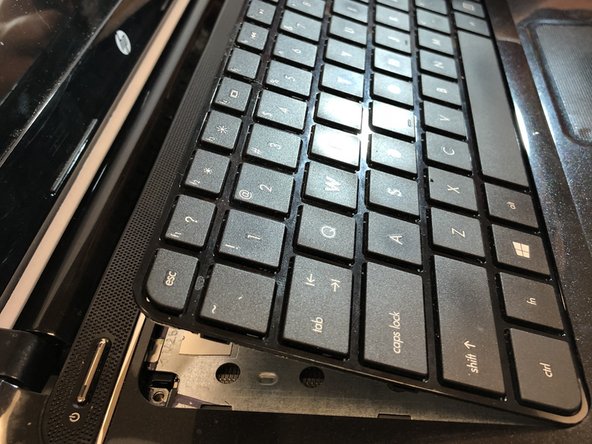
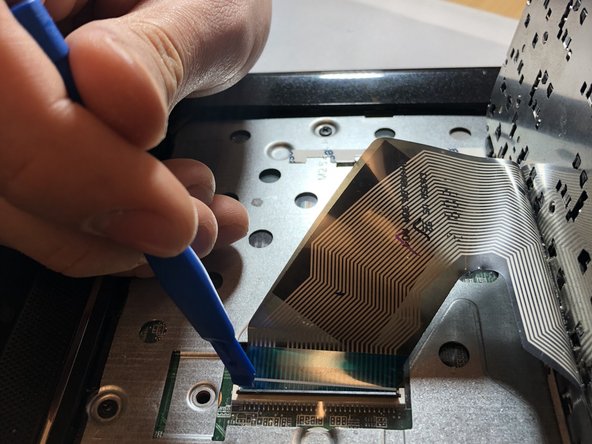
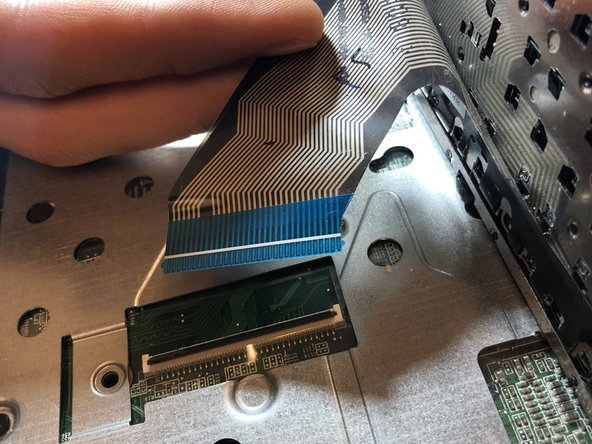
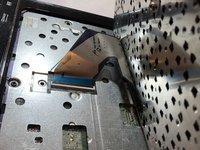
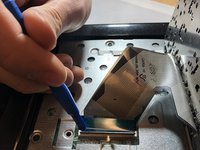
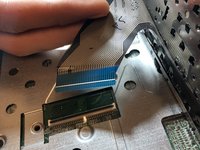
  6. HP Pavilion Sleekbook 14-b013cl Keyboard Replacement: 6 단계, 이미지 3개 중 1개 HP Pavilion Sleekbook 14-b013cl Keyboard Replacement: 6 단계, 이미지 3개 중 2개 HP Pavilion Sleekbook 14-b013cl Keyboard Replacement: 6 단계, 이미지 3개 중 3개
    • Push the button to release the connector and pull it out and remove the keyboard

결론

To reassemble your device, follow these instructions in reverse order.

다른 한 분이 해당 안내서를 완성하였습니다.

작성자

3다른 기여자 명과 함께

Marcus

회원 가입일: 04/10/18

175 평판

안내서 1개를 작성함

0가이드 댓글

댓글 쓰기

조회 통계:

지난 24시간: 0

지난 7일: 3

지난 30일: 14

전체 시간: 661