주요 콘텐츠로 건너뛰기

HP Pavilion ze5000 Screen Replacement

필요한 것
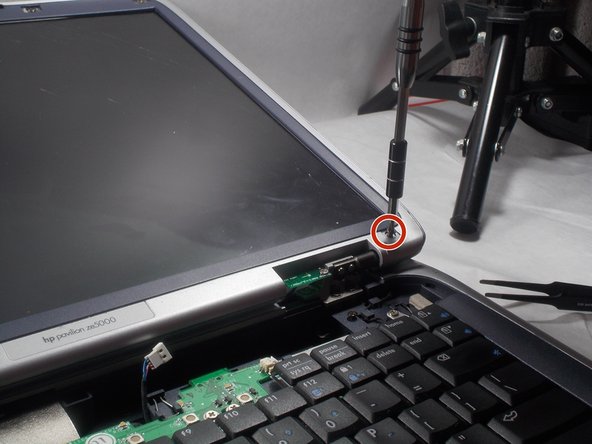
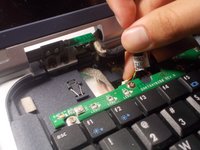
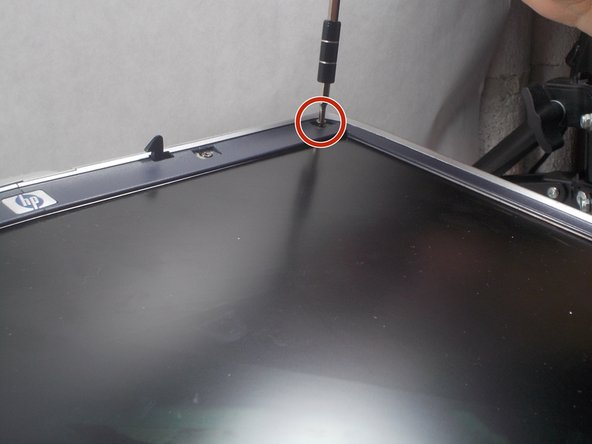
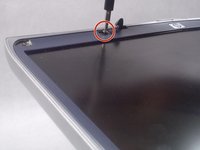
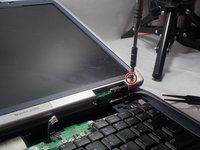
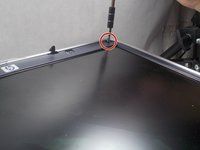
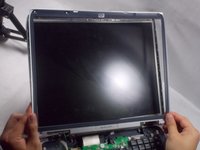
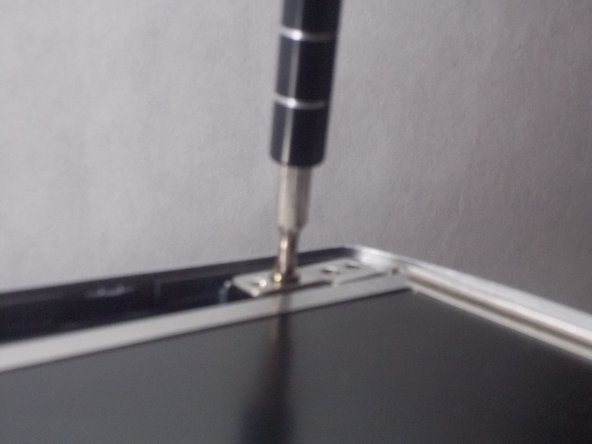
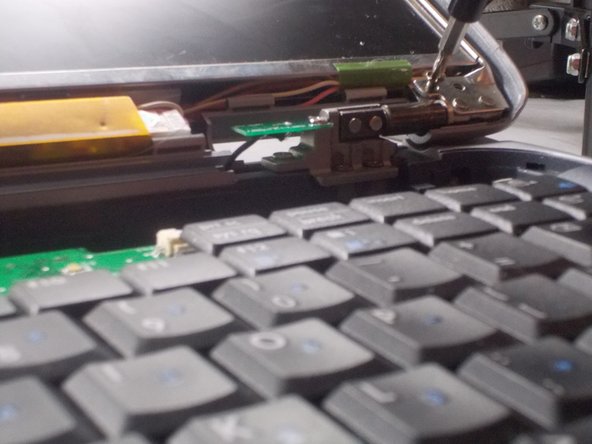
  1. HP Pavilion ze5000 Screen Replacement, Screen: 1 단계, 이미지 3개 중 1개 HP Pavilion ze5000 Screen Replacement, Screen: 1 단계, 이미지 3개 중 2개 HP Pavilion ze5000 Screen Replacement, Screen: 1 단계, 이미지 3개 중 3개
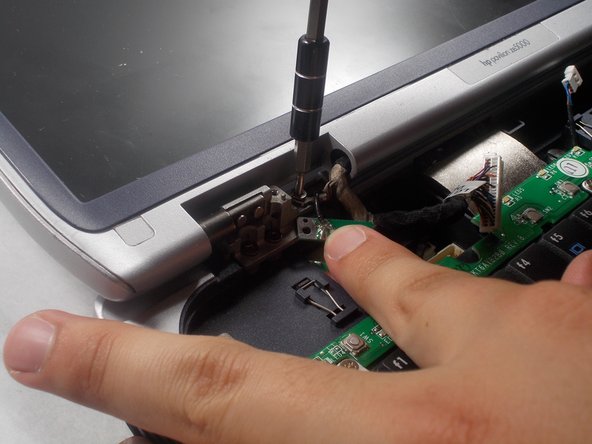
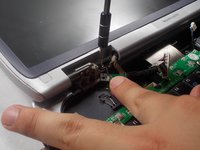
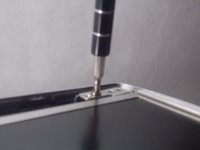
    • Remove two 5.0 mm Philips #0 screws on the hinge of the device

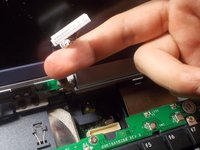
  2. HP Pavilion ze5000 Screen Replacement: 2 단계, 이미지 2개 중 1개 HP Pavilion ze5000 Screen Replacement: 2 단계, 이미지 2개 중 2개
    이 단계에 사용된 도구:
    Tweezers
    $4.99
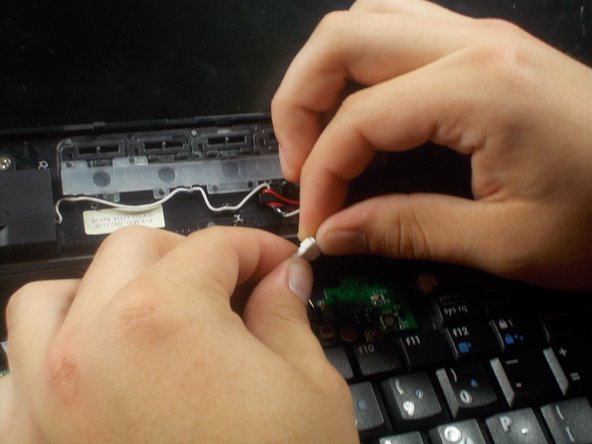
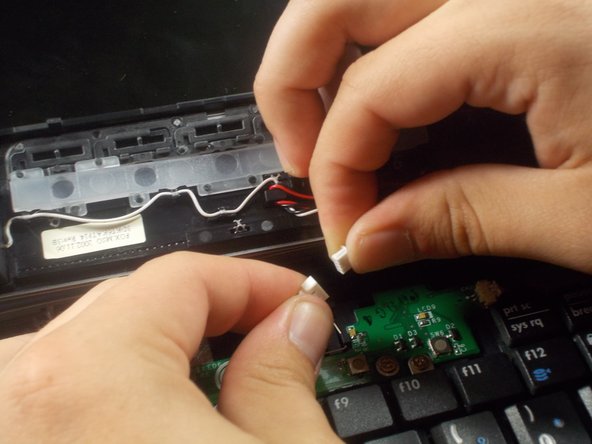
    • Using tweezers, gently pull on the hinges to remove the plastic case connected to the hinges

  3. HP Pavilion ze5000 Screen Replacement: 3 단계, 이미지 3개 중 1개 HP Pavilion ze5000 Screen Replacement: 3 단계, 이미지 3개 중 2개 HP Pavilion ze5000 Screen Replacement: 3 단계, 이미지 3개 중 3개
    • Remove the connection between the plastic case and interior of the device

  4. HP Pavilion ze5000 Screen Replacement: 4 단계, 이미지 3개 중 1개 HP Pavilion ze5000 Screen Replacement: 4 단계, 이미지 3개 중 2개 HP Pavilion ze5000 Screen Replacement: 4 단계, 이미지 3개 중 3개
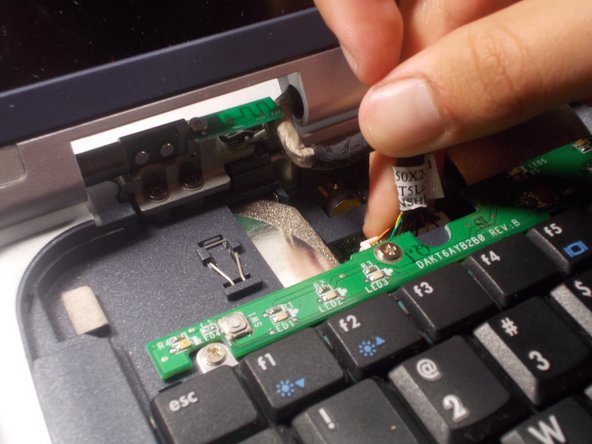
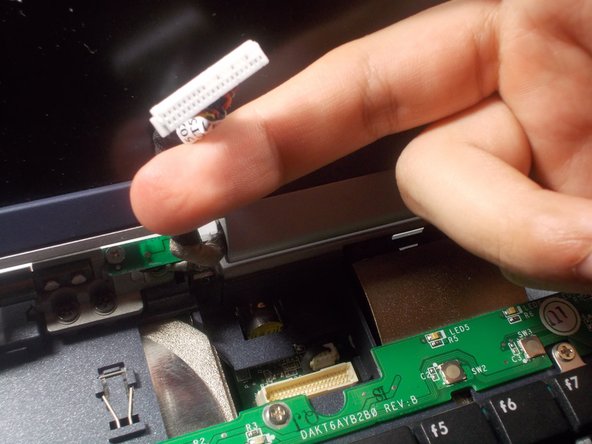
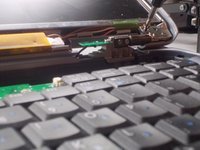
    • Remove the connection from the exposed hinge and interior of the device

  5. HP Pavilion ze5000 Screen Replacement: 5 단계, 이미지 2개 중 1개 HP Pavilion ze5000 Screen Replacement: 5 단계, 이미지 2개 중 2개
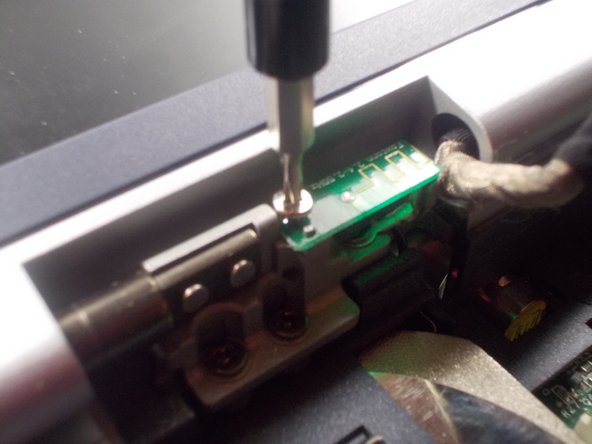
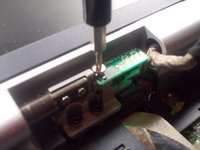
    • Remove the 3.5 mm philips #00 screw on the small circuit board on the hinge

  6. HP Pavilion ze5000 Screen Replacement: 6 단계, 이미지 2개 중 1개 HP Pavilion ze5000 Screen Replacement: 6 단계, 이미지 2개 중 2개
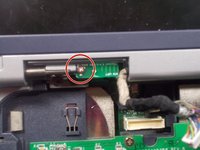
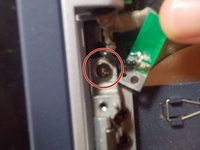
    • Remove the 5.0 mm philips #0 screw that was hidden underneath the small circuit board

  7. HP Pavilion ze5000 Screen Replacement: 7 단계, 이미지 1개 중 1개
    • Remove the 6 plastic caps located in the four corners of the screen and the top of the screen

    • It may be easier to use tweezers for this part

  8. HP Pavilion ze5000 Screen Replacement: 8 단계, 이미지 3개 중 1개 HP Pavilion ze5000 Screen Replacement: 8 단계, 이미지 3개 중 2개 HP Pavilion ze5000 Screen Replacement: 8 단계, 이미지 3개 중 3개
    • Unscrew the six 5.0 mm Philips #0 screws underneath the caps

  9. HP Pavilion ze5000 Screen Replacement: 9 단계, 이미지 3개 중 1개 HP Pavilion ze5000 Screen Replacement: 9 단계, 이미지 3개 중 2개 HP Pavilion ze5000 Screen Replacement: 9 단계, 이미지 3개 중 3개
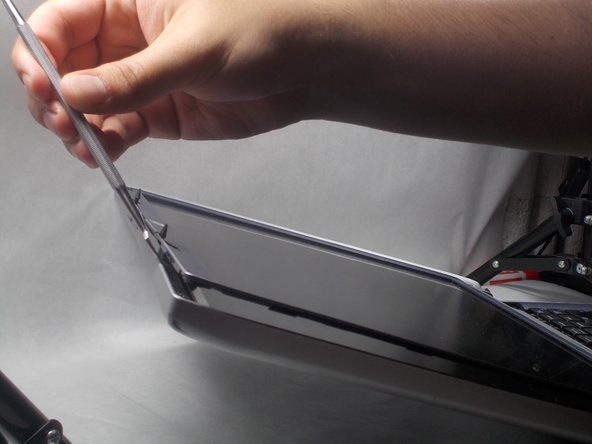
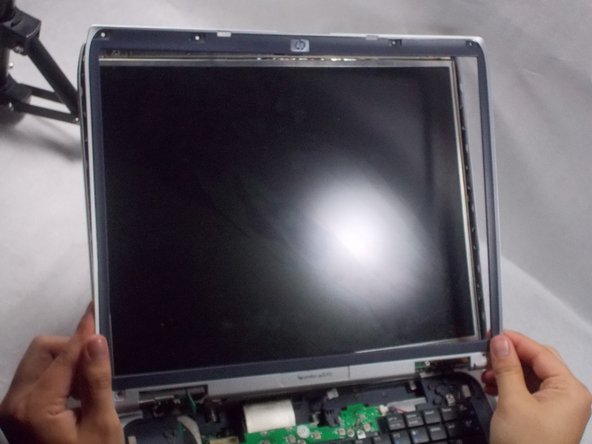
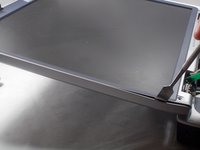
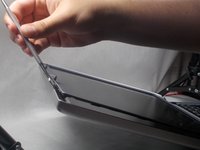
    • Using a spudger, pry the plastic casing off of the screen.

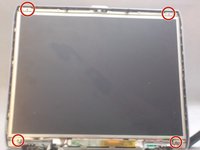
  10. HP Pavilion ze5000 Screen Replacement: 10 단계, 이미지 3개 중 1개 HP Pavilion ze5000 Screen Replacement: 10 단계, 이미지 3개 중 2개 HP Pavilion ze5000 Screen Replacement: 10 단계, 이미지 3개 중 3개
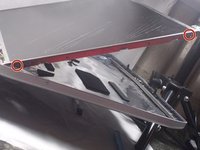
    • Remove four 5.0 mm Philips #0 screws located in the corners of the screen

    • These screws locations will be close to the screws locations in step 2.

    • During reassembly, make sure you do not confuse the proper screw placements from this step and step 4.

  11. HP Pavilion ze5000 Screen Replacement: 11 단계, 이미지 2개 중 1개 HP Pavilion ze5000 Screen Replacement: 11 단계, 이미지 2개 중 2개
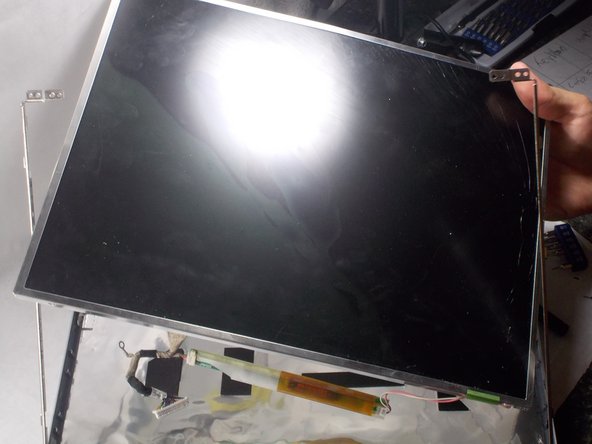
    • Remove the four 3.5 mm Philips #00 screws from the sides of the aluminum casing.

    • There will be two 3.5 mm Philips screws on each side

결론

To reassemble your device, follow these instructions in reverse order.

작성자

2다른 기여자 명과 함께

Eric Beaudry

회원 가입일: 03/06/18

823 평판

안내서 3개를 작성함

UMass Dartmouth, Team S2-G7, Bernier Spring 2018 UMass Dartmouth, Team S2-G7, Bernier Spring 2018 회원

UMASSD-BERNIER-S18S2G7

2 회원들

안내서 4개를 작성함

0가이드 댓글

댓글 쓰기

조회 통계:

지난 24시간: 0

지난 7일: 1

지난 30일: 5

전체 시간: 234