주요 콘텐츠로 건너뛰기
수리 커뮤니티 가입 - 계정 만들기

HP ProDesk 400 G5 Mini RAM Replacement / Upgrade

필요한 것

  1. HP ProDesk 400 G5 Mini RAM Replacement / Upgrade, RAM: 1 단계, 이미지 3개 중 1개 HP ProDesk 400 G5 Mini RAM Replacement / Upgrade, RAM: 1 단계, 이미지 3개 중 2개 HP ProDesk 400 G5 Mini RAM Replacement / Upgrade, RAM: 1 단계, 이미지 3개 중 3개
    • Turn the device around the back is facing you.

    • See the large screw in the center back of the PC.

  2. HP ProDesk 400 G5 Mini RAM Replacement / Upgrade: 2 단계, 이미지 3개 중 1개 HP ProDesk 400 G5 Mini RAM Replacement / Upgrade: 2 단계, 이미지 3개 중 2개 HP ProDesk 400 G5 Mini RAM Replacement / Upgrade: 2 단계, 이미지 3개 중 3개
    • Remove the thumbscrew holding the back panel onto the PC.

  3. HP ProDesk 400 G5 Mini RAM Replacement / Upgrade: 3 단계, 이미지 3개 중 1개 HP ProDesk 400 G5 Mini RAM Replacement / Upgrade: 3 단계, 이미지 3개 중 2개 HP ProDesk 400 G5 Mini RAM Replacement / Upgrade: 3 단계, 이미지 3개 중 3개
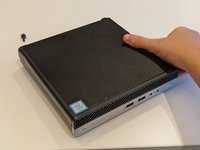
    • Slide the top panel off away from the back of the device.

    • Then, carefully lift it upwards to remove it.

  4. HP ProDesk 400 G5 Mini RAM Replacement / Upgrade: 4 단계, 이미지 3개 중 1개 HP ProDesk 400 G5 Mini RAM Replacement / Upgrade: 4 단계, 이미지 3개 중 2개 HP ProDesk 400 G5 Mini RAM Replacement / Upgrade: 4 단계, 이미지 3개 중 3개
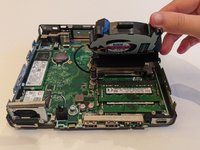
    • Gently lift the main fan to expose the RAM modules.

  5. HP ProDesk 400 G5 Mini RAM Replacement / Upgrade: 5 단계, 이미지 3개 중 1개 HP ProDesk 400 G5 Mini RAM Replacement / Upgrade: 5 단계, 이미지 3개 중 2개 HP ProDesk 400 G5 Mini RAM Replacement / Upgrade: 5 단계, 이미지 3개 중 3개
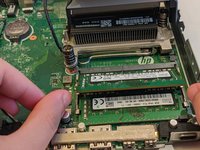
    • Using your fingers, pull the metal arms (located on both sides of the RAM module) slightly away from it, to release it from the slot.

    • The RAM will pop up by a few millimeters.

    • Remove it at an angle and not straight up so you don't damage the socket.

  6. HP ProDesk 400 G5 Mini RAM Replacement / Upgrade: 6 단계, 이미지 3개 중 1개 HP ProDesk 400 G5 Mini RAM Replacement / Upgrade: 6 단계, 이미지 3개 중 2개 HP ProDesk 400 G5 Mini RAM Replacement / Upgrade: 6 단계, 이미지 3개 중 3개
    • To insert a new RAM stick, line up the indent on the RAM with the indent on the slot, then slide it in.

  7. HP ProDesk 400 G5 Mini RAM Replacement / Upgrade: 7 단계, 이미지 3개 중 1개 HP ProDesk 400 G5 Mini RAM Replacement / Upgrade: 7 단계, 이미지 3개 중 2개 HP ProDesk 400 G5 Mini RAM Replacement / Upgrade: 7 단계, 이미지 3개 중 3개
    • Push the RAM stick down flat once it's securely attached to the socket.

    • You should hear a tactile click which indicates it was installed correctly.

    • Make sure the arms on both sides go back to their locked position.

  8. HP ProDesk 400 G5 Mini RAM Replacement / Upgrade: 8 단계, 이미지 3개 중 1개 HP ProDesk 400 G5 Mini RAM Replacement / Upgrade: 8 단계, 이미지 3개 중 2개 HP ProDesk 400 G5 Mini RAM Replacement / Upgrade: 8 단계, 이미지 3개 중 3개
    • After RAM installation, place the fan back on top of the RAM and replace the panel by sliding it into place and tightening it with the thumbscrew.

결론

To reassemble your device, follow these instructions in reverse order.

다른 4명이 해당 안내서를 완성하였습니다.

작성자

4다른 기여자 명과 함께

Sam Manshouri

회원 가입일: 02/01/23

217 평판

안내서 1개를 작성함

1가이드 댓글

I wish someone wouldcome up with a version of this guide that is the small formfactor pc as the ram is under the space whre the drives are.

chrisblackstone1977 - 답글 공유

댓글 쓰기

조회 통계:

지난 24시간: 15

지난 7일: 51

지난 30일: 273

전체 시간: 7,459