소개
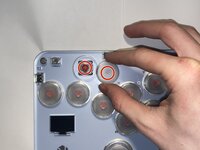
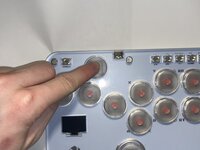
Sometimes, gaming controller buttons malfunction, and fail to read or send inputs to the game. After many hours of use, the Haute42 arcade-style controller may lose functionality.
Before going through with this repair, check the button for any debris under the keycap, as that could be contributing to the issue. You can carefully clean any dust or grime with compressed air, contact cleaner, and/or isopropyl alcohol but it's not a guaranteed fix.
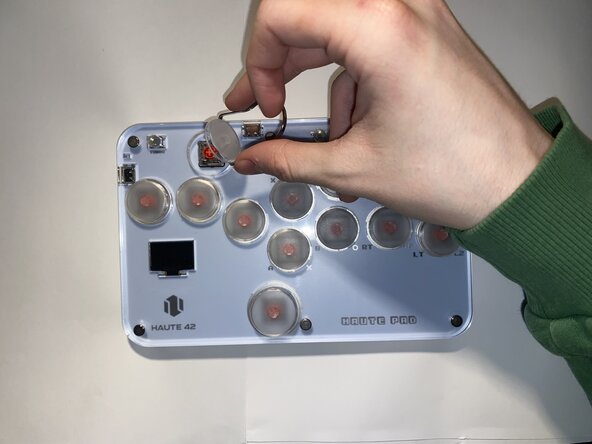
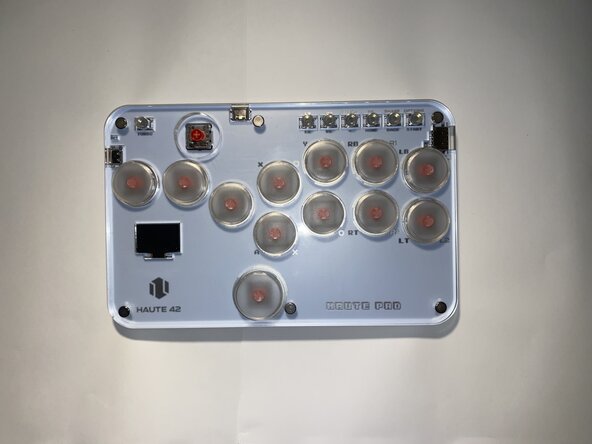
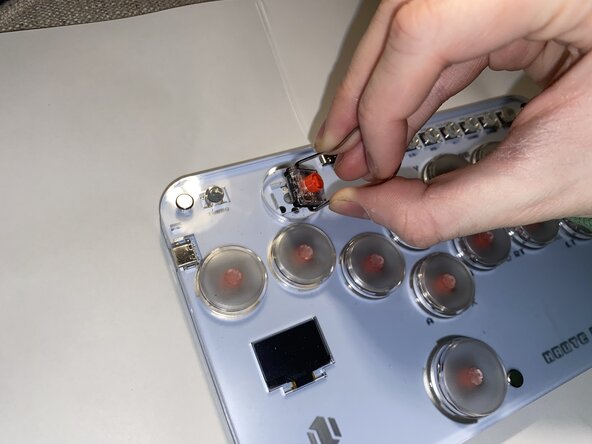
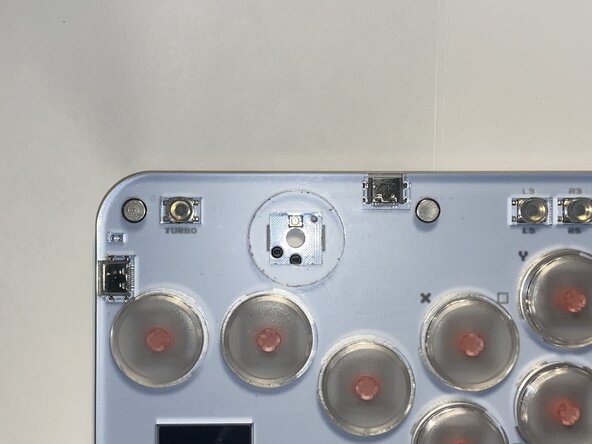
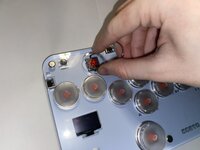
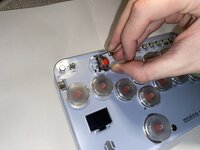
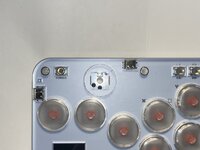
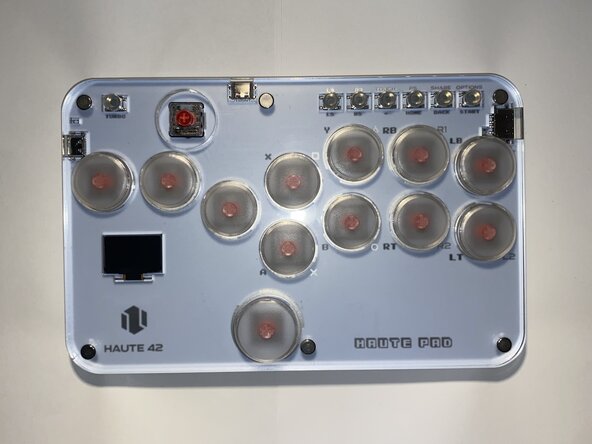
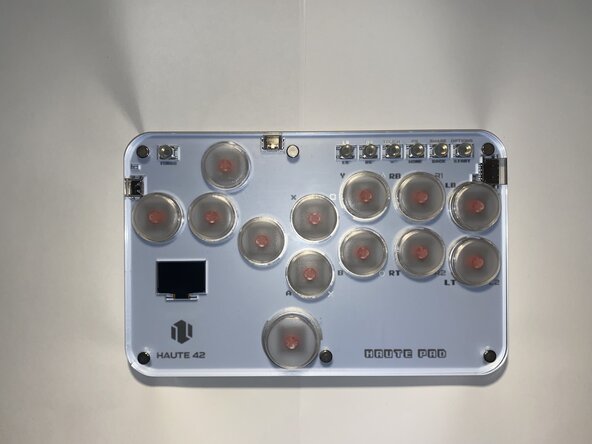
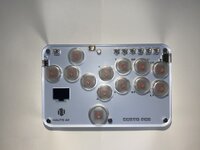
This guide covers the replacement of a keycap and button switch on a Haute42 S13 controller. It is important to note that this guide can also apply to any Haute42 controller, but instructions specific to this model will be detailed.
This guide can also be used if you just want to change the keycap buttons to a different color and customize the look of your controller by following the first couple of steps.
Before you begin, make sure the controller is turned off and disconnected from the USB cord.
필요한 것
-
-
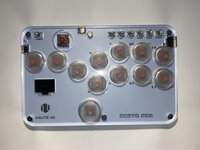
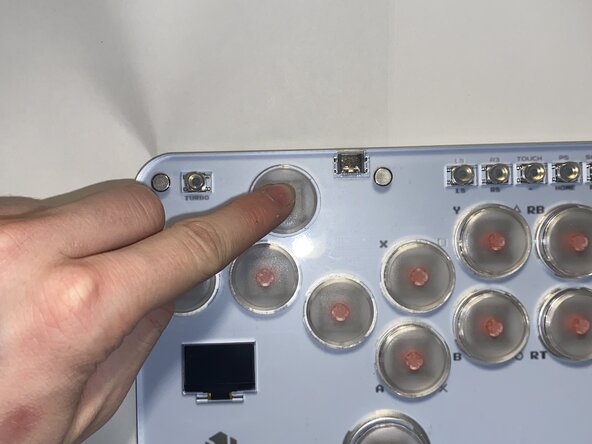
Unplug the controller from any device it is connected to and make sure it is powered off.
-
-








다른 2명이 해당 안내서를 완성하였습니다.


팀

York University, Team 3-2, Woodhouse Winter 2025 York University, Team 3-2, Woodhouse Winter 2025 회원
YORK-WOODHOUSE-W25S3G2
2 회원들
안내서 1개 작성
