주요 콘텐츠로 건너뛰기

How to Open the Logitech MX Ergo

필요한 것

  1. How to Open the Logitech MX Ergo, Power off your mouse: 1 단계, 이미지 3개 중 1개 How to Open the Logitech MX Ergo, Power off your mouse: 1 단계, 이미지 3개 중 2개 How to Open the Logitech MX Ergo, Power off your mouse: 1 단계, 이미지 3개 중 3개
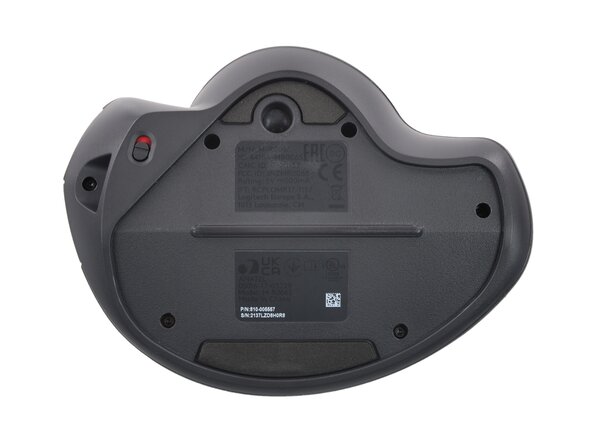
    • Before you begin, flip the mouse's power switch into the OFF position.

    • A red indicator should be visible beneath the switch.

    • Unplug all cables from your mouse.

    • Throughout your repair, it may be helpful to lay your mouse on a soft cloth to stabilize it and prevent damage while you work.

  2. How to Open the Logitech MX Ergo, Remove the cover: 2 단계, 이미지 2개 중 1개 How to Open the Logitech MX Ergo, Remove the cover: 2 단계, 이미지 2개 중 2개
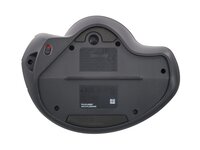
    • Remove the magnetic cover by pulling it away from the bottom of your mouse.

  3. How to Open the Logitech MX Ergo, Remove the case screws: 3 단계, 이미지 2개 중 1개 How to Open the Logitech MX Ergo, Remove the case screws: 3 단계, 이미지 2개 중 2개
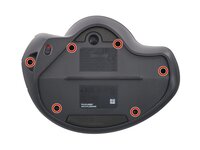
    • Use a Torx T6 screwdriver to remove the six 5.7 mm-long screws securing the two halves of the mouse together.

  4. How to Open the Logitech MX Ergo, Remove the trackball: 4 단계, 이미지 3개 중 1개 How to Open the Logitech MX Ergo, Remove the trackball: 4 단계, 이미지 3개 중 2개 How to Open the Logitech MX Ergo, Remove the trackball: 4 단계, 이미지 3개 중 3개
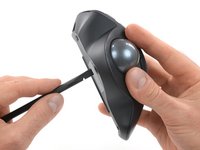
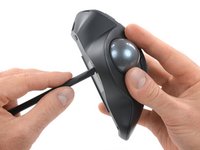
    • Insert a spudger into the hole on the bottom of the mouse, beneath the trackball.

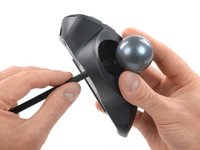
    • Use the spudger to push the trackball out of its recess.

    • Remove the trackball.

  5. How to Open the Logitech MX Ergo, Release the plastic clips: 5 단계, 이미지 3개 중 1개 How to Open the Logitech MX Ergo, Release the plastic clips: 5 단계, 이미지 3개 중 2개 How to Open the Logitech MX Ergo, Release the plastic clips: 5 단계, 이미지 3개 중 3개
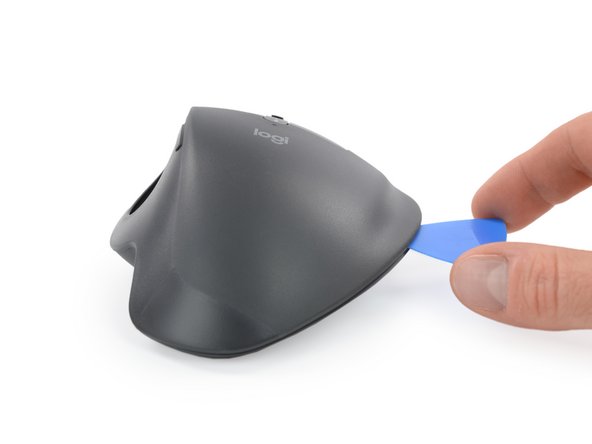
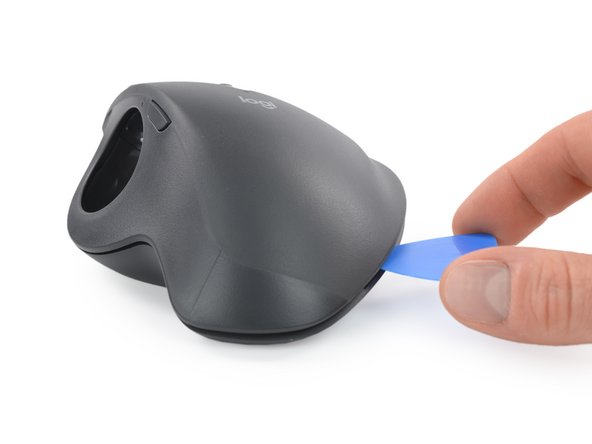
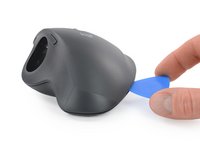
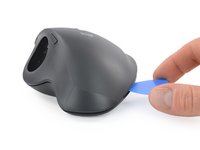
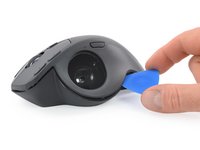
    • Clips around the perimeter of the mouse case hold the two halves together.

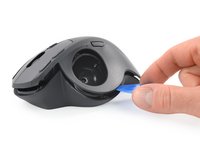
    • Insert the tip of an opening pick into the seam between the two halves, near the middle of the right edge.

    • Twist the opening pick to release the plastic clip.

  6. How to Open the Logitech MX Ergo: 6 단계, 이미지 2개 중 1개 How to Open the Logitech MX Ergo: 6 단계, 이미지 2개 중 2개
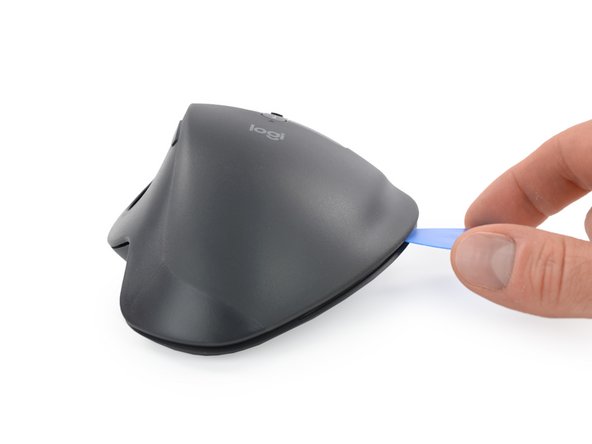
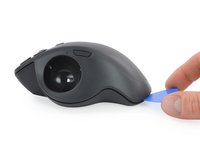
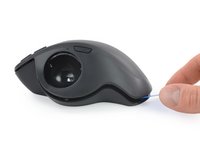
    • Slide the opening pick along the seam until it's about half way to the rear of the mouse.

    • Twist the pick to release the plastic clip.

  7. How to Open the Logitech MX Ergo: 7 단계, 이미지 2개 중 1개 How to Open the Logitech MX Ergo: 7 단계, 이미지 2개 중 2개
    • Slide the opening pick all the way to the rear the mouse.

    • Twist the pick to release the plastic clip.

  8. How to Open the Logitech MX Ergo: 8 단계, 이미지 2개 중 1개 How to Open the Logitech MX Ergo: 8 단계, 이미지 2개 중 2개
    • Slide the opening pick to the middle of the left edge, next to the trackball recess.

    • Twist the pick to release the plastic clip.

  9. How to Open the Logitech MX Ergo, Reposition the top half: 9 단계, 이미지 3개 중 1개 How to Open the Logitech MX Ergo, Reposition the top half: 9 단계, 이미지 3개 중 2개 How to Open the Logitech MX Ergo, Reposition the top half: 9 단계, 이미지 3개 중 3개
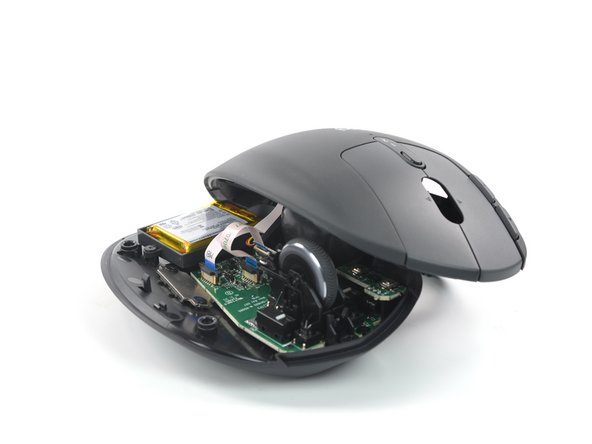
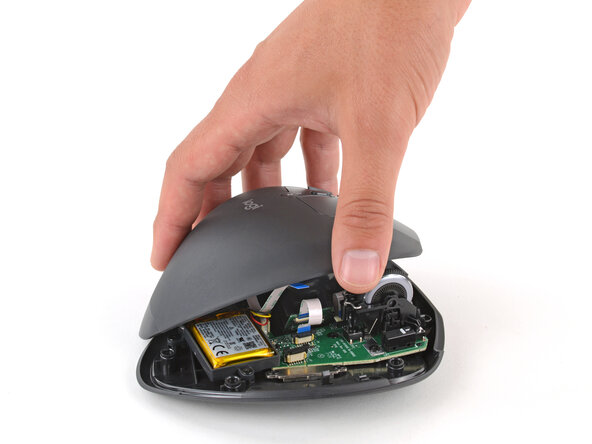
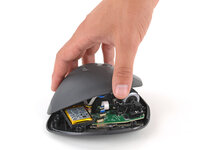
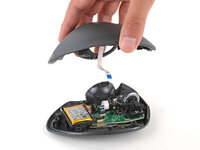
    • Don't completely separate the two halves yet—they're still connected by a delicate cable.

    • Gently lift the top half and place it to the left of the mouse so you can access the internals.

    • Be careful not to strain any of the cables inside the mouse.

  10. How to Open the Logitech MX Ergo, Disconnect the interconnect cable: 10 단계, 이미지 3개 중 1개 How to Open the Logitech MX Ergo, Disconnect the interconnect cable: 10 단계, 이미지 3개 중 2개 How to Open the Logitech MX Ergo, Disconnect the interconnect cable: 10 단계, 이미지 3개 중 3개
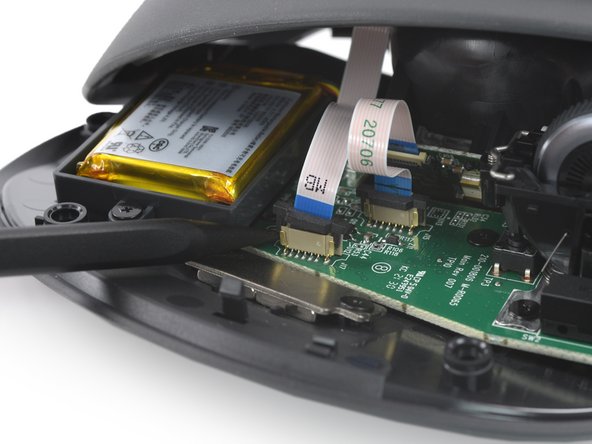
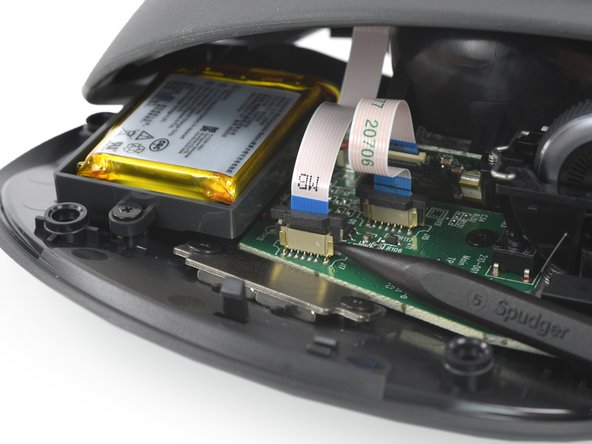
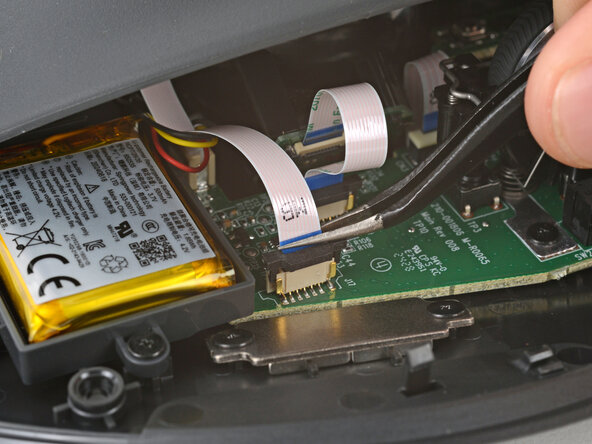
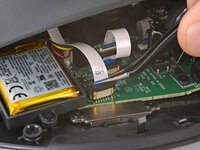
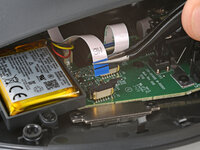
    • Use the point of a spudger to gently lift alternating sides of the black sliding latch on the interconnect cable socket.

    • You should feel the latch pop into the unlocked position. Don't push too far, or the latch may come completely off the connector.

  11. How to Open the Logitech MX Ergo: 11 단계, 이미지 2개 중 1개 How to Open the Logitech MX Ergo: 11 단계, 이미지 2개 중 2개
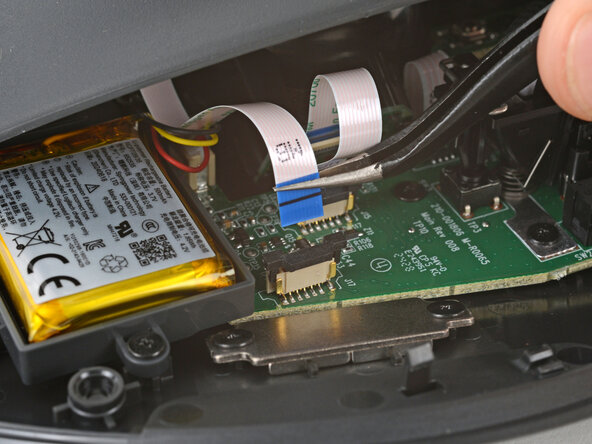
    • Use tweezers or your fingers to pull the interconnect cable straight up and out of its socket.

  12. How to Open the Logitech MX Ergo, Remove the top half of the mouse: 12 단계, 이미지 2개 중 1개 How to Open the Logitech MX Ergo, Remove the top half of the mouse: 12 단계, 이미지 2개 중 2개
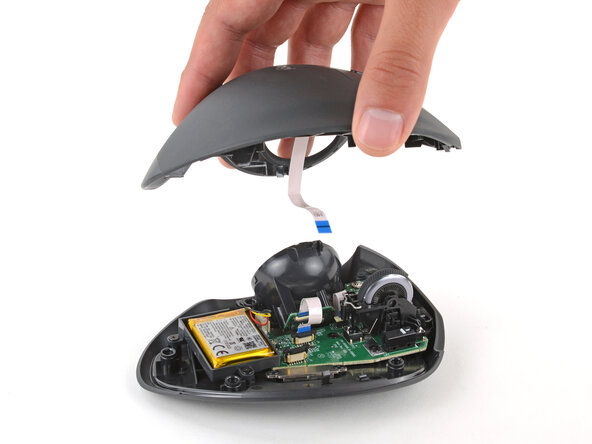
    • Lift the top half of the mouse straight up and remove it.

결론

Compare your new replacement part to the original part—you may need to transfer remaining components or remove adhesive backings from the new part before installing.

To reassemble your device, follow the above steps in reverse order.

Take your e-waste to an R2 or e-Stewards certified recycler.

Repair didn’t go as planned? Check out our Answers community for troubleshooting help.

다른 10명이 해당 안내서를 완성하였습니다.

작성자

4다른 기여자 명과 함께

Adriana Zwink

회원 가입일: 12/18/19

62,058 평판

안내서 167개를 작성함

iFixit iFixit 회원

Staff

123 회원들

안내서 23,638개를 작성함

5가이드 댓글

Thank you. It was quite a coincidence that I found this because I had just purchased that fix it repair tool kit. It was pretty handy that I had it all right here in front of me. Thanks again you made it easy.

Marti Roy - 답글
Hi @martilynn, thank you for sharing your experience! We're glad that the guide was useful for your repair.

Adriana Zwink -

Very helpful guide! Managed to figure out how to clear some gunk off an end users mouse. Much appreciated!

Skurtsson - 답글

Actually not necessary to remove the interconnect cable, and I wish I had not. Instructions do not include reassembly.

jeffrey bailey - 답글

Had a clogged sensor and the mouse ball wasnt registering movement. I didnt realize how easy it was to push out the trackball! thanks for the simple how to, a few years of use just got cleaned out.

Kayla - 답글

댓글 쓰기

조회 통계:

지난 24시간: 11

지난 7일: 59

지난 30일: 239

전체 시간: 10,254