주요 콘텐츠로 건너뛰기

How to format an SD Card

필요한 것

  1. How to format an SD Card, Mount the SD Card: 1 단계, 이미지 1개 중 1개
    • Insert the SD Card into a reader connected to your computer.

  2. How to format an SD Card, Set up the Programme: 2 단계, 이미지 1개 중 1개
    • Select the card you want to format.

    • The programme should normally just pick up the card you want to format. If it doesn't pick up any card, just press the refresh button.

    • You can choose to overwrite your files or to just do a quick format.

    • While it is more secure, p. ex. if you want to give your card away, to overwrite all files, it also takes a considerably longer amount of time.

    • Activate CHS format size adjustment.

    • By adjusting the CHS size, you can potentially resolve issues with unrecognized SD cards and improve the compatibility of the card with various devices. This can happen when the card has been formatted using a tool that sets the CHS values incorrectly, or when the device's firmware is not compatible with the card's actual CHS geometry.

    • This option might not be supported on some SD Cards and be greyed out, as newer SD card formatting standards such as the SDXC and SDUC protocols use different methods to address storage.

    • Name your SD Card.

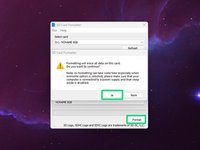
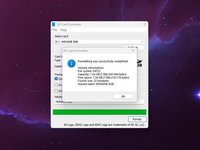
  3. How to format an SD Card, Format the Card: 3 단계, 이미지 2개 중 1개 How to format an SD Card, Format the Card: 3 단계, 이미지 2개 중 2개
    • Press on the Format Button and confirm.

    • Depending on if you chose to do a quick format or to overwrite all files, this might take a while but usually doing a quick format is quite fast, taking just under 10 seconds.

    • If you press the Cancel button while doing an overwrite format it will just stop overwriting the files and still perform a quick format.

결론

Happy computing!

다른 4명이 해당 안내서를 완성하였습니다.

작성자

2다른 기여자 명과 함께

Sebastian

회원 가입일: 08/19/18

31,061 평판

안내서 71개를 작성함

2가이드 댓글

Me sirvió demasiado son los mejores amigos

Leonardo Romero - 답글

댓글 쓰기

조회 통계:

지난 24시간: 12

지난 7일: 66

지난 30일: 188

전체 시간: 4,189