주요 콘텐츠로 건너뛰기

Kano Computer Kit Touch Heatsink Replacement

필요한 것

  1. Kano Computer Kit Touch Heatsink Replacement, Removing the Keyboard and the back of the case: 1 단계, 이미지 3개 중 1개 Kano Computer Kit Touch Heatsink Replacement, Removing the Keyboard and the back of the case: 1 단계, 이미지 3개 중 2개 Kano Computer Kit Touch Heatsink Replacement, Removing the Keyboard and the back of the case: 1 단계, 이미지 3개 중 3개
    • The first step is to place the device face down on a flat surface in order to remove the keyboard.

    • After the device is laying face-down, with the screen on the table, we remove the keyboard.

    • After removing the Keyboard there's a hole in the case that's meant to allow some airflow. We will use this hole to put our finger in to aid in removing the case.

  2. Kano Computer Kit Touch Heatsink Replacement, Removing the Battery: 2 단계, 이미지 3개 중 1개 Kano Computer Kit Touch Heatsink Replacement, Removing the Battery: 2 단계, 이미지 3개 중 2개 Kano Computer Kit Touch Heatsink Replacement, Removing the Battery: 2 단계, 이미지 3개 중 3개
    • The first picture is a view of the inside of the computer.

    • Unplug the USB connectors from the battery.

    • Remove the battery from the case.

  3. Kano Computer Kit Touch Heatsink Replacement, Press and Hold the Power Button: 3 단계, 이미지 1개 중 1개
    • After removing the battery it's always a good idea to press and hold the power button for 3 seconds to make sure you don't get a little shock.

  4. Kano Computer Kit Touch Heatsink Replacement, Removing the Cables: 4 단계, 이미지 3개 중 1개 Kano Computer Kit Touch Heatsink Replacement, Removing the Cables: 4 단계, 이미지 3개 중 2개 Kano Computer Kit Touch Heatsink Replacement, Removing the Cables: 4 단계, 이미지 3개 중 3개
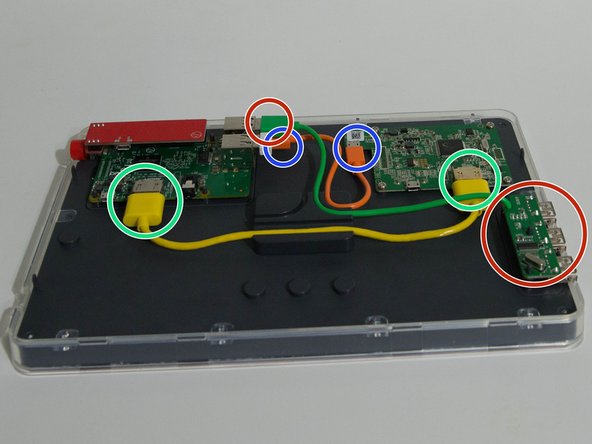
    • Remember the power cable we removed from the battery? Let's go ahead and get that out of the way. It's plugged in to the power control board we used earlier, and the video driver board on the right of the image.

    • Next we will get this speaker out of the way. The speaker circled on the far left has a 3.5mm plug circled in the middle that carries the audio signal, and a USB connector circled towards the right that powers the speaker.

    • The yellow cable here is our HDMI cable that carries the video signal to the screen. We will remove it by unplugging it.

    • This little orange cable is a USB cable that allows the touch screen to operate. All we need to do to remove it is unplug it.

    • This green cable is a 3 port USB hub that lets us plug more than 4 USB devices in. We will remove it by unplugging it and then lifting the hub circled on the right up.

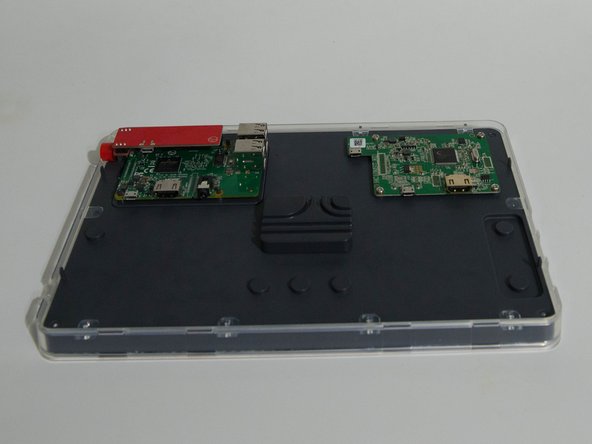
    • The last picture is with all of the cables removed.

  5. Kano Computer Kit Touch Heatsink Replacement, Removing the Raspberry Pi: 5 단계, 이미지 3개 중 1개 Kano Computer Kit Touch Heatsink Replacement, Removing the Raspberry Pi: 5 단계, 이미지 3개 중 2개 Kano Computer Kit Touch Heatsink Replacement, Removing the Raspberry Pi: 5 단계, 이미지 3개 중 3개
    • Remove the power board from the Raspberry Pi headers by simply lifting up.

    • Removing the Raspberry Pi is a simple as lifting it up and out of the case.

    • After the Pi is out flip it over and remove the Micro SD Card.

  6. Kano Computer Kit Touch Heatsink Replacement, Finished: 6 단계, 이미지 1개 중 1개
    • Finally we are left with all of the individual pieces.

  7. Kano Computer Kit Touch Heatsink Replacement, Gather Your Parts and Tools: 7 단계, 이미지 1개 중 1개
    이 단계에 사용된 도구:
    Tweezers
    $4.99
    • Gather your parts and tools:

    • For tools I used a rubbing alcohol pad, and the blunt nosed iFixit tweezers.

    • For parts I used the copper plate, the large heatsink, and the smallest heatsink.

  8. Kano Computer Kit Touch Heatsink Replacement, Clean the CPU and RAM: 8 단계, 이미지 1개 중 1개
    • First I used the alcohol pad to clean the CPU and RAM.

  9. Kano Computer Kit Touch Heatsink Replacement: 9 단계, 이미지 1개 중 1개
    • Next I pealed the adhesive backing off of the copper plate.

    • Then you center the plate and press down firmly.

  10. Kano Computer Kit Touch Heatsink Replacement, Adding the Heatsink: 10 단계, 이미지 3개 중 1개 Kano Computer Kit Touch Heatsink Replacement, Adding the Heatsink: 10 단계, 이미지 3개 중 2개 Kano Computer Kit Touch Heatsink Replacement, Adding the Heatsink: 10 단계, 이미지 3개 중 3개
    • Clean the copper plate with the alcohol pad.

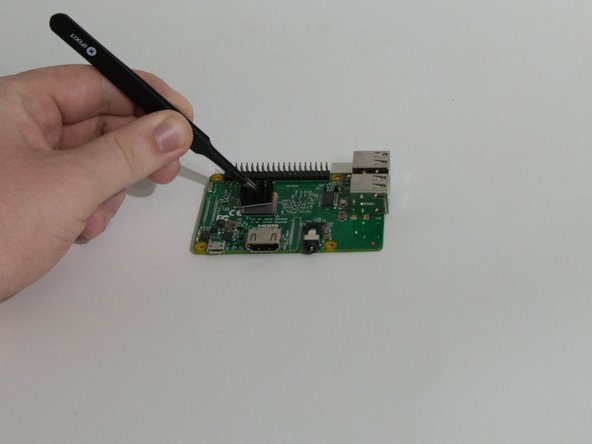
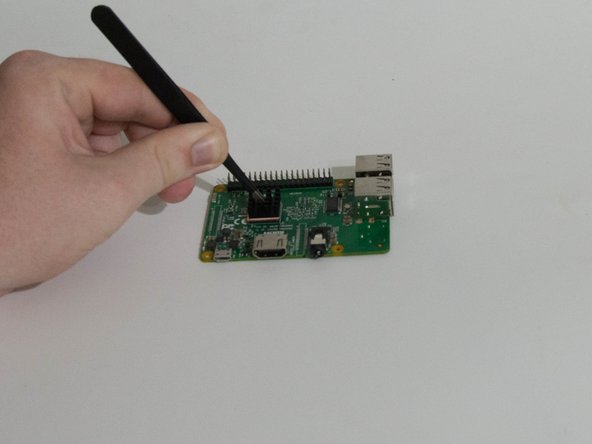
    • Then we will remove the adhesive backing from the heatsink, and center it on the copper plate, and press down firmly.

  11. Kano Computer Kit Touch Heatsink Replacement, Placing the Heatsink on the RAM: 11 단계, 이미지 1개 중 1개
    • We will remove the adhesive backing from the small heatsink, and center it over our RAM chip, and press down firmly.

  12. Kano Computer Kit Touch Heatsink Replacement, Finished: 12 단계, 이미지 1개 중 1개
    • Admire your handiwork.

결론

To reassemble your device, follow these instructions in reverse order.

작성자

4다른 기여자 명과 함께

Kevin Borah

회원 가입일: 08/29/18

405 평판

안내서 2개를 작성함

0가이드 댓글

댓글 쓰기

조회 통계:

지난 24시간: 1

지난 7일: 2

지난 30일: 14

전체 시간: 552