주요 콘텐츠로 건너뛰기

Lenovo IdeaPad Flex 5 14ARE05 Touchpad Replacement

필요한 것

  1. Lenovo IdeaPad Flex 5 14ARE05 Touchpad Replacement, Back Panel: 1 단계, 이미지 2개 중 1개 Lenovo IdeaPad Flex 5 14ARE05 Touchpad Replacement, Back Panel: 1 단계, 이미지 2개 중 2개
    • Remove the five 8 mm screws using a T5 Torx Screwdriver.

    • Remove the four 5 mm screws using a T5 Torx Screwdriver.

  2. Lenovo IdeaPad Flex 5 14ARE05 Touchpad Replacement: 2 단계, 이미지 3개 중 1개 Lenovo IdeaPad Flex 5 14ARE05 Touchpad Replacement: 2 단계, 이미지 3개 중 2개 Lenovo IdeaPad Flex 5 14ARE05 Touchpad Replacement: 2 단계, 이미지 3개 중 3개
    • Use a small suction cup to pull open the back case at the two hinge cutouts.

    • Gently, use the plastic opening tool around the edges of the laptop to pry up the rest of the back panel.

  3. Lenovo IdeaPad Flex 5 14ARE05 Touchpad Replacement: 3 단계, 이미지 1개 중 1개
    • Once all the clips have been disengaged, lift off the back cover.

  4. Lenovo IdeaPad Flex 5 14ARE05 Touchpad Replacement, Battery: 4 단계, 이미지 2개 중 1개 Lenovo IdeaPad Flex 5 14ARE05 Touchpad Replacement, Battery: 4 단계, 이미지 2개 중 2개
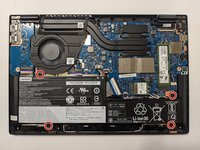
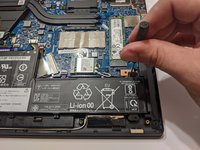
    • Remove the four 5 mm Phillips #00 screws that secure the battery in place.

  5. Lenovo IdeaPad Flex 5 14ARE05 Touchpad Replacement: 5 단계, 이미지 2개 중 1개 Lenovo IdeaPad Flex 5 14ARE05 Touchpad Replacement: 5 단계, 이미지 2개 중 2개
    • Rotate the device 90 degrees.

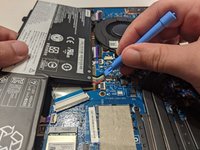
    • Gently lift up on the battery and use a spudger to disconnect the battery connector.

  6. Lenovo IdeaPad Flex 5 14ARE05 Touchpad Replacement, Cooling Fan: 6 단계, 이미지 1개 중 1개
    • Remove the four 2 mm screws using a JIS #1 screwdriver.

    • Remove the three 5 mm screws using a JIS #1 screwdriver.

  7. Lenovo IdeaPad Flex 5 14ARE05 Touchpad Replacement: 7 단계, 이미지 3개 중 1개 Lenovo IdeaPad Flex 5 14ARE05 Touchpad Replacement: 7 단계, 이미지 3개 중 2개 Lenovo IdeaPad Flex 5 14ARE05 Touchpad Replacement: 7 단계, 이미지 3개 중 3개
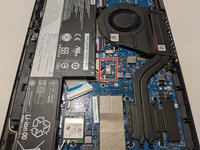
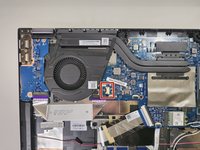
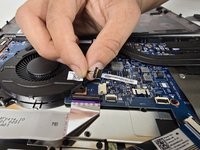
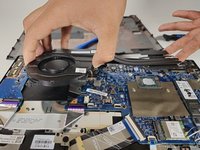
    • Unplug the wire at the bottom right of the fan.

    • Carefully lift the fan from its place.

  8. Lenovo IdeaPad Flex 5 14ARE05 Touchpad Replacement, Touchpad: 8 단계, 이미지 1개 중 1개
    • Pull on the blue tab to disconnect the large ribbon cable.

    • Pull on the blue tab to disconnect the small ribbon cable.

  9. Lenovo IdeaPad Flex 5 14ARE05 Touchpad Replacement: 9 단계, 이미지 1개 중 1개
    • Use the spudger to disconnect the speaker plug on the right of the motherboard.

    • Pull the speaker towards you and it will disconnect from its mount.

    • Pull up on the Wi-Fi card wire connections, and move them aside.

  10. Lenovo IdeaPad Flex 5 14ARE05 Touchpad Replacement: 10 단계, 이미지 1개 중 1개
    • Remove the four 4 mm motherboard screws with a Phillips #1 screwdriver.

  11. Lenovo IdeaPad Flex 5 14ARE05 Touchpad Replacement: 11 단계, 이미지 1개 중 1개
    • Remove the two 2 mm screws from the right hinge using a Phillips #2 screwdriver.

    • Disconnect the screen cable connector.

    • Remove the motherboard from the laptop.

  12. Lenovo IdeaPad Flex 5 14ARE05 Touchpad Replacement: 12 단계, 이미지 1개 중 1개
    • Remove the four 2 mm screws from the touch-pad bracket using a Phillips #0 screwdriver.

    • Pull the bracket up and out of the frame of the laptop.

결론

To reassemble your device, follow these instructions in reverse order.

작성자

3다른 기여자 명과 함께

Jonathan Baldo

회원 가입일: 10/16/24

319 평판

안내서 3개를 작성함

UMass Dartmouth, Team 1-6, Konn Fall 2024 UMass Dartmouth, Team 1-6, Konn Fall 2024 회원

UMASSD-KONN-F24S1G6

4 회원들

안내서 5개를 작성함

0가이드 댓글

댓글 쓰기

조회 통계:

지난 24시간: 0

지난 7일: 5

지난 30일: 30

전체 시간: 423