주요 콘텐츠로 건너뛰기

Lenovo ThinkPad X1 Carbon 7th Gen Lower Speakers Replacement

필요한 것

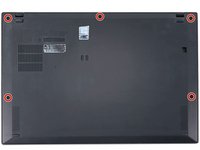
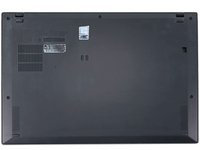
  1. Lenovo ThinkPad X1 Carbon 7th Gen Lower Speakers Replacement, Back cover removal: 1 단계, 이미지 2개 중 1개 Lenovo ThinkPad X1 Carbon 7th Gen Lower Speakers Replacement, Back cover removal: 1 단계, 이미지 2개 중 2개
    • Use a Phillips #1 screwdriver to loosen the five captive screws securing the back cover.

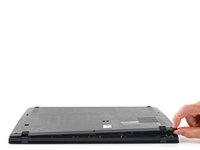
  2. Lenovo ThinkPad X1 Carbon 7th Gen Lower Speakers Replacement, Insert an opening pick: 2 단계, 이미지 3개 중 1개 Lenovo ThinkPad X1 Carbon 7th Gen Lower Speakers Replacement, Insert an opening pick: 2 단계, 이미지 3개 중 2개 Lenovo ThinkPad X1 Carbon 7th Gen Lower Speakers Replacement, Insert an opening pick: 2 단계, 이미지 3개 중 3개
    • Insert an opening pick at a 45˚ angle between the back cover and frame near the rear middle screw.

    • Pry up on the pick to release the clips securing the back cover to the frame.

    • You will hear several clicks while prying up.

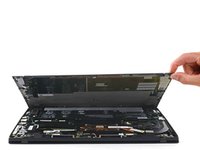
  3. Lenovo ThinkPad X1 Carbon 7th Gen Lower Speakers Replacement, Remove the back cover: 3 단계, 이미지 3개 중 1개 Lenovo ThinkPad X1 Carbon 7th Gen Lower Speakers Replacement, Remove the back cover: 3 단계, 이미지 3개 중 2개 Lenovo ThinkPad X1 Carbon 7th Gen Lower Speakers Replacement, Remove the back cover: 3 단계, 이미지 3개 중 3개
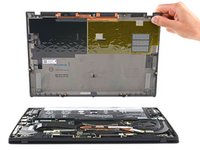
    • Lift the back cover up and remove it from the chassis.

    • You will hear several clicks while lifting up.

    • During reassembly, this is a good point to power on your laptop and test all functions before sealing it up. Be sure to power your laptop back down before you continue working.

  4. Lenovo ThinkPad X1 Carbon 7th Gen Lower Speakers Replacement, Battery disconnect: 4 단계, 이미지 3개 중 1개 Lenovo ThinkPad X1 Carbon 7th Gen Lower Speakers Replacement, Battery disconnect: 4 단계, 이미지 3개 중 2개 Lenovo ThinkPad X1 Carbon 7th Gen Lower Speakers Replacement, Battery disconnect: 4 단계, 이미지 3개 중 3개
    이 단계에 사용된 도구:
    Tweezers
    $4.99
    • Use tweezers or your fingers to peel back the plastic shield covering the battery connector.

  5. Lenovo ThinkPad X1 Carbon 7th Gen Lower Speakers Replacement, Disconnect the battery: 5 단계, 이미지 3개 중 1개 Lenovo ThinkPad X1 Carbon 7th Gen Lower Speakers Replacement, Disconnect the battery: 5 단계, 이미지 3개 중 2개 Lenovo ThinkPad X1 Carbon 7th Gen Lower Speakers Replacement, Disconnect the battery: 5 단계, 이미지 3개 중 3개
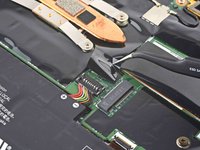
    • Use the flat end of a spudger to pry up on and disconnect the battery cable.

  6. Lenovo ThinkPad X1 Carbon 7th Gen Lower Speakers Replacement, Lower Speakers: 6 단계, 이미지 2개 중 1개 Lenovo ThinkPad X1 Carbon 7th Gen Lower Speakers Replacement, Lower Speakers: 6 단계, 이미지 2개 중 2개
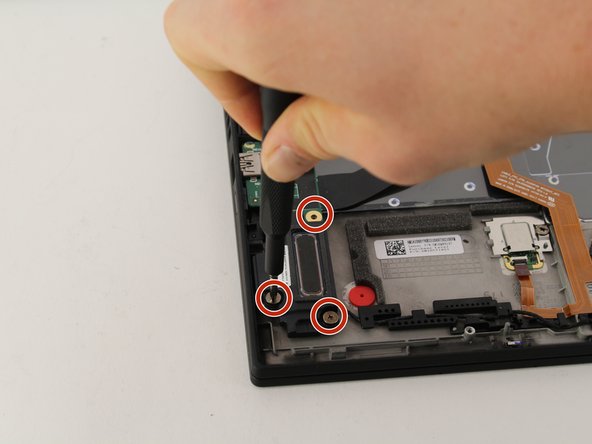
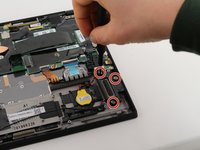
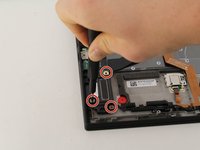
    • Remove three 8mm Phillips #0 screws from both the left and right side speakers.

    • You are not required to remove the battery in order to remove these speakers.

  7. Lenovo ThinkPad X1 Carbon 7th Gen Lower Speakers Replacement: 7 단계, 이미지 1개 중 1개
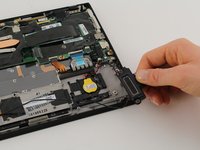
    • Remove the insert connector from the motherboard by sliding it straight out from the port.

    • An opening tool can be used if a finger is too large.

  8. Lenovo ThinkPad X1 Carbon 7th Gen Lower Speakers Replacement: 8 단계, 이미지 2개 중 1개 Lenovo ThinkPad X1 Carbon 7th Gen Lower Speakers Replacement: 8 단계, 이미지 2개 중 2개
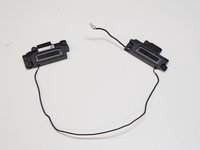
    • Lift speakers straight up and out of the device.

    • The two speakers are connected via a mutual wire, so they have to be removed and replaced together.

결론

To reassemble your device, follow these instructions in reverse order.

작성자

5다른 기여자 명과 함께

Hayden Jeanor

회원 가입일: 01/23/20

523 평판

안내서 3개를 작성함

Cal Poly, Team S19-G2, White Winter 2020 Cal Poly, Team S19-G2, White Winter 2020 회원

CPSU-WHITE-W20S19G2

4 회원들

안내서 21개를 작성함

0가이드 댓글

댓글 쓰기

조회 통계:

지난 24시간: 1

지난 7일: 8

지난 30일: 38

전체 시간: 2,295