주요 콘텐츠로 건너뛰기

Lenovo Yoga 3 11 Motherboard Replacement

필요한 것

  1. Lenovo Yoga 3 11 Motherboard Replacement, Lower Case: 1 단계, 이미지 1개 중 1개
    • Remove the eleven 6 mm T5 Torx screws securing the lower case.

    • Gently lift the lower case up and away from the device.

  2. Lenovo Yoga 3 11 Motherboard Replacement, Battery: 2 단계, 이미지 3개 중 1개 Lenovo Yoga 3 11 Motherboard Replacement, Battery: 2 단계, 이미지 3개 중 2개 Lenovo Yoga 3 11 Motherboard Replacement, Battery: 2 단계, 이미지 3개 중 3개
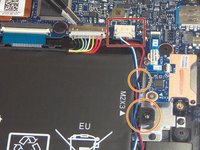
    • Remove the two 3 mm Phillips #00 screws securing the battery.

    • There are arrows on the battery indicating the location of the screws.

  3. Lenovo Yoga 3 11 Motherboard Replacement: 3 단계, 이미지 1개 중 1개
    이 단계에 사용된 도구:
    Tweezers
    $4.99
    • Use a pair of tweezers to gently disconnect the battery connector.

  4. Lenovo Yoga 3 11 Motherboard Replacement: 4 단계, 이미지 2개 중 1개 Lenovo Yoga 3 11 Motherboard Replacement: 4 단계, 이미지 2개 중 2개
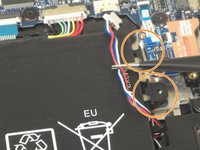
    • Use a pair of tweezers to gently disconnect the speaker cable.

    • Remove the wires from underneath the battery tabs using the tweezers.

  5. Lenovo Yoga 3 11 Motherboard Replacement: 5 단계, 이미지 1개 중 1개
    • Carefully remove the battery from the device.

  6. Lenovo Yoga 3 11 Motherboard Replacement, Motherboard: 6 단계, 이미지 1개 중 1개
    이 단계에 사용된 도구:
    Tweezers
    $4.99
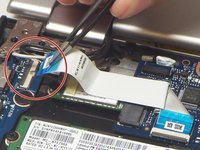
    • Use a pair of tweezers to disconnect the motherboard-size of the trackpad ribbon cable. Gently lift up the black tab, and the cable should come free from the ZIF connector.

  7. Lenovo Yoga 3 11 Motherboard Replacement: 7 단계, 이미지 1개 중 1개
    • Use a pair of tweezers to disconnect the keyboard ribbon cable from the motherboard ZIF connector. Gently lift up the white tab, and the cable should come free.

  8. Lenovo Yoga 3 11 Motherboard Replacement: 8 단계, 이미지 1개 중 1개
    • Use a pair of tweezers to disconnect the motherboard-side of the SD board ribbon cable. Gently lift up the black tab, and then ribbon cable should come free from the ZIF connector.

  9. Lenovo Yoga 3 11 Motherboard Replacement: 9 단계, 이미지 1개 중 1개
    • Use the tweezers to unplug the USB port from the motherboard by gently lifting the white connector up from the black motherboard connector.

  10. Lenovo Yoga 3 11 Motherboard Replacement: 10 단계, 이미지 1개 중 1개
    • Use a plastic opening tool to gently pry up the screen cable from the motherboard.

  11. Lenovo Yoga 3 11 Motherboard Replacement: 11 단계, 이미지 3개 중 1개 Lenovo Yoga 3 11 Motherboard Replacement: 11 단계, 이미지 3개 중 2개 Lenovo Yoga 3 11 Motherboard Replacement: 11 단계, 이미지 3개 중 3개
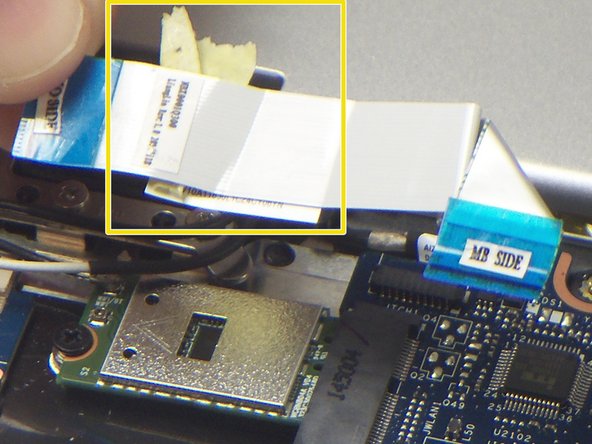
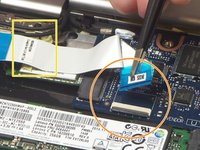
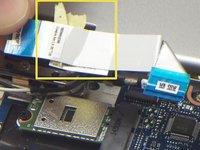
    • Use a pair of tweezers to disconnect the "I/O Side" of the ribbon cable connecting the audio jack/USB port assembly to the motherboard. Gently lift up the black tab, and the ribbon cable should come free from the ZIF connector.

    • Use a pair of tweezers to disconnect the "MB Side" of the ribbon cable connecting the audio jack/USB port assembly to the motherboard. Gently lift up the black tab, and the ribbon cable should come free from the ZIF connector.

    • Remove the ribbon cable from the device.

  12. Lenovo Yoga 3 11 Motherboard Replacement: 12 단계, 이미지 3개 중 1개 Lenovo Yoga 3 11 Motherboard Replacement: 12 단계, 이미지 3개 중 2개 Lenovo Yoga 3 11 Motherboard Replacement: 12 단계, 이미지 3개 중 3개
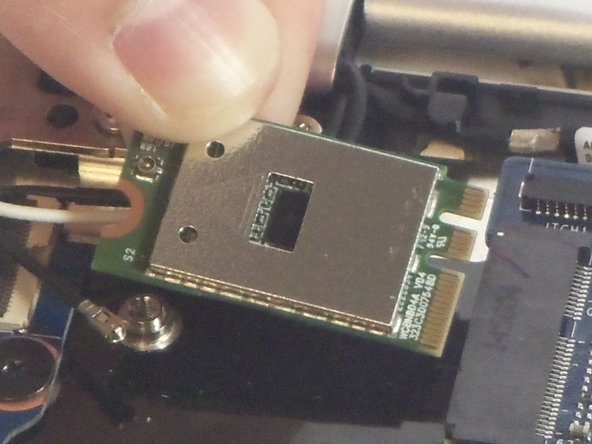
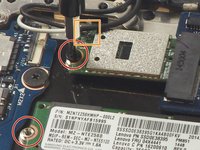
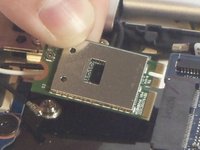
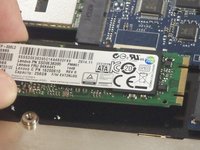
    • Remove the two 2 mm Phillips #00 screws securing the wireless card (top) and the SSD (bottom).

    • Use a pair of tweezers to disconnect the black and white antenna cables that are connected to the wireless card.

    • Gently lift the wireless card and SSD up and out of the device.

  13. Lenovo Yoga 3 11 Motherboard Replacement: 13 단계, 이미지 1개 중 1개
    • Remove the three black 2 mm Phillips #00 screws.

    • Remove the single silver 4 mm Phillips #00 screw.

  14. Lenovo Yoga 3 11 Motherboard Replacement: 14 단계, 이미지 1개 중 1개
    • Gently lift the motherboard up and out of the device.

결론

To reassemble your device, follow these instructions in reverse order.

다른 3명이 해당 안내서를 완성하였습니다.

작성자

6다른 기여자 명과 함께

Chandler Morris

회원 가입일: 08/27/15

172 평판

안내서 1개를 작성함

USF Tampa, Team 2-3, Blackwell Fall 2015 USF Tampa, Team 2-3, Blackwell Fall 2015 회원

USFT-BLACKWELL-F15S2G3

4 회원들

안내서 11개를 작성함

1가이드 댓글

Not as difficult as I thought. I was surprised that there were no empty RAM locations. Usually on a Notebookk lliek this, there is one RAM location soldered to MB, and one empty slot for upgrade. I worked on an identical Yoga 3 pro that ran 16GB. But aht meant it was soldered at factory to one 16GB RAM setup.

Mick Thielen - 답글

댓글 쓰기

조회 통계:

지난 24시간: 0

지난 7일: 5

지난 30일: 27

전체 시간: 7,701