주요 콘텐츠로 건너뛰기

Logitech K345 On/Off Button Replacement

필요한 것

  1. Logitech K345 On/Off Button Replacement, Membrane: 1 단계, 이미지 1개 중 1개
    • Remove the thirteen 5.3 mm screws from the back of the keyboard using a Phillips #0 screwdriver.

  2. Logitech K345 On/Off Button Replacement: 2 단계, 이미지 2개 중 1개 Logitech K345 On/Off Button Replacement: 2 단계, 이미지 2개 중 2개
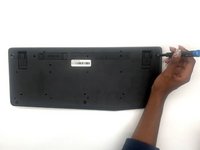
    • Pry up the corner rubber pads using a Jimmy.

  3. Logitech K345 On/Off Button Replacement: 3 단계, 이미지 2개 중 1개 Logitech K345 On/Off Button Replacement: 3 단계, 이미지 2개 중 2개
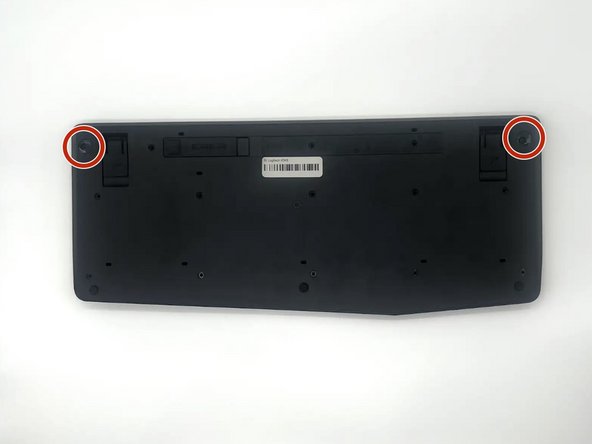
    • Remove the two 5.3 mm screws from the corners with a Phillips #0 screwdriver.

  4. Logitech K345 On/Off Button Replacement: 4 단계, 이미지 2개 중 1개 Logitech K345 On/Off Button Replacement: 4 단계, 이미지 2개 중 2개
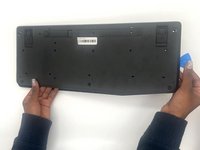
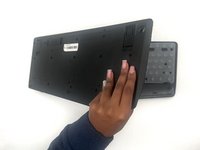
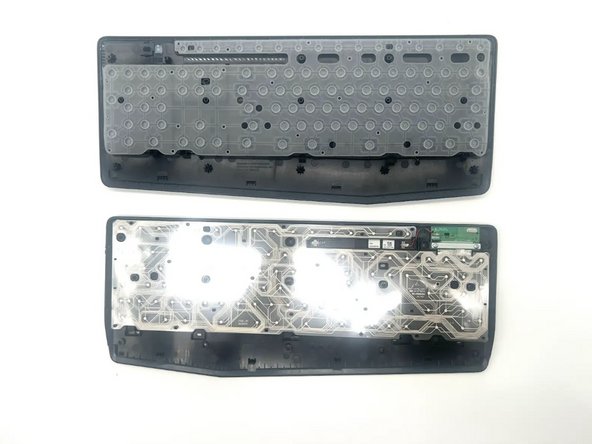
    • Use your hands and opening picks to remove the back of the keyboard.

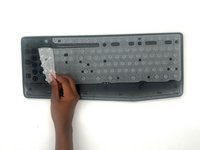
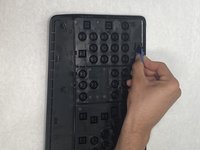
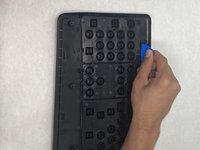
  5. Logitech K345 On/Off Button Replacement: 5 단계, 이미지 3개 중 1개 Logitech K345 On/Off Button Replacement: 5 단계, 이미지 3개 중 2개 Logitech K345 On/Off Button Replacement: 5 단계, 이미지 3개 중 3개
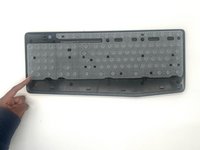
    • Remove the keyboard membrane.

  6. Logitech K345 On/Off Button Replacement, On/Off Button: 6 단계, 이미지 2개 중 1개 Logitech K345 On/Off Button Replacement, On/Off Button: 6 단계, 이미지 2개 중 2개
    • Pry open the sides holding the On/Off button using an opening pick.

  7. Logitech K345 On/Off Button Replacement: 7 단계, 이미지 1개 중 1개
    • Remove the on/off button.

결론

To reassemble your device, follow these instructions in reverse order. Take your e-waste to an R2 or e-Stewards certified recycler.

다른 한 분이 해당 안내서를 완성하였습니다.

작성자

4다른 기여자 명과 함께

Aumirius Robinson

회원 가입일: 09/26/24

595 평판

안내서 4개를 작성함

0가이드 댓글

댓글 쓰기

조회 통계:

지난 24시간: 0

지난 7일: 10

지난 30일: 37

전체 시간: 533