주요 콘텐츠로 건너뛰기

MacBook Air 2022 (M2) Thunderbolt Ports Replacement

필요한 것

  1. MacBook Air 2022 (M2) Thunderbolt Ports Replacement, Prepare your Macbook Air for disassembly: 1 단계, 이미지 3개 중 1개 MacBook Air 2022 (M2) Thunderbolt Ports Replacement, Prepare your Macbook Air for disassembly: 1 단계, 이미지 3개 중 2개 MacBook Air 2022 (M2) Thunderbolt Ports Replacement, Prepare your Macbook Air for disassembly: 1 단계, 이미지 3개 중 3개
    • Before you begin, discharge your battery below 25%, as a charged lithium-ion battery can be dangerous if accidentally punctured.

    • Power off your MacBook Air and unplug all cables.

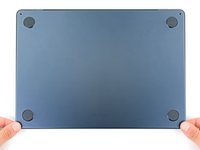
    • Close the display and flip the laptop upside down. Keep the lid closed until you've physically disconnected the battery.

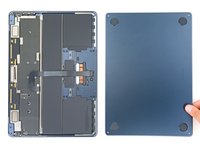
  2. MacBook Air 2022 (M2) Thunderbolt Ports Replacement, Unfasten the lower case: 2 단계, 이미지 2개 중 1개 MacBook Air 2022 (M2) Thunderbolt Ports Replacement, Unfasten the lower case: 2 단계, 이미지 2개 중 2개
    이 단계에 사용된 도구:
    FixMat
    $31.41
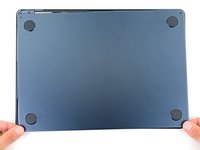
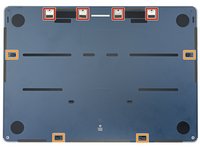
    • Use a P5 Pentalobe driver to remove the four 6.4 mm screws securing the lower case:

    • Two screws with a short threaded portion near the hinges

    • Two screws with a long threaded portion near the front of the MacBook

    • Throughout this repair, keep track of each screw and make sure it goes back exactly where it came from.

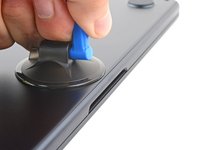
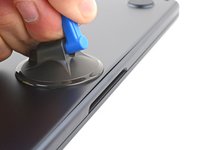
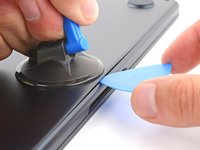
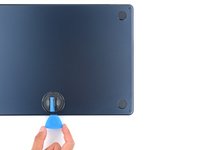
  3. MacBook Air 2022 (M2) Thunderbolt Ports Replacement, Insert an opening pick: 3 단계, 이미지 3개 중 1개 MacBook Air 2022 (M2) Thunderbolt Ports Replacement, Insert an opening pick: 3 단계, 이미지 3개 중 2개 MacBook Air 2022 (M2) Thunderbolt Ports Replacement, Insert an opening pick: 3 단계, 이미지 3개 중 3개
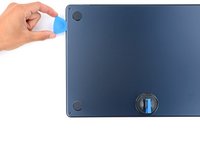
    • Apply a suction handle to the center of the lower case's front edge.

    • Pull up on the suction handle with strong, steady force to create a small gap between the lower case and the frame.

    • Insert an opening pick into the gap.

  4. MacBook Air 2022 (M2) Thunderbolt Ports Replacement, Release the snapping clips: 4 단계, 이미지 3개 중 1개 MacBook Air 2022 (M2) Thunderbolt Ports Replacement, Release the snapping clips: 4 단계, 이미지 3개 중 2개 MacBook Air 2022 (M2) Thunderbolt Ports Replacement, Release the snapping clips: 4 단계, 이미지 3개 중 3개
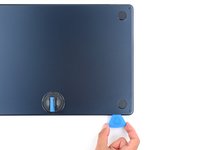
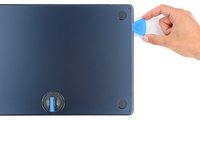
    • During the next two steps you'll feel and hear four snapping clips release. If a clip doesn't release, insert your opening pick farther and try again.

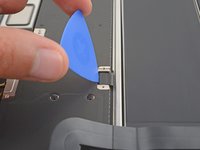
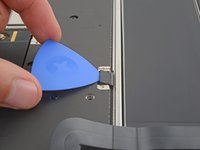
    • Slide the pick to the bottom right corner to release the first clip.

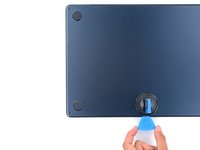
    • Slide the pick around the corner and up the right edge to release the next clip.

  5. MacBook Air 2022 (M2) Thunderbolt Ports Replacement: 5 단계, 이미지 3개 중 1개 MacBook Air 2022 (M2) Thunderbolt Ports Replacement: 5 단계, 이미지 3개 중 2개 MacBook Air 2022 (M2) Thunderbolt Ports Replacement: 5 단계, 이미지 3개 중 3개
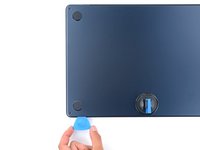
    • Insert the opening pick in the original gap created with the suction handle.

    • Slide the opening pick to the bottom left corner and up the left edge to release the two remaining snapping clips.

  6. MacBook Air 2022 (M2) Thunderbolt Ports Replacement, Release the sliding tabs: 6 단계, 이미지 3개 중 1개 MacBook Air 2022 (M2) Thunderbolt Ports Replacement, Release the sliding tabs: 6 단계, 이미지 3개 중 2개 MacBook Air 2022 (M2) Thunderbolt Ports Replacement, Release the sliding tabs: 6 단계, 이미지 3개 중 3개
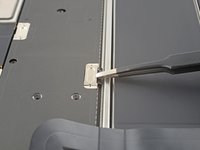
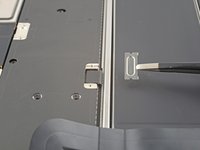
    • Four sliding tabs along the back edge of the MacBook firmly secure the lower case. Separating these tabs requires a lot of force—consider using gloves to protect your hands from the sharp edges of the lower case.

    • Keep the lower case flat and firmly pull it straight away from the back edge, one corner at a time, to disengage the sliding tabs.

    • Don't pull up until the cover is completely separated.

  7. MacBook Air 2022 (M2) Thunderbolt Ports Replacement, Remove the lower case: 7 단계, 이미지 3개 중 1개 MacBook Air 2022 (M2) Thunderbolt Ports Replacement, Remove the lower case: 7 단계, 이미지 3개 중 2개 MacBook Air 2022 (M2) Thunderbolt Ports Replacement, Remove the lower case: 7 단계, 이미지 3개 중 3개
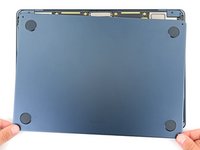
    • Remove the lower case.

    • During reassembly:

    • Set the lower case in place and align the sliding tabs with the screw heads they slide over. Press down and slide the lower case toward the back edge to engage the tabs—it'll stop sliding as the tabs engage.

    • When one side is engaged, it may push the other out of alignment. Check both sides as you push, there should be no gap along the back edge.

    • Once the lower case is flush with the frame, press down firmly along the perimeter to engage the four snapping clips.

    • You'll hear and feel a distinct click as each clip snaps into place.

  8. MacBook Air 2022 (M2) Thunderbolt Ports Replacement, Remove the battery connector cover: 8 단계, 이미지 1개 중 1개
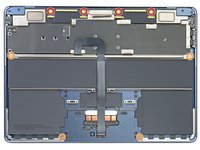
    • Use a T3 Torx driver to remove the two 1.5 mm screws securing the battery connector cover.

  9. MacBook Air 2022 (M2) Thunderbolt Ports Replacement: 9 단계, 이미지 2개 중 1개 MacBook Air 2022 (M2) Thunderbolt Ports Replacement: 9 단계, 이미지 2개 중 2개
    • Remove the battery connector cover.

  10. MacBook Air 2022 (M2) Thunderbolt Ports Replacement, Disconnect the battery: 10 단계, 이미지 2개 중 1개 MacBook Air 2022 (M2) Thunderbolt Ports Replacement, Disconnect the battery: 10 단계, 이미지 2개 중 2개
    • Use an opening pick to pry up and disconnect the battery press connector.

    • To reconnect a press connector, align it over the socket and gently press down on one side until it clicks into place, then press down on the other side. It might take a few tries to align the connector.

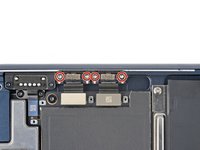
  11. MacBook Air 2022 (M2) Thunderbolt Ports Replacement, Unfasten the top right press connector cover: 11 단계, 이미지 2개 중 1개 MacBook Air 2022 (M2) Thunderbolt Ports Replacement, Unfasten the top right press connector cover: 11 단계, 이미지 2개 중 2개
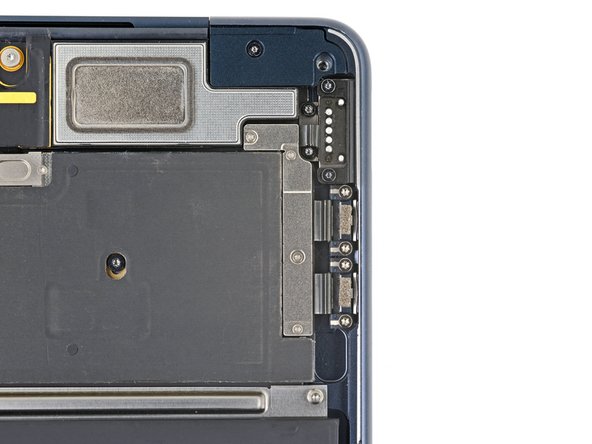
    • Use a T3 Torx driver to remove the four 1.5 mm screws securing the top right press connector cover.

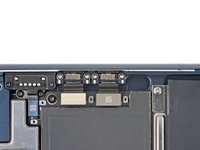
  12. MacBook Air 2022 (M2) Thunderbolt Ports Replacement, Remove the top right press connector cover: 12 단계, 이미지 2개 중 1개 MacBook Air 2022 (M2) Thunderbolt Ports Replacement, Remove the top right press connector cover: 12 단계, 이미지 2개 중 2개
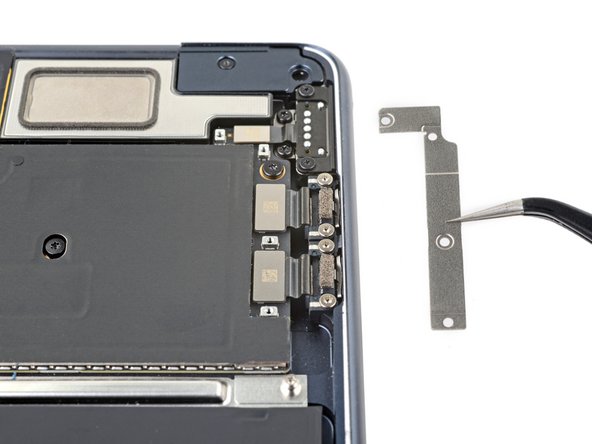
    • Remove the top right press connector cover.

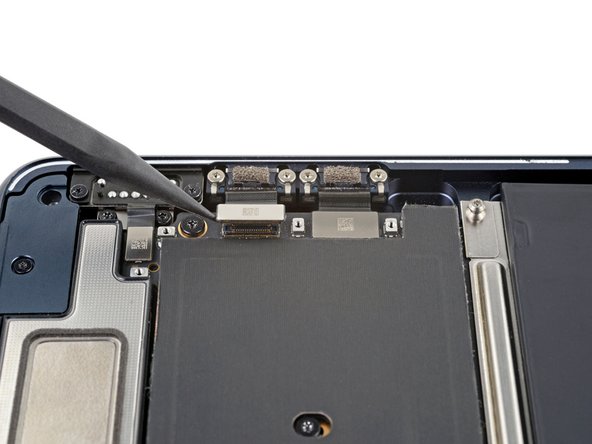
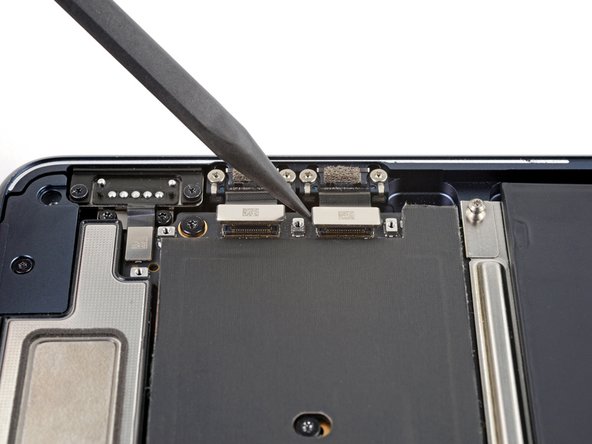
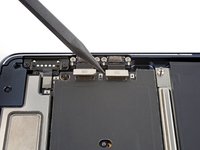
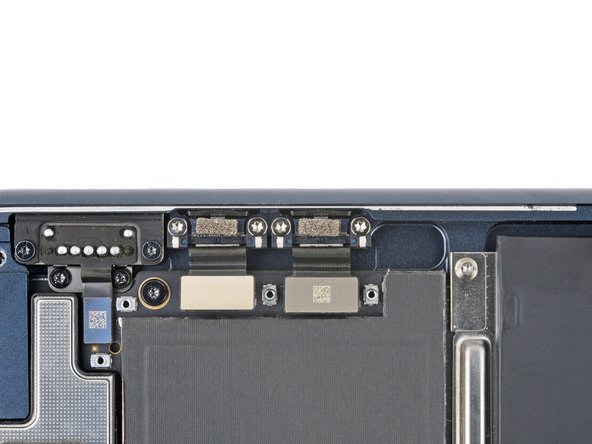
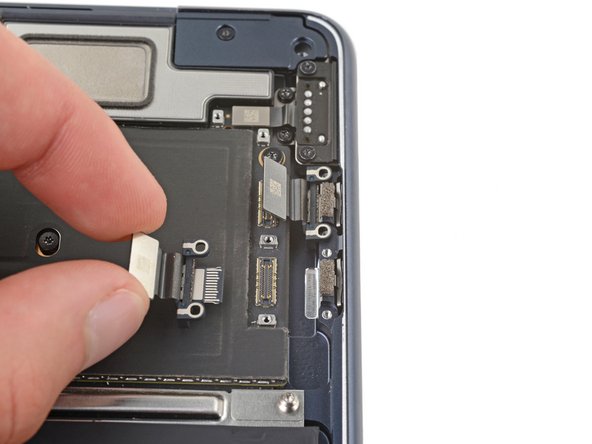
  13. MacBook Air 2022 (M2) Thunderbolt Ports Replacement, Disconnect the Thunderbolt ports: 13 단계, 이미지 3개 중 1개 MacBook Air 2022 (M2) Thunderbolt Ports Replacement, Disconnect the Thunderbolt ports: 13 단계, 이미지 3개 중 2개 MacBook Air 2022 (M2) Thunderbolt Ports Replacement, Disconnect the Thunderbolt ports: 13 단계, 이미지 3개 중 3개
    • Use the pointed end of a spudger to pry up and disconnect both of the Thunderbolt port press connectors.

    • If you're replacing a single Thunderbolt port, only disconnect its corresponding press connector.

  14. MacBook Air 2022 (M2) Thunderbolt Ports Replacement, Unfasten the Thunderbolt ports: 14 단계, 이미지 2개 중 1개 MacBook Air 2022 (M2) Thunderbolt Ports Replacement, Unfasten the Thunderbolt ports: 14 단계, 이미지 2개 중 2개
    • Use a T5 Torx screwdriver to remove the four 3.7 mm screws securing the Thunderbolt ports.

    • If you're replacing a single Thunderbolt port, only unfasten its corresponding port.

  15. MacBook Air 2022 (M2) Thunderbolt Ports Replacement, Remove the Thunderbolt ports: 15 단계, 이미지 3개 중 1개 MacBook Air 2022 (M2) Thunderbolt Ports Replacement, Remove the Thunderbolt ports: 15 단계, 이미지 3개 중 2개 MacBook Air 2022 (M2) Thunderbolt Ports Replacement, Remove the Thunderbolt ports: 15 단계, 이미지 3개 중 3개
    • Use your fingers to remove the Thunderbolt ports.

결론

Compare your new replacement part to the original part—you may need to transfer remaining components or remove adhesive backings from the new part before you install it.

To reassemble your device, follow these instructions in reverse order.

Take your e-waste to an R2 or e-Stewards certified recycler.

Repair didn’t go as planned? Try some basic troubleshooting or check out our Answers community for help.

다른 3명이 해당 안내서를 완성하였습니다.

작성자

1다른 기여자 명과 함께

Spencer Day

회원 가입일: 09/14/22

149,317 평판

안내서 995개를 작성함

iFixit iFixit 회원

Staff

123 회원들

안내서 23,608개를 작성함

2가이드 댓글

le cambie los 2 thunderbolts pero sigue sin prender pero la pila se siente que esta tibia me imagino que si esta cargando en el Apple Store me dijeron que este era el problema y no resolvió nada remplazar los thunderbolts la pantalla sigue en negro y no enciende alguien pudiera decirme si su m2 2022 tuvo este problema pantalla negra y no enciende y como resolver el problema

Memo Ruiz - 답글

There should be a guide on how to install or put back a new thunderbolt port because after a half hour, i still cannot get the usb port into the hole.

frustrated_dude - 답글
댓글 쓰기

조회 통계:

지난 24시간: 7

지난 7일: 33

지난 30일: 185

전체 시간: 4,497