주요 콘텐츠로 건너뛰기

Motorola Razr 40 Screen Protector Replacement

필요한 것

  1. Motorola Razr 40 Screen Protector Replacement, Alignment adapter information: 1 단계, 이미지 3개 중 1개 Motorola Razr 40 Screen Protector Replacement, Alignment adapter information: 1 단계, 이미지 3개 중 2개 Motorola Razr 40 Screen Protector Replacement, Alignment adapter information: 1 단계, 이미지 3개 중 3개
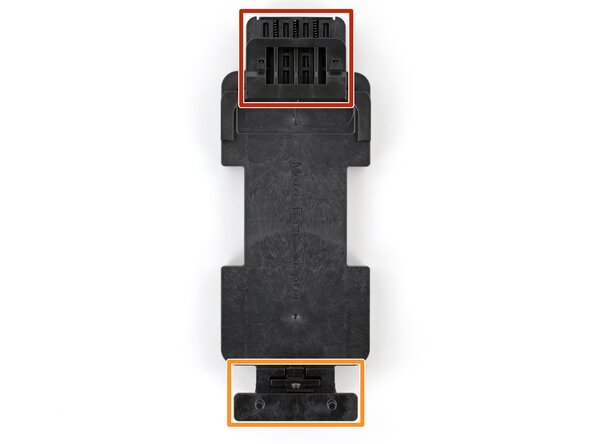
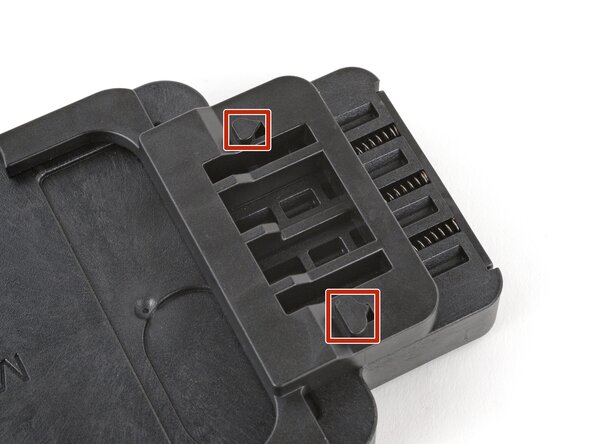
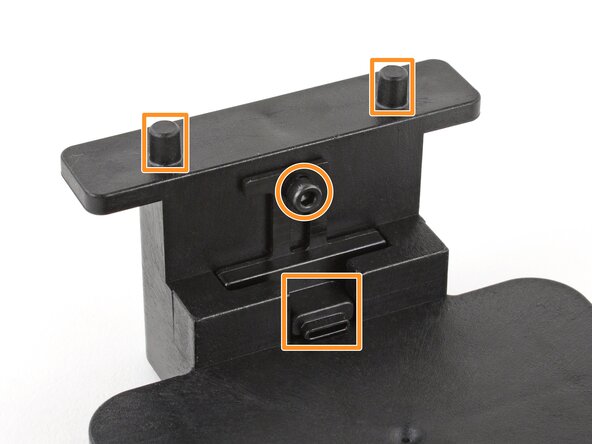
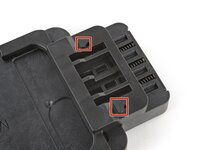
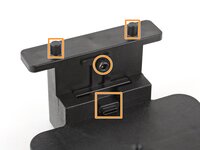
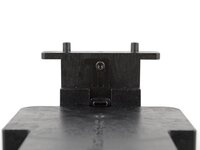
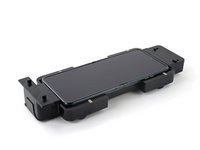
    • Before starting your repair, familiarize yourself with the different parts of the alignment adapter:

    • The top of the adapter has a spring‑loaded adjuster and hooks that align the screen protector.

    • The bottom of the adapter has a charging port holder (held in place by a screw) and alignment posts for the screen protector.

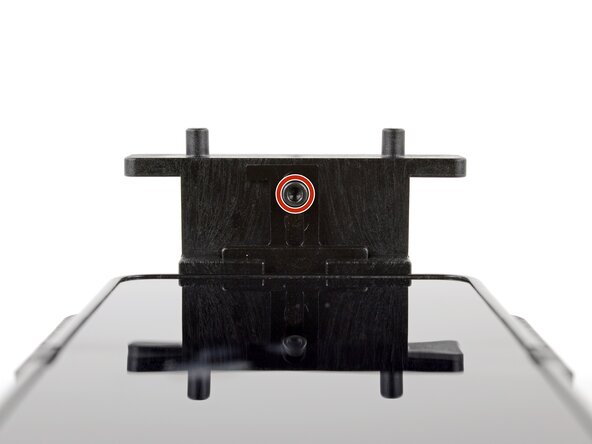
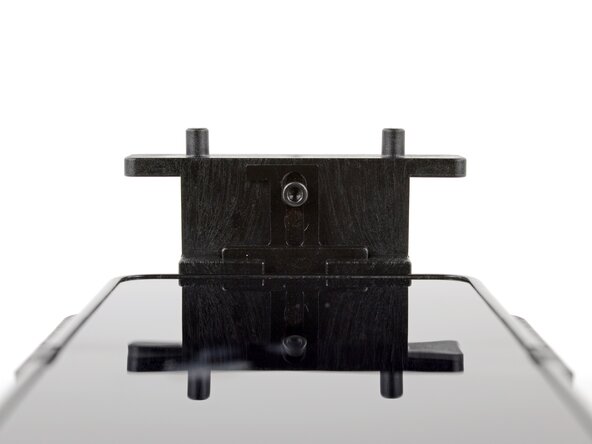
  2. Motorola Razr 40 Screen Protector Replacement, Loosen the charging port holder screw: 2 단계, 이미지 2개 중 1개 Motorola Razr 40 Screen Protector Replacement, Loosen the charging port holder screw: 2 단계, 이미지 2개 중 2개
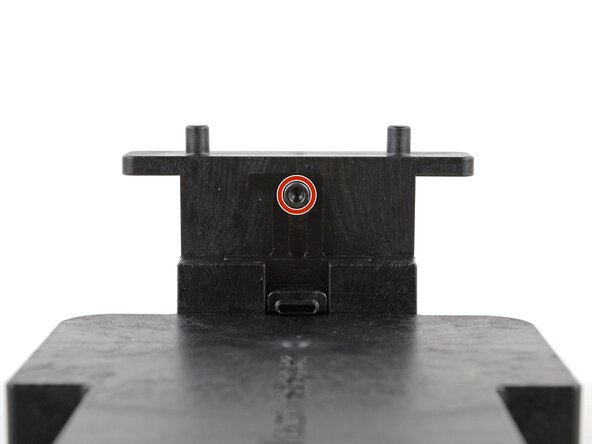
    • Use a 2.5 mm hex screwdriver to loosen (not remove) the screw securing the charging port holder.

  3. Motorola Razr 40 Screen Protector Replacement, Slide the charging port holder into place: 3 단계, 이미지 3개 중 1개 Motorola Razr 40 Screen Protector Replacement, Slide the charging port holder into place: 3 단계, 이미지 3개 중 2개 Motorola Razr 40 Screen Protector Replacement, Slide the charging port holder into place: 3 단계, 이미지 3개 중 3개
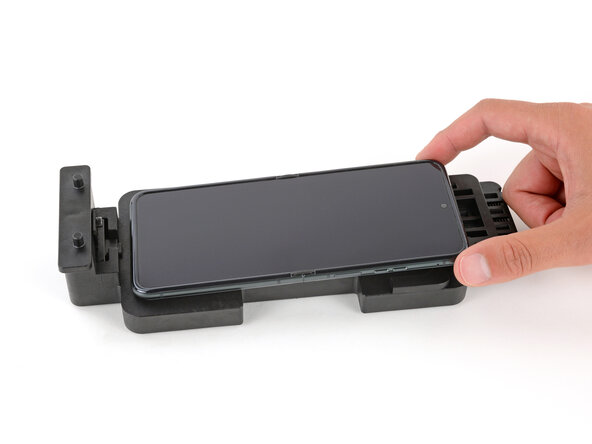
    • Completely open your phone and unplug any cables.

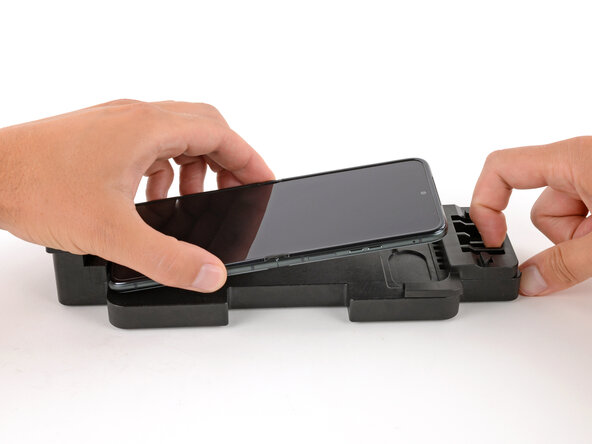
    • Place the phone in the alignment adapter so the charging port is near its holder on the bottom edge.

    • With one hand, lift the charging port holder until it's aligned with the port.

    • With your free hand, push the phone so the holder goes into the port.

  4. Motorola Razr 40 Screen Protector Replacement, Secure the phone with the top adjuster: 4 단계, 이미지 3개 중 1개 Motorola Razr 40 Screen Protector Replacement, Secure the phone with the top adjuster: 4 단계, 이미지 3개 중 2개 Motorola Razr 40 Screen Protector Replacement, Secure the phone with the top adjuster: 4 단계, 이미지 3개 중 3개
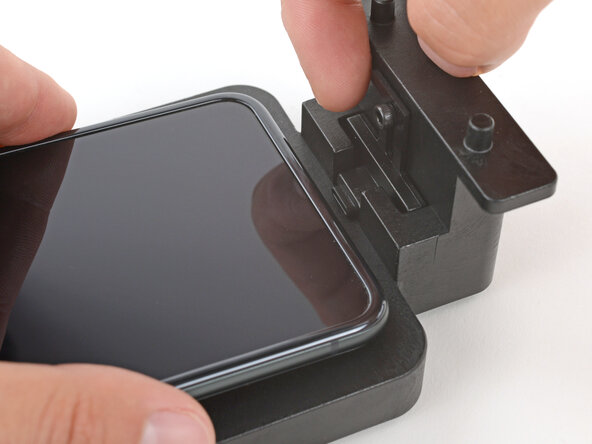
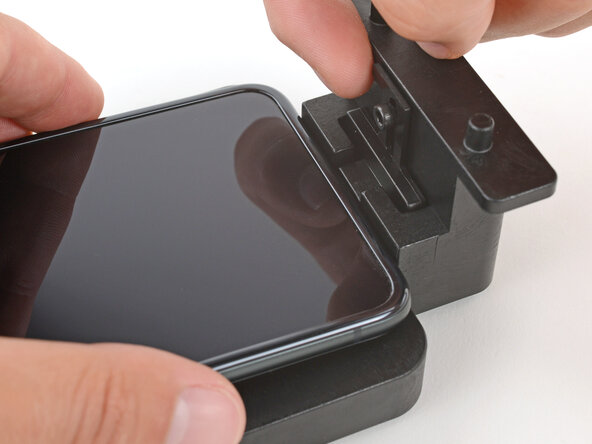
    • With one hand, hold the bottom of the phone in place so the port holder doesn't slide out.

    • With your free hand, pull the spring‑loaded adjuster on the top of the adapter until the phone drops into place.

    • Check the top and bottom edges of the phone to ensure it's fully seated in the alignment adapter.

  5. Motorola Razr 40 Screen Protector Replacement, Tighten the charging port holder screw: 5 단계, 이미지 2개 중 1개 Motorola Razr 40 Screen Protector Replacement, Tighten the charging port holder screw: 5 단계, 이미지 2개 중 2개
    • Use a 2.5 mm hex screwdriver to tighten the screw securing the charging port holder.

  6. Motorola Razr 40 Screen Protector Replacement, Create a shim: 6 단계, 이미지 3개 중 1개 Motorola Razr 40 Screen Protector Replacement, Create a shim: 6 단계, 이미지 3개 중 2개 Motorola Razr 40 Screen Protector Replacement, Create a shim: 6 단계, 이미지 3개 중 3개
    • In this step, you'll create a shim to separate the old screen protector from your phone's screen.

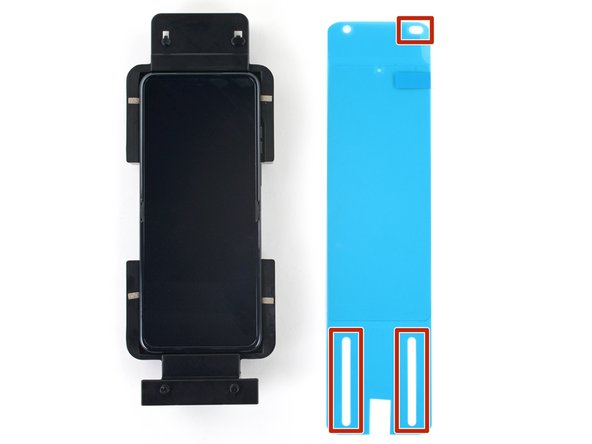
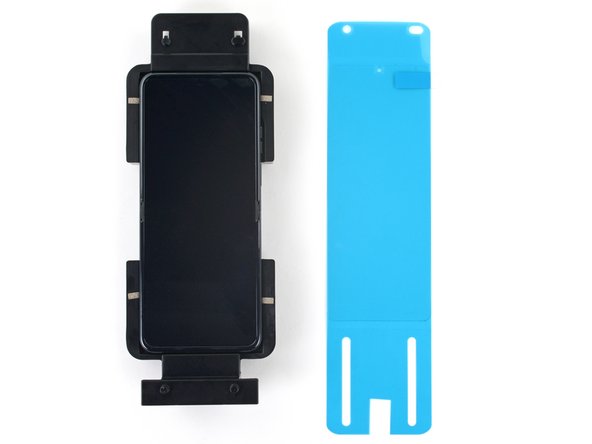
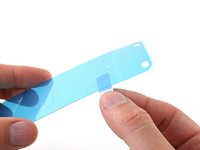
    • Use scissors to cut a small square (about the size of your thumbnail) out of your replacement screen protector liner, just between the two long cutouts on the bottom edge.

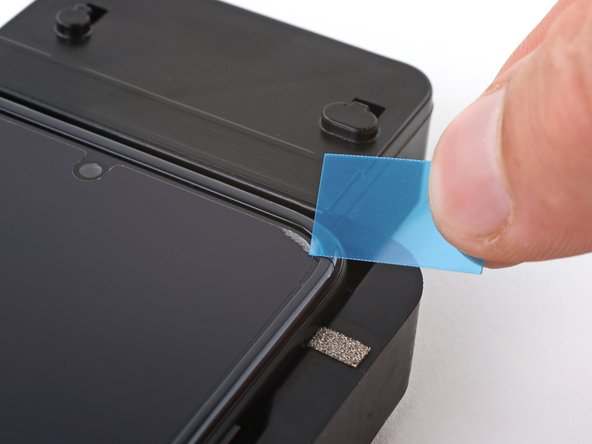
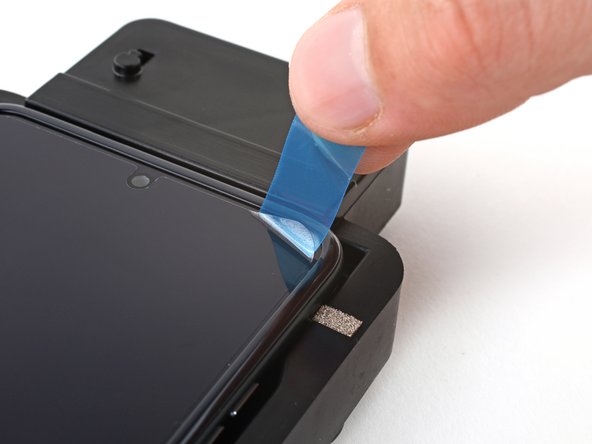
  7. Motorola Razr 40 Screen Protector Replacement, Separate the screen protector from the screen: 7 단계, 이미지 3개 중 1개 Motorola Razr 40 Screen Protector Replacement, Separate the screen protector from the screen: 7 단계, 이미지 3개 중 2개 Motorola Razr 40 Screen Protector Replacement, Separate the screen protector from the screen: 7 단계, 이미지 3개 중 3개
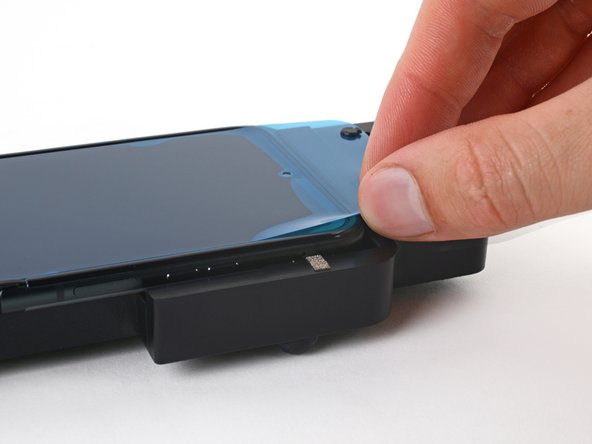
    • Slide the sharpest corner of your shim under one of the top corners of your screen protector.

    • It might take a few tries to separate the protector from the screen. If it feels stubborn, cut a new edge on your shim and try again.

  8. Motorola Razr 40 Screen Protector Replacement, Grip the screen protector: 8 단계, 이미지 3개 중 1개 Motorola Razr 40 Screen Protector Replacement, Grip the screen protector: 8 단계, 이미지 3개 중 2개 Motorola Razr 40 Screen Protector Replacement, Grip the screen protector: 8 단계, 이미지 3개 중 3개
    • Insert your shim deeper under the corner of the protector until you can grip it with your fingers.

  9. Motorola Razr 40 Screen Protector Replacement, Remove the screen protector: 9 단계, 이미지 3개 중 1개 Motorola Razr 40 Screen Protector Replacement, Remove the screen protector: 9 단계, 이미지 3개 중 2개 Motorola Razr 40 Screen Protector Replacement, Remove the screen protector: 9 단계, 이미지 3개 중 3개
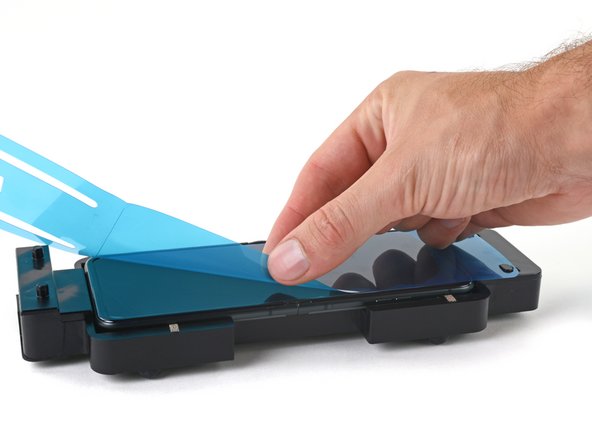
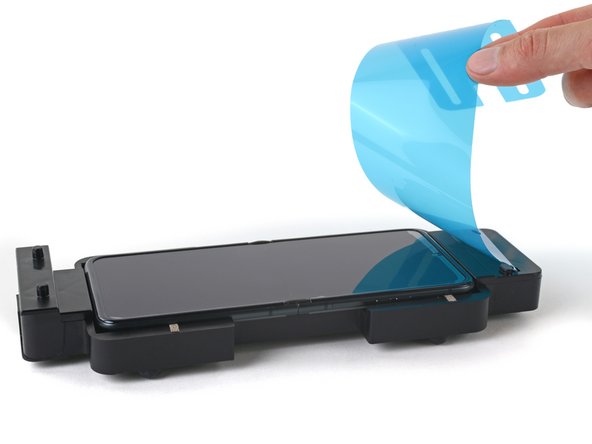
    • Peel and remove the old screen protector.

  10. Motorola Razr 40 Screen Protector Replacement, Prepare your workspace: 10 단계, 이미지 3개 중 1개 Motorola Razr 40 Screen Protector Replacement, Prepare your workspace: 10 단계, 이미지 3개 중 2개 Motorola Razr 40 Screen Protector Replacement, Prepare your workspace: 10 단계, 이미지 3개 중 3개
    • Have your replacement screen protector and roller within reach—you'll be holding the protector up with one hand and won't be able to let go to reposition or grab a tool.

    • Orient the replacement protector so that the oval cutout is on the top right, and the long cutouts are toward the bottom of the phone.

  11. Motorola Razr 40 Screen Protector Replacement, Clean your screen: 11 단계, 이미지 2개 중 1개 Motorola Razr 40 Screen Protector Replacement, Clean your screen: 11 단계, 이미지 2개 중 2개
    이 단계에 사용된 도구:
    Microfiber Cleaning Cloths
    $3.99
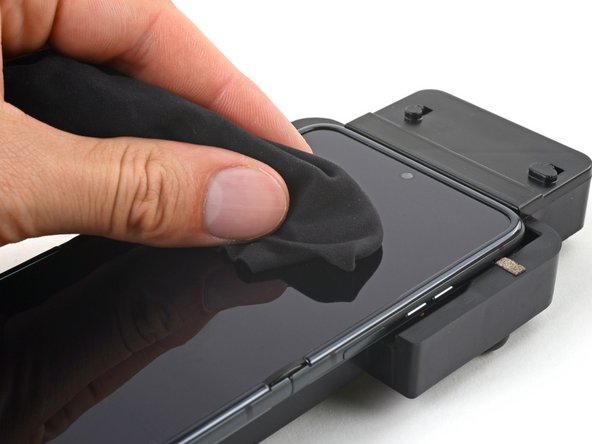
    • Use a pipette or syringe to apply a few drops of highly-concentrated isopropyl alcohol (over 90%) to your screen.

    • Use a microfiber or lint free cloth to wipe away any smudges or dust.

  12. Motorola Razr 40 Screen Protector Replacement, Remove the protective liner: 12 단계, 이미지 2개 중 1개 Motorola Razr 40 Screen Protector Replacement, Remove the protective liner: 12 단계, 이미지 2개 중 2개
    • Hold the replacement screen protector with its liner pull tab facing down. Keep the film facing down to prevent dust from settling onto the sticky side.

    • Peel and fully remove the protective liner from the underside of the protector.

    • During the next two steps, don't set the protector down or wait for an extended period of time—as soon as the adhesive is exposed, it'll slowly attract dust.

  13. Motorola Razr 40 Screen Protector Replacement, Align the screen protector: 13 단계, 이미지 3개 중 1개 Motorola Razr 40 Screen Protector Replacement, Align the screen protector: 13 단계, 이미지 3개 중 2개 Motorola Razr 40 Screen Protector Replacement, Align the screen protector: 13 단계, 이미지 3개 중 3개
    • Make sure no dust settled on your phone's screen since you cleaned it. Any dust or smudges will prevent the protector from adhering. If dust does settle, lift the protector slightly and wipe the screen down again.

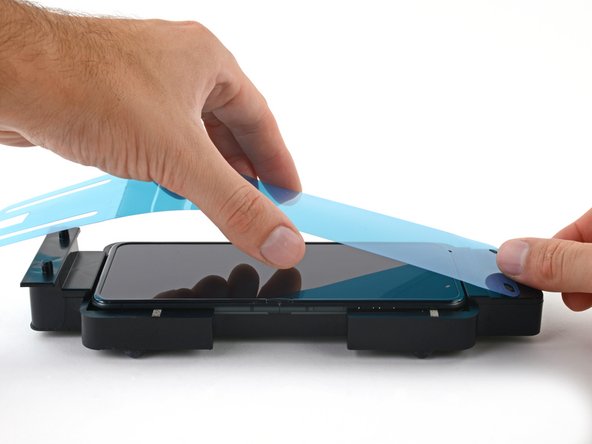
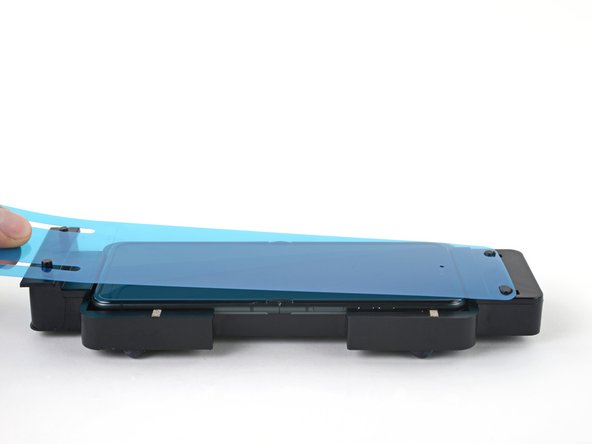
    • Slide the top circle and oval cutouts over the hooks on the upper alignment posts.

    • Gently pull the replacement protector over the screen and onto the lower alignment posts. Don't let the film touch the screen just yet.

  14. Motorola Razr 40 Screen Protector Replacement, Apply the screen protector: 14 단계, 이미지 3개 중 1개 Motorola Razr 40 Screen Protector Replacement, Apply the screen protector: 14 단계, 이미지 3개 중 2개 Motorola Razr 40 Screen Protector Replacement, Apply the screen protector: 14 단계, 이미지 3개 중 3개
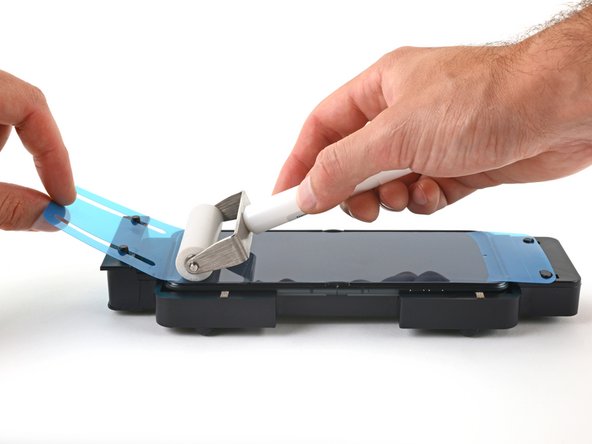
    • During this step, keep the roller in contact with the screen. If you stop rolling and start somewhere else, creases might form under the protector.

    • Hold the protector tight over the lower alignment posts.

    • Use the roller to firmly roll the protector onto the top half of the screen, starting from the top edge.

    • When you reach the middle of the screen, lift the remaining half of the liner to a 45-degree angle.

    • Increase pressure on the roller and slowly roll across the hinge area of the screen.

    • When you pass the middle of the screen, lower the liner and finish rolling the bottom half of the protector onto the screen.

  15. Motorola Razr 40 Screen Protector Replacement, Secure the screen protector: 15 단계, 이미지 3개 중 1개 Motorola Razr 40 Screen Protector Replacement, Secure the screen protector: 15 단계, 이미지 3개 중 2개 Motorola Razr 40 Screen Protector Replacement, Secure the screen protector: 15 단계, 이미지 3개 중 3개
    이 단계에 사용된 도구:
    Plastic Cards
    $2.99
    • Use the squeegee or a plastic card to press the top and bottom edges of the protector onto the screen.

    • Press around the perimeter of the screen, working out any bubbles toward the edges as you go.

  16. Motorola Razr 40 Screen Protector Replacement, Separate the upper liner: 16 단계, 이미지 2개 중 1개 Motorola Razr 40 Screen Protector Replacement, Separate the upper liner: 16 단계, 이미지 2개 중 2개
    • Peel the top right corner of the large liner away from the screen to separate it from the screen protector.

    • Make sure the protector doesn't peel up with the liner. If it does, use the squeegee to press it down, or try the other side.

  17. Motorola Razr 40 Screen Protector Replacement, Remove the upper liner: 17 단계, 이미지 3개 중 1개 Motorola Razr 40 Screen Protector Replacement, Remove the upper liner: 17 단계, 이미지 3개 중 2개 Motorola Razr 40 Screen Protector Replacement, Remove the upper liner: 17 단계, 이미지 3개 중 3개
    • Work down the long edge of the screen, peeling up the edge of the liner as you go.

    • Once you reach the bottom of the screen, fully peel the liner off and remove it from the adapter.

  18. Motorola Razr 40 Screen Protector Replacement, Wipe away any imperfections: 18 단계, 이미지 1개 중 1개
    • Use a microfiber or lint free cloth to wipe the screen protector and rub out any streaks or imperfections between it and the screen.

    • Work out any small bubbles by wiping toward the edges. If there are any large bubbles, the screen protector didn't adhere properly and needs to be replaced.

  19. Motorola Razr 40 Screen Protector Replacement: 19 단계, 이미지 3개 중 1개 Motorola Razr 40 Screen Protector Replacement: 19 단계, 이미지 3개 중 2개 Motorola Razr 40 Screen Protector Replacement: 19 단계, 이미지 3개 중 3개
    • Use your squeegee or a plastic card with a cloth to firmly rub along the perimeter of the screen protector to fully secure the edges to the screen.

    • If there are any large creases, especially near the hinge, the protector didn't adhere properly and needs to be replaced.

    • Small imperfections or streaks near the top and bottom of the screen will disappear within a couple of days.

  20. Motorola Razr 40 Screen Protector Replacement, Remove the phone: 20 단계, 이미지 3개 중 1개 Motorola Razr 40 Screen Protector Replacement, Remove the phone: 20 단계, 이미지 3개 중 2개 Motorola Razr 40 Screen Protector Replacement, Remove the phone: 20 단계, 이미지 3개 중 3개
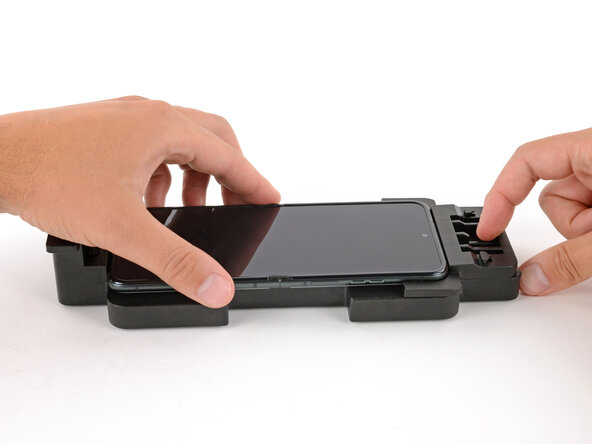
    • To remove the phone, pull the spring‑loaded top adjuster with one hand, and use your free hand to lift and remove the phone.

결론

Repair didn’t go as planned? Try some basic troubleshooting, or ask our Answers community for help.

다른 3명이 해당 안내서를 완성하였습니다.

작성자

2다른 기여자 명과 함께

Clay Eickemeyer

회원 가입일: 09/19/22

96,090 평판

안내서 466개를 작성함

Guide Team Guide Team 회원

Staff

10 회원들

안내서 15,932개를 작성함

0가이드 댓글

댓글 쓰기

조회 통계:

지난 24시간: 5

지난 7일: 43

지난 30일: 171

전체 시간: 5,334