주요 콘텐츠로 건너뛰기

Nikon COOLPIX P2 WiFi Card Replacement

필요한 것

  1. Nikon COOLPIX P2 WiFi Card Replacement, Case: 1 단계, 이미지 1개 중 1개
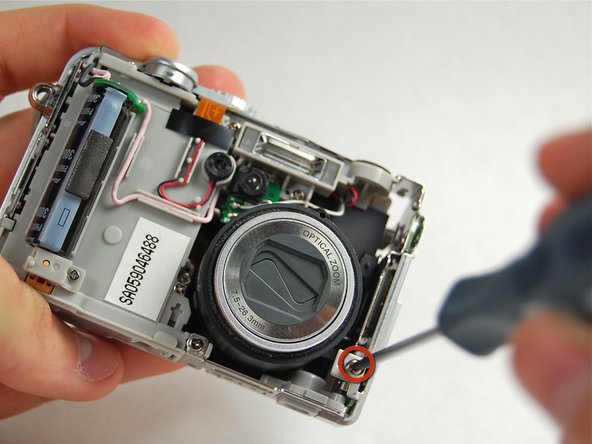
    • Remove the screw located near the speaker port using a Phillips 00 screwdriver.

  2. Nikon COOLPIX P2 WiFi Card Replacement: 2 단계, 이미지 1개 중 1개
    • Turn camera upside down so that the battery compartment is facing you.

    • Remove all four screws from the bottom of the camera with a Phillips 00 screwdriver.

  3. Nikon COOLPIX P2 WiFi Card Replacement: 3 단계, 이미지 1개 중 1개
    • Rotate the camera to the opposite side where the A/V outlet is located.

    • Unscrew and remove all four screws with a Phillips 00 screwdriver.

  4. Nikon COOLPIX P2 WiFi Card Replacement: 4 단계, 이미지 1개 중 1개
    • Turn the camera so that the Wi-Fi adapter is facing you.

    • Unscrew and remove all four screws with a Phillips 00 screwdriver.

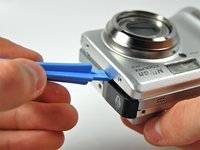
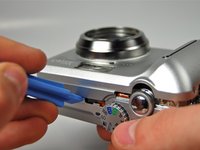
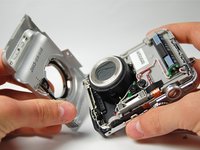
  5. Nikon COOLPIX P2 WiFi Card Replacement: 5 단계, 이미지 3개 중 1개 Nikon COOLPIX P2 WiFi Card Replacement: 5 단계, 이미지 3개 중 2개 Nikon COOLPIX P2 WiFi Card Replacement: 5 단계, 이미지 3개 중 3개
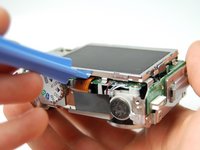
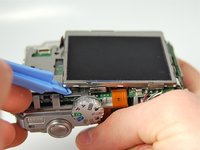
    • Using a plastic opening tool, pry the front casing of the camera.

    • Continue this motion all around the front casing of the camera.

    • Gently pull apart the front casing from the rest of the camera.

  6. Nikon COOLPIX P2 WiFi Card Replacement: 6 단계, 이미지 1개 중 1개
    • Using the plastic opening tool pry the back casing of the camera.

  7. Nikon COOLPIX P2 WiFi Card Replacement: 7 단계, 이미지 1개 중 1개
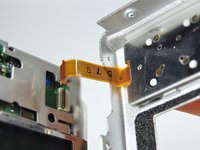
    • Orange ribbon is fragile

    • Carefully pull apart the back casing of the camera from the front of the camera without tearing the orange ribbon.

  8. Nikon COOLPIX P2 WiFi Card Replacement: 8 단계, 이미지 2개 중 1개 Nikon COOLPIX P2 WiFi Card Replacement: 8 단계, 이미지 2개 중 2개
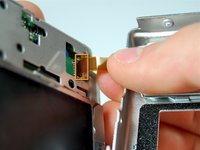
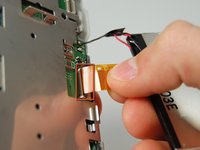
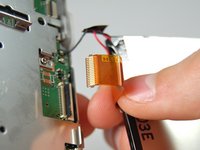
    • Pull down the on the black latch to carefully separate the orange ribbon from the motherboard.

    • Pull apart the orange ribbon and front casing from the rest of the camera.

  9. Nikon COOLPIX P2 WiFi Card Replacement, LCD Screen: 9 단계, 이미지 2개 중 1개 Nikon COOLPIX P2 WiFi Card Replacement, LCD Screen: 9 단계, 이미지 2개 중 2개
    • Use plastic opening tool to carefully pry the LCD Screen from the camera.

  10. Nikon COOLPIX P2 WiFi Card Replacement: 10 단계, 이미지 2개 중 1개 Nikon COOLPIX P2 WiFi Card Replacement: 10 단계, 이미지 2개 중 2개
    • Gently pull the ribbon cable down to release the latch, then pull up to remove it from the motherboard.

  11. Nikon COOLPIX P2 WiFi Card Replacement: 11 단계, 이미지 1개 중 1개
  12. Nikon COOLPIX P2 WiFi Card Replacement, WiFi Card: 12 단계, 이미지 1개 중 1개
    • Continue by removing two screws from the back of the camera body.

  13. Nikon COOLPIX P2 WiFi Card Replacement: 13 단계, 이미지 1개 중 1개
    • Remove the screw connecting the wifi card cover to the front of the camera.

  14. Nikon COOLPIX P2 WiFi Card Replacement: 14 단계, 이미지 1개 중 1개
    • Remove the final screw connecting the Wifi card cover to the case.

  15. Nikon COOLPIX P2 WiFi Card Replacement: 15 단계, 이미지 1개 중 1개
    • Gently pull the Wifi card cover off of the camera body.

  16. Nikon COOLPIX P2 WiFi Card Replacement: 16 단계, 이미지 1개 중 1개
    • Remove the screw holding the Wifi Card to the camera body.

  17. Nikon COOLPIX P2 WiFi Card Replacement: 17 단계, 이미지 1개 중 1개
    • Gently pull the WiFi card out of the camera.

결론

To reassemble your device, follow these instructions in reverse order.

다른 2명이 해당 안내서를 완성하였습니다.

작성자

5다른 기여자 명과 함께

Joshua Avery

회원 가입일: 01/23/12

31 평판

안내서 3개를 작성함

Cal Poly, Team 3-28, Amido Winter 2012 Cal Poly, Team 3-28, Amido Winter 2012 회원

CPSU-AMIDO-W12S3G28

4 회원들

안내서 10개를 작성함

0가이드 댓글

댓글 쓰기

조회 통계:

지난 24시간: 0

지난 7일: 3

지난 30일: 6

전체 시간: 1,001
