주요 콘텐츠로 건너뛰기

Numpad with Keyboard Removal

단지 전제 조건
이 가이드는 전제 조건 전용 가이드입니다! 이 가이드는 다른 절차의 일부이며 단독으로 사용할 수 없습니다.
  1. Numpad with Keyboard Removal, Before you begin: 1 단계, 이미지 2개 중 1개 Numpad with Keyboard Removal, Before you begin: 1 단계, 이미지 2개 중 2개
    • Unplug all cables and fully shut down your laptop.

    • If your repair requires a spudger, a T5 Torx, or a Phillips screwdriver, you can use the included Framework screwdriver. Whichever works best for you!

  2. Numpad with Keyboard Removal, Remove the touchpad spacers: 2 단계, 이미지 3개 중 1개 Numpad with Keyboard Removal, Remove the touchpad spacers: 2 단계, 이미지 3개 중 2개 Numpad with Keyboard Removal, Remove the touchpad spacers: 2 단계, 이미지 3개 중 3개
    • Use your fingers to slide the touchpad spacer toward the bottom edge of the laptop and unclip it.

    • If you're having trouble, check if the corresponding Input Module latch is properly unlocked.

    • Lift the touchpad spacer off the laptop and remove it.

  3. Numpad with Keyboard Removal: 3 단계, 이미지 1개 중 1개
    • Repeat the same procedure for the other touchpad spacer.

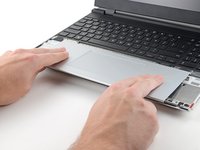
  4. Numpad with Keyboard Removal, Remove the touchpad: 4 단계, 이미지 3개 중 1개 Numpad with Keyboard Removal, Remove the touchpad: 4 단계, 이미지 3개 중 2개 Numpad with Keyboard Removal, Remove the touchpad: 4 단계, 이미지 3개 중 3개
    • Use your fingers to slide the touchpad toward the bottom edge of the laptop and disconnect it.

    • If you're having trouble, check if the Input Module latches are properly unlocked.

    • Lift the touchpad and remove it.

    • During reassembly, perform the following:

    • Place the touchpad flat on its cutout so its clips are properly aligned.

    • Press the touchpad down and slide it into place so it lines up evenly with the bottom edge of the laptop.

  5. Numpad with Keyboard Removal, Remove the keyboard: 5 단계, 이미지 3개 중 1개 Numpad with Keyboard Removal, Remove the keyboard: 5 단계, 이미지 3개 중 2개 Numpad with Keyboard Removal, Remove the keyboard: 5 단계, 이미지 3개 중 3개
    • The keyboard is held in place with strong magnets. Apply gradually increasing force to avoid having the keyboard violently eject.

    • Grip the two pull tabs along the bottom of the keyboard.

    • Lift the pull tabs until the keyboard magnets release.

    • Remove the keyboard.

    • During reassembly, make sure the keyboard is seated properly on its alignment pegs and sits evenly with the edges of the laptop.

  6. Numpad with Keyboard Removal, Remove the numpad: 6 단계, 이미지 3개 중 1개 Numpad with Keyboard Removal, Remove the numpad: 6 단계, 이미지 3개 중 2개 Numpad with Keyboard Removal, Remove the numpad: 6 단계, 이미지 3개 중 3개
    • The numpad is held in place with strong magnets. Apply gradually increasing force to avoid having the numpad violently eject.

    • Grip the pull tab at the bottom of the numpad.

    • Lift the pull tab until the numpad magnets release.

    • Remove the numpad.

    • During reassembly, make sure the numpad is seated properly on its alignment pegs and sits flush with the edges of the laptop.

결론

To reassemble your device, follow these instructions in reverse order.

Alex Diaz-Kokaisl

회원 가입일: 01/16/22

214,294 평판

안내서 1,041개를 작성함

iFixit iFixit 회원

Staff

123 회원들

안내서 23,758개를 작성함

0가이드 댓글

댓글 쓰기

조회 통계:

지난 24시간: 1

지난 7일: 1

지난 30일: 4

전체 시간: 35