주요 콘텐츠로 건너뛰기

Power Macintosh G3 Blue and White RAM Replacement

필요한 것

  1. Power Macintosh G3 Blue and White RAM Replacement, RAM: 1 단계, 이미지 1개 중 1개
    • Unfortunately, I am unable to provide OG content for this step due to my PowerMac’s outer case being severely damaged. Once I get my new outer case I will update this step.

    • Lift the latch on the right side panel to reveal the internals of the Power Mac.

    • If you are doing this on a hard surface I highly suggest you put a mat down between the door and the ground to prevent scratches.

  2. Power Macintosh G3 Blue and White RAM Replacement: 2 단계, 이미지 1개 중 1개
    • Push the white tabs next to where your RAM is located away form the RAM chip itself.

    • The RAM chips should move up a tad and become somewhat loose.

    • Your RAM configuration may vary. This process is done the exact same way no matter what your RAM placement looks like.

  3. Power Macintosh G3 Blue and White RAM Replacement: 3 단계, 이미지 2개 중 1개 Power Macintosh G3 Blue and White RAM Replacement: 3 단계, 이미지 2개 중 2개
    • Pull the RAM chips out of the RAM slots.

    • That's all folks! That wasn't too hard, was it?

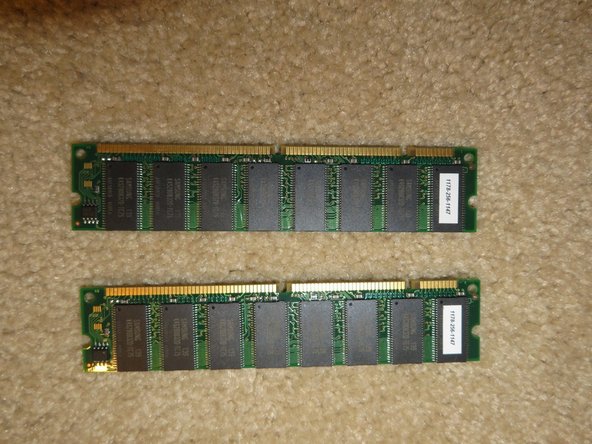
    • Second image: RAM remains

결론

To reassemble your device, follow these instructions in reverse order.

다른 2명이 해당 안내서를 완성하였습니다.

작성자

1다른 기여자 명과 함께

[deleted]

회원 가입일: 08/28/18

27,571 평판

안내서 21개를 작성함

0가이드 댓글

댓글 쓰기

조회 통계:

지난 24시간: 16

지난 7일: 52

지난 30일: 172

전체 시간: 1,465