소개
Use this guide to replace a cracked or malfunctioning display on your RCA Apollo 8 tablet (identified with model number RCT6573W23).
The display assembly is the output component to present information and is made up of the glass panel, digitizer, and AMOLED display sandwiched together. Your display may need to be replaced if the glass cracks or is broken because this will affect its touch screen capabilities. It could also experience something called “screen burn-in” that happens on AMOLED displays. “Screen burn-in” is when some of the individual light-emitting pixels powering the display will dim the more they are used, causing uneven lighting and colors.
If your display is shattered, follow this guide to reinforce your screen to avoid injury until you replace the display. Make sure to power off your tablet completely and disconnect from any external power source prior to beginning this guide.
필요한 것
-
-
-
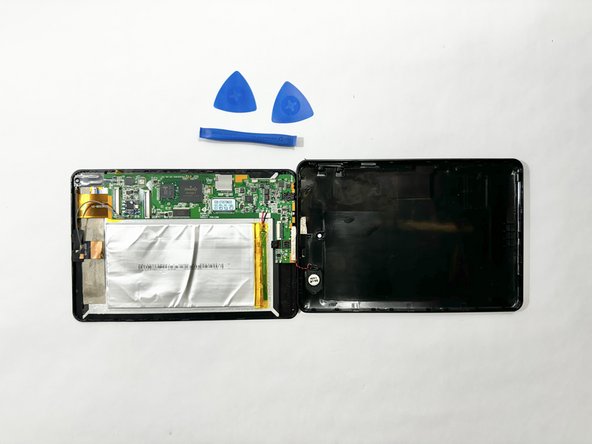
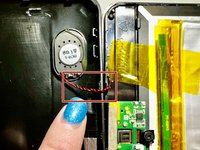
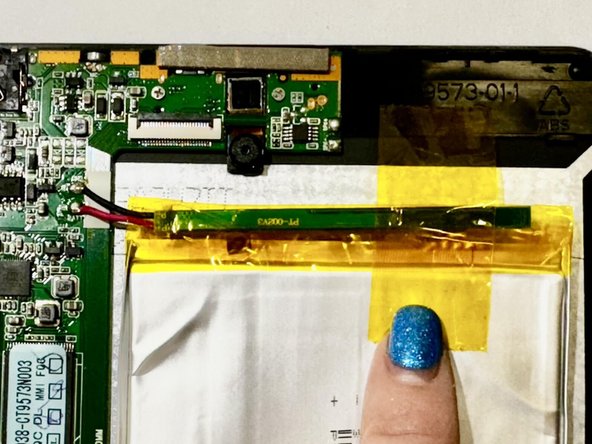
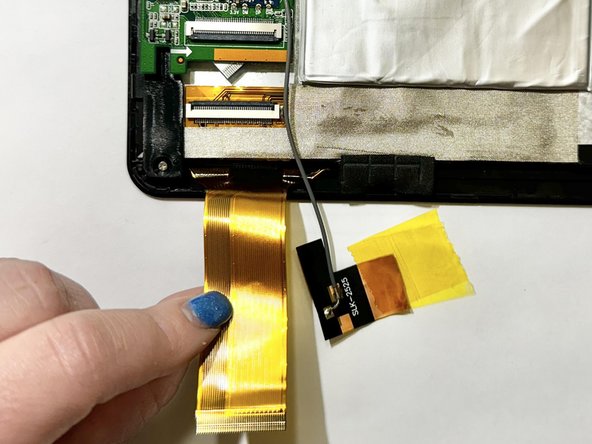
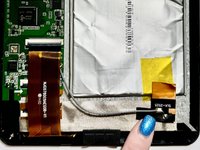
Release the gold and black tab from the battery that's attached to a gray wire. The gold tab is held down by an adhesive; pull it until the adhesive releases.
-
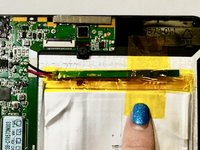
Remove the yellow tape that is around the battery.
-
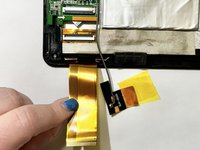
Unlock the ZIF socket and detach the display data interconnect cable from the front panel assembly.
-





To reassemble your device, follow these instructions in reverse order.