주요 콘텐츠로 건너뛰기

Samsung Chromebook 3 Motherboard Replacement

필요한 것

  1. Samsung Chromebook 3 Motherboard Replacement, Bottom Case: 1 단계, 이미지 2개 중 1개 Samsung Chromebook 3 Motherboard Replacement, Bottom Case: 1 단계, 이미지 2개 중 2개
    • Place the Chromebook face down so that the bottom case is exposed.

    • Using a Phillips #00 screwdriver, remove nine 4.6mm screws from the back casing.

  2. Samsung Chromebook 3 Motherboard Replacement: 2 단계, 이미지 3개 중 1개 Samsung Chromebook 3 Motherboard Replacement: 2 단계, 이미지 3개 중 2개 Samsung Chromebook 3 Motherboard Replacement: 2 단계, 이미지 3개 중 3개
    • Use a iFixit opening tool to gently pry the case up from the vent on the hinge side of the Chromebook.

    • You should hear a popping sound as the connectors disengage inside the case.

  3. Samsung Chromebook 3 Motherboard Replacement: 3 단계, 이미지 1개 중 1개
    • Lift the case up and off the device

  4. Samsung Chromebook 3 Motherboard Replacement, Battery: 4 단계, 이미지 2개 중 1개 Samsung Chromebook 3 Motherboard Replacement, Battery: 4 단계, 이미지 2개 중 2개
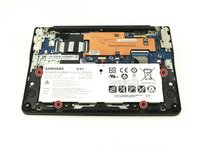
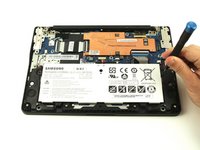
    • Locate the battery and remove the four 4.6mm screws at the corners which attach it to case using a Phillips #00 screwdriver.

  5. Samsung Chromebook 3 Motherboard Replacement: 5 단계, 이미지 2개 중 1개 Samsung Chromebook 3 Motherboard Replacement: 5 단계, 이미지 2개 중 2개
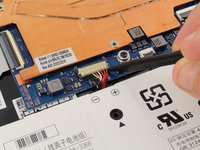
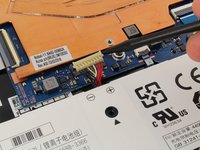
    • Use a spudger to gently pry the power cable cord upwards from the motherboard.

  6. Samsung Chromebook 3 Motherboard Replacement: 6 단계, 이미지 1개 중 1개
    • Lift the battery up and out from the case.

  7. Samsung Chromebook 3 Motherboard Replacement, Motherboard: 7 단계, 이미지 3개 중 1개 Samsung Chromebook 3 Motherboard Replacement, Motherboard: 7 단계, 이미지 3개 중 2개 Samsung Chromebook 3 Motherboard Replacement, Motherboard: 7 단계, 이미지 3개 중 3개
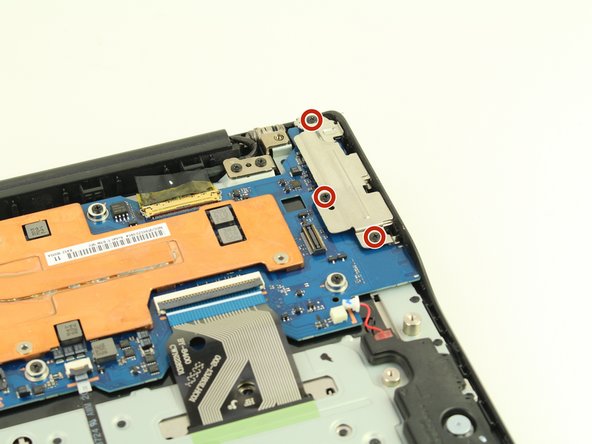
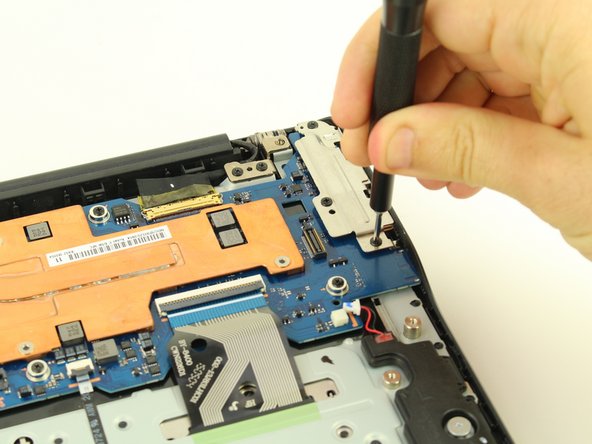
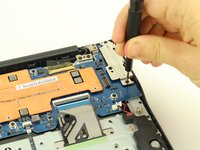
    • Before you can get to the motherboard, remove the three 4.6mm screws from the port cover using a Phillips #00 screwdriver.

  8. Samsung Chromebook 3 Motherboard Replacement: 8 단계, 이미지 3개 중 1개 Samsung Chromebook 3 Motherboard Replacement: 8 단계, 이미지 3개 중 2개 Samsung Chromebook 3 Motherboard Replacement: 8 단계, 이미지 3개 중 3개
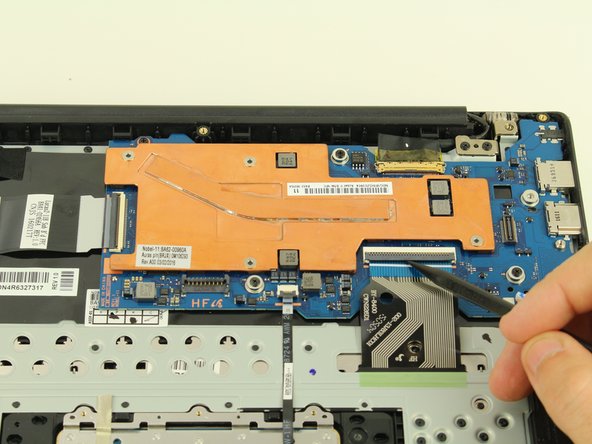
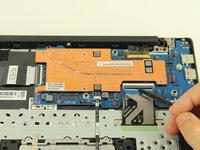
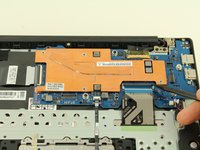
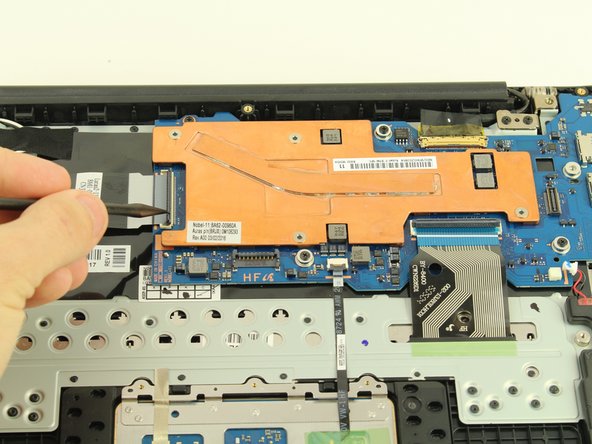
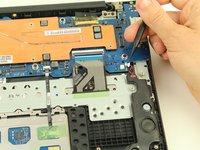
    • Then, use a spudger to begin flipping up the grey covers on the ZIF connectors.

  9. Samsung Chromebook 3 Motherboard Replacement: 9 단계, 이미지 3개 중 1개 Samsung Chromebook 3 Motherboard Replacement: 9 단계, 이미지 3개 중 2개 Samsung Chromebook 3 Motherboard Replacement: 9 단계, 이미지 3개 중 3개
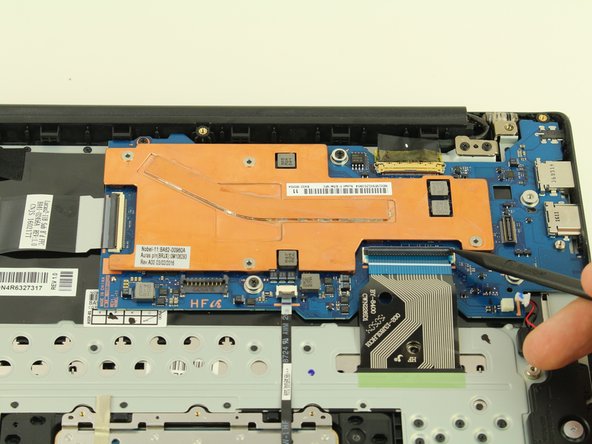
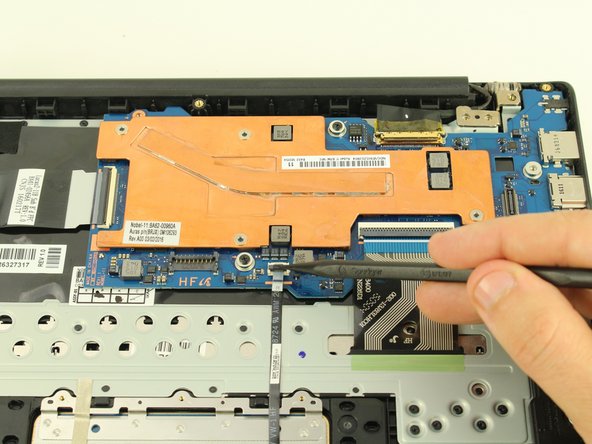
    • Two more ZIF connectors to go!

  10. Samsung Chromebook 3 Motherboard Replacement: 10 단계, 이미지 2개 중 1개 Samsung Chromebook 3 Motherboard Replacement: 10 단계, 이미지 2개 중 2개
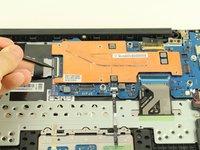
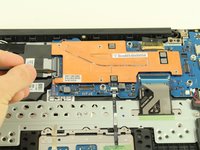
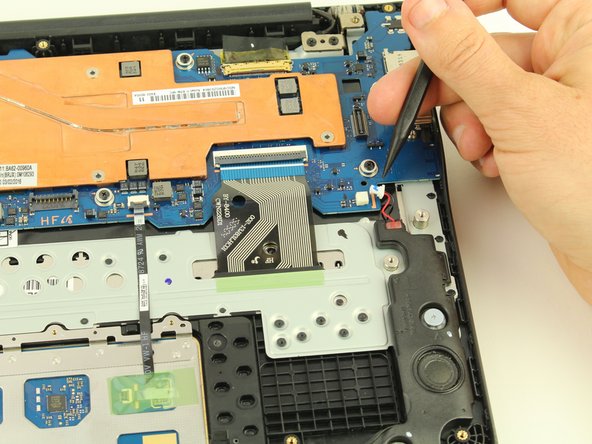
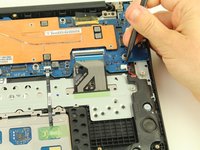
    • Use a spudger to disconnect the cables going to the speaker by prying outward to the right.

  11. Samsung Chromebook 3 Motherboard Replacement: 11 단계, 이미지 3개 중 1개 Samsung Chromebook 3 Motherboard Replacement: 11 단계, 이미지 3개 중 2개 Samsung Chromebook 3 Motherboard Replacement: 11 단계, 이미지 3개 중 3개
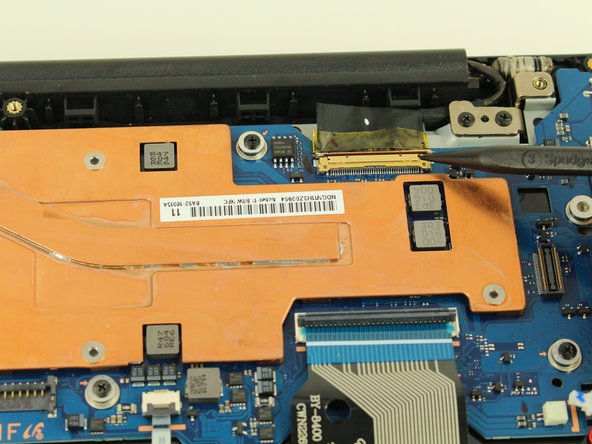
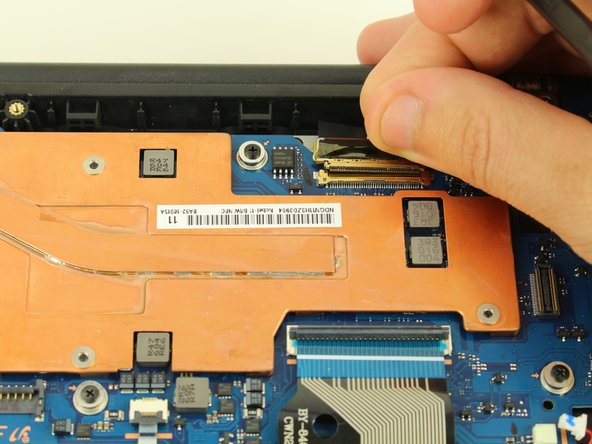
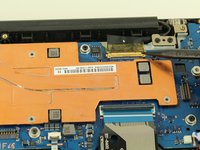
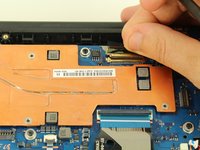
    • Use a spudger to lift the hinge locking the gold colored display cable in place.

    • Then gently coax the display cable from its connector using your fingers or a spudger.

  12. Samsung Chromebook 3 Motherboard Replacement: 12 단계, 이미지 2개 중 1개 Samsung Chromebook 3 Motherboard Replacement: 12 단계, 이미지 2개 중 2개
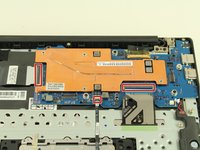
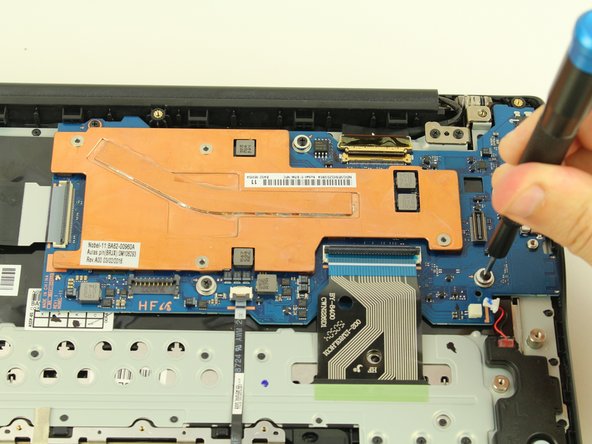
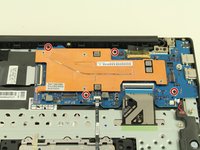
    • Use your Phillips #00 screwdriver to remove four 4.6mm screws from the motherboard.

  13. Samsung Chromebook 3 Motherboard Replacement: 13 단계, 이미지 1개 중 1개
    • Ensure all cables are clear and remove the motherboard.

결론

To reassemble your device, follow these instructions in reverse order.

다른 4명이 해당 안내서를 완성하였습니다.

작성자

1다른 기여자 명과 함께

Austin Blakely

회원 가입일: 03/11/19

22,286 평판

안내서 53개를 작성함

1가이드 댓글

Thanks for the great guide! I used it to remove the write protection screw on the back of the motherboard.

My Chromebook is model number XE501C13. The only difference I noticed is that there is one less screw on the outer plastic cover. Everything else is exactly the same!

Edward Fernandez - 답글
댓글 쓰기

조회 통계:

지난 24시간: 2

지난 7일: 4

지난 30일: 38

전체 시간: 3,857