주요 콘텐츠로 건너뛰기
수리 커뮤니티 가입 - 계정 만들기

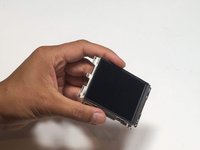
Samsung WB1100F LCD Screen Replacement

조회수: 1천

통계 보기:

지난 24시간
3
지난 7일:
20
지난 30일:
105
전체 시간:
1,003
댓글: 0

해당 안내서에 댓글을 남긴 사람이 없습니다. 첫 번째가 되시겠습니까?

Go to guide comments
완료함: 1

1명이 이 안내서를 "완료"로 표시했습니다. 다음은 귀하의 차례입니까?

즐겨찾기: 0

해당 안내서에 좋아요를 누르고 구독한 사람이 아직 없습니다. 첫 번째 주인공이 되시겠습니까?

소요 시간: 20 분
난이도: 조정
더 많은 이미지가 필요함

몇몇 추가 이미지는 해당 안내서의 절차를 아주 명백하게 만들 것입니다.

Samsung WB1100F LCD Screen Replacement

This guide will show you how to replace the LCD Panel on the Samsung WB1100F. It will show you a step by step replacement guide of how to replace the LCD Panel.

필요한 것

도구

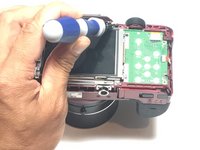
    1. Samsung WB1100F LCD Screen Replacement, LCD Screen Cover: 1 단계, 이미지 2개 중 1개 Samsung WB1100F LCD Screen Replacement, LCD Screen Cover: 1 단계, 이미지 2개 중 2개
      • Remove six 1.2 mm Phillips #00 screws connected to the tripod dock and adjacent screws.

      • Remove six 1.2 mm Phillips #00 screws from the side of the camera.

      댓글 쓰기

    2. Samsung WB1100F LCD Screen Replacement: 2 단계, 이미지 2개 중 1개 Samsung WB1100F LCD Screen Replacement: 2 단계, 이미지 2개 중 2개
      • Use a plastic opening tool or spudger if available.

      • Using the flat end of a spudger, loosen the connection between the back panel and the device. Remove the back panel using your hands.

      댓글 쓰기

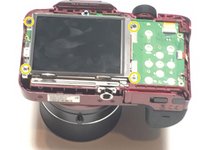
    1. Samsung WB1100F LCD Screen Replacement, LCD Screen: 3 단계, 이미지 2개 중 1개 Samsung WB1100F LCD Screen Replacement, LCD Screen: 3 단계, 이미지 2개 중 2개
      • Remove four 1.2 mm Phillips #1 screws connected to the LCD screen.

      댓글 쓰기

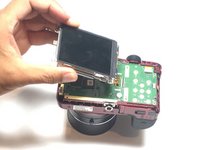
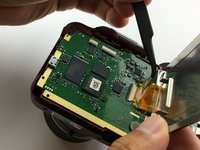
    2. Samsung WB1100F LCD Screen Replacement: 4 단계, 이미지 3개 중 1개 Samsung WB1100F LCD Screen Replacement: 4 단계, 이미지 3개 중 2개 Samsung WB1100F LCD Screen Replacement: 4 단계, 이미지 3개 중 3개
      이 단계에 사용된 도구:
      Tweezers
      $4.99
      • Flip the LCD screen over to reveal the display cable.

      • Use the tip of a spudger or your fingernail to flip up the small retaining flap on the display cable ZIF connector.

      • Be sure you are prying up on the hinged retaining flap, not the connector itself.

      • Using a pair of tweezers, remove the ribbon cable from its socket on the motherboard.

      • The white line on this ribbon cable marks the edge of the connection area. To reinstall, insert the cable into the connector up to this line, and then close the retaining flap. If the cable doesn’t insert easily up to (or very near to) this line, it’s probably misaligned and needs to be gently removed and repositioned.

      댓글 쓰기

결론

To reassemble your device, follow these instructions in reverse order.

취소: 해당 안내서를 완성하지 않았습니다.

다른 한 분이 해당 안내서를 완성하였습니다.

작성자

4다른 기여자 명과 함께

Jesse Lindsey

회원 가입일: 05/13/16

581 평판

안내서 5개를 작성함

팀

Metro State, Team 1-1, Carpenter SU 2016 Metro State, Team 1-1, Carpenter SU 2016 회원

MSU-CARPENTER-SU16S1G1

3 회원들

안내서 60개를 작성함

0가이드 댓글

댓글 쓰기

조회 통계:

지난 24시간: 3

지난 7일: 20

지난 30일: 105

전체 시간: 1,003