주요 콘텐츠로 건너뛰기

Tapwave T2907US Zodiac 2 Touchscreen/Display Replacement

필요한 것

  1. Tapwave T2907US Zodiac 2 Touchscreen/Display Replacement, Back Cover: 1 단계, 이미지 1개 중 1개
    • Remove the four Torx T5 screws from the back panel.

  2. Tapwave T2907US Zodiac 2 Touchscreen/Display Replacement: 2 단계, 이미지 1개 중 1개
    • Wedge a spudger in between the front and back panel.

    • Apply leverage downwards to the spudger in order to remove the back panel.

  3. Tapwave T2907US Zodiac 2 Touchscreen/Display Replacement, Battery: 3 단계, 이미지 1개 중 1개
    • Slide the battery out from under the brown wire-tape.

    • Be careful of the wires still connected to the other end of the battery. Do not pull or damage may occur.

  4. Tapwave T2907US Zodiac 2 Touchscreen/Display Replacement: 4 단계, 이미지 1개 중 1개
    이 단계에 사용된 도구:
    Tweezers
    $4.99
    • Slowly pull the white plug from its receptor. Grasp its sides firmly with a pair of tweezers and gently wiggle from side to side.

  5. Tapwave T2907US Zodiac 2 Touchscreen/Display Replacement, Motherboard: 5 단계, 이미지 1개 중 1개
    • Unscrew the 2 Philips #00 screws on each end of the motherboard.

  6. Tapwave T2907US Zodiac 2 Touchscreen/Display Replacement: 6 단계, 이미지 1개 중 1개
    이 단계에 사용된 도구:
    Tweezers
    $4.99
    • Pull off the black memory card slot piece with tweezers.

  7. Tapwave T2907US Zodiac 2 Touchscreen/Display Replacement: 7 단계, 이미지 1개 중 1개
    • Unscrew the 2 Philips #00 screws on each side of the charging port.

  8. Tapwave T2907US Zodiac 2 Touchscreen/Display Replacement: 8 단계, 이미지 2개 중 1개 Tapwave T2907US Zodiac 2 Touchscreen/Display Replacement: 8 단계, 이미지 2개 중 2개
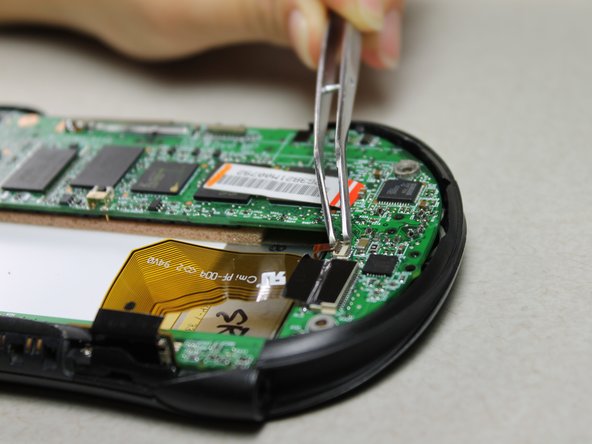
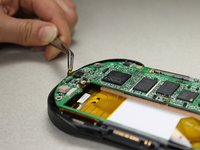
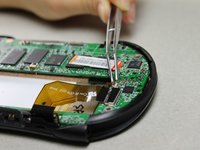
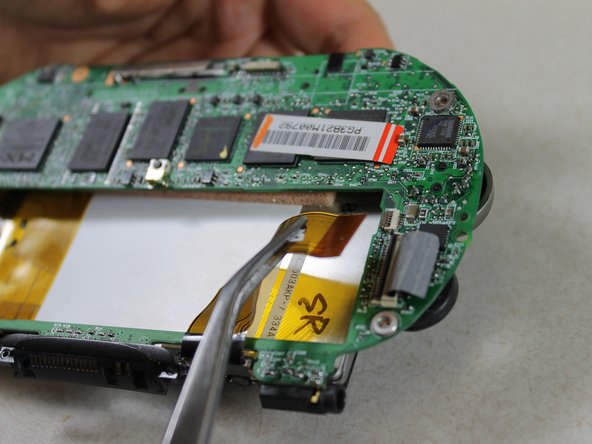
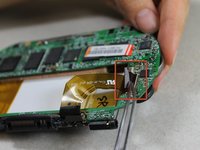
    • Disconnect 2 brown wire-tape ends from each end of the motherboard. Gently pull straight out with tweezers.

  9. Tapwave T2907US Zodiac 2 Touchscreen/Display Replacement: 9 단계, 이미지 1개 중 1개
    • Pull the motherboard and screen component diagonally up and left away from the auxiliary port entrance to remove.

    • Glue connecting the auxiliary port to the casing may make it difficult to remove. Gently apply force as needed.

  10. Tapwave T2907US Zodiac 2 Touchscreen/Display Replacement: 10 단계, 이미지 1개 중 1개
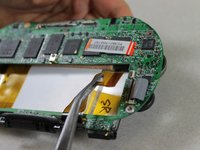
    • Disconnect the 2 brown wire-tape ends from the left side of the battery slot on the motherboard using tweezers.

  11. Tapwave T2907US Zodiac 2 Touchscreen/Display Replacement: 11 단계, 이미지 3개 중 1개 Tapwave T2907US Zodiac 2 Touchscreen/Display Replacement: 11 단계, 이미지 3개 중 2개 Tapwave T2907US Zodiac 2 Touchscreen/Display Replacement: 11 단계, 이미지 3개 중 3개
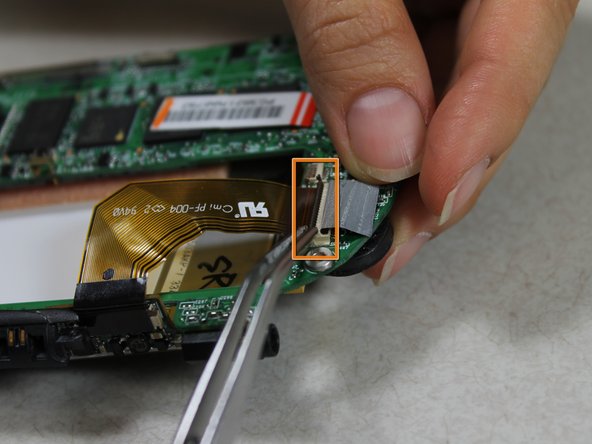
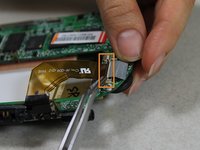
    • Disconnect the large brown wire-tape from the motherboard.

    • Peel the black tape back from the wire-tape using tweezers.

    • Lift the black, hinged, plastic lock with tweezers to release the wire-tape.

    • The screen and motherboard components can now be separated from each other.

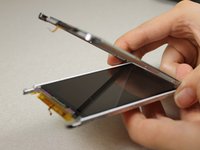
  12. Tapwave T2907US Zodiac 2 Touchscreen/Display Replacement, Touchscreen/Display: 12 단계, 이미지 1개 중 1개
    • Unscrew the 2 Philips #00 screws from the bottom edge of the screen component.

  13. Tapwave T2907US Zodiac 2 Touchscreen/Display Replacement: 13 단계, 이미지 1개 중 1개
    • Take off the brown wire-tape from the small circuit board component.

    • Lift up so that the black plastic hinge piece swings open and the tape can be removed.

  14. Tapwave T2907US Zodiac 2 Touchscreen/Display Replacement: 14 단계, 이미지 3개 중 1개 Tapwave T2907US Zodiac 2 Touchscreen/Display Replacement: 14 단계, 이미지 3개 중 2개 Tapwave T2907US Zodiac 2 Touchscreen/Display Replacement: 14 단계, 이미지 3개 중 3개
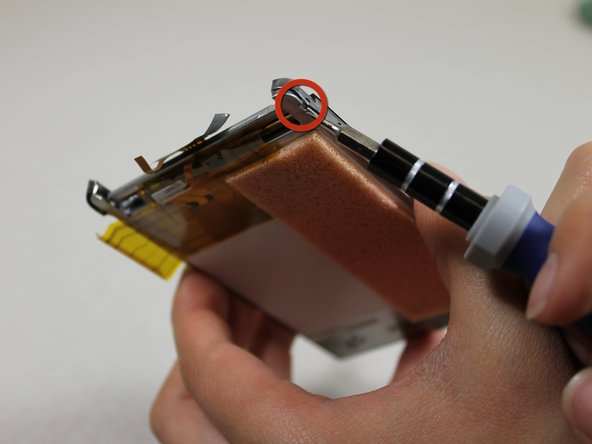
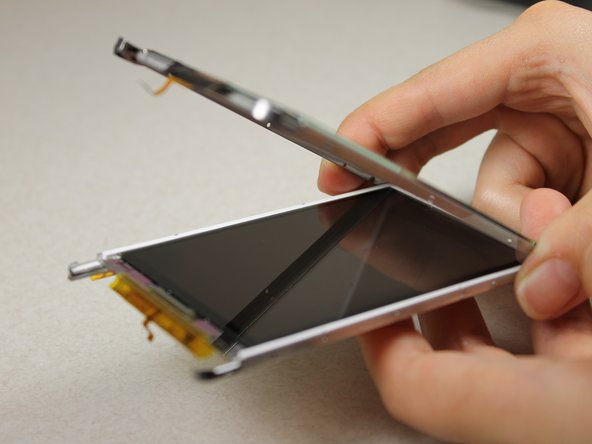
    • Warning: If you are too rough with the screwdriver, you can permanently damage the display.

    • Use a Slot SL1.5 screwdriver to pry the touchscreen shell from the display component using the 4 slots around the entire component

결론

To reassemble your device, follow these instructions in reverse order.

작성자

5다른 기여자 명과 함께

Daniel Wiseman

회원 가입일: 01/20/12

133 평판

안내서 6개를 작성함

Cal Poly, Team 10-33, Amido Winter 2012 Cal Poly, Team 10-33, Amido Winter 2012 회원

CPSU-AMIDO-W12S10G33

4 회원들

안내서 10개를 작성함

0가이드 댓글

댓글 쓰기

조회 통계:

지난 24시간: 0

지난 7일: 0

지난 30일: 8

전체 시간: 1,090