주요 콘텐츠로 건너뛰기

Toshiba Portege R705-P35 Wi-Fi Card Replacement

필요한 것

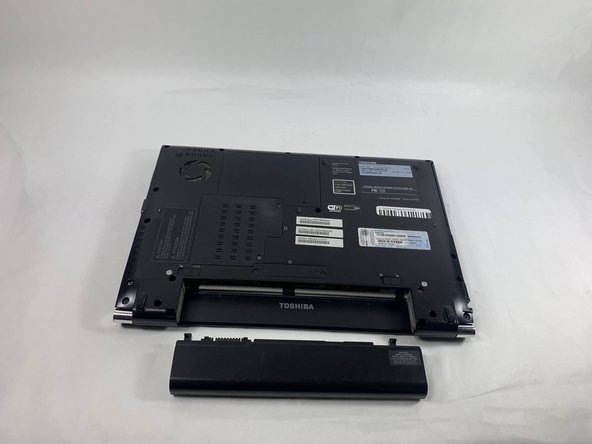
  1. Toshiba Portege R705-P35 Wi-Fi Card Replacement, Battery: 1 단계, 이미지 1개 중 1개
    • Turn off and unplug the laptop.

    • Failure to turn off and unplug the cable could result in electric shock.

    • Place the laptop upside-side-down with the hinges towards you.

  2. Toshiba Portege R705-P35 Wi-Fi Card Replacement: 2 단계, 이미지 1개 중 1개
    • Use your right hand to move the right switch from the locked position to the unlocked position.

    • Use your left hand to move the left switch from the locked position to the unlocked position.

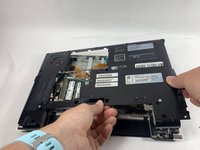
  3. Toshiba Portege R705-P35 Wi-Fi Card Replacement: 3 단계, 이미지 2개 중 1개 Toshiba Portege R705-P35 Wi-Fi Card Replacement: 3 단계, 이미지 2개 중 2개
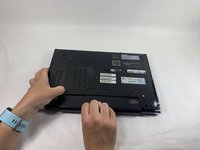
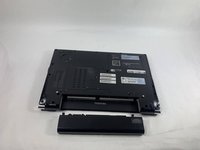
    • While keeping the left switch unlocked, pull the battery away from the computer with your right hand.

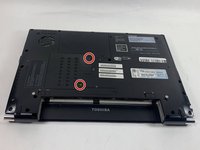
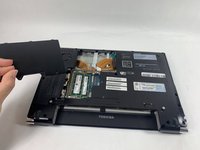
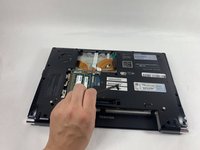
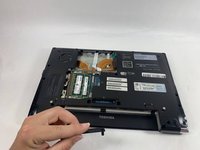
  4. Toshiba Portege R705-P35 Wi-Fi Card Replacement, RAM Plate: 4 단계, 이미지 3개 중 1개 Toshiba Portege R705-P35 Wi-Fi Card Replacement, RAM Plate: 4 단계, 이미지 3개 중 2개 Toshiba Portege R705-P35 Wi-Fi Card Replacement, RAM Plate: 4 단계, 이미지 3개 중 3개
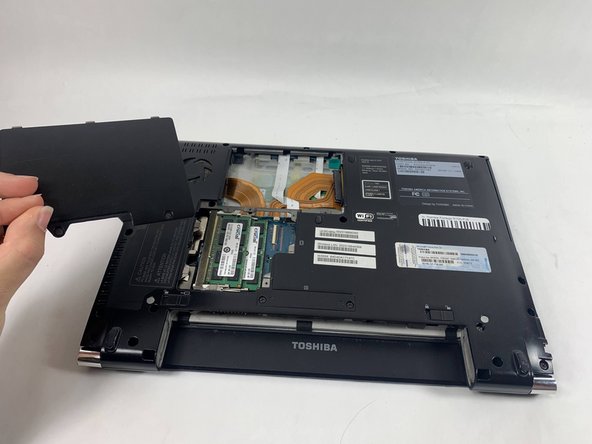
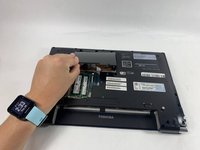
    • Loosen the two captive screws in the plate with a Phillips #00 screwdriver.

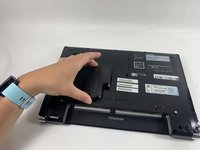
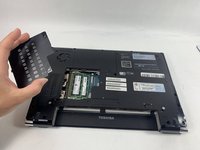
    • Remove the plate from the laptop.

  5. Toshiba Portege R705-P35 Wi-Fi Card Replacement, Hard Drive Plate: 5 단계, 이미지 1개 중 1개
    • Loosen the two captive screws in the hard drive plate using a Phillips #00 screwdriver.

  6. Toshiba Portege R705-P35 Wi-Fi Card Replacement: 6 단계, 이미지 2개 중 1개 Toshiba Portege R705-P35 Wi-Fi Card Replacement: 6 단계, 이미지 2개 중 2개
    • Use your hands to remove the hard drive plate from the laptop.

  7. Toshiba Portege R705-P35 Wi-Fi Card Replacement, Back Plate: 7 단계, 이미지 1개 중 1개
    • Remove the two 13 mm screws from the back plate using a Phillips #0 screwdriver.

  8. Toshiba Portege R705-P35 Wi-Fi Card Replacement: 8 단계, 이미지 2개 중 1개 Toshiba Portege R705-P35 Wi-Fi Card Replacement: 8 단계, 이미지 2개 중 2개
    • Lift and remove the small plate from the laptop.

  9. Toshiba Portege R705-P35 Wi-Fi Card Replacement: 9 단계, 이미지 1개 중 1개
    • Remove the thirteen 6 mm screws from the back plate using a Phillips #00 screwdriver.

    • Remove the five 5 mm screws from the back plate using a Phillips #00 screwdriver.

  10. Toshiba Portege R705-P35 Wi-Fi Card Replacement: 10 단계, 이미지 2개 중 1개 Toshiba Portege R705-P35 Wi-Fi Card Replacement: 10 단계, 이미지 2개 중 2개
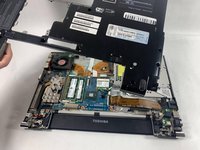
    • Pull the back plate off, starting from the right side, being cautious of the ports on the left side.

  11. Toshiba Portege R705-P35 Wi-Fi Card Replacement, Wi-Fi Card: 11 단계, 이미지 1개 중 1개
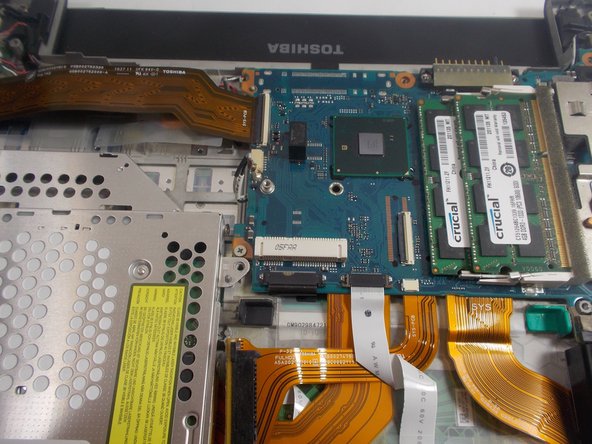
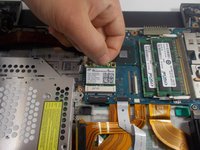
    • Use your fingers to disconnect the white and black cords from the Wi-Fi card.

  12. Toshiba Portege R705-P35 Wi-Fi Card Replacement: 12 단계, 이미지 1개 중 1개
    • Remove the two 3 mm screws from the Wi-Fi card using a Phillips #00 screwdriver.

  13. Toshiba Portege R705-P35 Wi-Fi Card Replacement: 13 단계, 이미지 2개 중 1개 Toshiba Portege R705-P35 Wi-Fi Card Replacement: 13 단계, 이미지 2개 중 2개
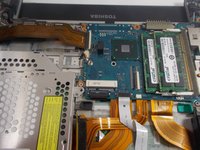
    • Pull the Wi-Fi card out of the laptop at a 45° angle.

결론

To reassemble your device, follow these instructions in reverse order.

작성자

2다른 기여자 명과 함께

Kathryn Hockenbury

회원 가입일: 03/23/22

833 평판

안내서 8개를 작성함

UMass Dartmouth, Team 1-4, Botvin Spring 2022 UMass Dartmouth, Team 1-4, Botvin Spring 2022 회원

UMASSD-BOTVIN-S22S1G4

3 회원들

안내서 24개를 작성함

0가이드 댓글

댓글 쓰기

조회 통계:

지난 24시간: 0

지난 7일: 2

지난 30일: 14

전체 시간: 406