주요 콘텐츠로 건너뛰기

Toshiba Satellite Click 2 Pro Heat Sync Fan Replacement

필요한 것

  1. Toshiba Satellite Click 2 Pro Heat Sync Fan Replacement, Battery: 1 단계, 이미지 2개 중 1개 Toshiba Satellite Click 2 Pro Heat Sync Fan Replacement, Battery: 1 단계, 이미지 2개 중 2개
    • Working on your device while it is turned on may result in electric shock. Make sure to shut down and unplug your device before you begin.

    • Push down on the tablet sides until you feel a click, then pull up.

    • This will separate the tablet from the detachable base, make sure to hold down the keyboard for easier detachment.

  2. Toshiba Satellite Click 2 Pro Heat Sync Fan Replacement: 2 단계, 이미지 3개 중 1개 Toshiba Satellite Click 2 Pro Heat Sync Fan Replacement: 2 단계, 이미지 3개 중 2개 Toshiba Satellite Click 2 Pro Heat Sync Fan Replacement: 2 단계, 이미지 3개 중 3개
    • Remove the base of the tablet from the screen using a plastic opening tool.

    • Make sure to separate the base evenly on both sides when removing it from the screen.

  3. Toshiba Satellite Click 2 Pro Heat Sync Fan Replacement: 3 단계, 이미지 2개 중 1개 Toshiba Satellite Click 2 Pro Heat Sync Fan Replacement: 3 단계, 이미지 2개 중 2개
    이 단계에 사용된 도구:
    Tweezers
    $4.99
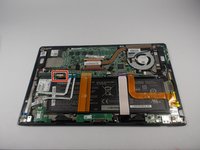
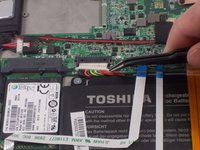
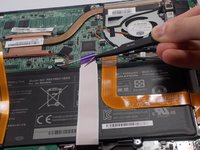
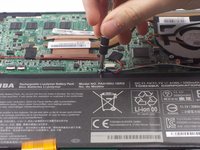
    • Remove the battery power connector using ESD safe tweezers.

  4. Toshiba Satellite Click 2 Pro Heat Sync Fan Replacement: 4 단계, 이미지 2개 중 1개 Toshiba Satellite Click 2 Pro Heat Sync Fan Replacement: 4 단계, 이미지 2개 중 2개
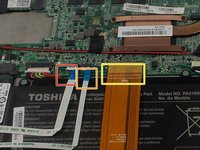
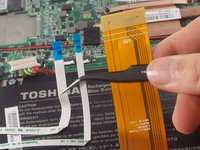
    • Remove the LED ribbon cable using ESD safe tweezers.

    • Remove the SIM card ribbon cable using ESD safe tweezers.

    • Remove the Docking connector ribbon cable using plastic opening tool.

    • The ribbons may be stuck to the battery so make sure to peel off gently to prevent damage.

    • Make sure to flip up the white connector attached to the LED and Sim Card ribbons before removing them .

  5. Toshiba Satellite Click 2 Pro Heat Sync Fan Replacement: 5 단계, 이미지 3개 중 1개 Toshiba Satellite Click 2 Pro Heat Sync Fan Replacement: 5 단계, 이미지 3개 중 2개 Toshiba Satellite Click 2 Pro Heat Sync Fan Replacement: 5 단계, 이미지 3개 중 3개
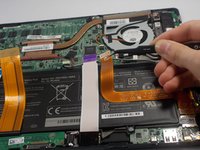
    • Remove the LCD Display ribbon cable using a plastic opening tool.

    • Remove the I/O ribbon cable using a plastic opening tool.

    • The ribbons may be stuck to the battery so make sure to peel them off gently to prevent damage.

  6. Toshiba Satellite Click 2 Pro Heat Sync Fan Replacement: 6 단계, 이미지 2개 중 1개 Toshiba Satellite Click 2 Pro Heat Sync Fan Replacement: 6 단계, 이미지 2개 중 2개
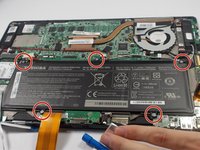
    • Remove five 3.5mm Phillips J0 screws using a Phillips screw driver.

  7. Toshiba Satellite Click 2 Pro Heat Sync Fan Replacement: 7 단계, 이미지 1개 중 1개
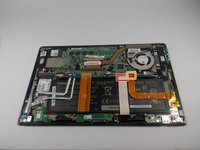
    • Remove the battery from its holding position.

  8. Toshiba Satellite Click 2 Pro Heat Sync Fan Replacement, Heat Sync Fan: 8 단계, 이미지 1개 중 1개
    이 단계에 사용된 도구:
    Tweezers
    $4.99
    • Remove the power connector from the fan using a pair of tweezers.

  9. Toshiba Satellite Click 2 Pro Heat Sync Fan Replacement: 9 단계, 이미지 1개 중 1개
    • Remove two 3.0mm Phillips J0 screws using a Phillips screw driver.

  10. Toshiba Satellite Click 2 Pro Heat Sync Fan Replacement: 10 단계, 이미지 1개 중 1개
    • Remove four 3.5mm Phillips J0 screws from the heat sink.

  11. Toshiba Satellite Click 2 Pro Heat Sync Fan Replacement: 11 단계, 이미지 1개 중 1개
    • Remove the heat sink fan.

    • The heat sink cover may be hard to peel off the first time due to the adhesive.

결론

To reassemble your device, follow these instructions in reverse order.

다른 한 분이 해당 안내서를 완성하였습니다.

작성자

3다른 기여자 명과 함께

Paul DeOrsey

회원 가입일: 03/10/16

893 평판

안내서 5개를 작성함

UMass Dartmouth, Team 4-3, Catania Spring 2016 UMass Dartmouth, Team 4-3, Catania Spring 2016 회원

UMASSD-CATANIA-S16S4G3

3 회원들

안내서 10개를 작성함

0가이드 댓글

댓글 쓰기

조회 통계:

지난 24시간: 0

지난 7일: 2

지난 30일: 7

전체 시간: 539