주요 콘텐츠로 건너뛰기
수리 커뮤니티 가입 - 계정 만들기

Ventilation Plate Removal

단지 전제 조건
이 가이드는 전제 조건 전용 가이드입니다! 이 가이드는 다른 절차의 일부이며 단독으로 사용할 수 없습니다.

필요한 것

  1. Ventilation Plate Removal, Before you begin: 1 단계, 이미지 2개 중 1개 Ventilation Plate Removal, Before you begin: 1 단계, 이미지 2개 중 2개
    • Unplug all cables and fully shut down your laptop.

    • If your repair requires a spudger, a T5 Torx, or a Phillips screwdriver, you can use the included Framework screwdriver. Whichever works best for you!

  2. Ventilation Plate Removal, Remove the touchpad spacers: 2 단계, 이미지 3개 중 1개 Ventilation Plate Removal, Remove the touchpad spacers: 2 단계, 이미지 3개 중 2개 Ventilation Plate Removal, Remove the touchpad spacers: 2 단계, 이미지 3개 중 3개
    • Use your fingers to slide the touchpad spacer toward the bottom edge of the laptop and unclip it.

    • If you're having trouble, check if the corresponding Input Module latch is properly unlocked.

    • Lift the touchpad spacer off the laptop and remove it.

  3. Ventilation Plate Removal: 3 단계, 이미지 1개 중 1개
    • Repeat the same procedure for the other touchpad spacer.

  4. Ventilation Plate Removal, Remove the touchpad: 4 단계, 이미지 3개 중 1개 Ventilation Plate Removal, Remove the touchpad: 4 단계, 이미지 3개 중 2개 Ventilation Plate Removal, Remove the touchpad: 4 단계, 이미지 3개 중 3개
    • Use your fingers to slide the touchpad toward the bottom edge of the laptop and disconnect it.

    • If you're having trouble, check if the Input Module latches are properly unlocked.

    • Lift the touchpad and remove it.

    • During reassembly, perform the following:

    • Place the touchpad flat on its cutout so its clips are properly aligned.

    • Press the touchpad down and slide it into place so it lines up evenly with the bottom edge of the laptop.

  5. Ventilation Plate Removal, Remove the keyboard: 5 단계, 이미지 3개 중 1개 Ventilation Plate Removal, Remove the keyboard: 5 단계, 이미지 3개 중 2개 Ventilation Plate Removal, Remove the keyboard: 5 단계, 이미지 3개 중 3개
    • The keyboard is held in place with strong magnets. Apply gradually increasing force to avoid having the keyboard violently eject.

    • Grip the two pull tabs along the bottom of the keyboard.

    • Lift the pull tabs until the keyboard magnets release.

    • Remove the keyboard.

    • During reassembly, make sure the keyboard is seated properly on its alignment pegs and sits evenly with the edges of the laptop.

  6. Ventilation Plate Removal, Remove the numpad: 6 단계, 이미지 3개 중 1개 Ventilation Plate Removal, Remove the numpad: 6 단계, 이미지 3개 중 2개 Ventilation Plate Removal, Remove the numpad: 6 단계, 이미지 3개 중 3개
    • The numpad is held in place with strong magnets. Apply gradually increasing force to avoid having the numpad violently eject.

    • Grip the pull tab at the bottom of the numpad.

    • Lift the pull tab until the numpad magnets release.

    • Remove the numpad.

    • During reassembly, make sure the numpad is seated properly on its alignment pegs and sits flush with the edges of the laptop.

  7. Ventilation Plate Removal, Disconnect the midframe cable: 7 단계, 이미지 2개 중 1개 Ventilation Plate Removal, Disconnect the midframe cable: 7 단계, 이미지 2개 중 2개
    • Grip the black pull tab on the midframe cable press connector.

    • Lift up to disconnect the midframe cable.

  8. Ventilation Plate Removal, Loosen the midframe screws: 8 단계, 이미지 2개 중 1개 Ventilation Plate Removal, Loosen the midframe screws: 8 단계, 이미지 2개 중 2개
    • The midframe screws are ordered from 2–17 (number 1 is the press connector). You don't have to follow the order, but you can use it to help keep track of the screws you've loosened.

    • Use a T5 Torx screwdriver to loosen the 16 captive screws securing the midframe.

    • During reassembly, follow the order (starting with 2) to reinstall the screws across the midframe evenly.

  9. Ventilation Plate Removal, Remove the midframe: 9 단계, 이미지 2개 중 1개 Ventilation Plate Removal, Remove the midframe: 9 단계, 이미지 2개 중 2개
    • Use your fingernail to lift the bottom edge of the midframe enough to grip it with your fingers.

  10. Ventilation Plate Removal: 10 단계, 이미지 2개 중 1개 Ventilation Plate Removal: 10 단계, 이미지 2개 중 2개
    • Lift the midframe off the laptop and remove it.

    • During reassembly, make sure the midframe sits evenly on its alignment pegs before tightening the screws.

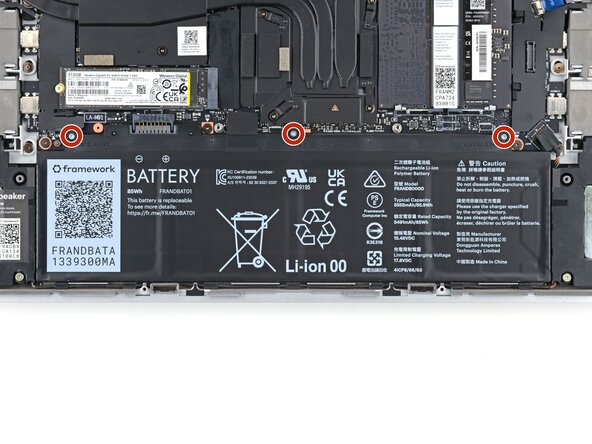
  11. Ventilation Plate Removal, Loosen the battery screws: 11 단계, 이미지 2개 중 1개 Ventilation Plate Removal, Loosen the battery screws: 11 단계, 이미지 2개 중 2개
    • Use a T5 Torx screwdriver to loosen the three captive screws securing the battery.

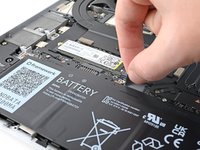
  12. Ventilation Plate Removal, Remove the battery: 12 단계, 이미지 3개 중 1개 Ventilation Plate Removal, Remove the battery: 12 단계, 이미지 3개 중 2개 Ventilation Plate Removal, Remove the battery: 12 단계, 이미지 3개 중 3개
    • Grip the black pull tab at the top of the battery.

    • Lift the pull tab to disconnect the battery connector.

    • Remove the battery.

  13. Ventilation Plate Removal, Lift the interposer door: 13 단계, 이미지 2개 중 1개 Ventilation Plate Removal, Lift the interposer door: 13 단계, 이미지 2개 중 2개
    • Lift the interposer door by its black pull tab and let it rest upright.

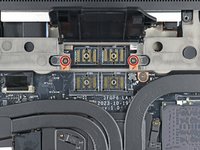
  14. Ventilation Plate Removal, Loosen the interposer screws: 14 단계, 이미지 3개 중 1개 Ventilation Plate Removal, Loosen the interposer screws: 14 단계, 이미지 3개 중 2개 Ventilation Plate Removal, Loosen the interposer screws: 14 단계, 이미지 3개 중 3개
    • If you have the graphics module installed, your interposer will have four screws. Otherwise, you'll have three screws.

    • Lift the pull tab on the interposer and let it rest vertically to access all of its screws.

    • Use a T5 Torx screwdriver to loosen the three captive screws securing the interposer.

    • If you have the graphics module, use a T5 Torx screwdriver to loosen the four captive screws securing the interposer.

  15. Ventilation Plate Removal, Remove the interposer: 15 단계, 이미지 2개 중 1개 Ventilation Plate Removal, Remove the interposer: 15 단계, 이미지 2개 중 2개
    • Lift the interposer by its pull tab and remove it.

  16. Ventilation Plate Removal, Loosen the expansion bay screws: 16 단계, 이미지 2개 중 1개 Ventilation Plate Removal, Loosen the expansion bay screws: 16 단계, 이미지 2개 중 2개
    • Use a T5 Torx screwdriver to loosen the two captive screws securing the expansion bay.

    • Close the interposer door before continuing.

  17. Ventilation Plate Removal, Remove the Expansion Bay module: 17 단계, 이미지 3개 중 1개 Ventilation Plate Removal, Remove the Expansion Bay module: 17 단계, 이미지 3개 중 2개 Ventilation Plate Removal, Remove the Expansion Bay module: 17 단계, 이미지 3개 중 3개
    • Slide the Expansion Bay module out of the laptop and remove it.

    • The module should slide out easily. If you feel any resistance, check if the screws holding it in place are fully loosened.

  18. Ventilation Plate Removal, Disconnect the fingerprint sensor: 18 단계, 이미지 3개 중 1개 Ventilation Plate Removal, Disconnect the fingerprint sensor: 18 단계, 이미지 3개 중 2개 Ventilation Plate Removal, Disconnect the fingerprint sensor: 18 단계, 이미지 3개 중 3개
    • Use the flat end of a spudger, or a clean fingernail, to lift up the locking tab on the fingerprint sensor ZIF connector.

  19. Ventilation Plate Removal: 19 단계, 이미지 2개 중 1개 Ventilation Plate Removal: 19 단계, 이미지 2개 중 2개
    이 단계에 사용된 도구:
    Tweezers
    $4.99
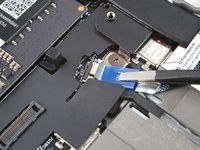
    • Use tweezers, or your fingers, to grip the blue pull tab and slide the fingerprint sensor cable straight out of its socket.

  20. Ventilation Plate Removal: 20 단계, 이미지 3개 중 1개 Ventilation Plate Removal: 20 단계, 이미지 3개 중 2개 Ventilation Plate Removal: 20 단계, 이미지 3개 중 3개
    • The fingerprint sensor cable is lightly adhered to the laptop frame.

    • Use your fingers to peel the fingerprint sensor cable away from the frame and separate the adhesive.

    • During reassembly, if your adhesive is still sticky, press the cable to the frame to re-adhere it. Otherwise, use double-sided tape to replace the adhesive.

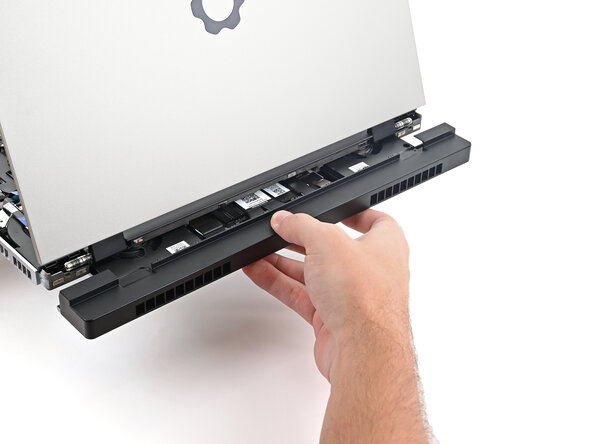
  21. Ventilation Plate Removal, Remove the ventilation plate: 21 단계, 이미지 3개 중 1개 Ventilation Plate Removal, Remove the ventilation plate: 21 단계, 이미지 3개 중 2개 Ventilation Plate Removal, Remove the ventilation plate: 21 단계, 이미지 3개 중 3개
    • The ventilation plate is held in place with magnets.

    • Lift the bottom of the ventilation plate and pull it away from the laptop until the magnets release.

    • Remove the ventilation plate.

결론

To reassemble your device, follow these instructions in reverse order.

작성자

1다른 기여자 명과 함께

Alex Diaz-Kokaisl

회원 가입일: 01/16/22

217,485 평판

안내서 1,051개를 작성함

iFixit iFixit 회원

Staff

123 회원들

안내서 23,926개를 작성함

0가이드 댓글

댓글 쓰기

조회 통계:

지난 24시간: 3

지난 7일: 3

지난 30일: 7

전체 시간: 46