

Asus Zenbook CMOS problem
MODEL: UX31A NOTEBOOK PC
WINDOWS 8
Okay so the laptop cuts on by power button. System comes on but for some reason goes to Administration password screen with the blue window then me not knowing Administration password I have open the laptop took out the CMOS battery which is also bios chip, but in the process of when I opened it I couldn't find the silver coin looking CMOS battery therefore having to disconnect the KTS battery which is the CMOS and Bios in one. After doing so and cutting back it still once again is cutting on with the power power button but still automatically goes right to Adiministration password with the blue window. Hitting the power button does not turn off the laptop it seems like it's being put in sleep or hibernation mode and pressing the power button on the computer actually held the power button for 4 seconds and still again did not cut off. My question is can I fix it by taking out the ram just get a new kts battery ??
Update (03/28/2017)

-Power button works - Soon as pressing power button once with no hesitation computer automatically comes to this screen -Never has it loaded anything besides this screen, since the problem first occurred -pushed power button once; fan turned off, but screen seems to be in sleep mode or hibernation mode -Held power button for about 4 seconds released screen just appeared back on with BLUE BOX
FORGOT PASSWORD

MODEL # for ASUS brand

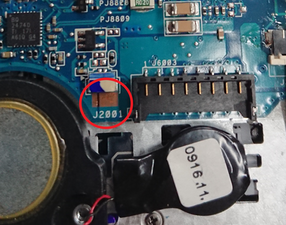
-20MINS to unscrew the screws, this is what was presented ONCE IN ! -Carefully lifted yellow tape then detached battery chip that was connected to the motherboard

Battery once detached from laptop

Battery does look a little damaged ?? :( Seems very fragile

Located this battery, wasn't too hard to find due to it being under the main battery

#1
-Took KTS battery out, waited almost about an hour before plugging both batteries back in
#2-Took KTS battery out (never put back in) -Did replace first battery back in

After doing so, I still once again got this %&$@#+! SCREEN !!!!
좋은 질문입니까?

 7
7  66
66  97
97 

댓글 1개
Could you please better explain what the problem is? With full punctuation and grammar, please?
George A. 의