주요 콘텐츠로 건너뛰기

Acer Aspire 3 A315-24P-R7VH Fan Replacement

필요한 것

  1. Acer Aspire 3 A315-24P-R7VH Fan Replacement, Power off your laptop: 1 단계, 이미지 1개 중 1개
    • Shut down your laptop and unplug any cables.

  2. Acer Aspire 3 A315-24P-R7VH Fan Replacement, Remove the back cover screws: 2 단계, 이미지 1개 중 1개
    • Close the laptop and flip it over on a flat, clean surface.

    • Use a Phillips screwdriver to remove the eleven 6.6 mm‑long screws from the back cover.

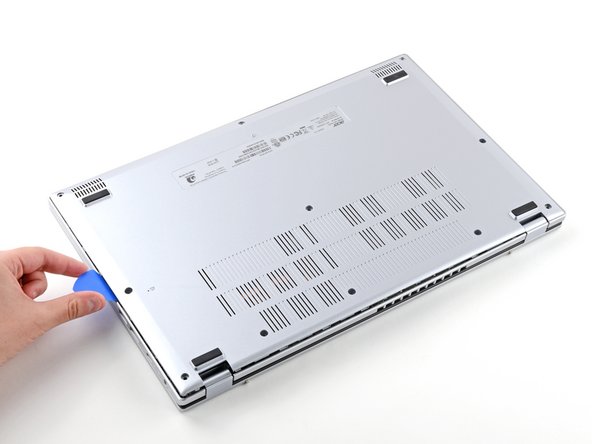
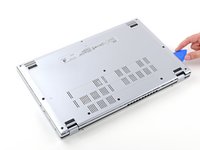
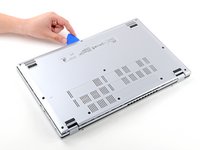
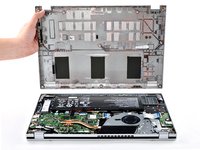
  3. Acer Aspire 3 A315-24P-R7VH Fan Replacement, Remove the back cover: 3 단계, 이미지 3개 중 1개 Acer Aspire 3 A315-24P-R7VH Fan Replacement, Remove the back cover: 3 단계, 이미지 3개 중 2개 Acer Aspire 3 A315-24P-R7VH Fan Replacement, Remove the back cover: 3 단계, 이미지 3개 중 3개
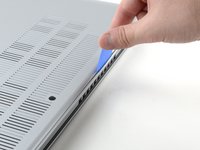
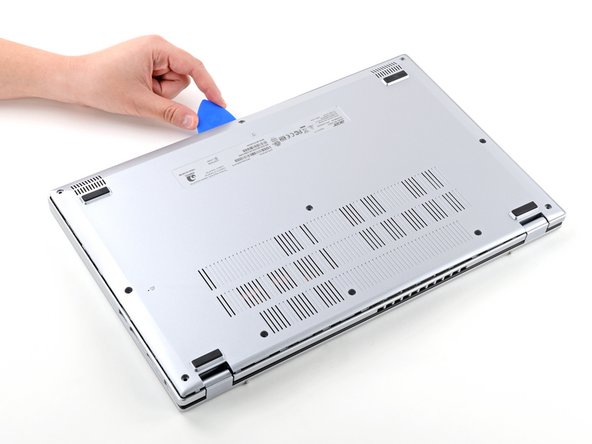
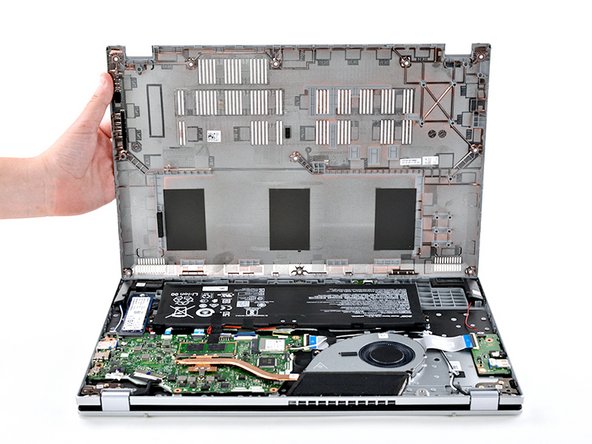
    • Insert the long edge of an opening pick straight down between the chassis and the back cover at the rear of the laptop

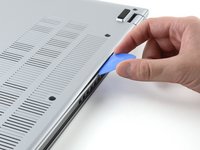
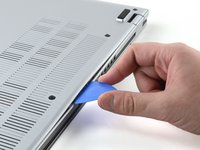
    • Pry up to release a few back cover clips and position the opening pick flat under the back cover.

    • Slide the pick along the rear edge of the laptop to release the clips.

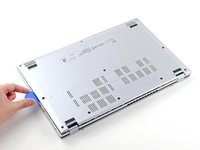
  4. Acer Aspire 3 A315-24P-R7VH Fan Replacement: 4 단계, 이미지 3개 중 1개 Acer Aspire 3 A315-24P-R7VH Fan Replacement: 4 단계, 이미지 3개 중 2개 Acer Aspire 3 A315-24P-R7VH Fan Replacement: 4 단계, 이미지 3개 중 3개
    • Pry around the entire perimeter until the back cover releases.

  5. Acer Aspire 3 A315-24P-R7VH Fan Replacement: 5 단계, 이미지 3개 중 1개 Acer Aspire 3 A315-24P-R7VH Fan Replacement: 5 단계, 이미지 3개 중 2개 Acer Aspire 3 A315-24P-R7VH Fan Replacement: 5 단계, 이미지 3개 중 3개
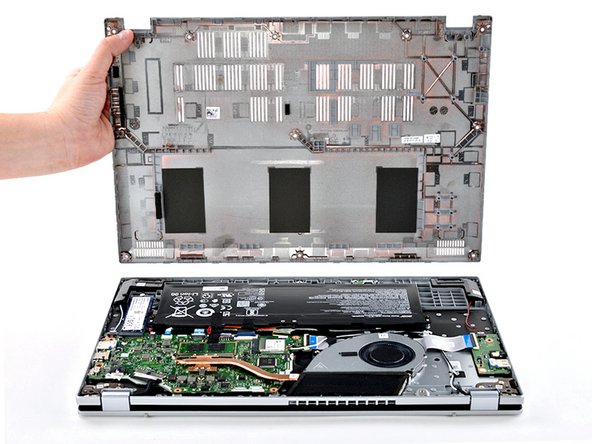
    • Lift the back cover off the chassis and remove it.

    • If the back cover is stuck, repeat the previous step to release any remaining clips.

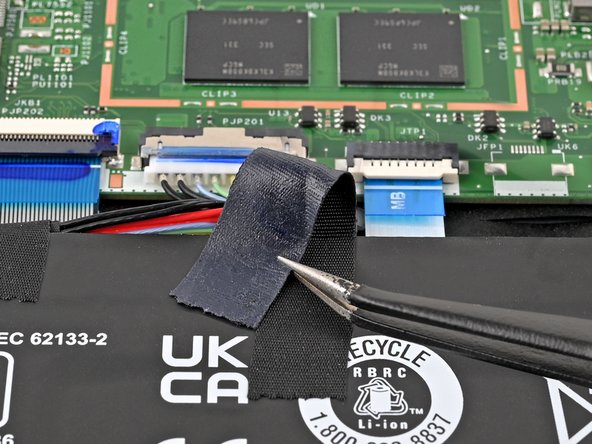
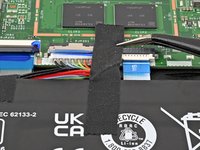
  6. Acer Aspire 3 A315-24P-R7VH Fan Replacement, Peel back the tape: 6 단계, 이미지 2개 중 1개 Acer Aspire 3 A315-24P-R7VH Fan Replacement, Peel back the tape: 6 단계, 이미지 2개 중 2개
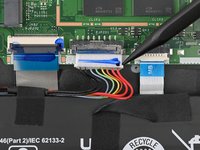
    • Use tweezers or your fingers to peel away the tape covering the battery connector.

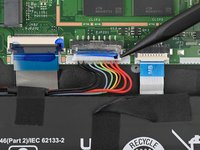
  7. Acer Aspire 3 A315-24P-R7VH Fan Replacement, Disconnect the battery: 7 단계, 이미지 2개 중 1개 Acer Aspire 3 A315-24P-R7VH Fan Replacement, Disconnect the battery: 7 단계, 이미지 2개 중 2개
    • Use the tip of a spudger to push down on either side of the battery cable connector until it comes out of its socket.

  8. Acer Aspire 3 A315-24P-R7VH Fan Replacement, Remove the battery screws: 8 단계, 이미지 2개 중 1개 Acer Aspire 3 A315-24P-R7VH Fan Replacement, Remove the battery screws: 8 단계, 이미지 2개 중 2개
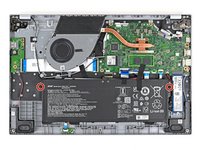
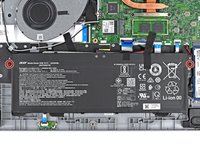
    • Use a Phillips screwdriver to remove the two 4.7 mm‑long screws securing the battery.

  9. Acer Aspire 3 A315-24P-R7VH Fan Replacement, Remove the battery: 9 단계, 이미지 3개 중 1개 Acer Aspire 3 A315-24P-R7VH Fan Replacement, Remove the battery: 9 단계, 이미지 3개 중 2개 Acer Aspire 3 A315-24P-R7VH Fan Replacement, Remove the battery: 9 단계, 이미지 3개 중 3개
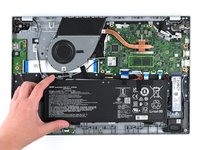
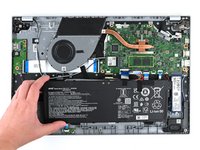
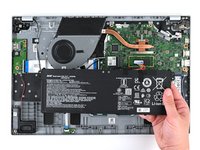
    • Lift the battery out of the chassis and remove it.

  10. Acer Aspire 3 A315-24P-R7VH Fan Replacement, Disconnect the fan: 10 단계, 이미지 2개 중 1개 Acer Aspire 3 A315-24P-R7VH Fan Replacement, Disconnect the fan: 10 단계, 이미지 2개 중 2개
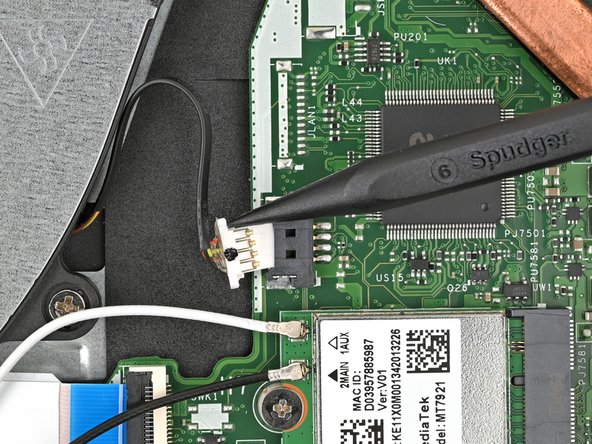
    • Use the tip of a spudger to push down on either side of the fan cable connector until it comes out of its socket.

  11. Acer Aspire 3 A315-24P-R7VH Fan Replacement, Remove the fan screws: 11 단계, 이미지 1개 중 1개
    • Use a Phillips screwdriver to remove the two 5.6 mm‑long screws that are securing the fan.

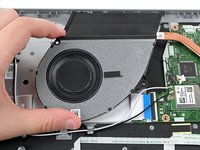
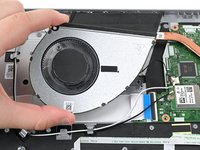
  12. Acer Aspire 3 A315-24P-R7VH Fan Replacement, Remove the fan: 12 단계, 이미지 3개 중 1개 Acer Aspire 3 A315-24P-R7VH Fan Replacement, Remove the fan: 12 단계, 이미지 3개 중 2개 Acer Aspire 3 A315-24P-R7VH Fan Replacement, Remove the fan: 12 단계, 이미지 3개 중 3개
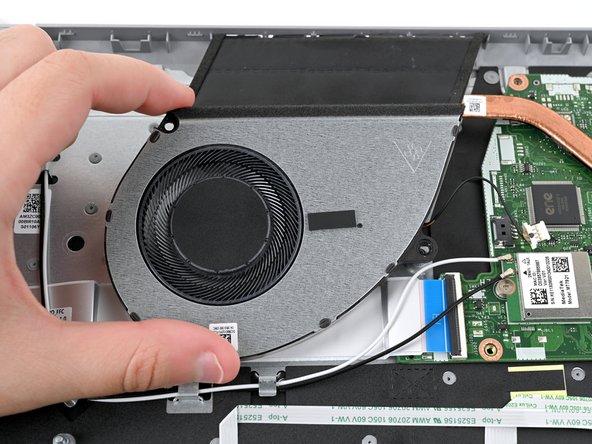
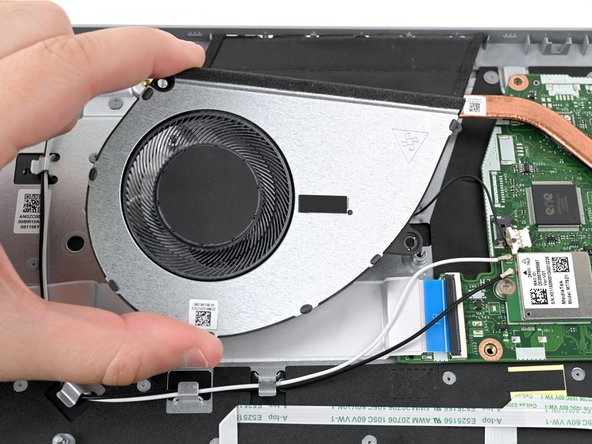
    • Lift the fan out of the chassis and remove it.

결론

To reassemble your device, follow these instructions in reverse order.

Take your e-waste to an R2 or e-Stewards certified recycler. Acer partners with different e-waste recycling programs that vary by region, click here to see where you can properly dispose of your e-waste.

Repair didn’t go as planned? Try some basic troubleshooting, or ask our Answers community for help.

Kara Piepenbrink

회원 가입일: 05/31/24

5,531 평판

안내서 21개를 작성함

iFixit iFixit 회원

Staff

123 회원들

안내서 23,788개를 작성함

0가이드 댓글

댓글 쓰기

조회 통계:

지난 24시간: 1

지난 7일: 6

지난 30일: 29

전체 시간: 326