주요 콘텐츠로 건너뛰기

Apple Watch Series 9 Screen Replacement

필요한 것

  1. Apple Watch Series 9 Screen Replacement, Prepare your watch for disassembly: 1 단계, 이미지 2개 중 1개 Apple Watch Series 9 Screen Replacement, Prepare your watch for disassembly: 1 단계, 이미지 2개 중 2개
    • Before starting this repair, remove your watch from the charger and let its battery drain completely—the watch should shut down from low battery. A charged lithium‑ion battery may catch fire if damaged.

    • Letting the battery drain completely also prevents accidentally turning your watch back on when gripping it during repair.

  2. Apple Watch Series 9 Screen Replacement, Disassembly information: 2 단계, 이미지 3개 중 1개 Apple Watch Series 9 Screen Replacement, Disassembly information: 2 단계, 이미지 3개 중 2개 Apple Watch Series 9 Screen Replacement, Disassembly information: 2 단계, 이미지 3개 중 3개
    • Throughout the rest of your repair:

    • Attach and remove the watch bands as needed to get a better grip or stabilize your watch.

    • To remove a band, firmly press in the small, oval button on the underside of the watch and slide the band out of its groove.

    • Consider placing your watch on something soft like a clean cloth to help stabilize it and prevent damage.

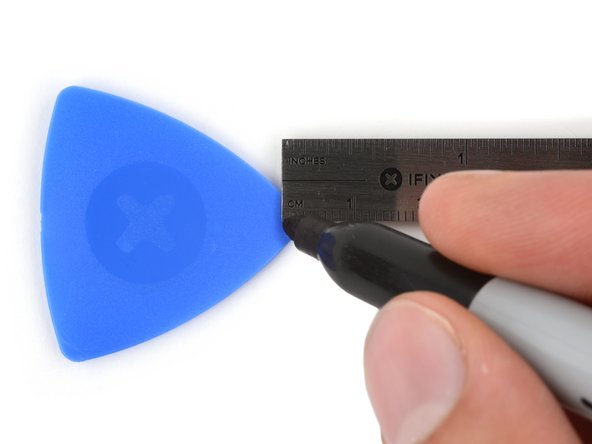
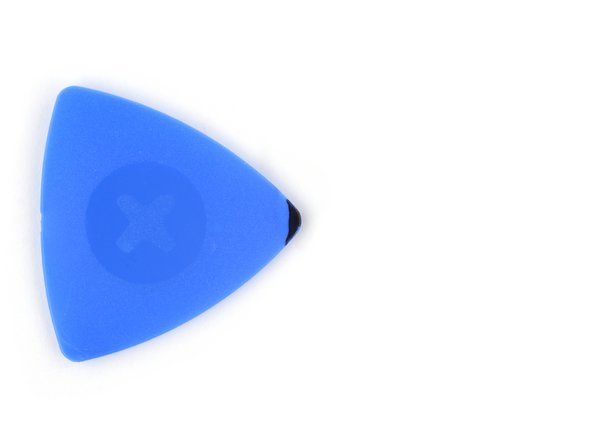
  3. Apple Watch Series 9 Screen Replacement, Mark your opening picks: 3 단계, 이미지 3개 중 1개 Apple Watch Series 9 Screen Replacement, Mark your opening picks: 3 단계, 이미지 3개 중 2개 Apple Watch Series 9 Screen Replacement, Mark your opening picks: 3 단계, 이미지 3개 중 3개
    • If inserted too far, an opening pick can damage your watch. Follow this step to mark your pick and prevent damage.

    • Measure 3 mm from the tip and mark the opening pick with a permanent marker.

    • Alternatively, tape a coin to a pick 3 mm from the tip.

  4. Apple Watch Series 9 Screen Replacement, Heat the screen: 4 단계, 이미지 1개 중 1개
    • Strong adhesive secures the perimeter of the screen to the frame. Heating the screen softens the adhesive, making it easier to separate.

    • Heat an iOpener and lay it on the screen for two minutes to soften its adhesive.

    • Alternatively, you can use a hair dryer or heat gun—but be careful as extreme heat can damage the screen and/or battery.

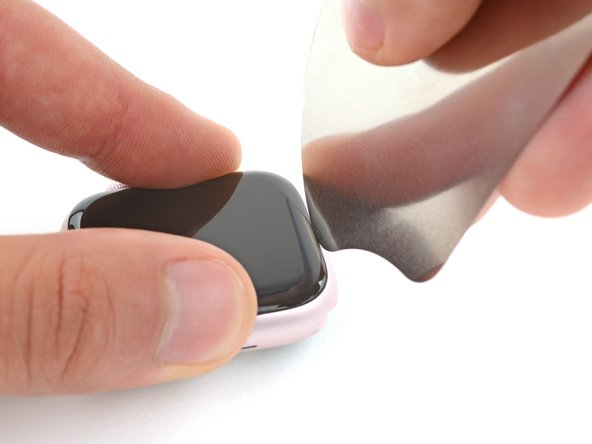
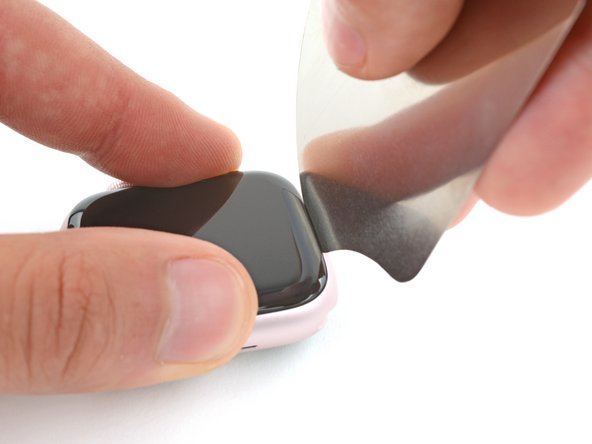
  5. Apple Watch Series 9 Screen Replacement, Insert an iFlex: 5 단계, 이미지 3개 중 1개 Apple Watch Series 9 Screen Replacement, Insert an iFlex: 5 단계, 이미지 3개 중 2개 Apple Watch Series 9 Screen Replacement, Insert an iFlex: 5 단계, 이미지 3개 중 3개
    이 단계에 사용된 도구:
    iFlex Opening Tool
    $11.99
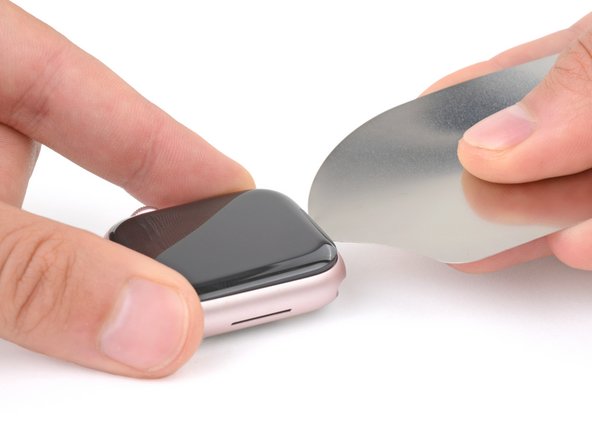
    • The gap between the screen and frame is extremely small. You'll need a thin tool such as an iFlex to create an initial gap.

    • Don't grip the iFlex or similar metal tools by the edges—they're very sharp. Consider wearing gloves to protect your hands.

    • Insert the iFlex at a downward angle between the bottom edge of the screen and frame.

  6. Apple Watch Series 9 Screen Replacement, Pry up the screen: 6 단계, 이미지 2개 중 1개 Apple Watch Series 9 Screen Replacement, Pry up the screen: 6 단계, 이미지 2개 중 2개
    • Prying up the screen may take multiple attempts. If you're having trouble, apply more heat and try again.

    • With one hand, push down firmly on the watch's frame to secure it in place.

    • With your free hand, hold the iFlex and push the edges up to make it more rigid.

    • The iFlex should be slightly "U" shaped.

    • Pry up the screen enough for the iFlex to lay flat on its own.

    • The iFlex doesn't need to be inserted far, as it can easily damage the screen cables near the bottom right corner of the watch.

    • Leave the iFlex inserted under the screen.

  7. Apple Watch Series 9 Screen Replacement, Insert an opening pick: 7 단계, 이미지 3개 중 1개 Apple Watch Series 9 Screen Replacement, Insert an opening pick: 7 단계, 이미지 3개 중 2개 Apple Watch Series 9 Screen Replacement, Insert an opening pick: 7 단계, 이미지 3개 중 3개
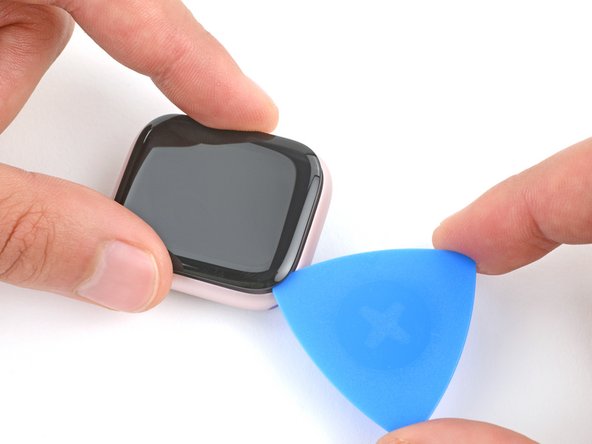
    • Do not insert your opening pick more than 3 mm under the screen when separating the adhesive, as you risk damaging your watches internals.

    • Keep the iFlex flat to maintain a gap between the screen and frame while inserting an opening pick.

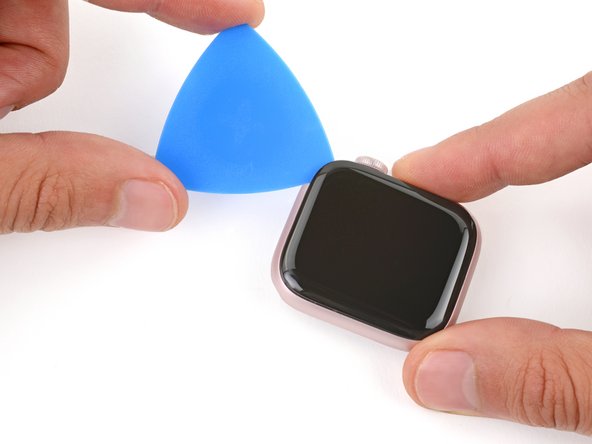
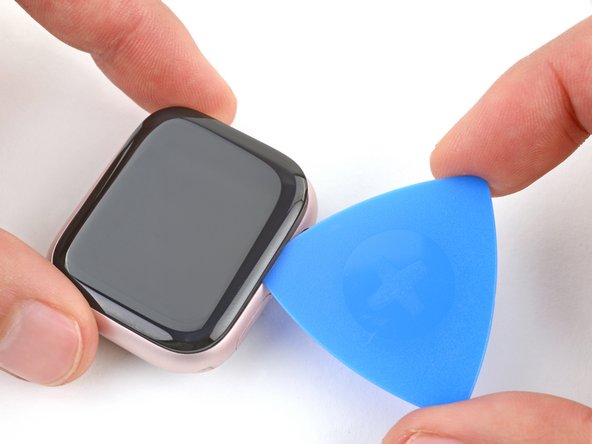
    • Insert an opening pick between the screen and iFlex.

    • Remove the iFlex.

  8. Apple Watch Series 9 Screen Replacement, Separate the bottom edge adhesive: 8 단계, 이미지 2개 중 1개 Apple Watch Series 9 Screen Replacement, Separate the bottom edge adhesive: 8 단계, 이미지 2개 중 2개
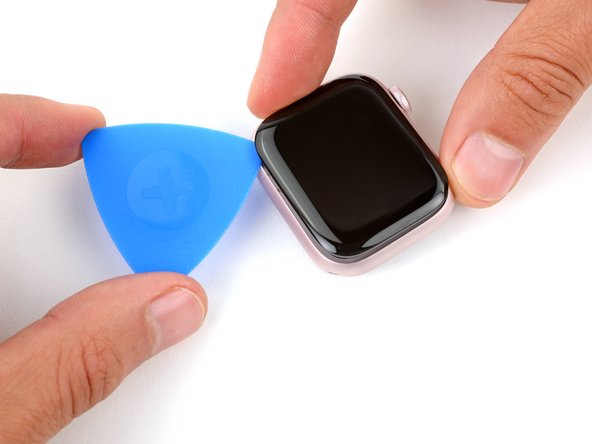
    • Slide the opening pick along the bottom edge to separate the adhesive securing it.

  9. Apple Watch Series 9 Screen Replacement, Separate the left edge adhesive: 9 단계, 이미지 2개 중 1개 Apple Watch Series 9 Screen Replacement, Separate the left edge adhesive: 9 단계, 이미지 2개 중 2개
    • Slide the opening pick around the bottom left corner and up the left edge to separate the adhesive.

  10. Apple Watch Series 9 Screen Replacement, Separate the top edge adhesive: 10 단계, 이미지 2개 중 1개 Apple Watch Series 9 Screen Replacement, Separate the top edge adhesive: 10 단계, 이미지 2개 중 2개
    • Slide the opening pick around the top left corner and along the top edge to separate the adhesive.

  11. Apple Watch Series 9 Screen Replacement, Separate the right edge adhesive: 11 단계, 이미지 2개 중 1개 Apple Watch Series 9 Screen Replacement, Separate the right edge adhesive: 11 단계, 이미지 2개 중 2개
    • Slide the opening pick around the top right corner and stop at the top of the side button.

    • Don't slide your pick past the side button—you risk damage to the screen cables.

  12. Apple Watch Series 9 Screen Replacement, Separate the remaining adhesive: 12 단계, 이미지 2개 중 1개 Apple Watch Series 9 Screen Replacement, Separate the remaining adhesive: 12 단계, 이미지 2개 중 2개
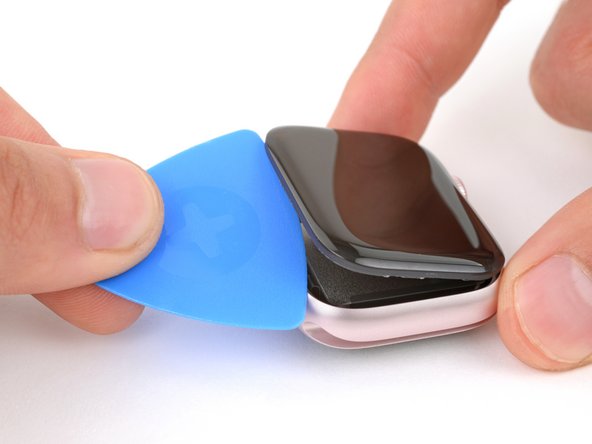
    • Insert the long edge of an opening pick between the left edge of the screen and frame.

    • Twist the pick to lift the screen and separate any remaining adhesive.

  13. Apple Watch Series 9 Screen Replacement, Swing open the screen: 13 단계, 이미지 3개 중 1개 Apple Watch Series 9 Screen Replacement, Swing open the screen: 13 단계, 이미지 3개 중 2개 Apple Watch Series 9 Screen Replacement, Swing open the screen: 13 단계, 이미지 3개 중 3개
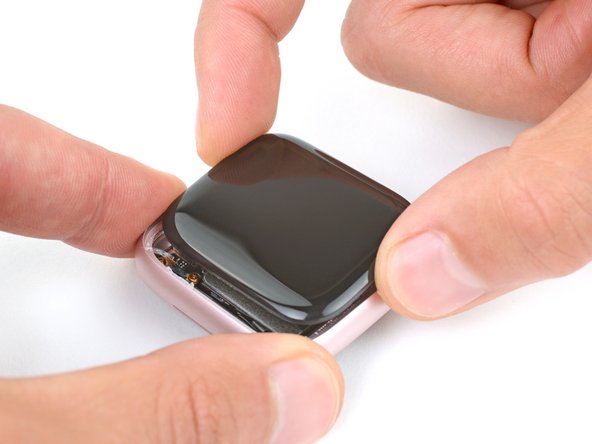
    • Pull the right edge of the screen over the digital crown.

    • If the screen feels stuck, go back around it with an opening pick to separate any adhesive.

    • Swing up the left edge of the screen so it's upright. The screen should be to the right of the digital crown.

    • During reassembly:

    • This is a good point to plug in your watch and test all functions before sealing it up. Be sure to power it back down completely before you continue working.

    • Follow this guide to apply new screen adhesive and reseal your watch.

  14. Apple Watch Series 9 Screen Replacement, Stand the watch up: 14 단계, 이미지 1개 중 1개
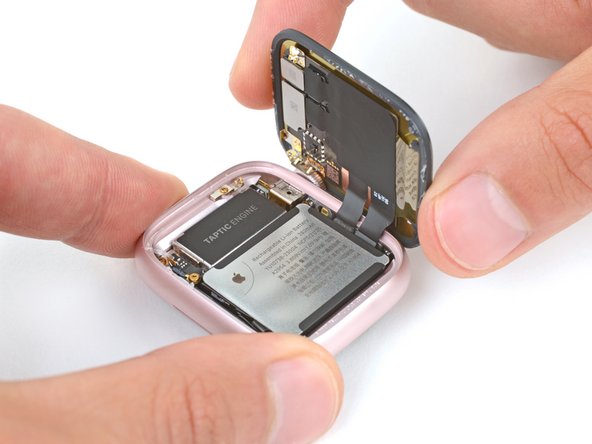
    • Flip your watch so the screen is on your workspace and the frame is upright.

    • Keep the screen secured and the frame supported upright for the remaining steps.

  15. Apple Watch Series 9 Screen Replacement, Peel up the screen cable tape: 15 단계, 이미지 3개 중 1개 Apple Watch Series 9 Screen Replacement, Peel up the screen cable tape: 15 단계, 이미지 3개 중 2개 Apple Watch Series 9 Screen Replacement, Peel up the screen cable tape: 15 단계, 이미지 3개 중 3개
    이 단계에 사용된 도구:
    Tweezers
    $4.99
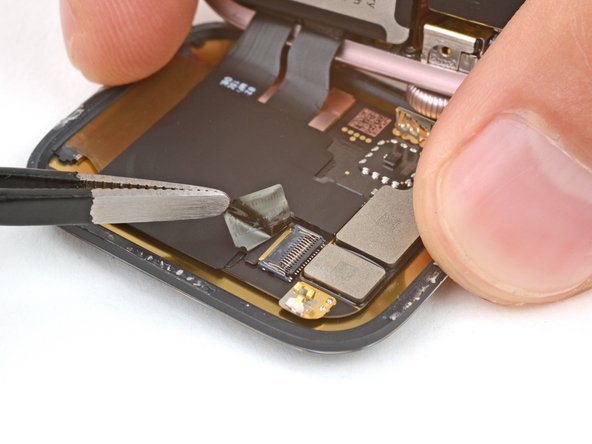
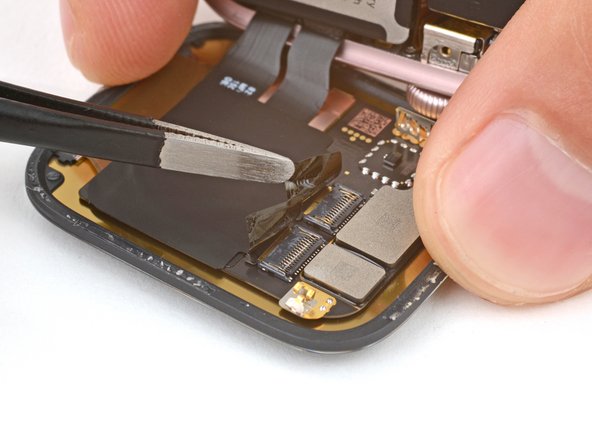
    • Use tweezers to peel up the tape covering the two screen cable ZIF connectors.

  16. Apple Watch Series 9 Screen Replacement, Flip up the locking flaps: 16 단계, 이미지 3개 중 1개 Apple Watch Series 9 Screen Replacement, Flip up the locking flaps: 16 단계, 이미지 3개 중 2개 Apple Watch Series 9 Screen Replacement, Flip up the locking flaps: 16 단계, 이미지 3개 중 3개
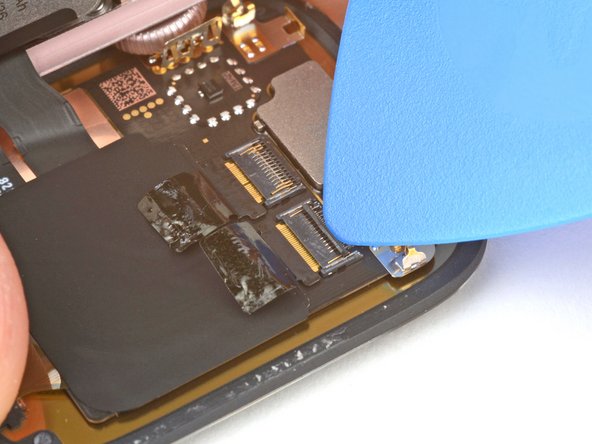
    • Use the tip of an opening pick to pry up the small, hinged locking flaps on both screen cable ZIF connectors.

  17. Apple Watch Series 9 Screen Replacement, Heat the screen cable: 17 단계, 이미지 1개 중 1개
    • Strong adhesive secures the screen cables. Heating the cables softens the adhesive, making them easier to separate.

    • Heat an iOpener and lay it on the screen cables for two minutes to soften the adhesive.

    • Alternatively, you can use a hair dryer or heat gun—but be careful as extreme heat can damage the screen and/or battery.

  18. Apple Watch Series 9 Screen Replacement, Separate the screen cable adhesive: 18 단계, 이미지 2개 중 1개 Apple Watch Series 9 Screen Replacement, Separate the screen cable adhesive: 18 단계, 이미지 2개 중 2개
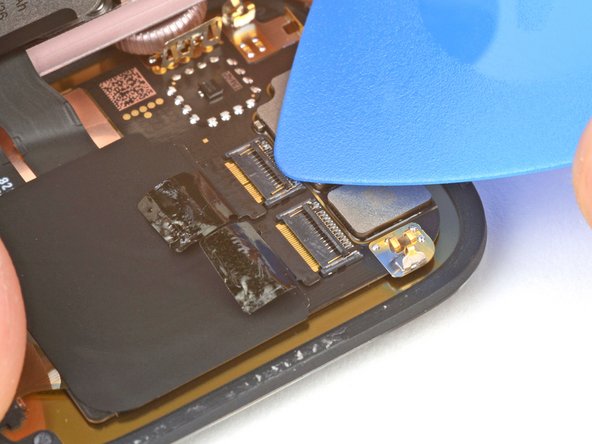
    • Slide an opening pick under the lower screen cable to begin separating it from the screen.

    • If you're having trouble, apply more heat and try again. Don't use excessive force.

  19. Apple Watch Series 9 Screen Replacement: 19 단계, 이미지 3개 중 1개 Apple Watch Series 9 Screen Replacement: 19 단계, 이미지 3개 중 2개 Apple Watch Series 9 Screen Replacement: 19 단계, 이미지 3개 중 3개
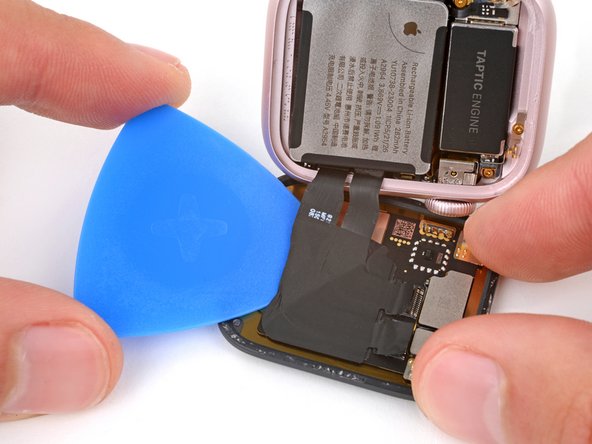
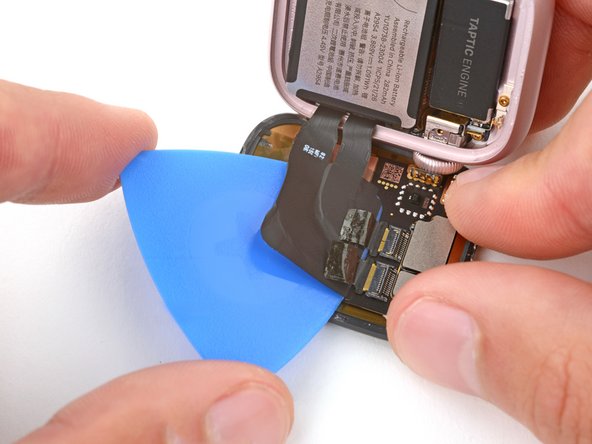
    • Continue sliding the opening pick under the cables until they completely separate from the screen.

    • You can gently peel the cables up with your fingers when you're able to grab them.

  20. Apple Watch Series 9 Screen Replacement, Disconnect the screen: 20 단계, 이미지 2개 중 1개 Apple Watch Series 9 Screen Replacement, Disconnect the screen: 20 단계, 이미지 2개 중 2개
    • Use tweezers to grip both cables and pull them out of their sockets at the same time.

  21. Apple Watch Series 9 Screen Replacement, Remove the screen: 21 단계, 이미지 1개 중 1개
    • Remove the screen.

결론

To reassemble your device, follow these instructions in reverse order.

Take your e-waste to an R2 or e-Stewards certified recycler.

Repair didn’t go as planned? Try some basic troubleshooting, or ask our Answers community for help.

다른 4명이 해당 안내서를 완성하였습니다.

작성자

3다른 기여자 명과 함께

Spencer Day

회원 가입일: 09/14/22

149,771 평판

안내서 995개를 작성함

iFixit iFixit 회원

Staff

123 회원들

안내서 23,638개를 작성함

0가이드 댓글

댓글 쓰기

조회 통계:

지난 24시간: 6

지난 7일: 61

지난 30일: 385

전체 시간: 11,559