주요 콘텐츠로 건너뛰기

Dell Inspiron 13-7347 Display Assembly Replacement

필요한 것

  1. Dell Inspiron 13-7347 Display Assembly Replacement, Battery: 1 단계, 이미지 3개 중 1개 Dell Inspiron 13-7347 Display Assembly Replacement, Battery: 1 단계, 이미지 3개 중 2개 Dell Inspiron 13-7347 Display Assembly Replacement, Battery: 1 단계, 이미지 3개 중 3개
    • Flip the device over, so that the back is facing up.

    • Using a Phillips screwdriver, remove the 10 2.5mm x 8mm screws

    • Use the suction cup to lift off the back case.

  2. Dell Inspiron 13-7347 Display Assembly Replacement: 2 단계, 이미지 3개 중 1개 Dell Inspiron 13-7347 Display Assembly Replacement: 2 단계, 이미지 3개 중 2개 Dell Inspiron 13-7347 Display Assembly Replacement: 2 단계, 이미지 3개 중 3개
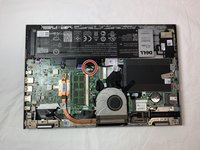
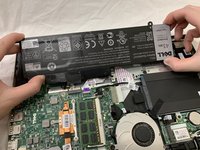
    • Remove the two 2mm x 3mm screws that secure the battery to the device.

  3. Dell Inspiron 13-7347 Display Assembly Replacement: 3 단계, 이미지 3개 중 1개 Dell Inspiron 13-7347 Display Assembly Replacement: 3 단계, 이미지 3개 중 2개 Dell Inspiron 13-7347 Display Assembly Replacement: 3 단계, 이미지 3개 중 3개
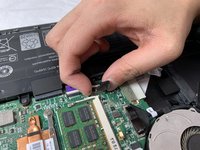
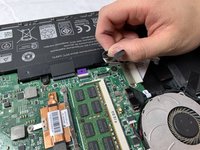
    • Unplug the cable that connects the USB / SD Reader IO Board to the motherboard.

  4. Dell Inspiron 13-7347 Display Assembly Replacement: 4 단계, 이미지 3개 중 1개 Dell Inspiron 13-7347 Display Assembly Replacement: 4 단계, 이미지 3개 중 2개 Dell Inspiron 13-7347 Display Assembly Replacement: 4 단계, 이미지 3개 중 3개
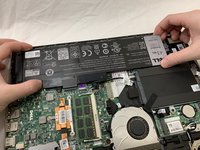
    • Lift the battery steadily from the device.

    • Tilt the battery upward while removing.

  5. Dell Inspiron 13-7347 Display Assembly Replacement, Fan: 5 단계, 이미지 2개 중 1개 Dell Inspiron 13-7347 Display Assembly Replacement, Fan: 5 단계, 이미지 2개 중 2개
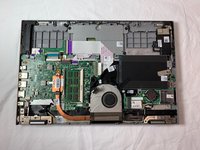
    • You should be able to identify the fan.

    • This is the 2mm x 2mm JIS #00 screw.

    • This is the 2mm x 3mm JIS #00 screw.

  6. Dell Inspiron 13-7347 Display Assembly Replacement: 6 단계, 이미지 2개 중 1개 Dell Inspiron 13-7347 Display Assembly Replacement: 6 단계, 이미지 2개 중 2개
    • Remove the 2mm x 2mm JIS #00 screw.

    • Remove the 2mm x 3mm JIS #00 screw.

  7. Dell Inspiron 13-7347 Display Assembly Replacement: 7 단계, 이미지 2개 중 1개 Dell Inspiron 13-7347 Display Assembly Replacement: 7 단계, 이미지 2개 중 2개
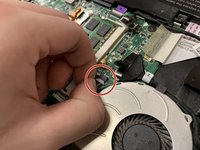
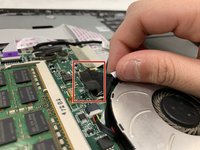
    • Detach the cable that connects the fan and the motherboard.

    • The cable is extremely fragile.

  8. Dell Inspiron 13-7347 Display Assembly Replacement: 8 단계, 이미지 2개 중 1개 Dell Inspiron 13-7347 Display Assembly Replacement: 8 단계, 이미지 2개 중 2개
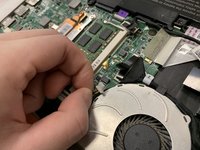
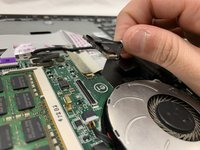
    • Detach the cord that connects the fan and the motherboard.

  9. Dell Inspiron 13-7347 Display Assembly Replacement: 9 단계, 이미지 1개 중 1개
    • Remove the fan.

  10. Dell Inspiron 13-7347 Display Assembly Replacement, Hard Drive: 10 단계, 이미지 2개 중 1개 Dell Inspiron 13-7347 Display Assembly Replacement, Hard Drive: 10 단계, 이미지 2개 중 2개
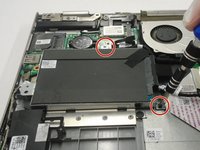
    • Using a Phillips #0 screwdriver, loosen and remove the two 3.0 mm hard drive screws.

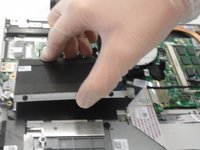
    • Lift the hard drive up and out of the device.

  11. Dell Inspiron 13-7347 Display Assembly Replacement, Display Assembly: 11 단계, 이미지 3개 중 1개 Dell Inspiron 13-7347 Display Assembly Replacement, Display Assembly: 11 단계, 이미지 3개 중 2개 Dell Inspiron 13-7347 Display Assembly Replacement, Display Assembly: 11 단계, 이미지 3개 중 3개
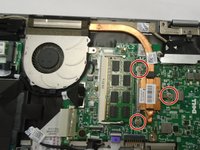
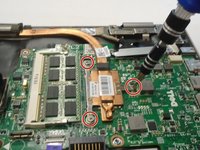
    • Using a Phillips #0 screwdriver, loosen the three 3.0 mm heat sink screws.

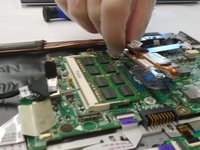
    • Remove the Heat Sink.

    • When reinstalling the heat sink, be sure to clean both contact surfaces with isopropyl alcohol and reapply thermal paste.

  12. Dell Inspiron 13-7347 Display Assembly Replacement: 12 단계, 이미지 1개 중 1개
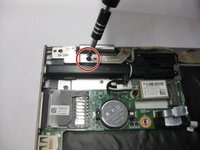
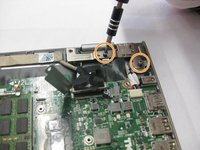
    • Using a Phillips #0 screwdriver, remove the two 5.0 mm screws on the metal bracket.

    • Remove the metal bracket.

  13. Dell Inspiron 13-7347 Display Assembly Replacement: 13 단계, 이미지 1개 중 1개
    • Loosen and reposition the display cable.

    • The display cable will not be removed. Do not attempt to remove the display cable.

  14. Dell Inspiron 13-7347 Display Assembly Replacement: 14 단계, 이미지 3개 중 1개 Dell Inspiron 13-7347 Display Assembly Replacement: 14 단계, 이미지 3개 중 2개 Dell Inspiron 13-7347 Display Assembly Replacement: 14 단계, 이미지 3개 중 3개
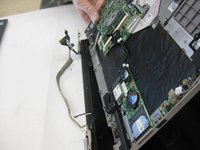
    • Using a Phillips #0 screwdriver, remove the 5.0mm screw on the left display hinge bracket.

    • Using a Phillips #0 screwdriver, remove the two 5.0mm screws on the right display hinge bracket.

    • Lift and remove the display assembly.

결론

To reassemble your device, follow these instructions in reverse order. Take your e-waste to an R2 or e-Stewards certified recycler.

0가이드 댓글

댓글 쓰기

조회 통계:

지난 24시간: 1

지난 7일: 5

지난 30일: 19

전체 시간: 788