주요 콘텐츠로 건너뛰기

Framework Laptop 12 Heatsink Replacement

필요한 것

  1. Framework Laptop 12 Heatsink Replacement, Power down your laptop: 1 단계, 이미지 3개 중 1개 Framework Laptop 12 Heatsink Replacement, Power down your laptop: 1 단계, 이미지 3개 중 2개 Framework Laptop 12 Heatsink Replacement, Power down your laptop: 1 단계, 이미지 3개 중 3개
    • Before you begin repairs, unplug your laptop and shut it down from the operating system. This ensures that the laptop isn't in standby/suspend mode.

    • The indicator LEDs along the edges should be unlit. The laptop should be silent.

    • If you accidentally turn on the laptop during repair, hold the power button down for 10 seconds to shut it down.

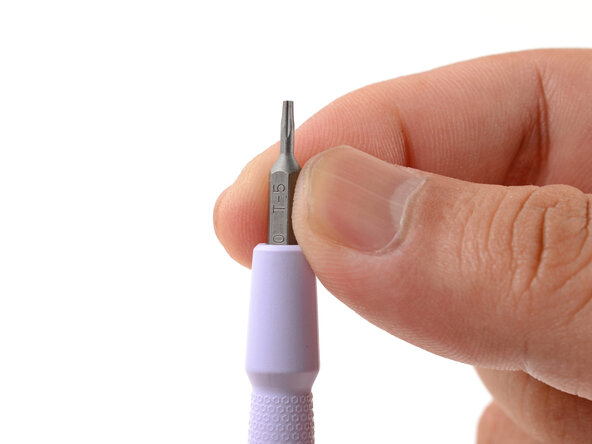
    • Make sure your Framework Screwdriver has the T5 Torx bit (labeled as T-5) facing outwards. If it's not, pull the bit out and flip it.

  2. Framework Laptop 12 Heatsink Replacement, Set your laptop down: 2 단계, 이미지 1개 중 1개
    • Set your Framework Laptop face-down on a clean work surface.

  3. Framework Laptop 12 Heatsink Replacement, Loosen the bottom screws: 3 단계, 이미지 2개 중 1개 Framework Laptop 12 Heatsink Replacement, Loosen the bottom screws: 3 단계, 이미지 2개 중 2개
    • Use your Framework Screwdriver to fully loosen the eight captive T5 Torx screws on the bottom of your laptop.

    • Most screws in your Framework Laptop (including these) are captive—they're designed to stay in place after you loosen them.

  4. Framework Laptop 12 Heatsink Replacement, Flip your laptop over: 4 단계, 이미지 1개 중 1개
    • Flip your laptop over so it's face-up on your work surface.

  5. Framework Laptop 12 Heatsink Replacement, Open your laptop: 5 단계, 이미지 2개 중 1개 Framework Laptop 12 Heatsink Replacement, Open your laptop: 5 단계, 이미지 2개 중 2개
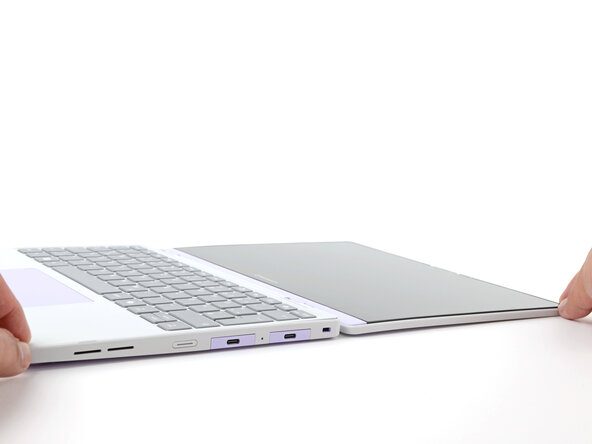
    • Open the laptop lid so that both the screen and the base lie flat on your work surface.

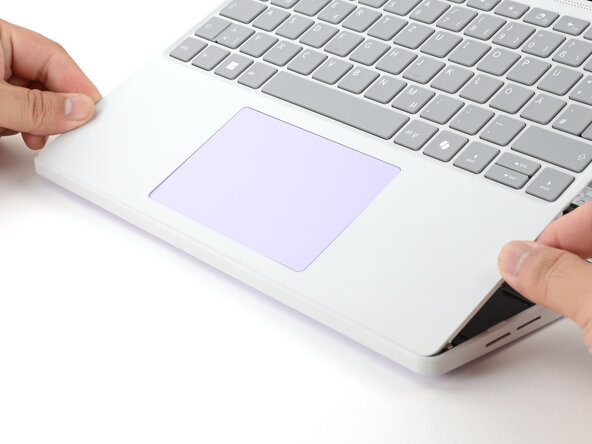
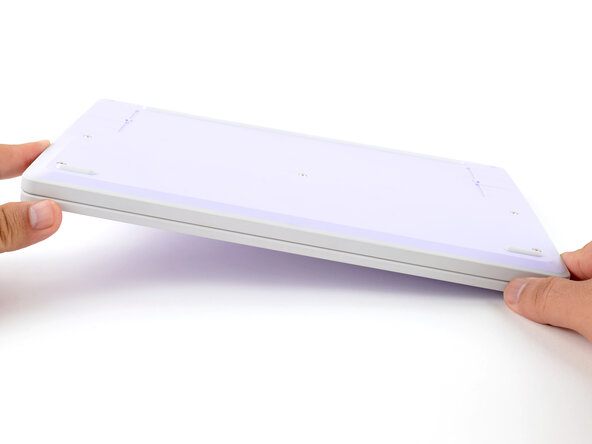
  6. Framework Laptop 12 Heatsink Replacement, Remove the Input Cover: 6 단계, 이미지 3개 중 1개 Framework Laptop 12 Heatsink Replacement, Remove the Input Cover: 6 단계, 이미지 3개 중 2개 Framework Laptop 12 Heatsink Replacement, Remove the Input Cover: 6 단계, 이미지 3개 중 3개
    • Use your fingers to grip the Input Cover in the hinge cutouts.

    • Lift upwards to swing the Input Cover up from the base of the laptop.

    • Magnets hold the Input Cover down, so you'll feel some resistance. If it feels stuck, check that you've fully loosened all the screws on the bottom of your laptop.

    • Remove the Input Cover.

  7. Framework Laptop 12 Heatsink Replacement, Loosen the heatsink screws: 7 단계, 이미지 1개 중 1개
    • Use your Framework Screwdriver to loosen the four captive Torx T5 screws securing the heatsink.

  8. Framework Laptop 12 Heatsink Replacement, Loosen the heatsink: 8 단계, 이미지 3개 중 1개 Framework Laptop 12 Heatsink Replacement, Loosen the heatsink: 8 단계, 이미지 3개 중 2개 Framework Laptop 12 Heatsink Replacement, Loosen the heatsink: 8 단계, 이미지 3개 중 3개
    • Slide the flat end of your Framework Screwdriver under the heatsink arm labeled "2".

    • Twist the Framework Screwdriver to lift the heatsink arm and loosen the heatsink.

    • You'll feel some resistance from the thermal compound holding the heatsink in place.

    • If the heatsink won't budge, make sure you've fully loosened the four screws securing the heatsink.

    • Repeat the procedure with the heatsink arm labeled "3".

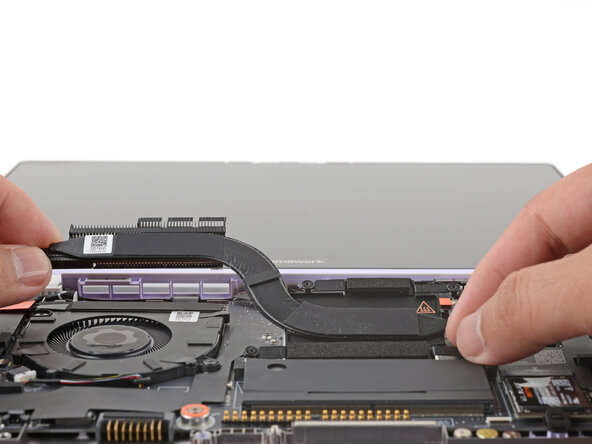
  9. Framework Laptop 12 Heatsink Replacement, Remove the heatsink: 9 단계, 이미지 2개 중 1개 Framework Laptop 12 Heatsink Replacement, Remove the heatsink: 9 단계, 이미지 2개 중 2개
    • Lift and remove the heatsink.

  10. Framework Laptop 12 Heatsink Replacement, Disassembly complete: 10 단계, 이미지 1개 중 1개
    • Congratulations on completing disassembly! The remaining steps will show how to reassemble your Framework Laptop.

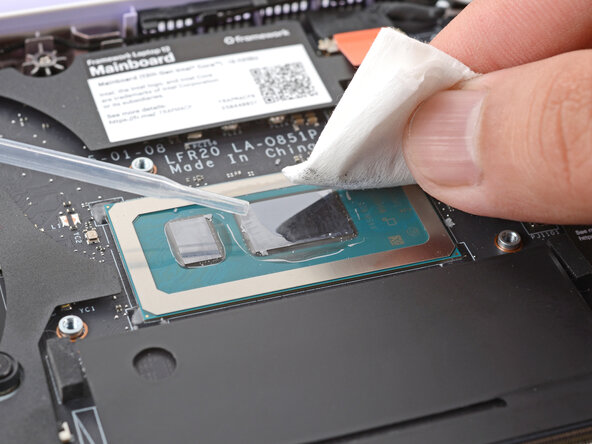
  11. Framework Laptop 12 Heatsink Replacement, Remove the old thermal compound: 11 단계, 이미지 1개 중 1개
    • Use a few drops of high concentration (>90%) isopropyl alcohol and a lint-free cloth to wipe away the remaining residue from the processor.

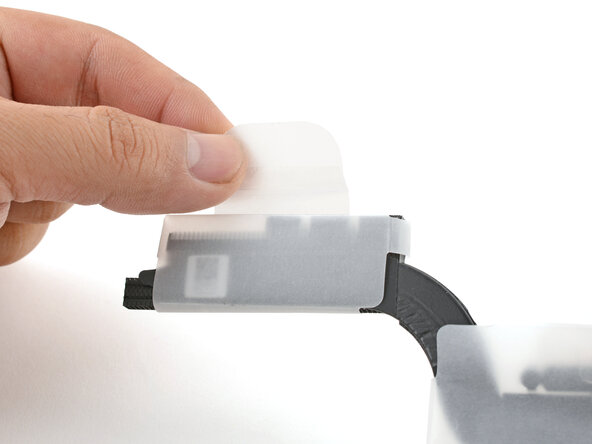
  12. Framework Laptop 12 Heatsink Replacement, Unwrap the heatsink: 12 단계, 이미지 2개 중 1개 Framework Laptop 12 Heatsink Replacement, Unwrap the heatsink: 12 단계, 이미지 2개 중 2개
    • Unwrap the replacement heatsink and remove the clear plastic cover.

    • Be careful not to touch the gray thermal compound on the heatsink.

  13. Framework Laptop 12 Heatsink Replacement, Install the heatsink: 13 단계, 이미지 2개 중 1개 Framework Laptop 12 Heatsink Replacement, Install the heatsink: 13 단계, 이미지 2개 중 2개
    • Carefully align and lay the heatsink over the processor.

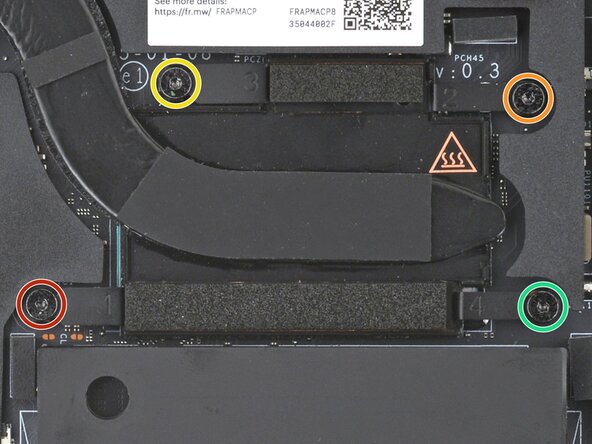
    • Use your Framework Screwdriver to gradually tighten the heatsink screws in the marked order until they're snug:

    • First screw

    • Second screw

    • Third screw

    • Fourth screw, then back to the first

    • This helps compress the thermal compound evenly under the heatsink and apply even pressure over the processor.

  14. Framework Laptop 12 Heatsink Replacement, Install the Input Cover: 14 단계, 이미지 3개 중 1개 Framework Laptop 12 Heatsink Replacement, Install the Input Cover: 14 단계, 이미지 3개 중 2개 Framework Laptop 12 Heatsink Replacement, Install the Input Cover: 14 단계, 이미지 3개 중 3개
    • Angle the bottom edge of the Input Cover towards the base of the laptop.

    • Align and insert the bottom edge of the Input Cover into the base of the laptop.

    • Make sure the slots along the bottom edge of the Input Cover slide into the tabs in the base.

    • Lower the Input Cover's top edge onto the laptop until the magnets snap it in place.

    • Make sure the Input Cover sits neatly within the laptop frame and no corners are popping up.

  15. Framework Laptop 12 Heatsink Replacement, Close and flip your laptop: 15 단계, 이미지 2개 중 1개 Framework Laptop 12 Heatsink Replacement, Close and flip your laptop: 15 단계, 이미지 2개 중 2개
    • Close the laptop lid.

    • Flip your laptop face-down on a clean work surface.

  16. Framework Laptop 12 Heatsink Replacement, Tighten the bottom screws: 16 단계, 이미지 2개 중 1개 Framework Laptop 12 Heatsink Replacement, Tighten the bottom screws: 16 단계, 이미지 2개 중 2개
    • Use your Framework Screwdriver to tighten the eight captive T5 Torx screws on the bottom of your laptop.

    • Tighten the screws until they're snug. Don't over-tighten them, or you may strip the screws.

결론

You finished fixing your Framework Laptop!

Take your e-waste to an R2 or e-Stewards certified recycler.

If you need help, contact Framework support.

작성자

1다른 기여자 명과 함께

Arthur Shi

회원 가입일: 01/03/18

310,033 평판

안내서 701개를 작성함

Guide Team Guide Team 회원

Staff

10 회원들

안내서 15,786개를 작성함

0가이드 댓글

댓글 쓰기

조회 통계:

지난 24시간: 0

지난 7일: 3

지난 30일: 27

전체 시간: 148