주요 콘텐츠로 건너뛰기

HP Chromebook 11-v019wm Speaker Replacement

필요한 것

  1. HP Chromebook 11-v019wm Speaker Replacement, Keyboard: 1 단계, 이미지 1개 중 1개
    • Disconnect the power adapter from the charging port and remove all external media devices from the Chromebook.

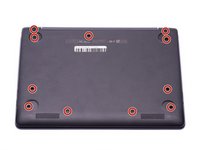
    • Turn the Chromebook over so the bottom of the computer is facing upwards with the hinge facing away.

  2. HP Chromebook 11-v019wm Speaker Replacement: 2 단계, 이미지 2개 중 1개 HP Chromebook 11-v019wm Speaker Replacement: 2 단계, 이미지 2개 중 2개
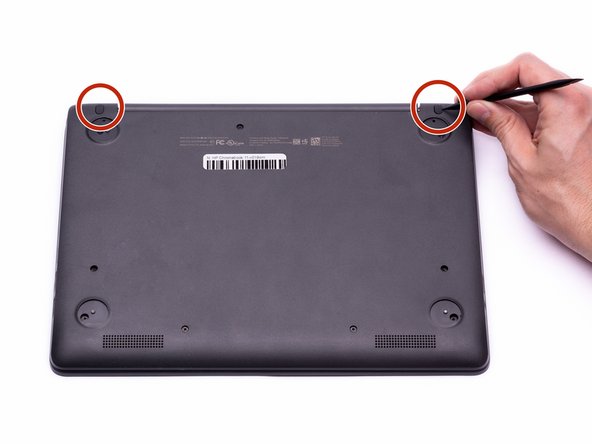
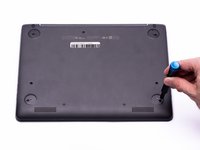
    • Remove the (4) rubber feet with the plastic spudger to reveal the screws underneath.

    • The rubber feet are secured with adhesive and may take time to remove.

  3. HP Chromebook 11-v019wm Speaker Replacement: 3 단계, 이미지 2개 중 1개 HP Chromebook 11-v019wm Speaker Replacement: 3 단계, 이미지 2개 중 2개
    • Remove the (2), oval shaped, rubber screw protectors near the hinge of the Chromebook.

    • The rubber screw protectors are secured with adhesive and may take time to remove.

  4. HP Chromebook 11-v019wm Speaker Replacement: 4 단계, 이미지 2개 중 1개 HP Chromebook 11-v019wm Speaker Replacement: 4 단계, 이미지 2개 중 2개
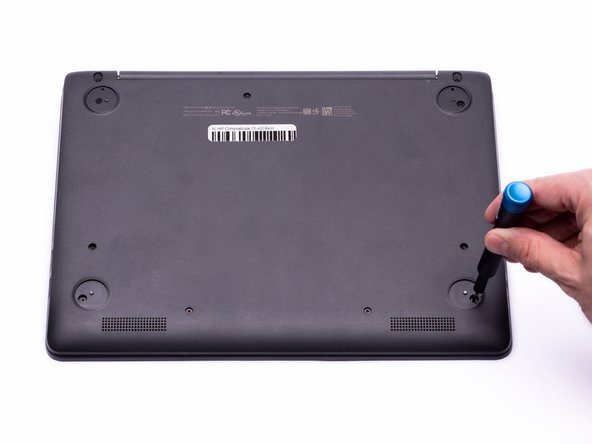
    • Remove the (11) 5.2 mm screws using a Phillips #00 Screwdriver.

  5. HP Chromebook 11-v019wm Speaker Replacement: 5 단계, 이미지 2개 중 1개 HP Chromebook 11-v019wm Speaker Replacement: 5 단계, 이미지 2개 중 2개
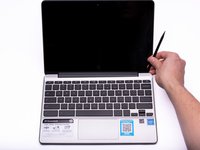
    • Place the Chromebook upright and open the screen all the way.

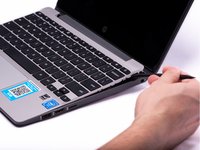
    • Starting towards the hinge, insert the spudger between the silver keyboard decking and the charcoal colored casing.

    • Pry upwards to release the tabs that are securing the keyboard to the casing.

    • Repeat this process around the perimeter of the keyboard to ensure all tabs are released.

    • Once all the tabs are released, gently lift the keyboard to gain access to the (2) Zero Insertion Force (ZIF) ribbon cables.

  6. HP Chromebook 11-v019wm Speaker Replacement: 6 단계, 이미지 3개 중 1개 HP Chromebook 11-v019wm Speaker Replacement: 6 단계, 이미지 3개 중 2개 HP Chromebook 11-v019wm Speaker Replacement: 6 단계, 이미지 3개 중 3개
    이 단계에 사용된 도구:
    Anti-Static Wrist Strap
    $7.95
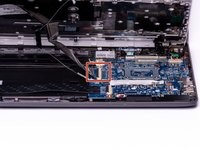
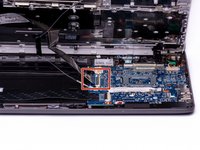
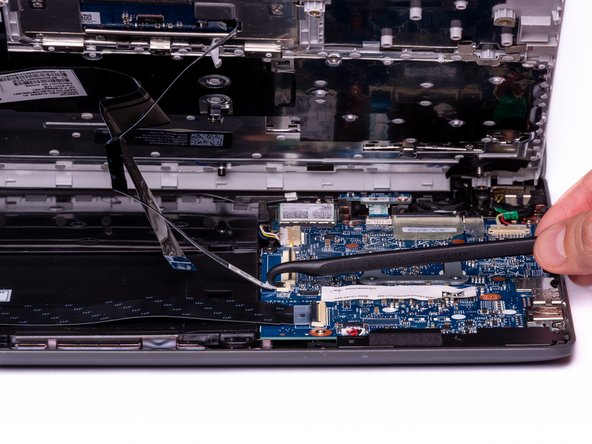
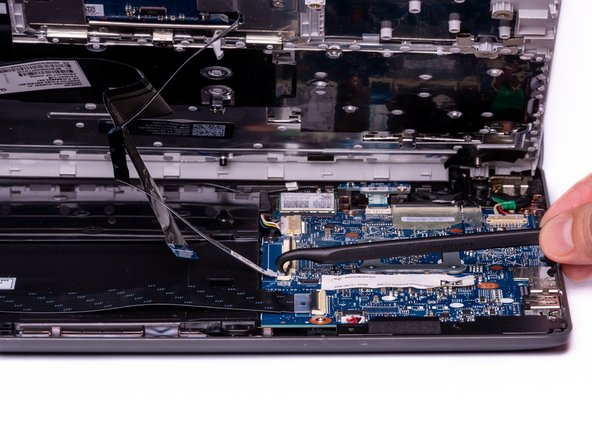
    • Using the hook on the Halberd Spudger, lift up the ZIF connector tab for the keyboard ribbon cable. They keyboard ribbon cable is the larger of the two ribbon cables.

    • The remaining steps should be completed with the anti-static wrist strap to prevent damage to electrostatic discharge (ESD) sensitive components.

  7. HP Chromebook 11-v019wm Speaker Replacement: 7 단계, 이미지 3개 중 1개 HP Chromebook 11-v019wm Speaker Replacement: 7 단계, 이미지 3개 중 2개 HP Chromebook 11-v019wm Speaker Replacement: 7 단계, 이미지 3개 중 3개
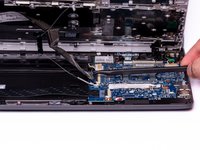
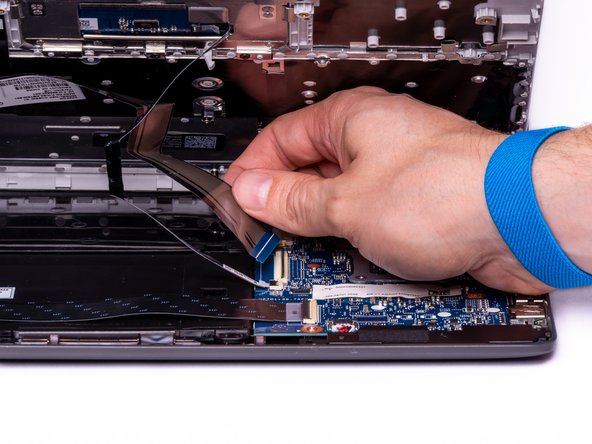
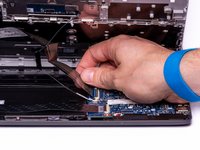
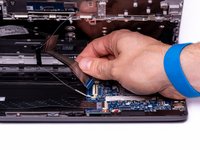
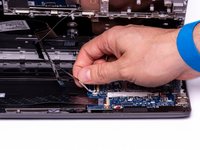
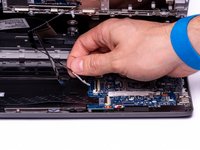
    • With the ZIF connector tab in the upright position, use your fingers to gently pull the keyboard ribbon cable out of the ZIF connector.

  8. HP Chromebook 11-v019wm Speaker Replacement: 8 단계, 이미지 3개 중 1개 HP Chromebook 11-v019wm Speaker Replacement: 8 단계, 이미지 3개 중 2개 HP Chromebook 11-v019wm Speaker Replacement: 8 단계, 이미지 3개 중 3개
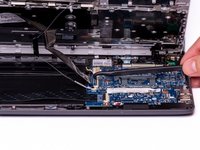
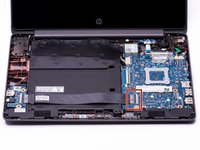
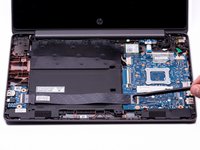
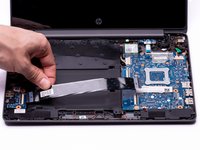
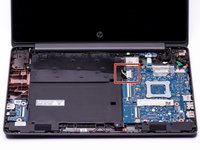
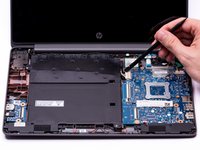
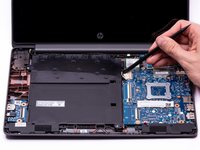
    • With the hook on the Halberd Spudger, lift the ZIF connector that is holding the Touchpad ribbon cable. The Touchpad ribbon cable is the smaller of the two ribbon cables.

  9. HP Chromebook 11-v019wm Speaker Replacement: 9 단계, 이미지 3개 중 1개 HP Chromebook 11-v019wm Speaker Replacement: 9 단계, 이미지 3개 중 2개 HP Chromebook 11-v019wm Speaker Replacement: 9 단계, 이미지 3개 중 3개
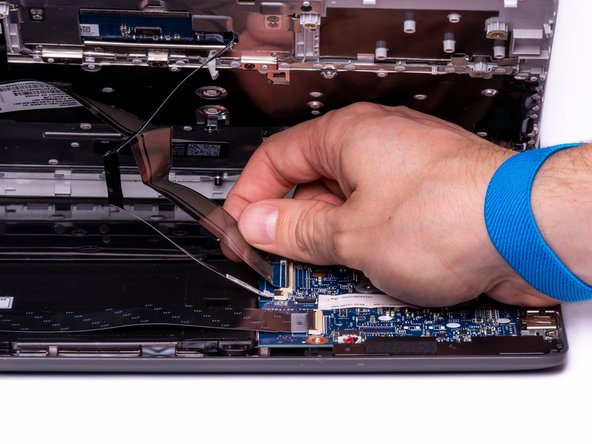
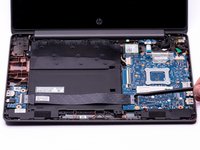
    • With the ZIF connector tab in the upright position, use your fingers to gently pull the Touchpad ribbon cable out of the ZIF connector.

  10. HP Chromebook 11-v019wm Speaker Replacement: 10 단계, 이미지 1개 중 1개
    • With both ribbon cables disconnected, the keyboard can now be safely removed from the Chromebook.

  11. HP Chromebook 11-v019wm Speaker Replacement, Battery: 11 단계, 이미지 3개 중 1개 HP Chromebook 11-v019wm Speaker Replacement, Battery: 11 단계, 이미지 3개 중 2개 HP Chromebook 11-v019wm Speaker Replacement, Battery: 11 단계, 이미지 3개 중 3개
    이 단계에 사용된 도구:
    Halberd Spudger
    $2.99
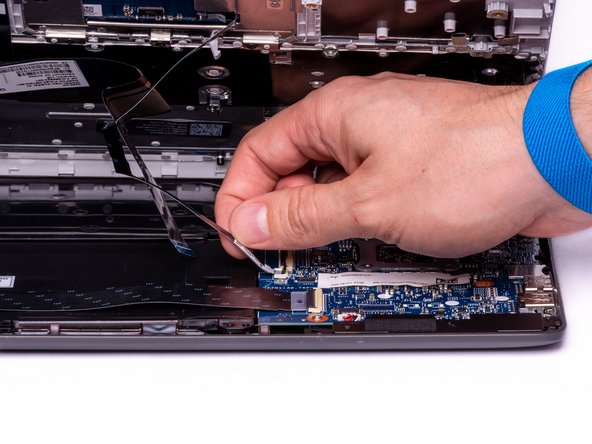
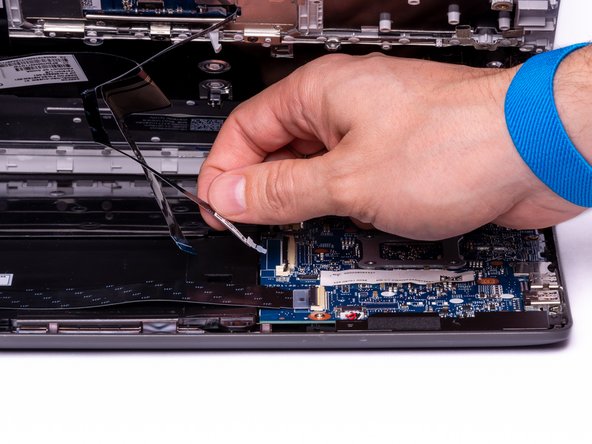
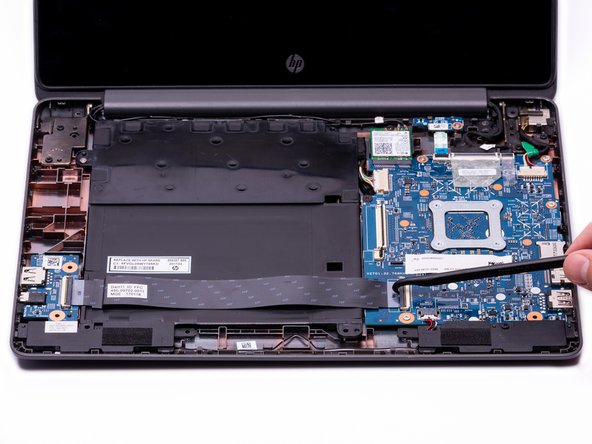
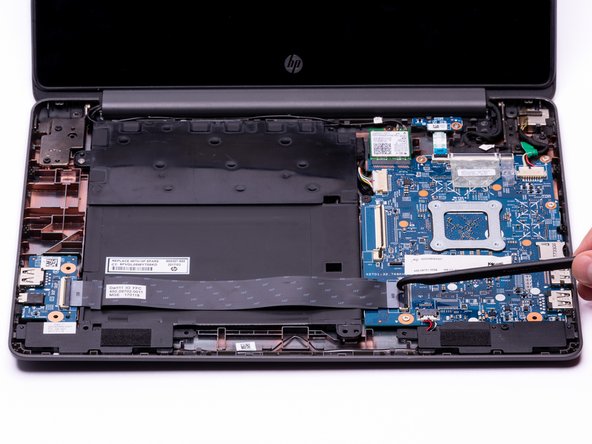
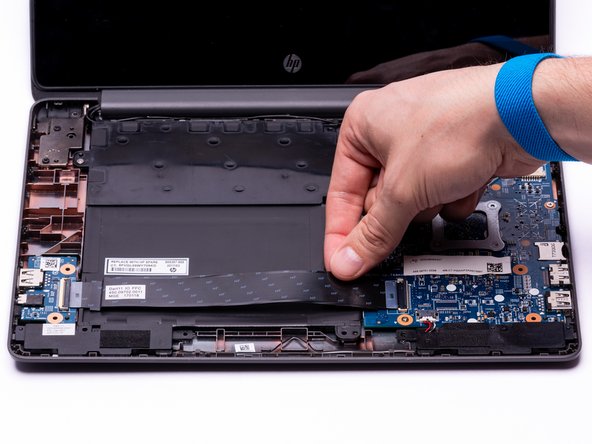
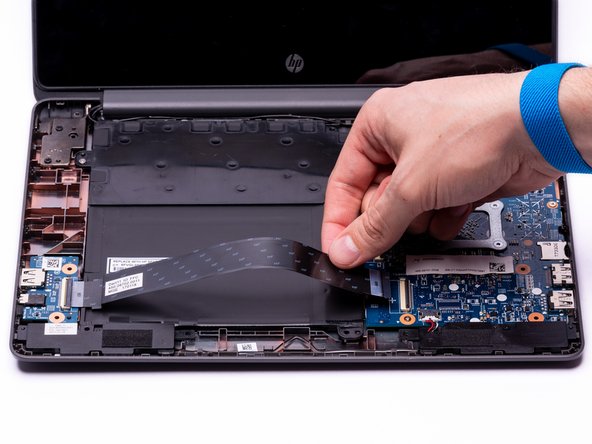
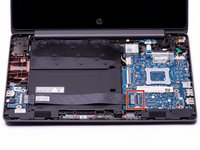
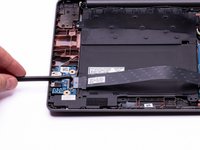
    • Using the hook on the halberd spudger, lift the external media board ZIF connector attached to the motherboard.

    • The external media ribbon cable spans across the battery and is connected to the external media board on the left, and motherboard on the right.

  12. HP Chromebook 11-v019wm Speaker Replacement: 12 단계, 이미지 3개 중 1개 HP Chromebook 11-v019wm Speaker Replacement: 12 단계, 이미지 3개 중 2개 HP Chromebook 11-v019wm Speaker Replacement: 12 단계, 이미지 3개 중 3개
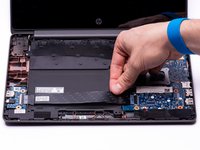
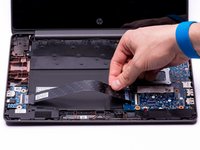
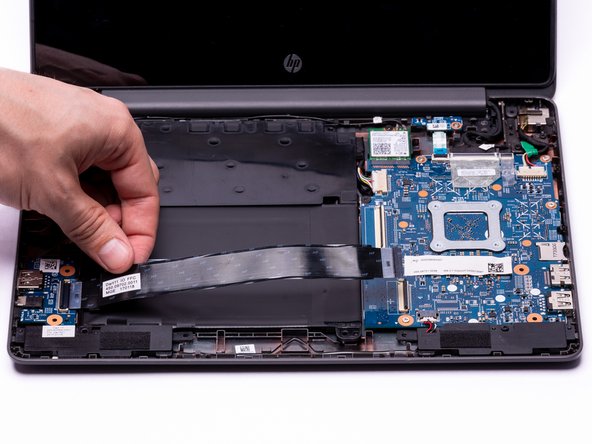
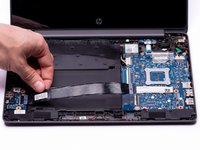
    • With the external media board ZIF connector lifted, using your fingers, gently remove the media cable from the motherboard.

  13. HP Chromebook 11-v019wm Speaker Replacement: 13 단계, 이미지 3개 중 1개 HP Chromebook 11-v019wm Speaker Replacement: 13 단계, 이미지 3개 중 2개 HP Chromebook 11-v019wm Speaker Replacement: 13 단계, 이미지 3개 중 3개
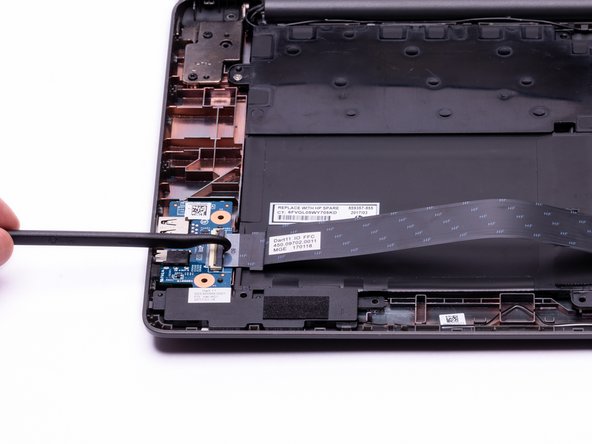
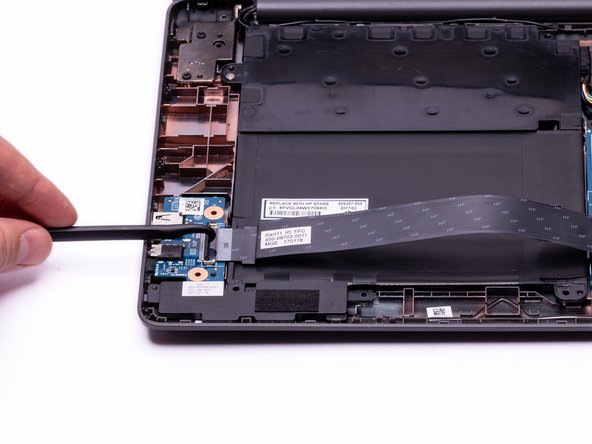
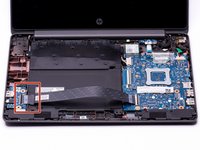
    • Using the hook on the halberd spudger lift the ZIF connector on the External Media Board.

  14. HP Chromebook 11-v019wm Speaker Replacement: 14 단계, 이미지 3개 중 1개 HP Chromebook 11-v019wm Speaker Replacement: 14 단계, 이미지 3개 중 2개 HP Chromebook 11-v019wm Speaker Replacement: 14 단계, 이미지 3개 중 3개
    • With the ZIF connector in the upright position, use your fingers to gently remove the media cable completely from the computer assembly.

  15. HP Chromebook 11-v019wm Speaker Replacement: 15 단계, 이미지 3개 중 1개 HP Chromebook 11-v019wm Speaker Replacement: 15 단계, 이미지 3개 중 2개 HP Chromebook 11-v019wm Speaker Replacement: 15 단계, 이미지 3개 중 3개
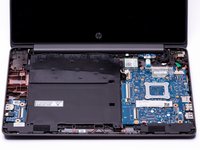
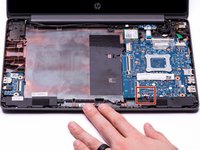
    • Use either end of the spudger to remove the battery bundled cable connector from the motherboard.

  16. HP Chromebook 11-v019wm Speaker Replacement: 16 단계, 이미지 2개 중 1개 HP Chromebook 11-v019wm Speaker Replacement: 16 단계, 이미지 2개 중 2개
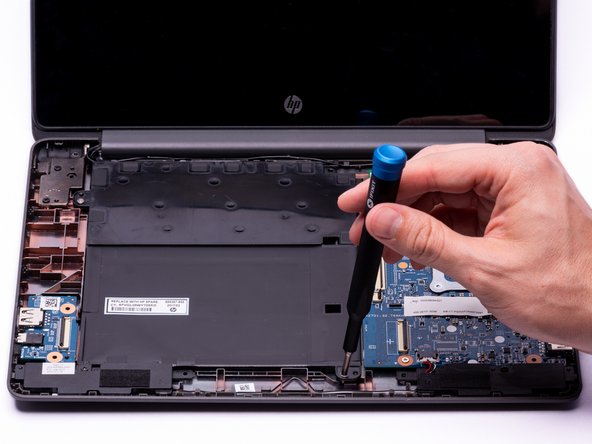
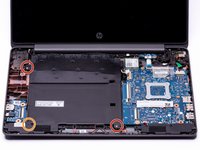
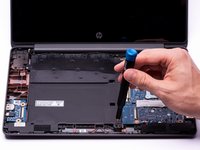
    • Using a Phillips #00 Screwdriver, remove the two silver 3.4 mm screws from the battery.

    • Using a Phillips #00 Screwdriver, remove the black 4.8 mm screw from the battery. This screw also secures the left speaker to the casing.

  17. HP Chromebook 11-v019wm Speaker Replacement: 17 단계, 이미지 2개 중 1개 HP Chromebook 11-v019wm Speaker Replacement: 17 단계, 이미지 2개 중 2개
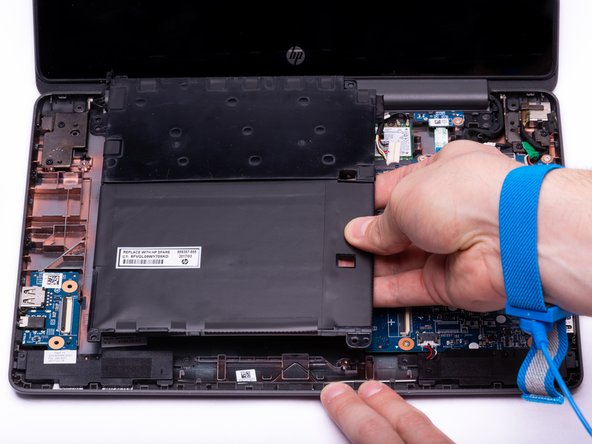
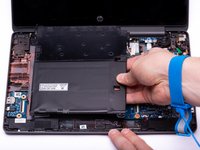
    • Gently lift the battery out of the casing.

    • The WLAN Antenna cables run through a tab in the top left corner of the battery. To avoid damaging the cable, ensure the WLAN Antenna cables are out of the way before removing the battery.

  18. HP Chromebook 11-v019wm Speaker Replacement, Speakers: 18 단계, 이미지 3개 중 1개 HP Chromebook 11-v019wm Speaker Replacement, Speakers: 18 단계, 이미지 3개 중 2개 HP Chromebook 11-v019wm Speaker Replacement, Speakers: 18 단계, 이미지 3개 중 3개
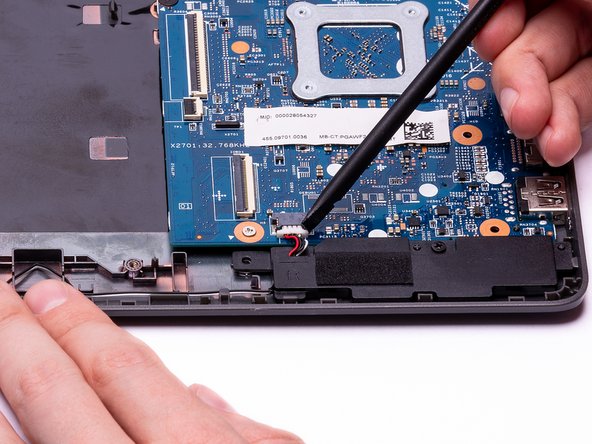
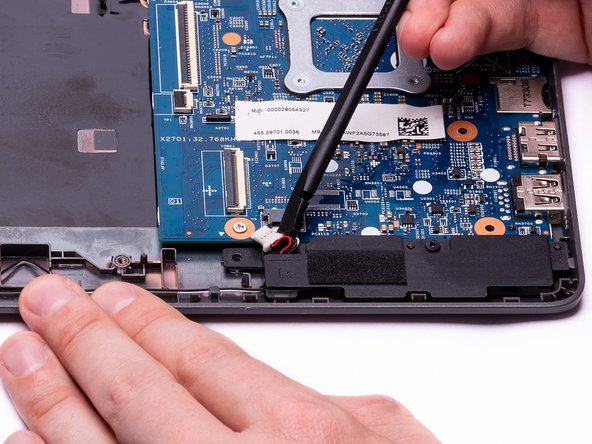
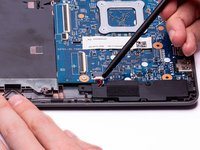
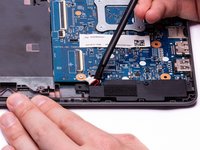
    • Using either side of the spudger, disconnect the speaker cable from the bundle connector located on the bottom of the motherboard.

  19. HP Chromebook 11-v019wm Speaker Replacement: 19 단계, 이미지 2개 중 1개 HP Chromebook 11-v019wm Speaker Replacement: 19 단계, 이미지 2개 중 2개
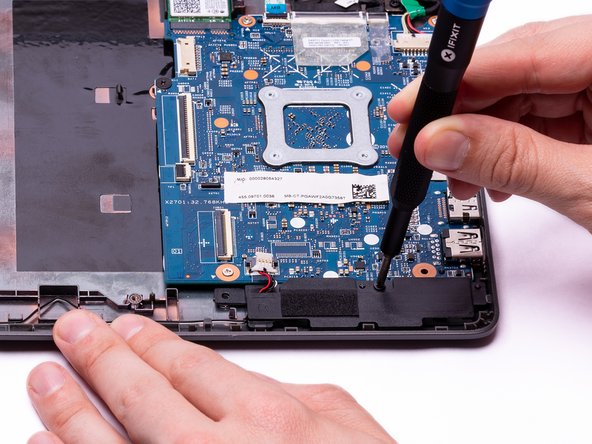
    • Using a Phillips #00 screwdriver, remove the 4.8 mm screw that secures the right speaker to the Chromebook housing.

    • The 4.8mm screw securing the left speaker was removed during the removal of the Chromebook's battery.

  20. HP Chromebook 11-v019wm Speaker Replacement: 20 단계, 이미지 3개 중 1개 HP Chromebook 11-v019wm Speaker Replacement: 20 단계, 이미지 3개 중 2개 HP Chromebook 11-v019wm Speaker Replacement: 20 단계, 이미지 3개 중 3개
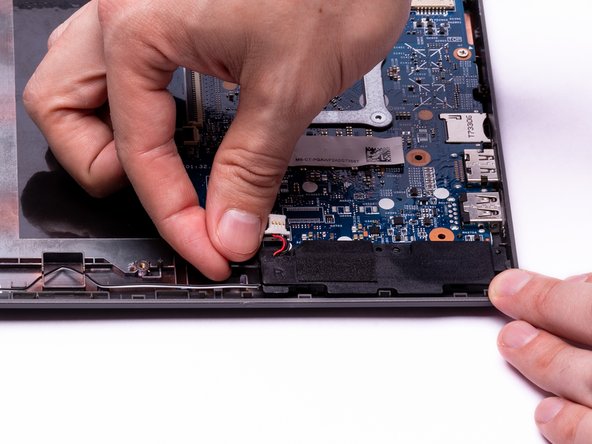
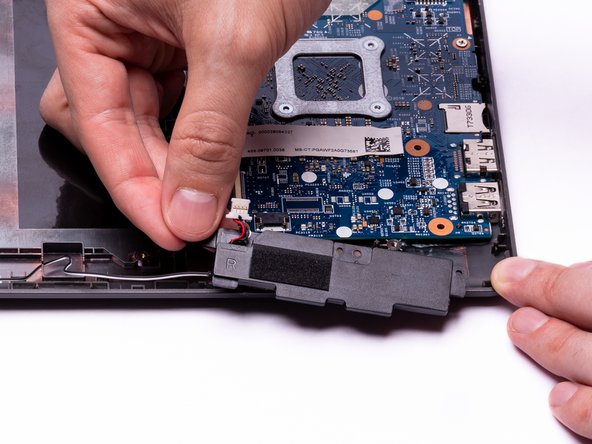
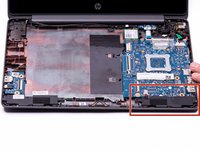
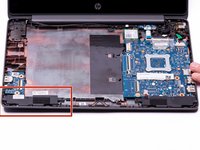
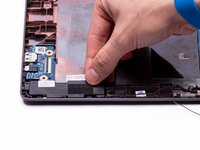
    • Gently remove the right speaker from the computer assembly.

    • The cable connecting the left and right speaker is very thin and runs along a series of small clips. During removal and installation, guide the cable through these clips and avoid pulling too hard on the cable.

  21. HP Chromebook 11-v019wm Speaker Replacement: 21 단계, 이미지 3개 중 1개 HP Chromebook 11-v019wm Speaker Replacement: 21 단계, 이미지 3개 중 2개 HP Chromebook 11-v019wm Speaker Replacement: 21 단계, 이미지 3개 중 3개
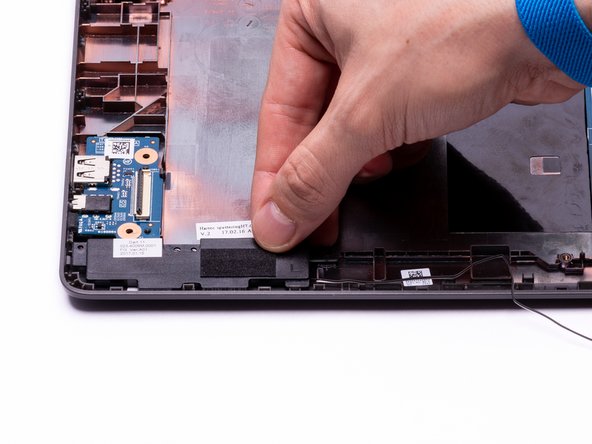
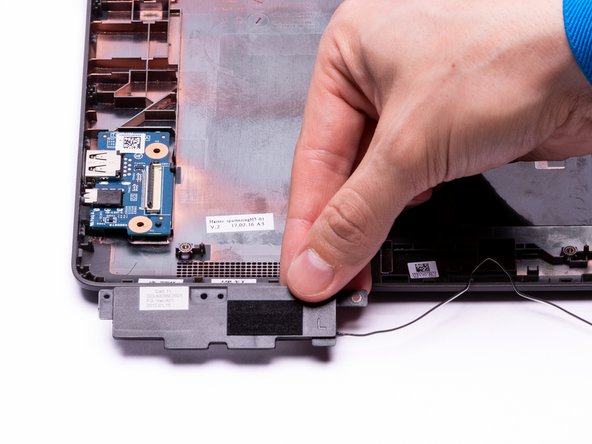
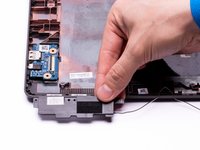
    • Gently remove the left speaker from the computer assembly.

    • The cable connecting the left and right speaker is very thin and runs along a series of small clips. During removal and installation, guide the cable through these clips and avoid pulling too hard on the cable.

  22. HP Chromebook 11-v019wm Speaker Replacement: 22 단계, 이미지 1개 중 1개
    • The left and right speakers have been successfully removed.

결론

To reassemble your device, follow these instructions in reverse order.

작성자

4다른 기여자 명과 함께

Tyler Pindell

회원 가입일: 09/17/19

553 평판

안내서 3개를 작성함

0가이드 댓글

댓글 쓰기

조회 통계:

지난 24시간: 0

지난 7일: 1

지난 30일: 5

전체 시간: 313