주요 콘텐츠로 건너뛰기

Logitech Signature Slim Solar+ Battery Replacement

필요한 것

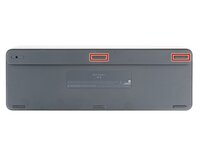
  1. Logitech Signature Slim Solar+ Battery Replacement, Prepare your keyboard for disassembly: 1 단계, 이미지 2개 중 1개 Logitech Signature Slim Solar+ Battery Replacement, Prepare your keyboard for disassembly: 1 단계, 이미지 2개 중 2개
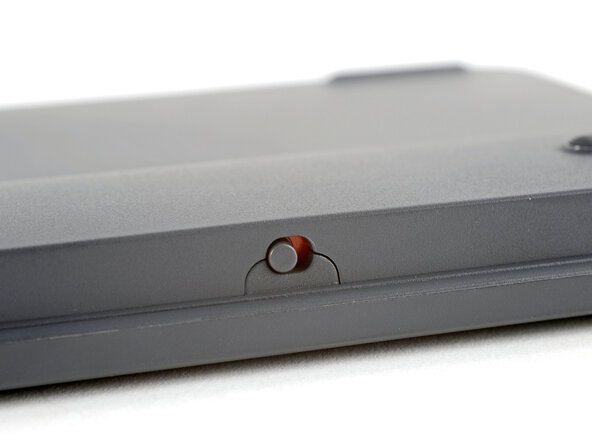
    • Slide the keyboard's power switch into the OFF position.

    • A red indicator should be visible beneath the switch.

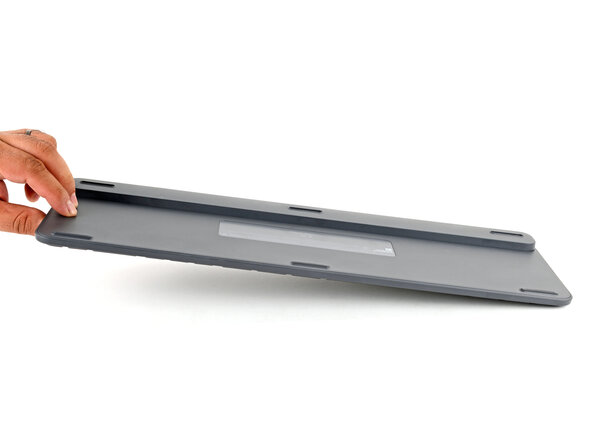
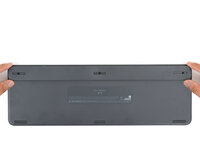
    • Lay your keyboard down with the feet facing up on a clean work surface.

    • If your work surface may scratch the keyboard, place a soft towel under it.

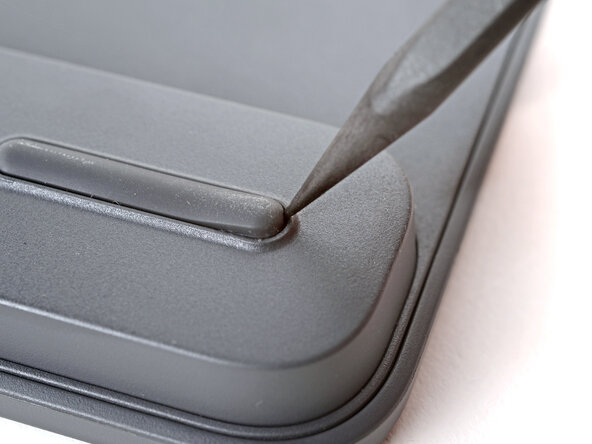
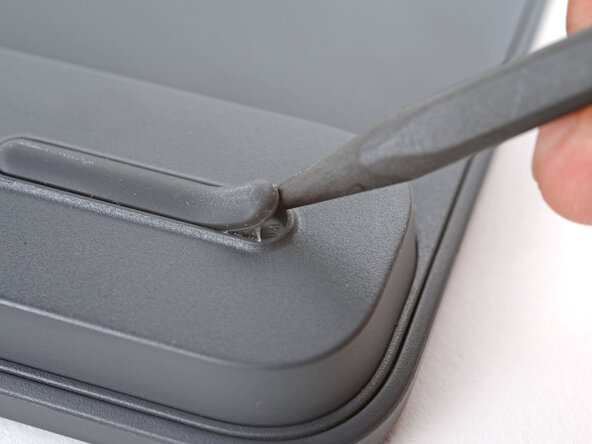
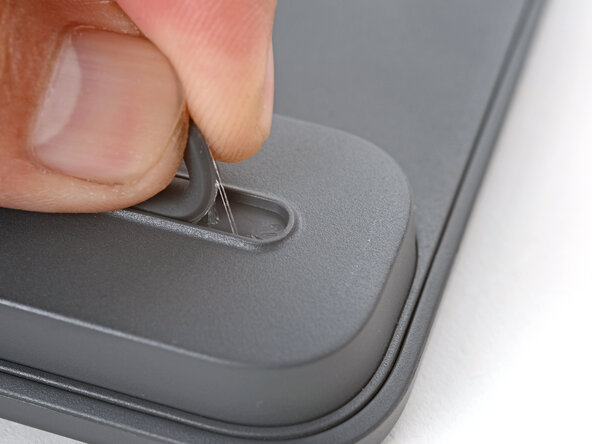
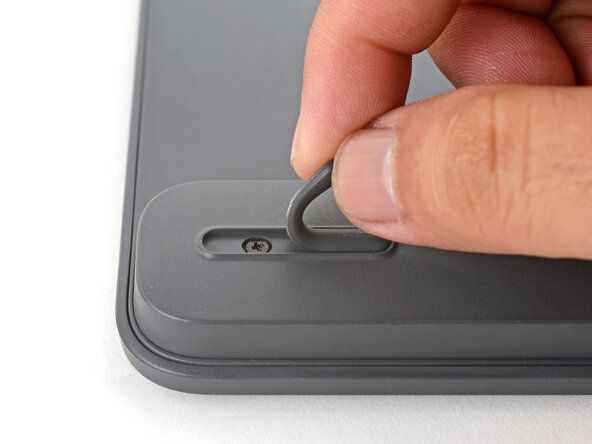
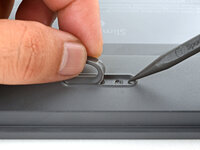
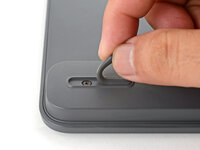
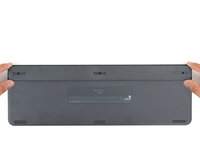
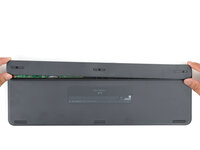
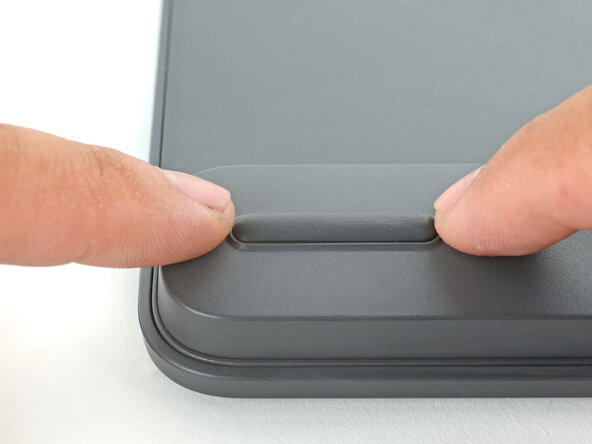
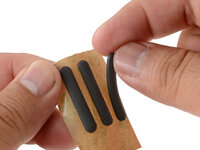
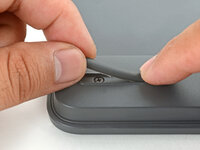
  2. Logitech Signature Slim Solar+ Battery Replacement, Remove the feet: 2 단계, 이미지 3개 중 1개 Logitech Signature Slim Solar+ Battery Replacement, Remove the feet: 2 단계, 이미지 3개 중 2개 Logitech Signature Slim Solar+ Battery Replacement, Remove the feet: 2 단계, 이미지 3개 중 3개
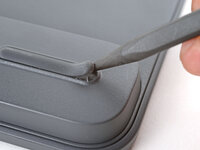
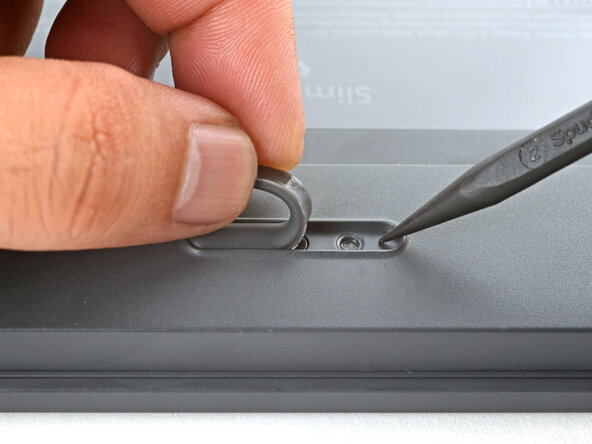
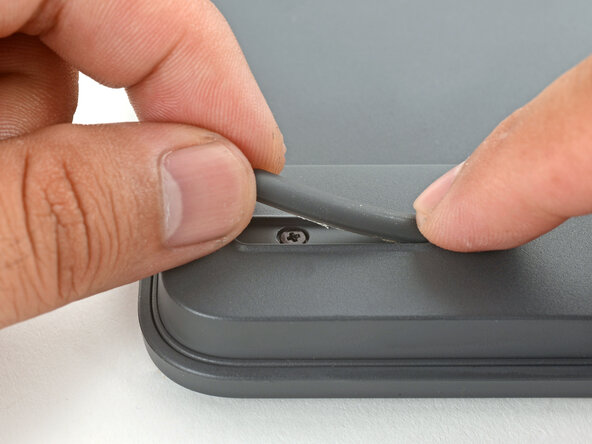
    • Insert the point of a spudger under an end of the foot.

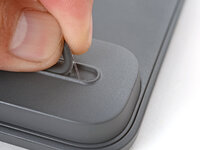
    • Push the spudger underneath the foot and lift until you can grip it with your fingers.

    • Peel the foot up and remove it. Keep it for reassembly.

  3. Logitech Signature Slim Solar+ Battery Replacement, Remove the remaining top feet: 3 단계, 이미지 3개 중 1개 Logitech Signature Slim Solar+ Battery Replacement, Remove the remaining top feet: 3 단계, 이미지 3개 중 2개 Logitech Signature Slim Solar+ Battery Replacement, Remove the remaining top feet: 3 단계, 이미지 3개 중 3개
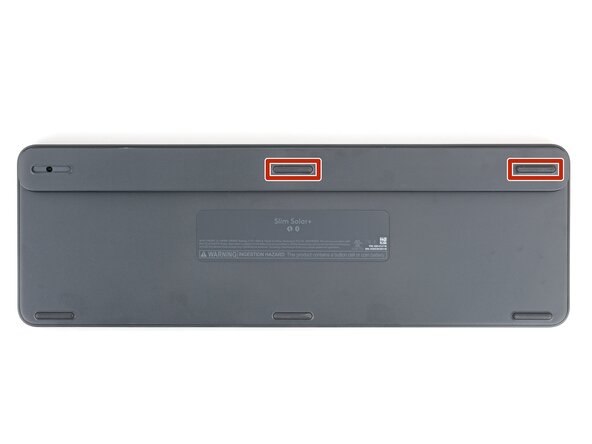
    • Repeat the procedure to remove two remaining feet along the top edge. Keep these for reassembly.

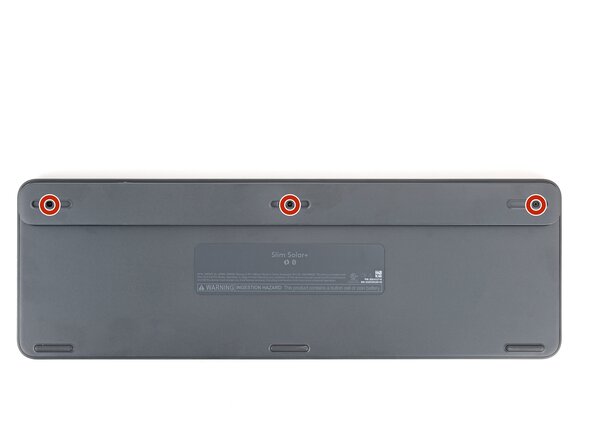
  4. Logitech Signature Slim Solar+ Battery Replacement, Remove the battery cover: 4 단계, 이미지 1개 중 1개
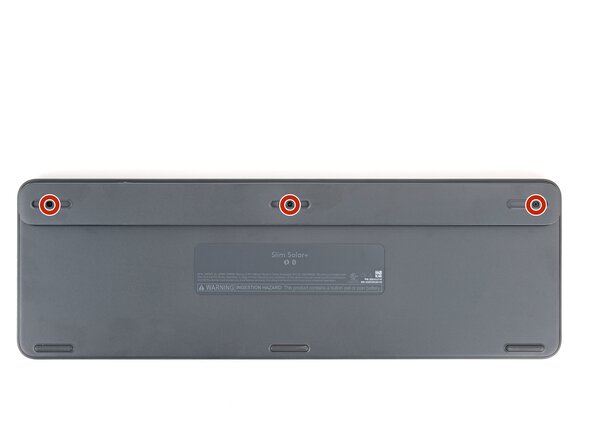
    • Use a Phillips screwdriver to loosen the three captive screws securing the battery cover.

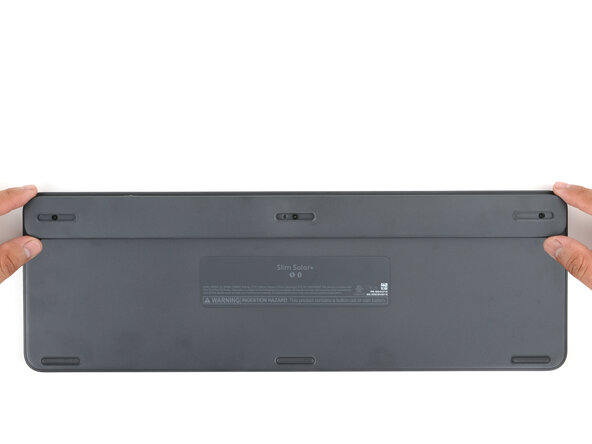
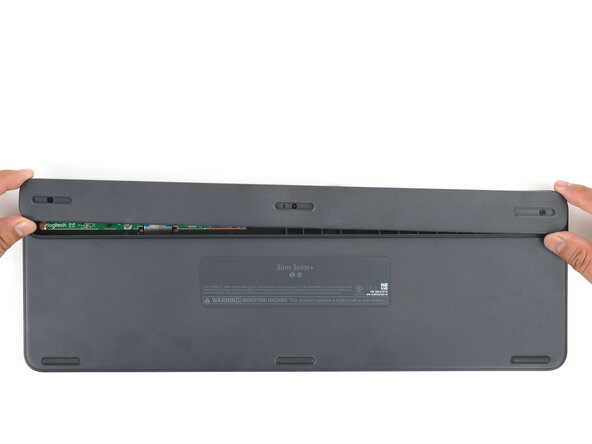
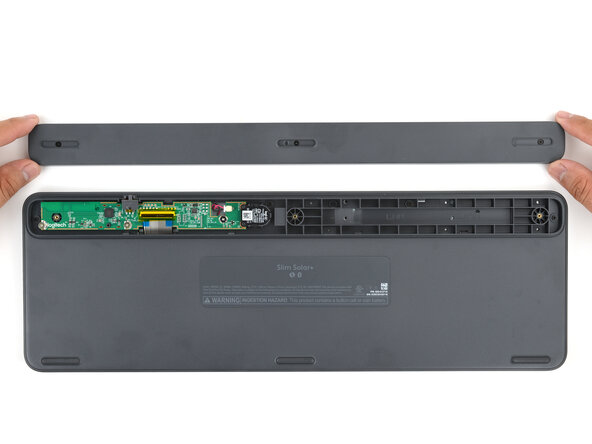
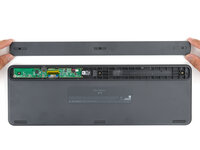
  5. Logitech Signature Slim Solar+ Battery Replacement: 5 단계, 이미지 3개 중 1개 Logitech Signature Slim Solar+ Battery Replacement: 5 단계, 이미지 3개 중 2개 Logitech Signature Slim Solar+ Battery Replacement: 5 단계, 이미지 3개 중 3개
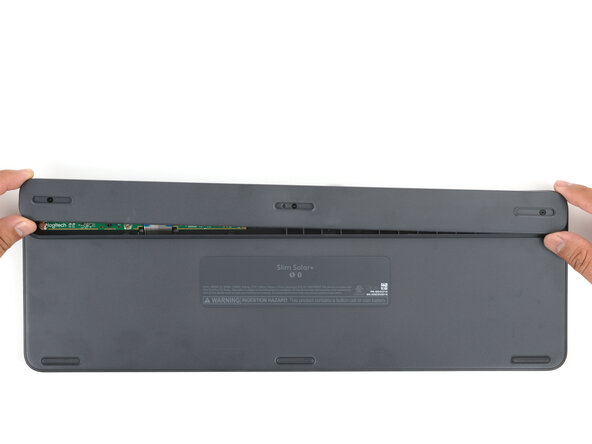
    • Lift and remove the battery cover.

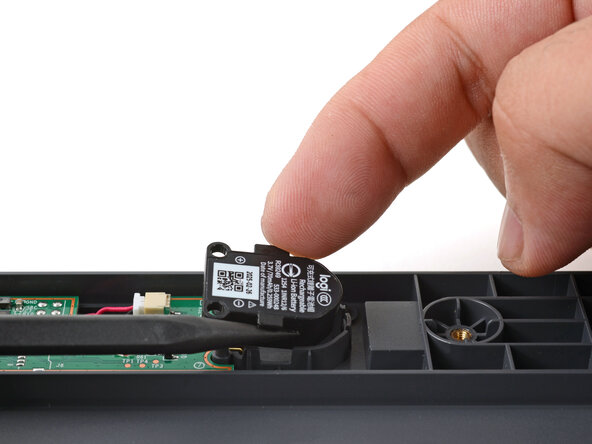
  6. Logitech Signature Slim Solar+ Battery Replacement: 6 단계, 이미지 2개 중 1개 Logitech Signature Slim Solar+ Battery Replacement: 6 단계, 이미지 2개 중 2개
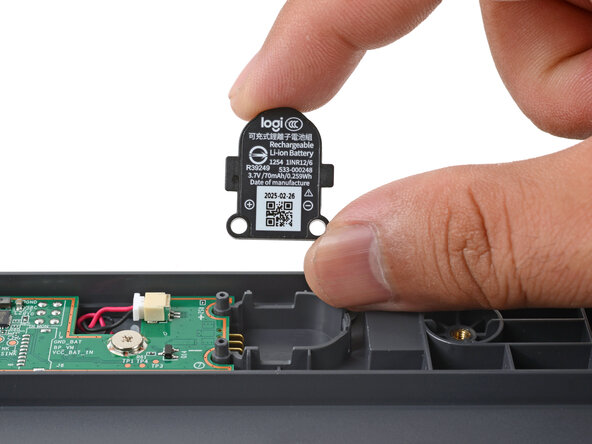
    • Use your fingers or a spudger to lift and remove the battery by its side tabs.

  7. Logitech Signature Slim Solar+ Battery Replacement, Install the replacement battery: 7 단계, 이미지 3개 중 1개 Logitech Signature Slim Solar+ Battery Replacement, Install the replacement battery: 7 단계, 이미지 3개 중 2개 Logitech Signature Slim Solar+ Battery Replacement, Install the replacement battery: 7 단계, 이미지 3개 중 3개
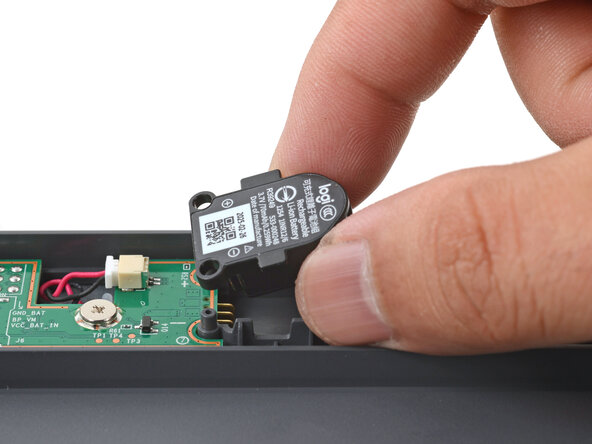
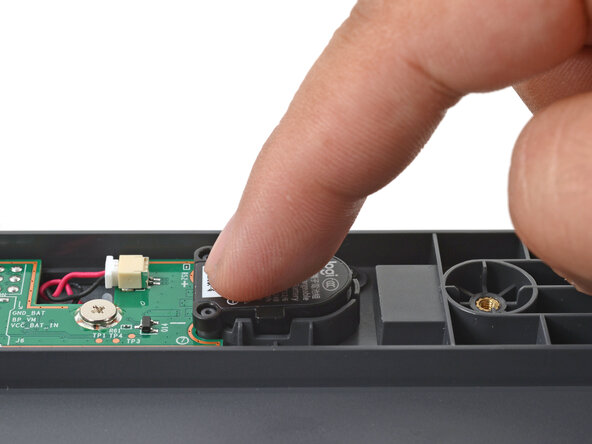
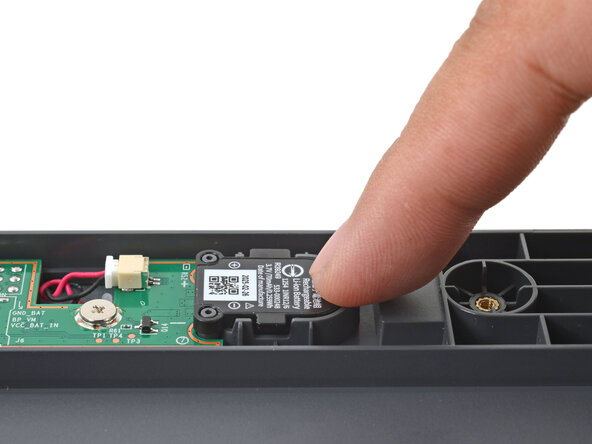
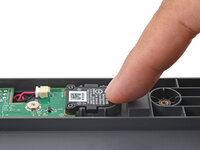
    • Align the battery with its recess and push down firmly with your finger to click it in place.

  8. Logitech Signature Slim Solar+ Battery Replacement, Reassemble the keyboard: 8 단계, 이미지 2개 중 1개 Logitech Signature Slim Solar+ Battery Replacement, Reassemble the keyboard: 8 단계, 이미지 2개 중 2개
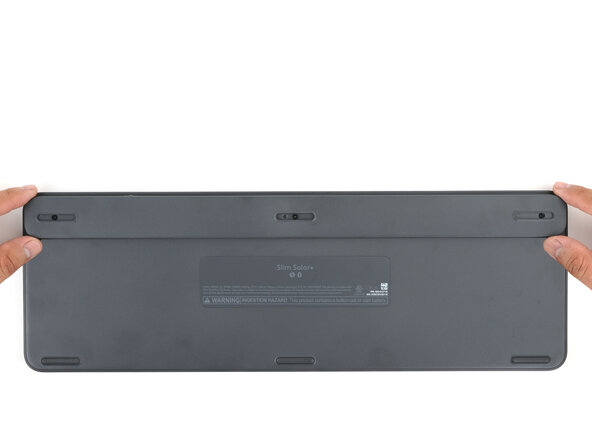
    • Lay the battery cover in place and gently press it onto the keyboard to engage the clips.

  9. Logitech Signature Slim Solar+ Battery Replacement: 9 단계, 이미지 1개 중 1개
    • Use a Phillips screwdriver to tighten the three captive screws securing the battery cover.

  10. Logitech Signature Slim Solar+ Battery Replacement: 10 단계, 이미지 3개 중 1개 Logitech Signature Slim Solar+ Battery Replacement: 10 단계, 이미지 3개 중 2개 Logitech Signature Slim Solar+ Battery Replacement: 10 단계, 이미지 3개 중 3개
    이 단계에 사용된 도구:
    Tesa 61395 Tape
    $2.99
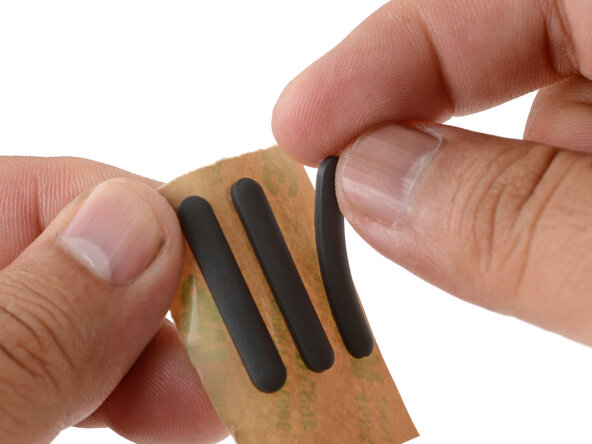
    • If you're installing new feet, remove them from their backing and firmly press them into place.

    • If you're reusing the feet, use a strip of double-sided tape to secure them in their recesses.

결론

Repair didn’t go as planned? Try some basic troubleshooting, or ask our Answers community for help.

Reuse or Recycle—Never put discarded electronic parts in household waste. Visit Logitech Recycling to find your nearest recycling points, including the option to mail back old devices to Logitech for free if there’s no convenient solution in your area. You can also take your e-waste to any R2 or e-Stewards certified recycler. And don’t let good working parts or repaired devices die a slow death in your sock drawer—pass them along to someone who can use them.

Share your experience—Leave a comment here or send your feedback directly to Logitech at repair@logitech.com to help shape future repair guides and product design.

작성자

4다른 기여자 명과 함께

Arthur Shi

회원 가입일: 01/03/18

309,541 평판

안내서 701개를 작성함

0가이드 댓글

댓글 쓰기

조회 통계:

지난 24시간: 3

지난 7일: 18

지난 30일: 80

전체 시간: 243