소개
If the battery of your Alienware 15 R2 dies quickly, or fails to charge, you may consider replacing it. This will show you how to do so. When working with computers, always make sure to unplug your computer and ground yourself before reaching inner components so you don’t accidentally release an electrical charge into the sensitive technology. The discharge could potentially damage your computer’s internals.
필요한 것
-
-
Use the iFixit opening tool to disconnect the battery cable. Put the iFixit tool underneath the cable and then pull it to remove.
-
-
-
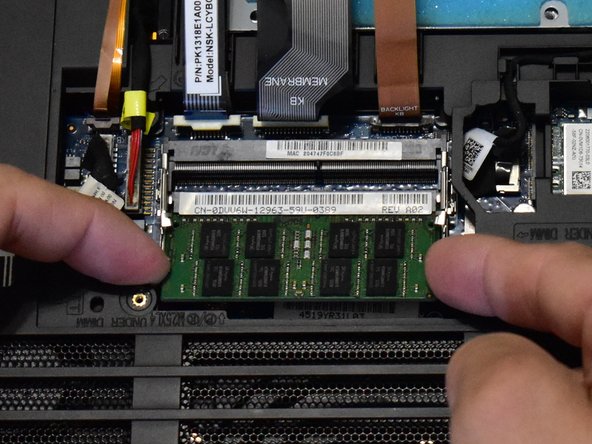
Find the RAM located near the edge of the computer closest to you. Locate the small latches on either side of the RAM stick and push in the two latches to release. Gently grasp the RAM stick on either side and pull straight out. Repeat for the second RAM stick.
-
-
-
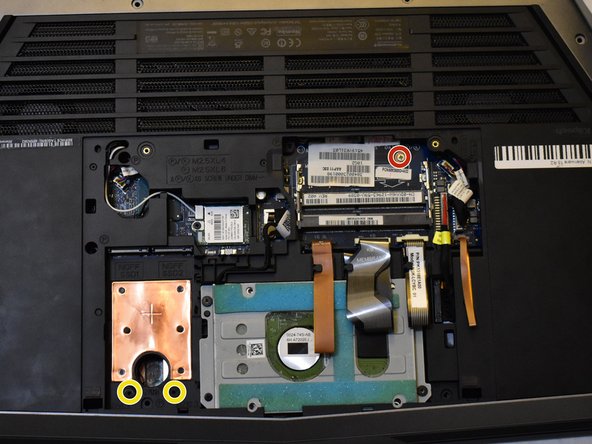
Using a Phillips #0 remove the small 1X 3mm screw behind where the RAM used to be.
-
If you installed additional SSD's, you will need to remove those as well.
-
-
-
-
Remove all screws from the back casing. (4X 18mm, 4X 10mm, 6X 6mm)
-
Press your finger in the hole next to the hard drive to lift the key board. You may need an iFixit opening tool and work your way around the edges of the keyboard to get it fully lifted.
-
-
-
Remove the ribbon cables on the bottom of the laptop to gain more room in order to lift the keyboard up and out of the way.
-
-
-
Remove the red, white, blue, and black colored speaker wires connected to the motherboard.
-
-
-
Lift the battery from the front edge and remove.
-
There are two tabs at the front of the battery on each side that you need to slightly pry open in order to get the battery out. You can pull the speakers out in order to see the tabs better.
-


 FixBot에 문의하기






To reassemble your device, follow these instructions in reverse order.
다른 5명이 해당 안내서를 완성하였습니다.

팀

Western Carolina University, Team S1-G2, Virtue Fall 2019 Western Carolina University, Team S1-G2, Virtue Fall 2019 회원
WCU-VIRTUE-F19S1G2
4 회원들
안내서 7개를 작성함
3가이드 댓글
Honestly made an account to comment on this repair guide, this is extremely incomplete. I’d go as far as saying you’re likely to damage the product by relying solely on this guide, I would turn to a breakdown on YouTube instead. I’m not sure if this is listed under the correct product.
mdumtshali - 답글 공유
The guide is good for someone who has already done repair work on laptops, but it may be difficult to understand for someone who does not have a lot of experience.
Made a few modifications like removing the keyboard (and the steps required, this made it so much easier), there were a couple of screws not mentioned for removal, as well as paying attention to the tabs in front of the battery in order to remove it smoothly. Overall, I glad it was available, it at least got me off to a great start. Thanks
