소개
This guide will take you through the steps of replacing the screen.
필요한 것
-
-
-
Using the plastic opening tool, carefully pry the top panel from the base.
 FixBot에 문의하기
-
-
-
Lift the side of the keyboard.
-
Disconnect the attached ribbon located underneath the keyboard.
-
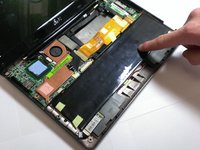
Place your index finger in the hole on the right side of the keyboard tray and lift the tray.
-
-
-
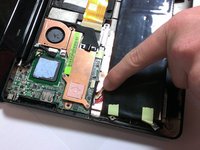
Use your fingers to lift the battery and gently disconnect the wires from the base.
-
-
-
-
-
-
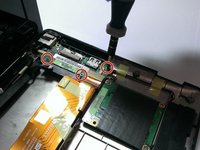
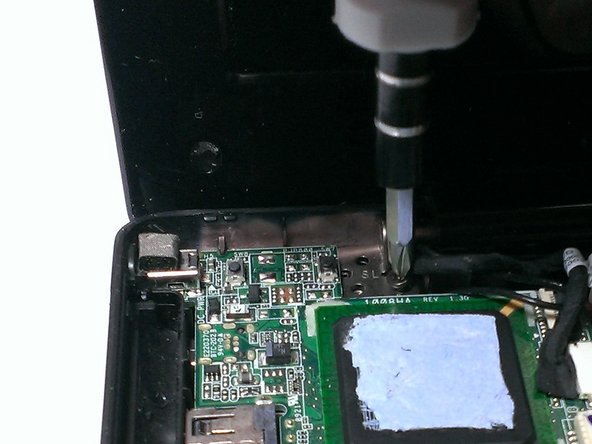
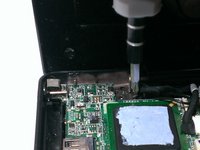
Using the Phillips #00 screwdriver, unscrew the 4mm screws from the rightmost circuit board.
-
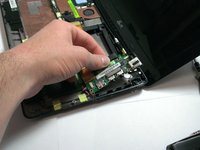
Carefully pull the circuit board away from side of device base.
-
-
-
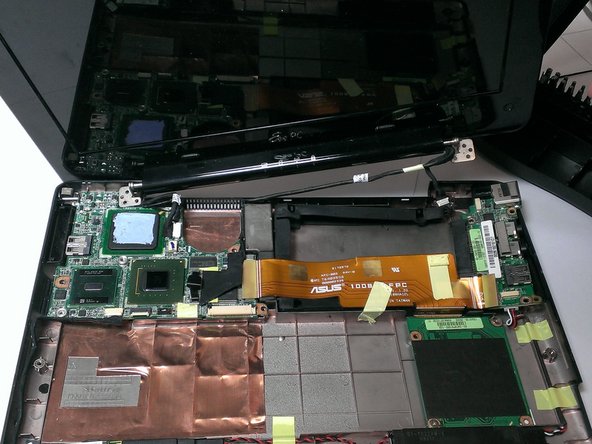
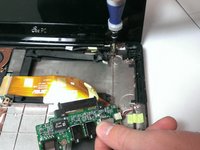
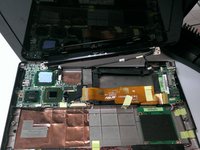
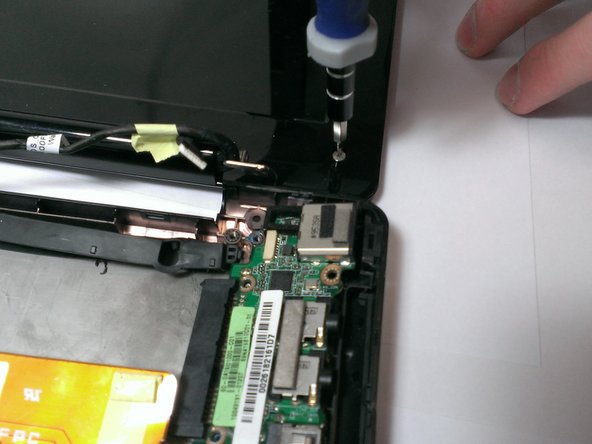
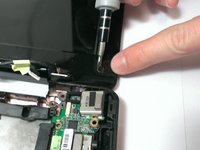
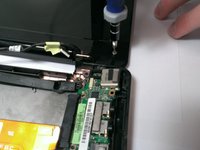
Using the Phillips #00 screwdriver, unscrew the 4mm screws attaching screen to base from both sides.
-
Gently lift the screen portion from the base.
-
-
-
Using the Plastic Opening Tool, pry the six small chits from the face of the screen portion.
-
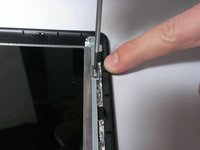
Using the Phillips #00 screwdriver, unscrew the two 2mm and four 4mm screws from underneath the chits.
-
-
-
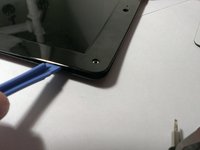
Slide the Plastic Opening Tool under the edge of the screen bezel to release the front panel of the screen.
-
-
-
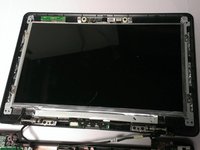
Using the Phillips #00 screwdriver, unscrew the 2mm screws from the perimeter of the screen.
-
Use your fingers to hold the screen and carefully lift it from the base.
-
-
-
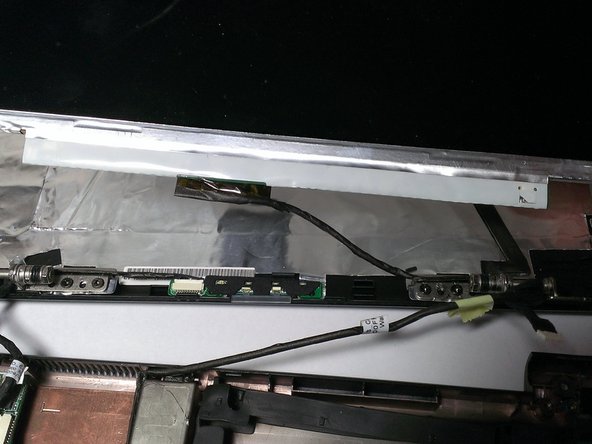
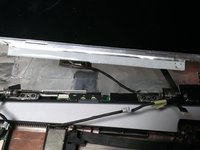
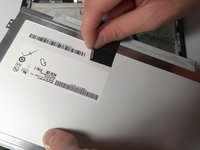
Use your fingers to peel back the adhesive tape located on the back of the screen.
-
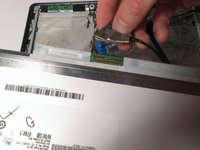
Disconnect the wire from the screen.
-
-











To reassemble your device, follow these instructions in reverse order.
다른 한 분이 해당 안내서를 완성하였습니다.

팀

Cal Poly, Team 21-52, Johann Spring 2013 Cal Poly, Team 21-52, Johann Spring 2013 회원
CPSU-JOHANN-S13S21G52
4 회원들
안내서 11개를 작성함
