주요 콘텐츠로 건너뛰기
수리 커뮤니티 가입 - 계정 만들기

Asus Q525U Hard Drive Replacement

필요한 것

  1. Asus Q525U Hard Drive Replacement, Back Cover: 1 단계, 이미지 3개 중 1개 Asus Q525U Hard Drive Replacement, Back Cover: 1 단계, 이미지 3개 중 2개 Asus Q525U Hard Drive Replacement, Back Cover: 1 단계, 이미지 3개 중 3개
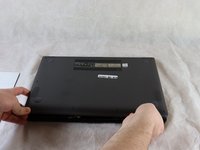
    • Begin by powering off the device and flipping the device over.

    • Carefully remove the two longer 9.5 mm screws on the corners with a Phillips #1 screwdriver.

    • Remove the eight 7.5 mm Phillips #1 screws on the back of the device.

  2. Asus Q525U Hard Drive Replacement: 2 단계, 이미지 3개 중 1개 Asus Q525U Hard Drive Replacement: 2 단계, 이미지 3개 중 2개 Asus Q525U Hard Drive Replacement: 2 단계, 이미지 3개 중 3개
    • Use an opening pick to separate the back cover from the device.

    • For easiest removal, begin by prying at one of the front corners and sliding the tool under the cover in a counter-clockwise motion (to the left) toward the laptop hinge.

  3. Asus Q525U Hard Drive Replacement: 3 단계, 이미지 3개 중 1개 Asus Q525U Hard Drive Replacement: 3 단계, 이미지 3개 중 2개 Asus Q525U Hard Drive Replacement: 3 단계, 이미지 3개 중 3개
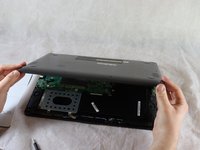
    • Once the cover has been separated from the device, carefully lift the back cover off the device (begin by lifting from the front of the cover first).

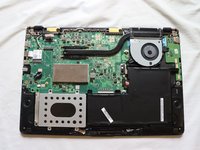
    • The back cover should be easily removable, allowing full access to all of the internal components.

  4. Asus Q525U Hard Drive Replacement, Hard Drive: 4 단계, 이미지 1개 중 1개
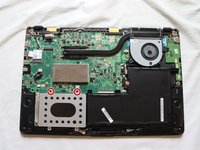
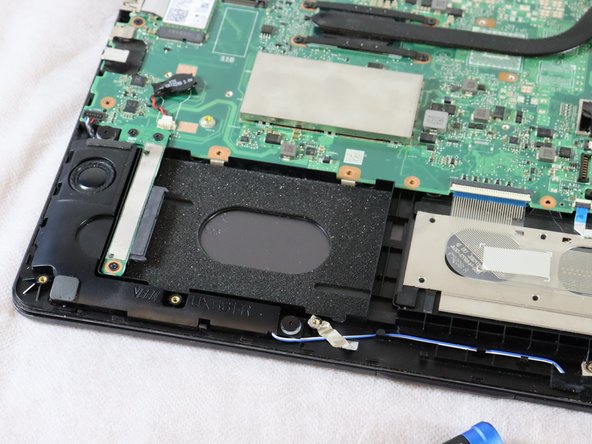
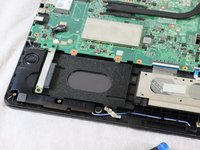
    • The hard drive is located to the left of the battery and below the motherboard.

  5. Asus Q525U Hard Drive Replacement: 5 단계, 이미지 2개 중 1개 Asus Q525U Hard Drive Replacement: 5 단계, 이미지 2개 중 2개
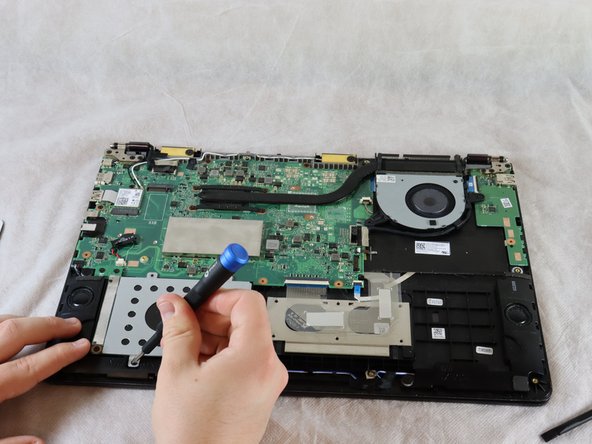
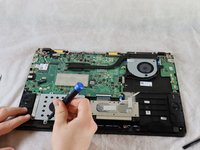
    • Remove the two 4 mm Phillips #1 screws which are holding the hard drive cover in place.

  6. Asus Q525U Hard Drive Replacement: 6 단계, 이미지 2개 중 1개 Asus Q525U Hard Drive Replacement: 6 단계, 이미지 2개 중 2개
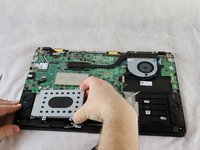
    • The hard drive cover is now easily accessible.

    • Lift the cover off, exposing the hard drive underneath [this laptop is missing its hard drive].

    • If replacing the hard drive, lift it up on the right side slightly and pull it from the connecter on the left.

결론

To reassemble your device, follow these instructions in reverse order.

다른 한 분이 해당 안내서를 완성하였습니다.

작성자

4다른 기여자 명과 함께

Stewart Crandall

회원 가입일: 02/22/22

592 평판

안내서 5개를 작성함

Clemson, Team 2-5, Hunter Spring 2022 Clemson, Team 2-5, Hunter Spring 2022 회원

CLEM-HUNTER-S22S2G5

4 회원들

안내서 12개를 작성함

0가이드 댓글

댓글 쓰기

조회 통계:

지난 24시간: 0

지난 7일: 18

지난 30일: 62

전체 시간: 3,434