주요 콘텐츠로 건너뛰기
수리 커뮤니티 가입 - 계정 만들기

Asus ROG G751JL-DS71 RAM Replacement

필요한 것

  1. Asus ROG G751JL-DS71 RAM Replacement, CD-ROM Player: 1 단계, 이미지 2개 중 1개 Asus ROG G751JL-DS71 RAM Replacement, CD-ROM Player: 1 단계, 이미지 2개 중 2개
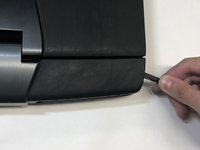
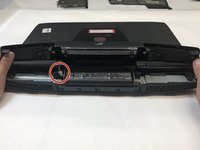
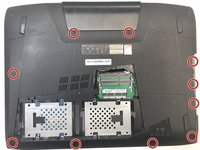
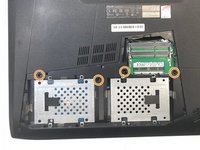
    • Lift the rubber cover found on the bottom of the laptop.

    • Remove the 5.2 mm screw with a Phillips 1 Screwdriver.

  2. Asus ROG G751JL-DS71 RAM Replacement: 2 단계, 이미지 3개 중 1개 Asus ROG G751JL-DS71 RAM Replacement: 2 단계, 이미지 3개 중 2개 Asus ROG G751JL-DS71 RAM Replacement: 2 단계, 이미지 3개 중 3개
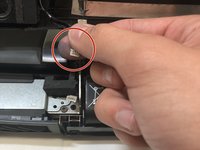
    • Use the nylon spudger to remove the back center panel.

  3. Asus ROG G751JL-DS71 RAM Replacement: 3 단계, 이미지 2개 중 1개 Asus ROG G751JL-DS71 RAM Replacement: 3 단계, 이미지 2개 중 2개
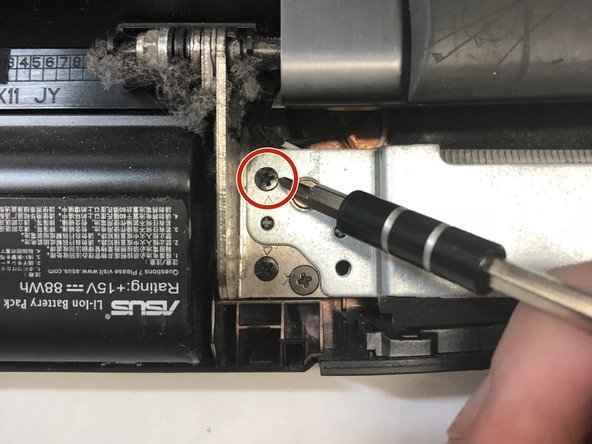
    • Use a Phillips 1 Screwdriver to remove the 5 mm screw that is located underneath the back panel.

  4. Asus ROG G751JL-DS71 RAM Replacement: 4 단계, 이미지 2개 중 1개 Asus ROG G751JL-DS71 RAM Replacement: 4 단계, 이미지 2개 중 2개
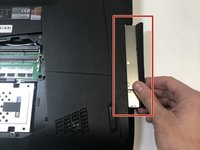
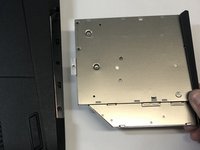
    • Pull out the optical drive found on the side of the laptop.

  5. Asus ROG G751JL-DS71 RAM Replacement, Top Rear Panel: 5 단계, 이미지 2개 중 1개 Asus ROG G751JL-DS71 RAM Replacement, Top Rear Panel: 5 단계, 이미지 2개 중 2개
    이 단계에 사용된 도구:
    Tweezers
    $4.99
    • Use a pair of tweezers to remove the top four rubber stoppers found on the bottom of the laptop.

  6. Asus ROG G751JL-DS71 RAM Replacement: 6 단계, 이미지 2개 중 1개 Asus ROG G751JL-DS71 RAM Replacement: 6 단계, 이미지 2개 중 2개
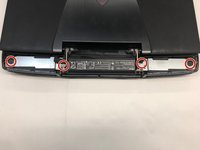
    • Use a Phillips 1 Screwdriver to remove the top four 8.5 mm screws.

  7. Asus ROG G751JL-DS71 RAM Replacement: 7 단계, 이미지 3개 중 1개 Asus ROG G751JL-DS71 RAM Replacement: 7 단계, 이미지 3개 중 2개 Asus ROG G751JL-DS71 RAM Replacement: 7 단계, 이미지 3개 중 3개
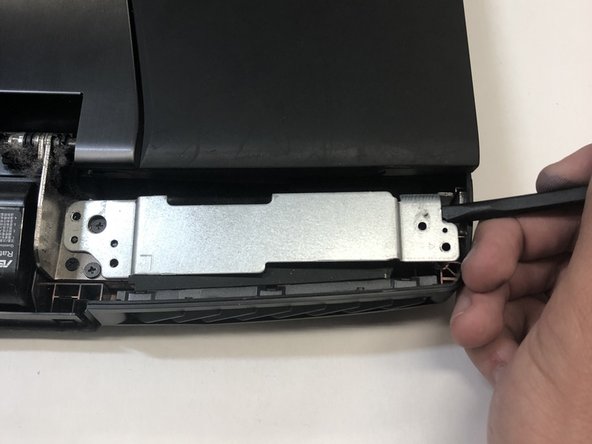
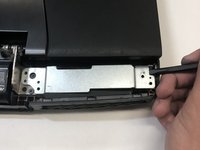
    • Use a nylon spudger to carefully pry the top back panel off.

    • While removing the top back panel, be careful not to break the four pin connector located underneath.

    • Disconnect the four-pin connector and remove the top back panel from the computer.

  8. Asus ROG G751JL-DS71 RAM Replacement, Keyboard: 8 단계, 이미지 3개 중 1개 Asus ROG G751JL-DS71 RAM Replacement, Keyboard: 8 단계, 이미지 3개 중 2개 Asus ROG G751JL-DS71 RAM Replacement, Keyboard: 8 단계, 이미지 3개 중 3개
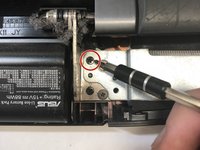
    • Use a Phillips 1 Screwdriver to remove the four 6.8 mm screws underneath the back panel.

    • Lift away the metal housings from each side of the laptop.

  9. Asus ROG G751JL-DS71 RAM Replacement: 9 단계, 이미지 2개 중 1개 Asus ROG G751JL-DS71 RAM Replacement: 9 단계, 이미지 2개 중 2개
    • Use a Phillips 1 Screwdriver to remove the ten 5.2 mm screws holding the main panel in place.

    • Use a Phillips 1 Screwdriver to remove the four 5.2 mm screws underneath the center panel.

  10. Asus ROG G751JL-DS71 RAM Replacement: 10 단계, 이미지 3개 중 1개 Asus ROG G751JL-DS71 RAM Replacement: 10 단계, 이미지 3개 중 2개 Asus ROG G751JL-DS71 RAM Replacement: 10 단계, 이미지 3개 중 3개
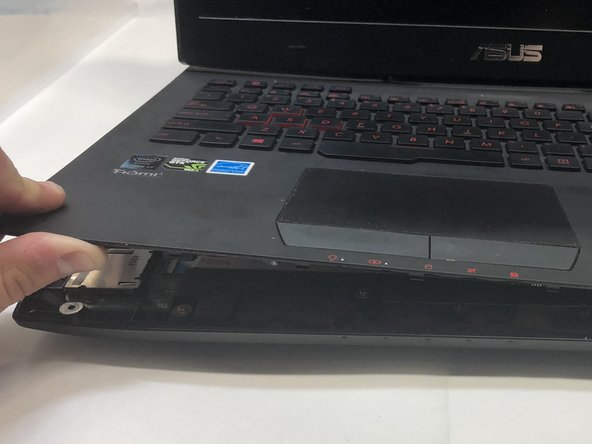
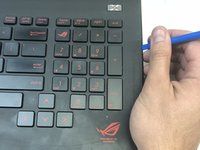
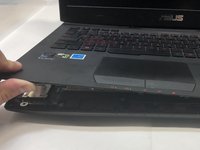
    • Use a plastic opening tool to pry the keyboard from the base of the laptop.

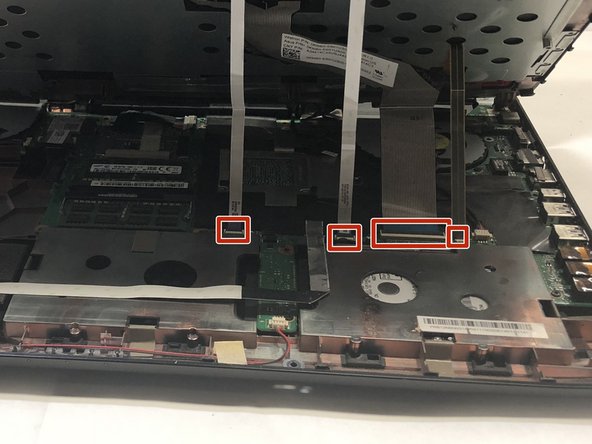
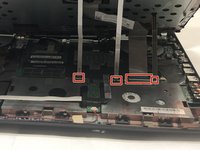
    • Lift the keyboard carefully so as to not tear or break the four ribbon connectors underneath the keyboard.

  11. Asus ROG G751JL-DS71 RAM Replacement: 11 단계, 이미지 2개 중 1개 Asus ROG G751JL-DS71 RAM Replacement: 11 단계, 이미지 2개 중 2개
    이 단계에 사용된 도구:
    Tweezers
    $4.99
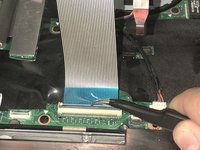
    • Use a pair of tweezers to undo each of the four ribbon connectors.

    • The keyboard is now completely disconnected from the laptop and you can remove it.

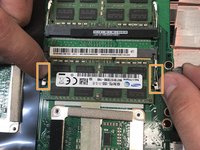
  12. Asus ROG G751JL-DS71 RAM Replacement, RAM: 12 단계, 이미지 2개 중 1개 Asus ROG G751JL-DS71 RAM Replacement, RAM: 12 단계, 이미지 2개 중 2개
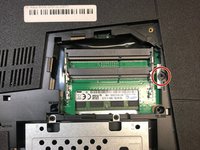
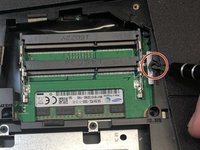
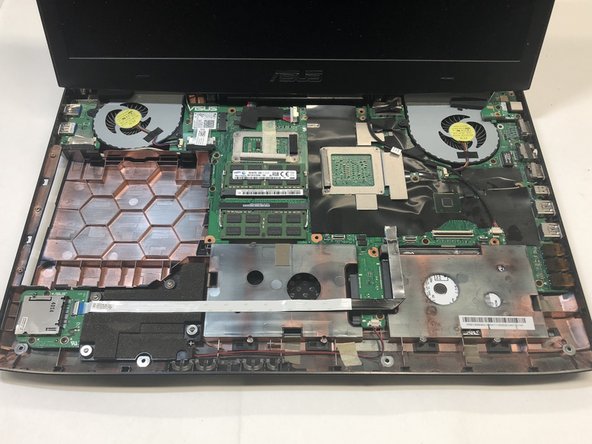
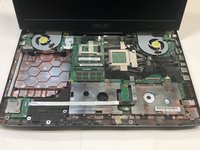
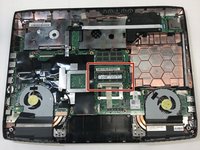
    • First locate the RAM.

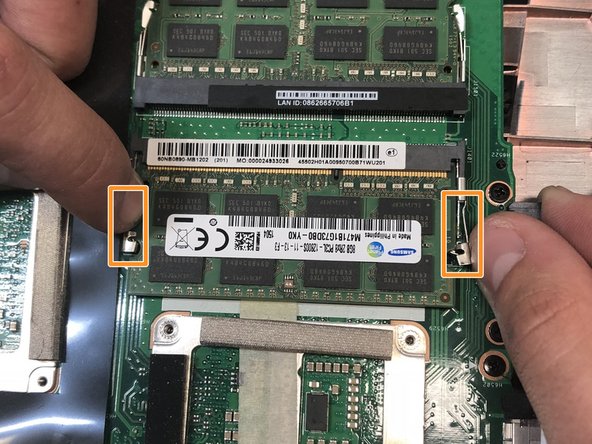
    • Then pull the tabs located on the left and right of the RAM outwards to release the RAM.

    • You can now remove the RAM and replace it.

결론

To reassemble your device, follow these instructions in reverse order.

다른 한 분이 해당 안내서를 완성하였습니다.

작성자

3다른 기여자 명과 함께

Gwennie Kidd

회원 가입일: 01/22/18

147 평판

안내서 1개를 작성함

Cal Poly, Team S16-G1, Banghart Winter 2018 Cal Poly, Team S16-G1, Banghart Winter 2018 회원

CPSU-BANGHART-W18S16G1

4 회원들

안내서 22개를 작성함

0가이드 댓글

댓글 쓰기

조회 통계:

지난 24시간: 1

지난 7일: 7

지난 30일: 49

전체 시간: 1,319