주요 콘텐츠로 건너뛰기
수리 커뮤니티 가입 - 계정 만들기

Canon PowerShot SD700 Motherboard Replacement

필요한 것

  1. Canon PowerShot SD700 Motherboard Replacement, Outside Case: 1 단계, 이미지 1개 중 1개
    • Turn off the camera by pressing the power button above the LCD screen.

  2. Canon PowerShot SD700 Motherboard Replacement: 2 단계, 이미지 1개 중 1개
    • Remove the two small screws on the bottom of the camera using a Phillips #00 screwdriver.

  3. Canon PowerShot SD700 Motherboard Replacement: 3 단계, 이미지 1개 중 1개
    • Use a Phillips #00 screwdriver to remove the two small screws on the right side of the camera.

  4. Canon PowerShot SD700 Motherboard Replacement: 4 단계, 이미지 1개 중 1개
    • Use a Phillips #00 screwdriver to remove the screw on the left of the camera under the A/V out digital label.

  5. Canon PowerShot SD700 Motherboard Replacement: 5 단계, 이미지 1개 중 1개
    • Use a Phillips #00 screwdriver to remove the screw on the bottom of the camera near the battery and memory card slots.

    • This screw will be longer than the rest of the screws.

  6. Canon PowerShot SD700 Motherboard Replacement: 6 단계, 이미지 1개 중 1개
    • Remove the front, back, and side casings from the camera and set to the side.

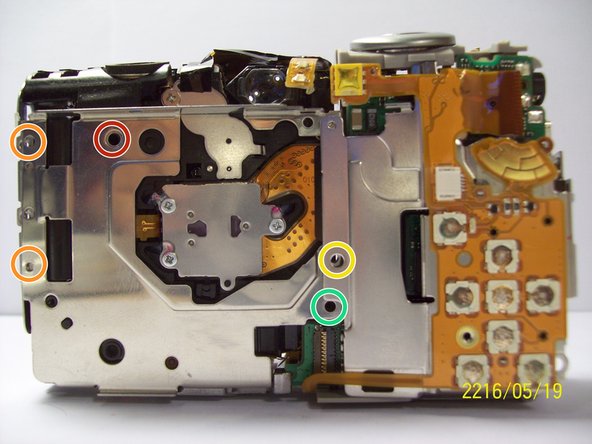
  7. Canon PowerShot SD700 Motherboard Replacement, Motherboard: 7 단계, 이미지 1개 중 1개
    • Detach the LCD and backlight.

    • Remove the larger screw.

    • Remove the two smaller sized screws.

    • Remove the small screw.

    • Remove the small screw.

  8. Canon PowerShot SD700 Motherboard Replacement: 8 단계, 이미지 1개 중 1개
    • Remove the two screws near the the tripod mount using a Phillips #00 screwdriver.

  9. Canon PowerShot SD700 Motherboard Replacement: 9 단계, 이미지 1개 중 1개
    • Remove the screw next to the shutter on the top of the camera with a Phillips screwdriver.

  10. Canon PowerShot SD700 Motherboard Replacement: 10 단계, 이미지 1개 중 1개
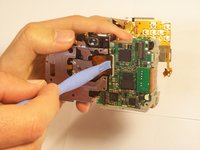
    • Remove the orange ribbon cable by lifting the ZIF connector attached to the ribbon with a spudger.

  11. Canon PowerShot SD700 Motherboard Replacement: 11 단계, 이미지 2개 중 1개 Canon PowerShot SD700 Motherboard Replacement: 11 단계, 이미지 2개 중 2개
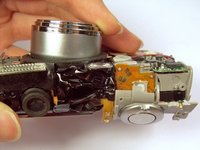
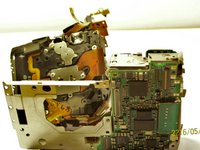
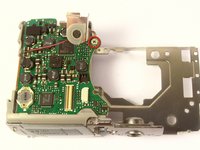
    • Carefully lift the shutter along with the ribbon connected to it. This will remove the casing around the motherboard.

  12. Canon PowerShot SD700 Motherboard Replacement: 12 단계, 이미지 3개 중 1개 Canon PowerShot SD700 Motherboard Replacement: 12 단계, 이미지 3개 중 2개 Canon PowerShot SD700 Motherboard Replacement: 12 단계, 이미지 3개 중 3개
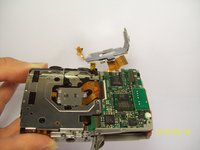
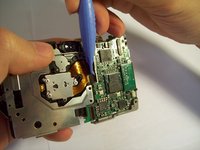
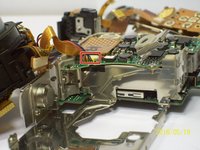
    • With the motherboard casing detached, remove the short orange ribbon by lifting the ZIF connector with a spudger or other plastic opening tools and slide the ribbon out. Detaching this ribbon will disconnect the side of the camera containing the motherboard from the rest of the camera.

  13. Canon PowerShot SD700 Motherboard Replacement: 13 단계, 이미지 2개 중 1개 Canon PowerShot SD700 Motherboard Replacement: 13 단계, 이미지 2개 중 2개
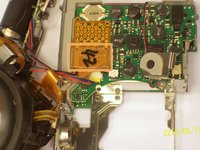
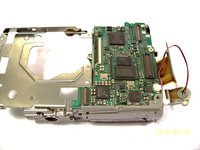
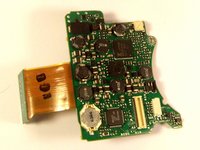
    • Disconnect the wires that are attached to the motherboard.

    • Remove the film by lifting it gently from the motherboard.

  14. Canon PowerShot SD700 Motherboard Replacement: 14 단계, 이미지 1개 중 1개
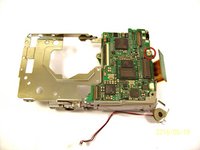
    • Remove the last wires connected to the motherboard by gently lifting upwards.

  15. Canon PowerShot SD700 Motherboard Replacement: 15 단계, 이미지 2개 중 1개 Canon PowerShot SD700 Motherboard Replacement: 15 단계, 이미지 2개 중 2개
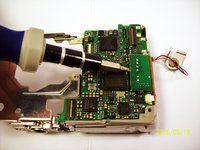
    • Use a spudger to gently lift the circuit board.

  16. Canon PowerShot SD700 Motherboard Replacement: 16 단계, 이미지 2개 중 1개 Canon PowerShot SD700 Motherboard Replacement: 16 단계, 이미지 2개 중 2개
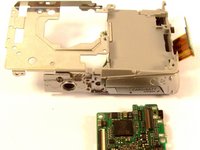
    • Remove the screw using a Phillips #00 screwdriver.

    • Gently lift the motherboard away from the case.

  17. Canon PowerShot SD700 Motherboard Replacement: 17 단계, 이미지 2개 중 1개 Canon PowerShot SD700 Motherboard Replacement: 17 단계, 이미지 2개 중 2개
    • Remove the screw.

    • Once the screw is removed, you can remove the board.

결론

To reassemble your device, follow these instructions in reverse order.

작성자

8다른 기여자 명과 함께

Kenneth Lim

회원 가입일: 04/07/11

61 평판

안내서 2개를 작성함

Cal Poly, Team 9-71, Walters Spring 2011 Cal Poly, Team 9-71, Walters Spring 2011 회원

CPSU-WALTERS-S11S9G71

4 회원들

안내서 9개를 작성함

0가이드 댓글

댓글 쓰기

조회 통계:

지난 24시간: 5

지난 7일: 24

지난 30일: 78

전체 시간: 1,661