주요 콘텐츠로 건너뛰기
수리 커뮤니티 가입 - 계정 만들기

Dell Alienware 13 Touch pad Replacement

필요한 것

  1. Dell Alienware 13 Touch pad Replacement, Base Panel: 1 단계, 이미지 1개 중 1개
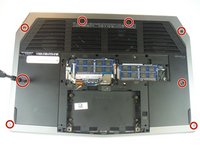
    • Working on an electrical device while plugged in can cause injury due to electrical shock. Ensure that all external power is disconnected from the device.

    • Close the device and turn the device over.

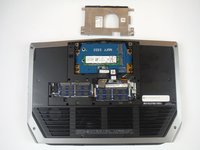
  2. Dell Alienware 13 Touch pad Replacement: 2 단계, 이미지 1개 중 1개
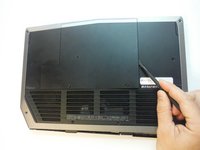
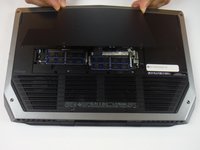
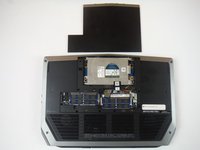
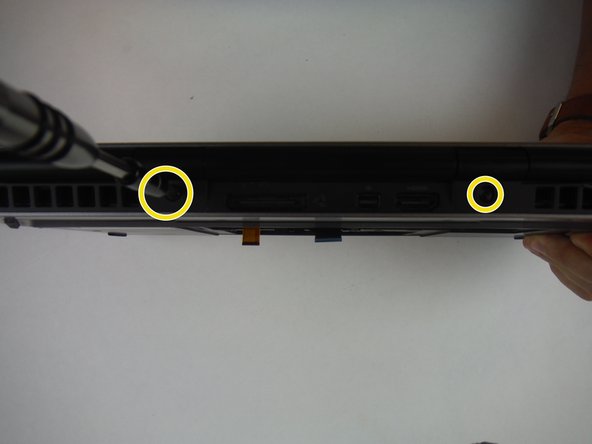
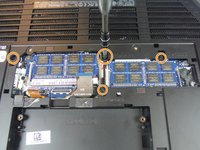
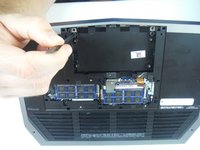
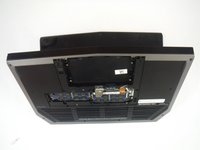
    • Remove (2) 5 mm Phillips head screws attaching the small access panel to the base using a Phillips # 1 screwdriver.

    • The (2) screws are attached to the base panel with retaining clips and won't completely detach from the panel.

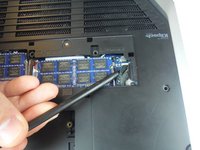
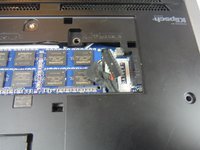
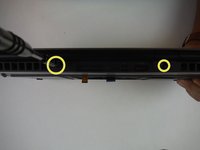
  3. Dell Alienware 13 Touch pad Replacement: 3 단계, 이미지 3개 중 1개 Dell Alienware 13 Touch pad Replacement: 3 단계, 이미지 3개 중 2개 Dell Alienware 13 Touch pad Replacement: 3 단계, 이미지 3개 중 3개
    이 단계에 사용된 도구:
    Heavy-Duty Spudger
    $4.99
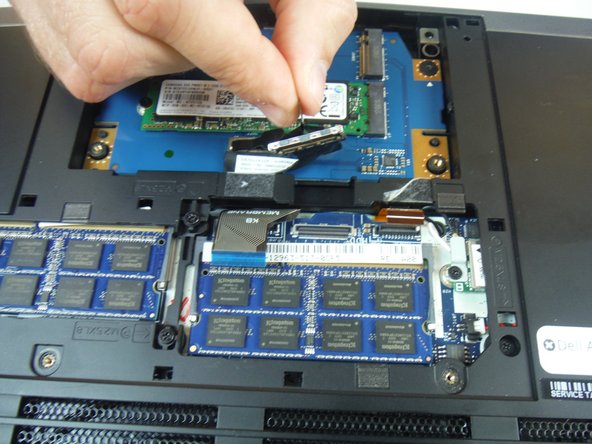
  4. Dell Alienware 13 Touch pad Replacement, Touch pad: 4 단계, 이미지 2개 중 1개 Dell Alienware 13 Touch pad Replacement, Touch pad: 4 단계, 이미지 2개 중 2개
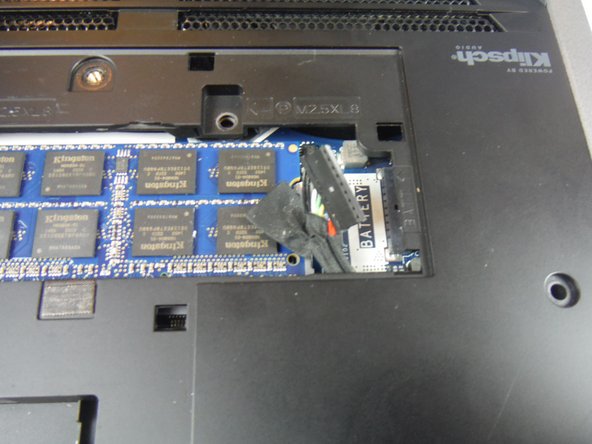
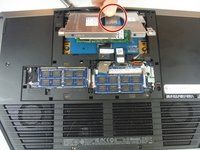
    • Disconnect the battery cable from the battery cable terminal.

  5. Dell Alienware 13 Touch pad Replacement: 5 단계, 이미지 1개 중 1개
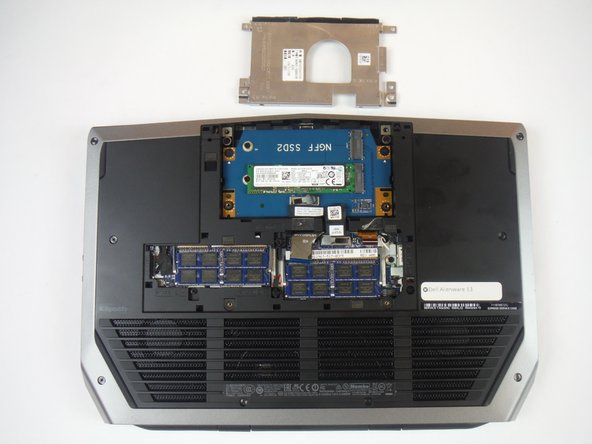
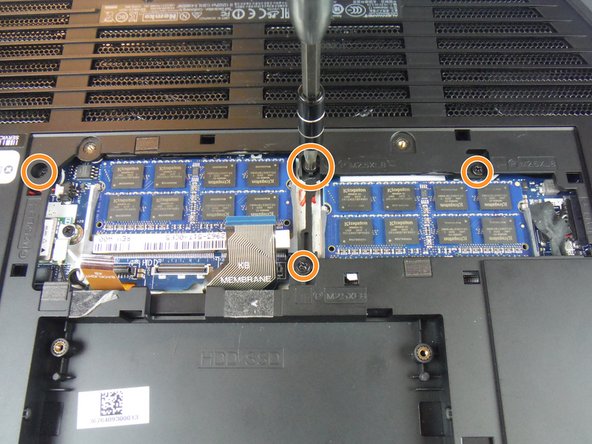
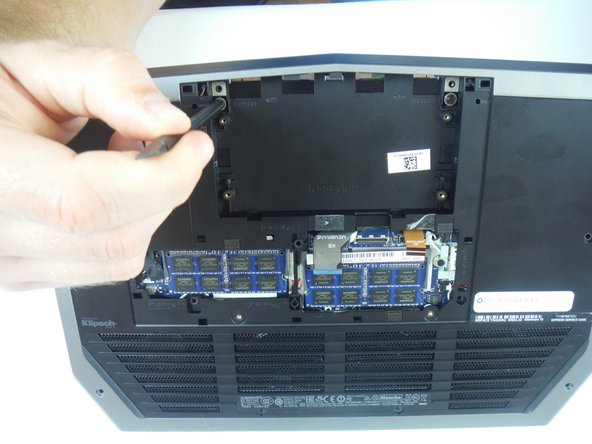
    • Remove (4) 6 mm Phillips head screws from the solid-state metal drive bracket, using a Phillips # 1 screwdriver.

  6. Dell Alienware 13 Touch pad Replacement: 6 단계, 이미지 2개 중 1개 Dell Alienware 13 Touch pad Replacement: 6 단계, 이미지 2개 중 2개
    • Grab the pull tab to pivot the solid-state drive bracket upwards. Remove the bracket from the computer base.

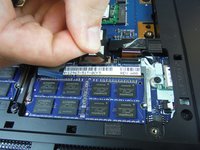
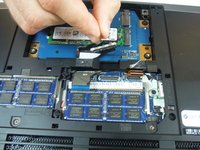
  7. Dell Alienware 13 Touch pad Replacement: 7 단계, 이미지 2개 중 1개 Dell Alienware 13 Touch pad Replacement: 7 단계, 이미지 2개 중 2개
    • Using the pull tab, disconnect the black solid-state drive cable from the system board.

  8. Dell Alienware 13 Touch pad Replacement: 8 단계, 이미지 1개 중 1개
    • Remove (2) 3 mm Phillips head screws, using a Phillips # 0 screwdriver, that connect the solid-state drive assembly to the computer base.

  9. Dell Alienware 13 Touch pad Replacement: 9 단계, 이미지 2개 중 1개 Dell Alienware 13 Touch pad Replacement: 9 단계, 이미지 2개 중 2개
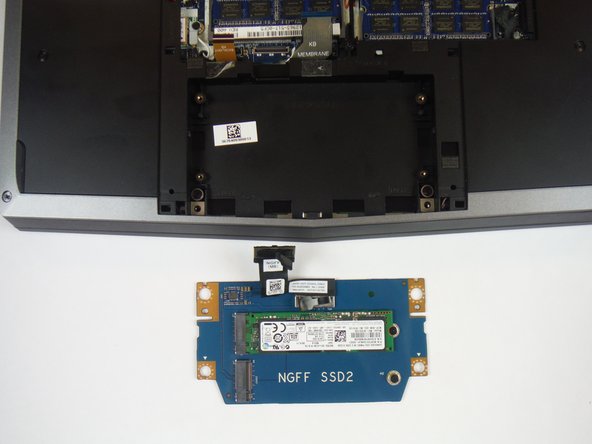
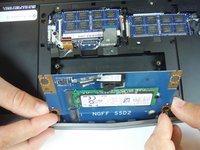
    • Lift up on the solid-state drive assembly to remove it from the computer base.

  10. Dell Alienware 13 Touch pad Replacement: 10 단계, 이미지 2개 중 1개 Dell Alienware 13 Touch pad Replacement: 10 단계, 이미지 2개 중 2개
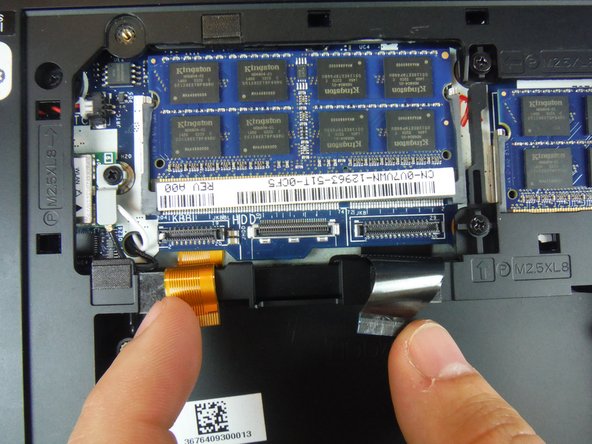
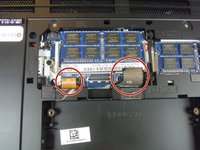
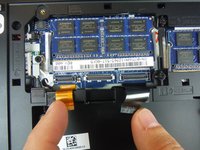
    • Locate two cables labeled, "KB Backlight" (orange) and "KB Membrane" (black). Lift up on the latches to disconnect the cables from the system board.

  11. Dell Alienware 13 Touch pad Replacement: 11 단계, 이미지 3개 중 1개 Dell Alienware 13 Touch pad Replacement: 11 단계, 이미지 3개 중 2개 Dell Alienware 13 Touch pad Replacement: 11 단계, 이미지 3개 중 3개
    • Remove (8) 9 mm Phillips head screws using a Phillips # 1 screwdriver, that secures the palm-rest assembly to the computer base.

    • Remove (4) 8 mm Phillips head screws using a Phillips # 1 screwdriver.

    • Remove (2) 7 mm Phillips head screws using a Phillips # 1 screwdriver.

  12. Dell Alienware 13 Touch pad Replacement: 12 단계, 이미지 2개 중 1개 Dell Alienware 13 Touch pad Replacement: 12 단계, 이미지 2개 중 2개
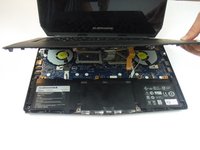
    • Lift the computer base slightly towards you and push the release tabs on the palm-rest assembly until it pops out using a spudger.

  13. Dell Alienware 13 Touch pad Replacement: 13 단계, 이미지 3개 중 1개 Dell Alienware 13 Touch pad Replacement: 13 단계, 이미지 3개 중 2개 Dell Alienware 13 Touch pad Replacement: 13 단계, 이미지 3개 중 3개
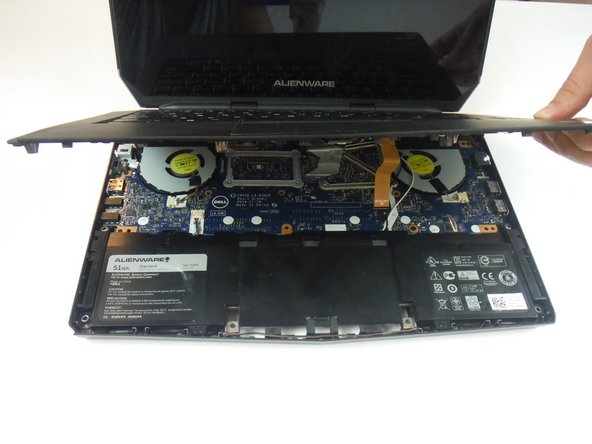
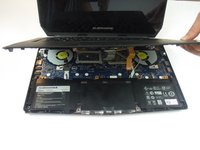
    • Turn the computer over and open the display as far as possible.

    • Using a plastic spudger, pry up along the edges of the palm-rest assembly.

    • Gently lift the palm-rest assembly.

  14. Dell Alienware 13 Touch pad Replacement: 14 단계, 이미지 3개 중 1개 Dell Alienware 13 Touch pad Replacement: 14 단계, 이미지 3개 중 2개 Dell Alienware 13 Touch pad Replacement: 14 단계, 이미지 3개 중 3개
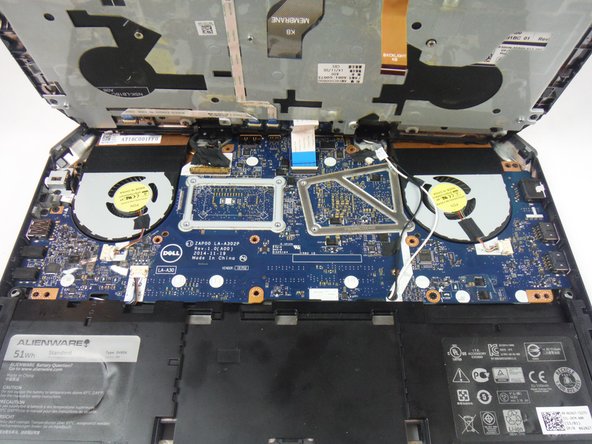
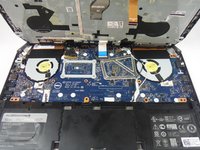
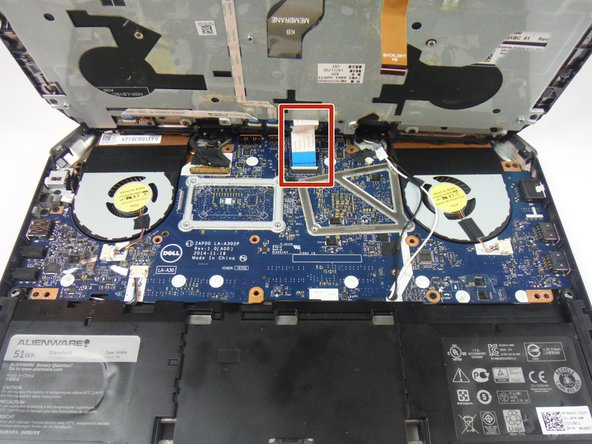
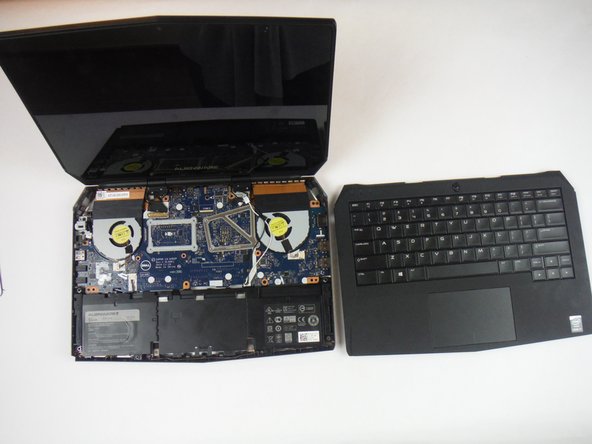
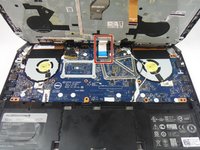
    • Lift the connector latch and disconnect the power-button board cable from the system board. Identified as a cable with a blue tab.

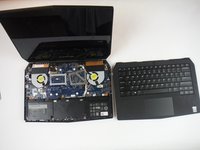
    • Lift the palm-rest assembly off the computer base.

  15. Dell Alienware 13 Touch pad Replacement: 15 단계, 이미지 2개 중 1개 Dell Alienware 13 Touch pad Replacement: 15 단계, 이미지 2개 중 2개
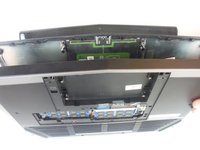
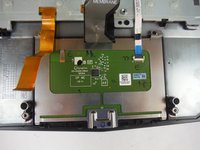
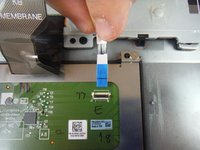
    • Disconnect the touch pad cable from the touch pad.

  16. Dell Alienware 13 Touch pad Replacement: 16 단계, 이미지 3개 중 1개 Dell Alienware 13 Touch pad Replacement: 16 단계, 이미지 3개 중 2개 Dell Alienware 13 Touch pad Replacement: 16 단계, 이미지 3개 중 3개
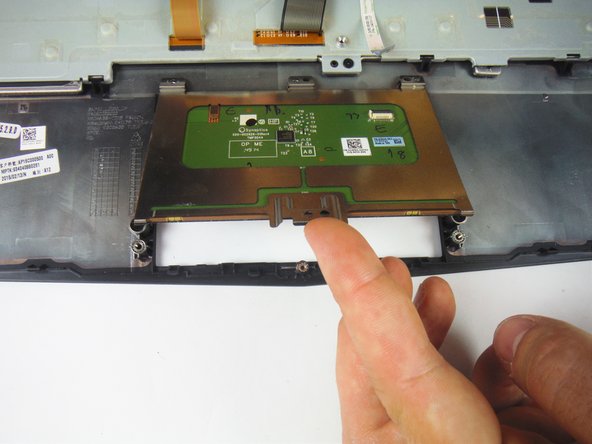
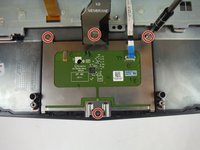
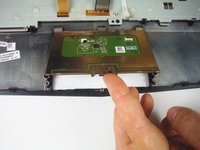
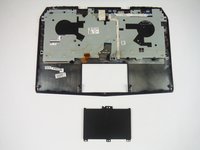
    • Remove (4) 3 mm Phillips head screws securing the touch pad to the palm rest assembly using a Phillips # 0 screwdriver.

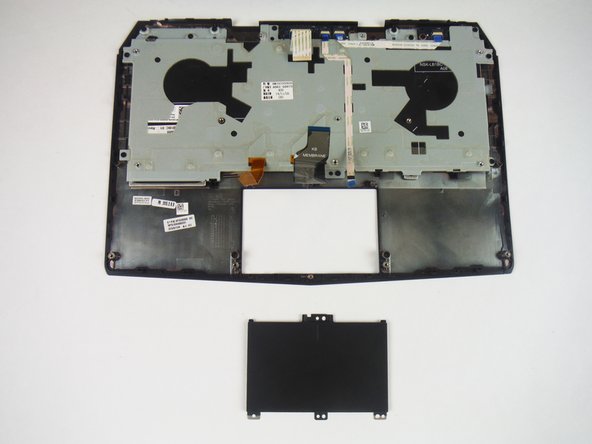
    • Lift up and remove the touch pad from the palm rest assembly.

결론

To reassemble your device, follow these instructions in reverse order.

작성자

3다른 기여자 명과 함께

Adam Russell

회원 가입일: 09/26/16

898 평판

안내서 6개를 작성함

USF Tampa, Team 14-2, Eyestone Fall 2016 USF Tampa, Team 14-2, Eyestone Fall 2016 회원

USFT-EYESTONE-F16S14G2

3 회원들

안내서 7개를 작성함

0가이드 댓글

댓글 쓰기

조회 통계:

지난 24시간: 0

지난 7일: 4

지난 30일: 14

전체 시간: 517